Blog Post

Storyline Templates
2 MIN READ

Storyline: Countdown Quiz Game

AllisonLaMotte's avatar
6 years ago

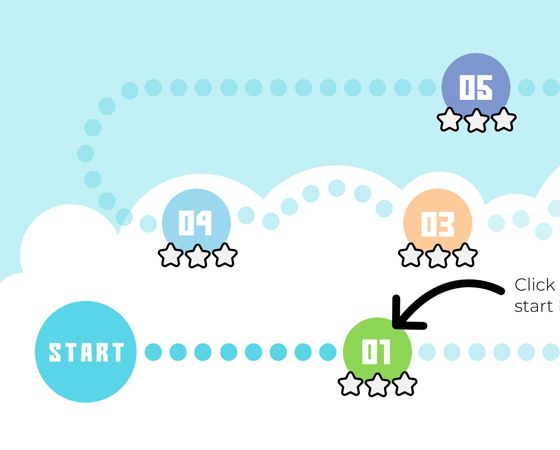
Looking for a fun way to quiz learners? This Storyline 360* template is just the thing. Here’s how it works: Each of the five levels of this gamified quiz has a question bank with 20 questions that appear in random order. When the learner starts a level, the clock begins counting down: they have one minute to answer as many questions as possible. Every correct answer buys five more seconds to answer other questions. To move on to the next level, your learners must answer 10 out of 20 questions correctly. Ten correct answers will earn them one star, 15 will earn them two, and if they get all the answers right, they’ll get three stars. This system of stars will have your learners trying again and again to beat their own score!

Try it out for yourself.

Need help customizing this template? Check out this step-by-step tutorial: How to Customize This Storyline 360 Countdown Quiz Game Template.

Curious to learn more about how I came up with this idea? Head on over to this article.

Like the fonts I used? Here’s a link to download them for free:

All the sound effects in this template are from freesound.org and licensed under Creative Commons 0—so you can use them freely. Please note that not all of the sound effects on that site are copyright free. Be sure to check the licensing rules before using additional sound effects. If you’re not finding the sound effects you need on that site, check out this list of other options. If you’ve never used sound effects in your courses before, check out this article for advice: Tips for Using Sound Effects in E-Learning.

*This template will work for folks using Storyline 360, the continuously updated version of Storyline included in Articulate 360. Want to try it out? Get a free trial of Articulate 360 right here

Published 6 years ago
Version 1.0

105 Comments

Comments have been turned off for this post
  • RachnaGhiya's avatar
    RachnaGhiya
    Community Member
    Hello Allison,
    I loved the template. I am not sure where exactly are you changing the value of the timer. Could you help me with that?
    • AllisonLaMotte's avatar
      AllisonLaMotte
      Staff
      Hi Rachna,
      It's in the slide master, that way it appears on every slide.
      • RachnaGhiya's avatar
        RachnaGhiya
        Community Member
        But I didn't find the trigger to decrease the duration of timer. So I am not sure how is that happening?
  • MarieAcree's avatar
    MarieAcree
    Community Member
    Thank you so much! My wheels are moving thinking how amazing this and what can be done with it!

    I had a question....I would like to change the question banks to 5 or 10, will that change all the calculations in the file? I notice that there is a point total. I notice the stars states change on the result layers depending on points.

    or if I lessen the level to 3 will that affect calculations?
    • AllisonLaMotte's avatar
      AllisonLaMotte
      Staff
      Hi Marie,
      Yes, you'll need to adjust the triggers:
      - for the states of the stars on the menu slide
      - for the stars on the results slides for each level
      - for the layers and the result description text box on the cumulative results slide
      Then you should be all set! Let me know if you run into any issues. I'm working a tutorial for this download but it's not quite ready yet.
      • MarieAcree's avatar
        MarieAcree
        Community Member
        I am a bit nervous to mess up the variable but will give it ago next week. I can't wait to see your tutorial. Will you post here when it is ready?
  • raos's avatar
    raos
    Community Member
    Really nice one @ Allison LaMotte. I would like to use it for language quiz. Thinking on reducing number of questions in each level to 5, have to see to change the settings. It might effect all calculations. Will try, if in doubt will post. It would be nice if you can post tutorial on this too.
  • JohnKilby's avatar
    JohnKilby
    Community Member
    Yes thanks for the work putting this together, couple of questions if I may, is ti OK to use this internally for our team & can I change out the background to suit our business, as a relatively new user if so how do I go about that. Thanks
    • AllisonLaMotte's avatar
      AllisonLaMotte
      Staff
      Hi John! Yes, you can use and adapt this however you'd like :) To swap out the background, you'll need to go into the Slide Master (in the View tab)
  • Very Cool. No uses for me currently but always interesting to see how things are put together on the back end. Thanks.