timesaver
57 TopicsUsing Design Themes to Build Course Starter Templates in E-Learning #450
Using Design Themes in E-Learning #450: Challenge | Recap Learning new features requires time and effort, even in familiar apps like PowerPoint or Storyline 360. This holds true for new users as well as seasoned e-learning pros. Now, I totally get it. If you're out there grinding as a course designer, you're always racing against the clock. Finish one course, jump to the next - it's a never-ending cycle. This type of crunch can push beginners to sidestep foundational techniques, opting for just getting things done. For the more experienced users, they've developed a set of skills and routines that work for them. There's an aspect of familiarity and comfort. They know their way around the apps so well that stepping out to explore new workflows feels tedious or unnecessary. And if there's one area that new and experienced users frequently avoid, it's design themes. What are Design Themes? Storylines like PowerPoint uses design themes to manage your course's text styles, theme colors, theme fonts, slide masters, and feedback masters. These features aren't the flashy ones making waves in marketing ads or headlining e-learning conferences. But trust me, once you get the hang of using elements like slide masters and theme fonts, you'll hit a new level of efficiency and customization. And working smartly and efficiently is what this week's challenge is all about. 🏆 Challenge of the Week This week, your challenge is to show how design themes can be used in e-learning. NOTE: This is more of a technical than a visual design challenge. I’m less concerned about your visual makeover than seeing how you leverage design theme elements to create an efficient and editable template. You can create your theme colors, fonts, and slide placeholders from scratch or modify an existing slide or template. The goal of this challenge is to show how design themes can be used to ensure consistent designs that are quickly and efficiently updated. How do I show design themes? That's a great question. Since everything is below the slide, it can be challenging to appreciate how the design themes work. Here are a few ideas for sharing examples to help others appreciate how your design theme elements were used: Share your source files. Create a before and after demo. This can be simple, like using two slides to show the default and custom theme. Include screenshots of your theme colors, theme fonts, and layouts. Create a screencast and walk through the changes you applied. Create a simple course starter template to show how your design themes carry across multiple slide types. 🧰 Resources Storyline 360: Using Design Themes Storyline 360: Using Custom Templates Storyline 360: Using Slide Masters E-Learning Challenges: Course Starters Challenges ✨ Share Your E-Learning Work Comments: Use the comments section below to link your published example and blog post. Forums: Start a new thread and share a link to your published example. Personal blog: If you have a blog, please consider writing about your challenges. We'll link to your posts so your great work gets even more exposure. Social media: If you share your demos on Twitter or LinkedIn, try using #ELHChallenge so your tweeps can follow your e-learning coolness. 🙌 Last Week’s Challenge: Before you customize what's under the hood of your e-learning slides, have a peek at how designers add emphasis animations to give life to the objects on top of the slide: Emphasis Animation Examples RECAP #449: Challenge | Recap 👋 New to the E-Learning Challenges? The weekly e-learning challenges are ongoing opportunities to learn, share, and build your e-learning portfolios. You can jump into any or all of the previous challenges anytime you want. I’ll update the recap posts to include your demos. Learn more about the challenges in this Q&A post and why and how to participate in this helpful article. 📅 Next Week’s Challenge Challenge #451(02.23): Self-promotion week! Share your e-learning portfolio to highlight your e-learning work. You can build a portfolio in Rise 360 or Storyline 360 or use your own website to showcase your work. Challenge #452 (03.01): Using AI in e-learning. I last hosted a similar challenge nine months ago, but things are evolving quickly in this area. 🚨 Contact Information Just a quick heads up – if you want your blog, website, or LinkedIn included in our recap posts, could you do me a favor and add or update those links onto your ELH profile sometime this week? I found some broken links last week when I pulled the recap together. You spend a lot of time building creative examples, and your work deserves all the attention it can get. If you make changes, please let me know in the comments below. Thanks!2.6KViews0likes39Comments13 New and Enhanced Features That Will Help You Get the Most From Articulate 360
There’s so much we’ve been working on lately that we’re thrilled to share with you. If you want to expand the e-learning experiences you can create, streamline your development processes, and get great training out fast, check out these new and upcoming features that will help you do all that and more. Create exciting and engaging e-learning Rise 360: Linked Padding Speed up your Rise 360 layout formatting with this new option to link the padding on the top and bottom of a block together. When this feature is on, you can quickly change their values at the same time. Need to adjust the top and bottom padding independently? Simply click the Unlink Padding icon. To learn more about all your block padding options, check out this post. Rise 360: Random Block Images Automatically liven up your Rise 360 designs with this enhancement. Instead of seeing the exact same photo every time you insert a block with a background image, Rise 360 now randomly selects background images on a block-by-block basis. Rise 360: Team Folders Enhancements Now working with large numbers of Rise 360 courses is even easier thanks to this set of new Team Folders features. You can quickly view just the courses you created with the Owned by Me filter. Accessing courses that have been shared with you is faster too, as they’re now automatically added to the Shared with Me folder. And if you want to fully reorganize your folders, Move Dialog allows you to move both source files and shortcuts in a jiffy. Want to know more? Check out this post. Rise 360: Women’s History Month Course Celebrate the broad spectrum of ways women have contributed to history, society, and culture with this Rise 360 real-content template. This fully built course covers the history of women’s rights in America and strategies for continuing to move gender equity and equality forward. Share it with learners right away or customize it as much as you like! For more information about this course, give this post a read Storyline 360: Emphasis Animations Grab your learners’ attention with this new selection of Storyline 360 emphasis animations. You can now add effects like pulsing, shaking, and teetering to shapes, images, buttons, characters, markers, textboxes, videos, and more. Learn more in this post. Storyline 360: Global Notes Formatting Adjusting the font color, size, style, or paragraph spacing in the Storyline 360 Notes panel is easier than ever! With this feature, you can now customize the Notes panel formatting across the entire project in one fell swoop. What a timesaver! If you’re excited to know more, check out this post. Storyline 360: Player Tooltips Help learners get to know the modern player controls in Storyline 360 with these accessible tooltips. If someone isn’t sure what a particular player button or control does, all they have to do is mouse or tab over to it to display a bite-size pop-up with more information. Find out more here. Storyline 360: Background Audio Volume Variable Fine-tune your course’s audio with this new Storyline 360 variable. With it, you can raise or drop a slide’s background audio by whatever percentage you choose—adding more precision and customization to an already helpful feature. Collaborate with team members and stakeholders Review 360: Manage Integrated Comments Seeing Review 360 comments directly in Storyline 360 and Rise 360 is a real timesaver. But what about when you need to have separate, independent reviews of the same course? Thanks to this new feature, that’s easy! With it, you’re able to see the comments for multiple Review 360 items in your authoring app workflow. That means you can create multiple copies of your course in Review 360—one for each reviewer segment—but still see everyone’s comments in your original Rise 360 or Storyline 360 file. Curious to know more? Check out our feature posts for both Storyline 360 and Rise 360. Distribute courses to all your learners Reach 360: Starter Plan If you have an Articulate 360 Teams subscription, distributing and tracking training just got easier. That’s because you can now use Reach 360 Starter to share courses with up to 300 learners per year at no additional cost. This new Reach 360 Starter access makes it easy for everyone to try out all the features of our fast, flexible, and frictionless LMS. Check out the details here. Reach 360: Manager Role Give people just the Reach 360 access they need with the new Manager role, which can invite and remove learners, assign training, and view reports for any group assigned to them. It’s perfect for when someone needs more administrative powers than with the Reporter role—but just for one or more specific groups. Need help determining which Reach 360 role is right for a particular user? This article compares the permissions for each role, making it easy to narrow down the option that best meets your needs. Wrap-Up There’s a lot here to be excited about! And since all of these new features are available right now, trying them out is as simple as opening up your Articulate 360 apps. Not only that, but there are lots more exciting features coming this year—including AI capabilities. So keep an eye on our roadmap and E-Learning Heroes to stay in the loop about all the other cool functionality we’ll be adding soon. Feeling left out because you don’t currently have an Articulate 360 subscription? Not to worry—just start a 30-day free trial to try out all these helpful features and more. You can also subscribe to our newsletter to get the latest product updates, e-learning examples, and expert advice sent directly to your inbox. If you have questions, please share them in the comments.733Views0likes0Comments10 Tips for Coping With Vague E-Learning Project Requests
The typical advice when you start a new e-learning project is to find out as much as possible about the problem you’re trying to solve, the audience you’re creating it for, and your stakeholders’ vision for the solution. And while this is a best practice for a reason, sometimes it doesn’t go as planned in the real world. Maybe new regulations require you to provide training on a topic but don’t specify much other than course length. Perhaps your only guidance is that doing anything new is better than what your company is doing now. Or you could be dealing with the problem our Articulate User Conference attendees faced in this Training Trailblazers activity—stakeholders who don’t know enough about training to understand what exactly they need. So, what should you do when you need to know a lot more about a project before you can move forward? Let’s look at some useful strategies community members suggest for digging up that information! 1. Start by outlining what you do know If you feel overwhelmed by project ambiguity, sometimes the simple act of summarizing everything shared with you so far in one document can give you a better sense of what to do next. Also, if all the project conversations and decisions up to this point have been fragmented across lots of meetings and teams, your stakeholders and subject matter experts (SMEs) may not realize how little has been settled. Rounding up the few facts you have and sharing them with those partners can make it easier for you to highlight critical project gaps. 2. Create a list of questions—and experts to answer them Another way to narrow down next steps is to list the big questions that come to mind as you consider the project. Once you’ve finished your initial list, consolidate what you want to ask, ensure you’re covering all your information gaps, and triage the items so you’re asking the most vital questions first. When you finish the list, review each question and identify the best person to answer them. Project stakeholders or SMEs are logical places to start. But also consider if there are others inside or outside your organization that could have helpful information to share. 3. Analyze the problem with the project requester One source for answers can be the person or group who first contacted you for assistance. Even if they’re not experts in the material, they may have insights into what problem they want this training to solve and what they want people to do differently after they take it. If the project requester doesn’t know the answer off the top of their head, it’s worth spending some time chatting with them to try and uncover the answer. After all, if the requester doesn’t know what performance gap the training needs to fill, you’ll be hard-pressed to make that happen. 4. Get to know your audience It’s hard to design training when you don’t know much about who you’re designing it for. Learning more about your target audience can answer lots of questions about what your project should cover and formats likely to work well for them. Not sure what information is most important to find out? This article on how to do an e-learning audience analysis can guide you along the way. Your audience is also a valuable resource when your stakeholders know the gist of what they want your training to address but are foggy on the specifics. Interviewing and surveying your audience members can fill in those content gaps and give you practical ideas for what training experiences would help them the most. Not only that, but their feedback can also point out aspects of the topic you can leave out because your audience already has them mastered. 5. Research common problems and solutions If the initial request is vague about what exactly your training should cover, try exploring the most frequent issues people have with the topic and best practices for overcoming them. That way you can uncover tried-and-true ideas for your course content. This approach may not work well for niche, company-specific content or challenges. But it’s a great starting point for more general training topics, like leadership, communication, or compliance training. 6. Dig into metrics If your stakeholders aren’t sure about the specific areas your audience is struggling with, data may paint a clearer picture for you. Performance metrics can give you direct information about learner strengths and gaps. And you can infer a lot by looking into what company goals they aren’t currently meeting. This approach also has a bonus—it gives you concrete numbers to compare pre- and post-training. That’s a handy way to show the impact of what you create. 7. Consult official documentation or regulations When designing compliance training—or any courses related to legal requirements—the regulations themselves can offer guidance on the content your project needs to cover and what behaviors need to change. While it may take some work to convert this information from legal theory to real-world application, that effort puts you in a much better position to craft learning experiences that effectively meet your compliance regulations and land well with your audience. 8. Review historic courses and related training Has this training topic been covered by your organization before? Digging into what’s been done in the past may give you inspiration for what to do in the future. Old or retired courses can point out what approaches click with your audience and which fall flat. And you may even discover that you don’t have to create your project from scratch after all, but can instead rework existing course materials to meet your new training needs. To keep your course content streamlined, try investigating related courses too. That way you can spot if there are subtopics you don’t need to touch on because they’re covered in other training your audience is taking. 9. Investigate what other organizations are doing in this space Chances are, other companies are tackling similar challenges to yours. And thankfully, we work in an industry where people tend to be generous about sharing their work. Webinars, white papers, conference sessions, podcast interviews, social media posts, and articles are some of the many places you can learn about the training approaches other organizations have used. But publicly available insights aren’t the only resources to check out. Consider reaching out to former colleagues and industry connections outside your company to chat one-on-one about what training they’ve created or seen on your topic. 10. Do a needs assessment Finally, if you’re not in an emergency time crunch, one of the best ways to get all the answers you need and more is to take a step back and do a full training needs analysis. This process helps you analyze the business problem or performance gap your stakeholders want to address and determine the best approach to help—sometimes even identifying when interventions other than training are better suited for the job. Wrap-Up Vague project requests can be stressful and confusing. But these approaches can help you cut through the ambiguity, giving you the details you need to make your e-learning a success. Want more practical tips for starting a project on the right foot? Try these articles: 6 Agenda Items for Your E-Learning Project Kickoff Meeting All About Training Needs Analysis The 7 Questions You’ll Want To Ask When Deciding What Kind of Training To Create And if you’re looking for even more ideas to make every stage of e-learning design and development easier and more effective, be sure to subscribe to our newsletter to get the latest e-learning inspiration and insights directly in your inbox. You can also find us on LinkedIn and X (formerly Twitter). And if you have questions, please share them in the comments.677Views0likes0Comments10 Most Popular Rise 360 Real-Content Templates of 2023
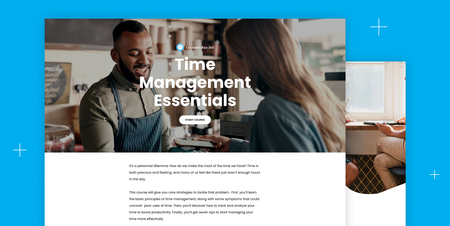
Developing high-quality, engaging content can be time-consuming. But don’t worry—with the real-content templates in Content Library 360, you can quickly deploy fully developed training full of prewritten content, instructional videos, and interactive exercises. Editing real-content template is easy too, making it a breeze to personalize your courses to fit your needs. From time management to mental health to effective meetings and more, here are the templates our customers found most valuable in 2023. 1. Time Management Essentials For the second year in a row, Time Management Essentials is the number one most popular real-content course. This crowd-pleasing course gives learners valuable tips for making the most of their time. 2. Developing a Growth Mindset Is your team feeling stuck? Want to help employees unlock their potential? Try sharing this course to help learners identify roadblocks and reignite growth. 3. Leading with Emotional Intelligence Explore empathy, social skills, and other essential soft skills for leadership in this course. 4. The Basics of Managing Stress Give your learners valuable information about the connection between the body and stress and actionable tips for how to manage it. 5. 5-Day Challenge to Improve Your Mental Health Challenge your learners to improve their mental health in just five days with interactive exercises, reflection questions, and more. 6. Workplace Communication Basics Help your team communicate more effectively with the verbal and written strategies in this course. 7. Resolving Conflict with Coworkers Conflict is inevitable, but it doesn’t have to slow your team down. Use this course to teach your team how to work through common issues. 8. Communication Fundamentals Help your team understand why communication matters and learn actionable tips and tricks to improve their skills. 9. A Guide to Effective Meetings Use this course to establish a culture of productive, energetic meetings within your team. 10. Soliciting and Responding to Customer Feedback Help your employees gather and respond expertly to customer feedback with this story-driven course. Wrap-Up Ready to try one of these real-content templates? Or curious to see what other templates are available? Log in to your Rise 360 dashboard, click +Create New, and click Course. This will open a dashboard where you can browse all templates currently available for subscribers. Have an idea for a real-content template? Let us know in the comments! Want to try one of these real-content templates, but don’t have Articulate 360? Start a free 30-day trial. And subscribe to our newsletter to get the latest product updates, e-learning examples, and expert advice sent directly to your inbox. If you have questions, please share them in the comments.2.4KViews0likes4Comments10 Most Popular Rise 360 Placeholder Content Templates of 2023
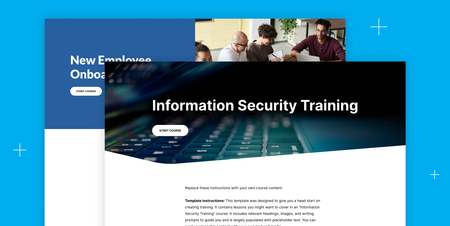
It’s the end of the year—and time to share our most popular Rise 360 placeholder content templates of 2023. If you’ve never used our templates before, this list will give you a peek into what you’re missing. Professionally researched and designed, Rise 360 templates provide you with a course framework filled with prompts, content ideas, and sample images. Keep what you want—and customize the rest—to get new courses up and running faster. Or, to use the words of a community member: But wait, there’s more! We recently updated all ten of these most-loved templates with new content, design, and accessibility enhancements—so they’re better than ever. 🎉🎉🎉 So, what are you waiting for? Preview the top ten templates below—or learn how to add them to your Rise 360 dashboard for customization at the end of this post. 1. Information Security Training Grab this template to quickly provide your learners with an overview of information security and walk them through your organization’s unique security measures. 2. New Employee Onboarding Use this template to create an onboarding course that employees can also save as a handy reference guide. 3. New Manager Training Help new managers grow their leadership, relationship-building, and development skills by personalizing this template. 4. Providing Exceptional Customer Service Create a service guide tailored to your unique products and customer profiles in minutes with this professionally designed template. 5. Phishing 101 Use this template to build a course that’ll help learners spot, avoid, and report phishing. 6. Protecting Patient Privacy Add your organization’s protocols for protecting patient privacy and complying with HIPAA laws in this must-have template. 7. Understanding Your Health Care Benefits Demystify health care for your team by outlining your plans, benefits, and eligibility in this template. 8. Fostering Diversity, Inclusion, and Belonging Quickly roll out a course to bring team members up to speed on diversity and inclusion topics like culture-building, unconscious bias, and allyship with this helpful template. There’s even a section dedicated to highlighting your organization’s policies, so it’s quick and easy to customize to fit your needs. 9. Work-Related Travel and Expense Policy Fill in this template to save your HR team time answering common employee questions about work-related travel expenses. 10. Understanding Our Workplace Wellness Programs Customize this template with your policies and programs to ensure your team understands your commitment to wellness. Wrap-Up: How to Use and Customize Templates Rise 360 placeholder content templates offer the best of both worlds: Jump-start the course creation process and avoid getting stuck in “blank page” syndrome—while still maintaining total control over customization. Want to use and customize one or more of these templates? If you’re an Articulate 360 subscriber or trialer, you can access and edit all the templates linked throughout this post directly from your Rise 360 dashboard. Simply click + Create New, choose Course, and search for and select the template you want to use. Want to explore more templates? You can find a complete list of placeholder content templates here. If you don’t have access to Rise 360, sign up for a free 30-day trial of Articulate 360. And subscribe to our newsletter to stay up-to-date on the latest e-learning examples. Here’s to working smarter—not harder—this new year!887Views0likes0Comments10 Most Popular E-Learning Heroes Articles of 2023
As we wrap up 2023 and look ahead to all the things to come in 2024, now is the perfect time to catch up on the most popular content shared in the E-Learning Heroes Community in 2023. To save you time, we’ve rounded up the best of the best for your review. Check them out: 4 AI Basics Every E-Learning Creator Needs To Know in 2023. Get up to speed on artificial intelligence with this quick introductory article. Introducing the Articulate Beta Program. Learn about this new opportunity to share your feedback on our latest features. 4 Impactful E-Learning Trends for 2023. See how you can shape the future of learning by following these strategies in your workplace. 8 Business Use Cases for Microlearning. Discover how to leverage short-form courses for these common workplace situations (and get creating faster with customizable examples!). 4 Ways To Choose an E-Learning Color Palette. Check out these tips for curating the perfect hues for your next project. How To Write Alt Text for the 4 Most Common Types of Images in E-Learning. Explore alternative text best practices for handling the most common image types in e-learning. 6 Ways the E-Learning Heroes Community Makes Your Job Easier. Learn more about all the resources, discussions, articles, and connections this site offers to help you work faster and create more innovative projects. 4 Advantages of Microlearning. Discover the main reasons e-learning designers and learners are loving this bite-size approach to training. 3 Ways To Boost Your Articulate 360 Skills. Whether you’re a total newbie or you’ve dabbled in our apps before, these tips will help you get to the next level. 3 Things That Can Make or Break Your E-Learning Design. Craft beautiful and effective online training from the start with these helpful ideas. We hope you find these articles helpful! If we missed any other E-Learning Heroes articles you liked in 2023, comment below and let us know. Subscribe to our newsletter to get the latest e-learning inspiration and insights directly in your inbox. You can also find us on LinkedIn and X (formerly Twitter). And if you have questions, please share them in the comments.334Views0likes0CommentsExpand Your Possibilities With These New Articulate 360 Features
Articulate 360 is constantly evolving to better meet your needs. Our latest collection of features is full of exciting new ways for you to design, develop, and share your e-learning courses. From new resources to enhance the learning experiences you build, expanded options for distributing courses, and one of our most requested enhancements to Storyline 360, there’s so much that can make your work easier and more effective! Check out this video for some of the highlights. And keep reading to dig in to the details. Create exciting and engaging e-learning 64-bit Storyline If you create large, media-rich courses, you’ll experience a noticeably speedier authoring experience with this release. The new 64-bit Storyline 360 takes full advantage of the power of modern computers, giving you increased stability and faster performance—even with your most complex projects. Learn more about this highly requested feature here: Storyline 360: 64-bit App. Improved Text-to-Speech Voice Quality The more natural text-to-speech voices sound, the less likely they are to distract from your course content. That’s why we’ve upgraded many of the voices included in Storyline 360 using new neural voice technology. They sound better than ever, and they’re still incredibly easy to use! Check out this link for the current list of neural voices in Storyline 360. Background Audio Triggers Building on the Storyline 360 background audio feature from earlier this year, this update gives you even more options for controlling the experience. With it, you can use triggers to play, pause, or stop the playlist on each slide. So you and your learners have more ways to customize course audio. Find out more here. Trans-inclusivity Microlearning Need to get much-needed training out fast, but don’t have the time research, write, and build it yourself? Our library of Rise 360 real content templates has you covered! Our latest addition—4 Ways To Build a Trans-inclusive Workplace—helps define key terms and gives learners concrete steps they can take to make their organization more inclusive. We’ve taken care of the hard work of researching and building the experience. You can either launch it to your learners exactly as written or tweak it to fit your company’s needs. It’s your call! New Illustrated Characters Finding just the right character can help your courses connect with learners and make scenarios ring true. That’s why we’re excited to add three new illustrated characters wearing casual outfits to Content Library 360: Shanae, Wren, and Don. Template Accessibility Updates We’re always looking for ways to make it easier to build accessible e-learning—and this latest update is a real timesaver! We’ve reworked many of our Storyline 360 and Rise 360 templates so they’re even more accessible right out of the box. The former now has updates to the focus order and video controls. And the most popular templates for the latter feature the removal of italicized content, as well as broader improvements to their content and design. With the templates taking on more work for you, it’s faster than ever to create courses that all learners can access. Collaborate with team members and stakeholders Share Link Permissions Want more control over who can and can’t see an item in Review 360? You’ll love this new feature. With it, you’ll be able to make a Review 360 item invitation-only—so it’s only visible to the specific reviewers you’ve chosen. Distribute courses to all your learners Custom Certificates From branding your course completion certificates to including important accreditation requirements on them, this feature is here to help. With our simple certificate editor, you can include company information like logos and learner performance details like course duration, quiz scores, and more. Plus, you can save time by creating a library of certificate templates to use in any course in Reach 360. SSO for Learners Make taking training in Reach 360 even simpler with Single Sign-On (SSO). Since this method allows people to securely access multiple applications with just one set of log-in credentials, your learners don’t have to remember yet another password to check out all the training you share with them in Reach 360. Learn more about how to use this feature to manage groups and users here. Microsoft Teams Integration - COMING SOON Weave training into the flow of work with this upcoming Reach 360 integration. With it, learners can get due date and enrollment notifications and also see previews of training right in Microsoft Teams. And by including that information in a tool they already use for work all the time, you’ll make it easier for them to stay on top of training deadlines and explore what courses you’re offering. Reporter Role Want to streamline reporting for different groups in Reach 360? Try assigning users to the new reporting role. With this feature, you can grant someone access to the analytics from just one or more specific groups, so they don’t have to wade through the training data for all your learners to get access to the targeted information they’re looking for. Wrap-Up If you want to get your hands on everything these new features have to offer, you’ll be glad to know most of them are available right now! Just log in to your account, make sure you’re running the latest version of Storyline 360, and you’ll be all set. And keep an eye out for the features labeled “coming soon”; they’ll be available to you in no time at all. But not to worry if you don’t currently have an Articulate 360 subscription. Just start a 30-day free trial to try out all these helpful features and more. And you can also subscribe to our newsletter to get the latest product updates, e-learning examples, and expert advice sent directly to your inbox. If you have questions, please share them in the comments.2.4KViews0likes39Comments3 Steps for Creating Your First Rise 360 Course
Everything you need to create modern, engaging e-learning is at your fingertips with Rise 360. Not sure where to start? This handy guide will help you create your very first microlearning or full-length course in three easy steps. Let’s get started! 1. Choose the type of learning experience you want to create: microlearning or a full-length course Start by choosing whether you want microlearning or a full-length course. Your choice will depend on the content you want to share with learners. Microlearning courses aren’t just short courses. They’re bite-size pieces of content focused on a single learning objective. They’re approachable, bingeable, and easy for users to review and apply. Microlearning courses are also great for learners on the go because they’re easy to consume on phones or tablets. Full-length courses give you the opportunity to go in-depth on a certain topic. Made up of multiple lessons and knowledge checks, courses may include multiple learning objectives and, as a result, take longer for the learner to experience. Learners almost always use a computer to access full-length courses. So how do you know which format to use for your course? When choosing between the two, ask yourself: How many learning objectives do I have? If you only have one, a microlearning course is the clear option. If you have more than one, could each one stand alone or are they interdependent? If they could be split up, you could create a series of microlearning courses. If they’re interdependent, then a full-length course is the best option. Once you’ve made your decision, go to your Rise 360 dashboard. Click Create New and choose Course or Microlearning. 2. Search for a template or start from scratch It's always a good idea to look at templates and see if there’s already material you can use or adapt to your learning objectives. Articulate offers two types of templates: placeholder and real content: Placeholder templates include guidance and ideas to help you create a fully customized course. Real content templates have pre-written content you can adapt to fit your learning objectives. After choosing the type of e-learning you’d like to develop, you’ll see all available templates. Select Preview to explore a template before you choose it. You can use the search bar to find templates by keyword. And for full-length courses, you can use the left-hand panel to explore templates by category. When you’re ready to use a template, click Select This Course. If you don’t find exactly what you need, don’t worry: You can always customize a template or even start from scratch. Just click +Blank Course/Microlearning to begin. 3. Add your content Once you’ve chosen a template or started from scratch, you can add in your content using blocks. Blocks give you different ways of formatting your content in a lesson or microlesson. There are many types of blocks: text blocks, image blocks, interactive blocks, knowledge check blocks, and more. You can use different block types to make your content unique and engaging. Clicking All Blocks or the + sign in your lesson or microlesson will open a list of block types in a left-hand panel. If you change your mind about the type of block, you can easily choose a different block from the same category by clicking the dropdown menu in the top-left corner of the block. For example, the paragraph block gives you the option of reformatting your content into different types of paragraphs, headings, statements, and a note. Not sure how to pick the right block? Think about what your learner needs. For example, if you have a lot of content that may be overwhelming as a text block, consider using a tabs block to break up the text. Or, if you want learners to compare and contrast different chunks of information, consider using an accordion or flashcard block. As the course author, this is your opportunity to get creative! Here are some articles for inspiration: 6 Rise 360 Blocks to Use Instead of Bullet Points 7 Creative Ways to Use Images in Rise 360 Courses 6 Rise 360 Block Types to Use to Compare and Contrast Concepts 5 Different Ways to Create Scenarios in Rise 360 3 Creative Ways to Incorporate Your Logo into a Rise 360 Course More Resources Creating microlearning or full-length courses in Rise 360 is superfast and easy. In just three steps, you’ve already started putting together an elegant course customized for your learners. And when you’re done drafting your course, you can share and review your content with stakeholders easily thanks to Review 360. Here’s more information on how to use Review 360: Getting Started with Review 360 Rise 360: Publish Content to Review 360 Your Most Asked Review 360 Questions Once they’ve been approved, you can easily publish from your Articulate 360 dashboard. Here are some guides to get you started: Rise 360: Share Content with Learners How to Share E-Learning Courses with Learners Want to try creating your first course in Rise 360, but don’t have Articulate 360? Start a free 30-day trial. And subscribe to our newsletter to stay up-to-date on the latest e-learning examples.3.2KViews0likes3CommentsGet Two Free, Updated Courses to Help Your Organization Celebrate Pride Month
Did you know that workplaces that cultivate LGBTQ+ inclusivity have happier employees, regardless of their sexual orientation or gender identity? Or that LGBTQ+-friendly employers boast higher employee retention rates and even earn more revenue? As a learning and development professional, you can boost your organization’s LGBTQ+ inclusion efforts by providing substantial, engaging learning opportunities for Pride Month. If that sounds like a lot of research and course development time you don’t have right now, relax. We’ve updated Articulate’s professionally designed and researched Pride courses for 2023, and they’re ready for you to use right now, free of charge. Articulate 360 subscribers and trialers can even customize the content. Keep reading to learn more about the courses and find out how to make them your own. What Courses Are Available? “Power and Pride: The Origins of Pride Month.” Learners can discover how the events at the Stonewall Inn in June 1969 catalyzed change and accelerated a movement for LGBTQ+ rights that has spread worldwide. The course also introduces learners to key individuals, organizations, and moments in the ongoing struggle—emphasizing that activism, celebration, and equal rights remain central to Pride more than 50 years later. “Beyond Pride: Year-Round Action.” Learning about and taking action to support equality doesn’t stop when June ends. This course offers practical, actionable steps for both organizations and individuals to uplift the LGBTQ+ community every day. What’s New? For 2023, we updated Power and Pride’s decade-by-decade timeline to reflect some of the latest developments in LGBTQ+ rights, including the passage of the Respect for Marriage Act. We also added new, deeper context around pivotal events and figures of past decades. Fresh resources around language are also available in the updated course. In the 2023 updates for Beyond Pride, you’ll find the latest available facts and figures around LGBTQ+ representation in the workplace. And new links out to practical resources such as a gender-neutral bathroom sign can help learners take action to support inclusivity no matter where they are. Wrap-Up Pride Month is the perfect time to share learning opportunities that demonstrate your organization’s commitment to the LGBTQ+ community. And since these beautifully illustrated original courses are ready to go, why not share them with your learners? As we mentioned above, you can either use them as is or—if you’re an Articulate 360 subscriber or trialer—you can easily adapt them to fit your needs. Simply navigate to your Rise 360 dashboard, click Create New, choose Course, select Diversity and Inclusion, and choose the course you want from the list. Want to customize these but don’t have a subscription yet? Start a free 30-day trial. And if you need other ready-to-go courses for your diversity, equity, and inclusion efforts, there are plenty of other options to choose from, including: Black History Month Diversity Basics: Foundations Diversity Basics: Taking Action Diversity, Inclusion, and Belonging Once again, these are all available directly in Rise 360. Simply follow the instructions above to view and use them. And remember to subscribe to our newsletter to stay up-to-date on the latest real course templates, product updates, e-learning examples, and expert advice directly in your inbox. If you have questions, please share them in the comments.345Views0likes4Comments4 Rise 360 Content Templates That Can Get Your Cybersecurity Training Ready in a Jiffy
When companies need new digital security training, they often need it fast. Maybe a security breach revealed knowledge gaps that need to be addressed to prevent future issues. Or perhaps legal requirements changed, making new cybersecurity training an immediate priority. Whatever the reason, the faster the training gets out, the more secure your company will be. But that doesn’t mean you need to go into crunch mode to get this cybersecurity e-learning out in time. Just use one of the real content templates included in Rise 360! Whether you publish these fully built courses as is, or customize them by adding new content or lessons, you’ll be able to turn around training requests in no time. So, what digital security challenges can these content templates help solve? Let’s check them out. Ensuring Confidential Data Is Kept Safe If learners need to brush up on privacy and information security, share the How to Protect Your Data course. It covers digital security strategies they can use right now, including password creation tips, how multifactor authentication can add another layer of safety, and what they can do to keep devices and facilities secure. And to be sure learners realize how vulnerable their data is, this course also includes stories that highlight the common ways people accidentally expose private information. Recognizing Phishing Scams Many online scams and cyberattacks are preventable—if you know what signs to look for. The course How to Protect Yourself Against Phishing Attacks coaches learners on how to spot phishing red flags fast. It also includes advice on protecting against malware. And real-world scenarios sprinkled throughout the course give learners a clearer picture of the specific scams they may encounter. Keeping Information Safe When Online Help learners ensure their private information stays that way with the Online Security Fundamentals course. They’ll explore advice on securely browsing the internet, using public wi-fi safely, and protecting sensitive information on social media. And if a security incident happens, this course also shares advice on what learners can do to mitigate the fallout. Protecting Yourself from Social Engineering Challenge your learners’ assumptions about hackers with the What Is Social Engineering? course. It covers the surprisingly low-tech method many criminals use to get access to sensitive data, systems, and locations. Learners investigate how different social engineering techniques work with the help of scenarios and examples. Then they examine simple security tips for identifying and avoiding potential attacks. Check Out These Courses Yourself If you already have an Articulate 360 subscription, getting these courses ready to share with learners is easy. Just go to the Rise 360 dashboard, click the New Course button, and then type the course title in the search bar at the top of the screen. Wondering how else you can get great courses out fast with Rise 360’s real and placeholder content? Give these related articles a read. How to Mix and Match Real Content Lesson Templates to Create a Rise 360 Course in Minutes How I Created an Information Security Course in No Time Flat with Rise 360 Templates 3 New Ways to Create Courses Fast in Rise 360 Curious about the possibilities but don’t have Articulate 360 just yet? Start a free 30-day trial, and come back to E-Learning Heroes regularly for more helpful advice on everything related to e-learning. And if you have any questions, be sure to share them in the comments.538Views0likes0Comments