engage 360
83 TopicsEngage 360 User Guide
We're ending support for Studio 360, Replay 360, and Peek 360 on December 31, 2026. Learn more. Engage 360: Creating a New Interaction Engage 360: Setting Your Interaction Size Engage 360: Tips for Managing Project Files Working with the Interface Engage 360: Working with the Interaction Title Engage 360: Working with the Introduction and Summary Engage 360: Using Keyboard Shortcuts Engage 360: Setting Engage Options Understanding Interaction Types Engage 360: Accordion Interactions Engage 360: Bulletin Board Interactions Engage 360: Checklist Interactions Engage 360: Circle Diagram Interactions Engage 360: Conversation Interactions Engage 360: FAQ Interactions Engage 360: Folder Interactions Engage 360: Glossary Interactions Engage 360: Guided Image Interactions Engage 360: Image Zoom Interactions Engage 360: Labeled Graphic Interactions Engage 360: Labeled Panel Interactions Engage 360: Media Panel Interactions Engage 360: Media Tour Interactions Engage 360: Process Interactions Engage 360: Pyramid Interactions Engage 360: Quick Choice Interactions Engage 360: Tabbed Image Interactions Engage 360: Tab Interactions Engage 360: Timeline Interactions Working with Text Engage 360: Adding and Formatting Text Engage 360: Adding Symbols Engage 360: Adding Hyperlinks Engage 360: Replacing Fonts Engage 360: Using the Spell Checker Engage 360: Translating Interactions Working with Audio Engage 360: Adding Audio Engage 360: Editing Audio Adding Media Engage 360: Adding Content Library 360 Media Engage 360: Adding Content Library 360 Characters Engage 360: Adding Pictures Engage 360: Adding Videos Engage 360: Adjusting Video Properties Engage 360: Editing Videos Engage 360: Adding Alternate Text to Media Setting Interaction Properties Engage 360: Setting Playback Mode Engage 360: Adjusting Interaction-Specific Properties Engage 360: Working with Theme Colors Engage 360: Choosing Animation Style, Media Border Style, Sounds, and Fonts Engage 360: Changing Quality Settings Customizing the Player Engage 360: Working with the Player Engage 360: Choosing Player Features Engage 360: Changing the Player Colors, Font, and Font Size Engage 360: Customizing the Text Labels Engage 360: Changing the Browser Settings and Player Size Engage 360: Changing the Resume Behavior Engage 360: Enabling Right-to-Left Language Support Engage 360: Saving and Switching Players Engage 360: Restricting Which Mobile Device Orientations Learners Can Use Previewing and Publishing an Interaction Engage 360: Previewing an Interaction Engage 360: Publishing an Interaction to Presenter 360 Engage 360: Publishing a Standalone Interaction to Review 360 Engage 360: Publishing a Standalone Interaction for Web Distribution Engage 360: Publishing a Standalone Interaction for LMS Distribution Engage 360: Publishing an Interaction to Microsoft Word Engage 360: Publishing an Interaction for Mobile Devices1.8KViews0likes0CommentsGetting Started with Engage 360
We're ending support for Studio 360, Replay 360, and Peek 360 on December 31, 2026. Learn more. This series of tutorials will get you up and running quickly with Engage 360. First, watch this overview, then dive into the tutorials and practice activities below. Engage 360: Creating Your First Interaction Engage 360: Adding and Editing Content Engage 360: Working with Interaction Properties Engage 360: Customizing the Interaction Player Engage 360: Previewing and Publishing an Interaction742Views0likes0CommentsStudio 360 User Guide
We're ending support for Studio 360, Replay 360, and Peek 360 on December 31, 2026. Learn more. New to Studio 360? Visit Getting Started with Studio 360. Explore the user guides below to learn how to transform PowerPoint slides into mobile and online courses with Presenter 360, create dynamic quizzes and surveys with Quizmaker 360, and dazzle learners with media-rich interactions in Engage 360. Presenter 360 User Guide Quizmaker 360 User Guide Engage 360 User Guide2.7KViews0likes0CommentsGetting Started with Studio 360
We're ending support for Studio 360, Replay 360, and Peek 360 on December 31, 2026. Learn more. This series of tutorials will get you up and running quickly with Studio 360, which includes Presenter 360, Quizmaker 360, and Engage 360. First, watch each overview video, then dive into the tutorials and practice activities that follow. Presenter 360 Presenter 360: Building a Course with Content Library 360 Slide Templates Presenter 360: Recording Narration and Syncing Animations Presenter 360: Importing and Exporting Audio Presenter 360: Annotating Slide Content Presenter 360: Adding Quizzes and Interactions Presenter 360: Adding Content Library 360 Characters Presenter 360: Adding Videos and Web Objects Presenter 360: Adding Interactivity with Hyperlinks and Branching Presenter 360: Customizing the Course Player Presenter 360: Previewing and Publishing a Course Quizmaker 360 Quizmaker 360: Creating a Quiz Quickly in Form View Quizmaker 360: Designing Quiz Questions in Slide View Quizmaker 360: Building Freeform Quiz Questions Quizmaker 360: Editing the Quiz Result Slide Quizmaker 360: Organizing and Randomizing Quiz Questions Quizmaker 360: Customizing the Quiz Player Quizmaker 360: Previewing and Publishing a Quiz Engage 360 Engage 360: Creating Your First Interaction Engage 360: Adding and Editing Content Engage 360: Working with Interaction Properties Engage 360: Customizing the Interaction Player Engage 360: Previewing and Publishing an Interaction2.4KViews0likes0CommentsStoryline 360: Importing Engage Interactions
Storyline 360 offers powerful features for creating interactive content. You can enhance your courses by importing existing Engage interactions into Storyline 360. Preparing to Import Interactions Importing Interactions Editing Interactions Using Right-Click Options for Interactions Deleting Interactions Preparing to Import Interactions Before importing Engage interactions into Storyline 360, consider these prerequisites and implications: To import interactions into Storyline 360, you must have Engage ‘09, Engage '13, or Engage 360 installed and activated with a valid serial number or subscription. (Engage doesn't need to be activated if you're in the free trial period.) When you import an interaction into Storyline 360, a copy of the original interaction (*.intr) file is stored in your project file. As a result, you can transfer your project to another computer or another developer and still edit the interaction (as long as Engage is installed and activated). Engage interactions are imported into Storyline 360 as web objects, meaning they'll play as standalone interactions that are simply embedded in your course. We recommend disabling the resume prompt in your interactions. Otherwise, learners will see a resume prompt when they revisit interaction slides in your course. To disable the resume prompt in Engage, visit these user guides: Engage ‘09, Engage ‘13, Engage 360. Importing Interactions First, do any of the following: Click Import on the Storyline 360 start screen and select Import Engage. Go to the File tab on the ribbon, scroll to Import, and click Engage. Go to the Home tab on the ribbon, click New Slide, scroll to Import, and choose Engage. Go to the Slides tab on the ribbon, click New Slide, and choose Engage. Browse to the Engage interaction you want to import and click Open. If you opened the wrong interaction or want to select a different one, click the ellipsis button (...) in the upper right corner to browse for another file. Use the Insert into scene drop-down list at the bottom of the window to choose where the interaction should appear in your course. You can insert it into a new scene, which is the default option, or the current scene. If you choose a new scene, use the Scene field to give it a name. Click Import to complete the process. Editing Interactions To edit an Engage interaction in Storyline 360, select its placeholder, then use the Options tab on the ribbon to adjust any of the following properties. Open Open the interaction in your default web browser. Export Interaction Export the interaction file for editing in Engage. Replace Interaction Replace the current interaction file with a different one. Load Automatically The Load automatically box is checked by default. To load interactions when clicked, uncheck that box. Display in New Browser Interactions are displayed in the slide by default. To display interactions in a new browser window, check that box. Window Size When you choose to show your interaction in a new browser window (details above), you can specify a size for the new window. To make this option active, navigate to a different slide and then revisit the slide with the interaction. Hide Browser Controls When you display the interaction in a new browser window (details above), you can show or hide browser controls in the new window. This option is grayed out if the interaction isn't set to display in a new browser window. Using Right-Click Options for Interactions Right-click an Engage interaction placeholder and you'll find several more options for working with the interaction: Web Object > Edit This opens the Edit Web Object window, which lets you adjust some of the properties described in the previous section, such as where the interaction displays and when it plays. Tip: Don't change the file path in the Address field. Web Object > Open This plays the interaction in your default web browser. Preview This plays the interaction on the slide. Click anywhere outside the interaction placeholder to end the preview Tip: You can also double-click the interaction placeholder to preview it. Reset Picture Your interaction placeholder will automatically use the first frame of the interaction as its placeholder image. If you want to remove the placeholder image, select Reset Picture. After resetting (removing) the placeholder image, you can choose another placeholder image by right-clicking the interaction again and selecting Change Picture. This is especially useful if you've configured the interaction to play only when learners click it. The image you select will be visible until they click it. Rename This lets you change the default name of the interaction placeholder (Engage Interaction 1, Engage Interaction 2, etc.) in Storyline 360. Another way to rename objects is to use the timeline. Tip: Changing the name of the interaction placeholder doesn't affect the title of the interaction in the published course. Size and Position Use this option to specify an exact size and position for the interaction placeholder. Learn more. Deleting Interactions To delete an Engage interaction from your story, just select the interaction placeholder and press the Delete key on your keyboard.1.3KViews1like0CommentsEngage 360: Adding Content Library 360 Media
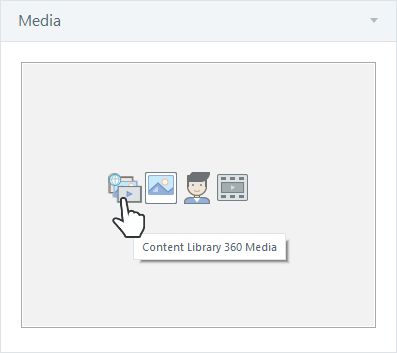
Find the perfect photos, illustrations, and videos for your interactions. Choose from 22+ million Content Library 360 assets that you can access right from Engage 360. All assets are available to use in your interaction for no additional charge. Adding Content Library 360 Media to Your Interaction Setting Media Properties Swapping Out Assets Adding Content Library 360 Media to Your Interaction Select the step in your interaction where you want to add a photo, illustration, or video. Then click the Content Library 360 Media icon in the media panel. When the media browser opens, use the drop-down list in the upper right corner to select the type of media you’re looking for: Photos, Illustrations, or Videos. Then type a search term in the field at the top of the window and press Enter. (Tip: The browser remembers your last search term during the current session.) Zoom in and out by using the zoom slider in the lower left corner or by holding down the Ctrl key on your keyboard and scrolling your mouse wheel. If you’re browsing through videos, you can preview them before adding them to your interaction. Just click the Preview button that appears when your mouse hovers over a video thumbnail. Select the asset you want to use and click Insert to add it your interaction. Setting Media Properties After adding a Content Library 360 photo, illustration, or video to your interaction, you can customize its properties, such as position, size, and alternate text. These properties appear below your media (except in media tour interactions). Property Applies To Description Position Photos Illustrations Videos Choose where you want the asset to display in your published interaction (top, bottom, left, or right). Size Photos Illustrations Videos Choose either Automatic or Custom. If you choose Automatic (the default option), Engage will adjust the size of the asset so it fits in the allotted space in your published interaction. If you choose Custom, enter the width and height in pixels. Mark the Lock Aspect Ratio box to keep the asset from being distorted when you adjust its size. Zoom Image Photos Illustrations This option adds a magnifying glass icon to the image in your published output. When learners click the image, it'll zoom to a larger version—either in the current window or in a separate window, depending on your selection. Tip: An image will only zoom when its original size is larger than the allotted space in your published interaction. In other words, if an image has to be scaled down to fit in your interaction, it can be zoomed. If an image is small enough to fit in your interaction without scaling, it can’t be zoomed. Include Playbar Videos Mark this box to add player controls to the video so learners can play, pause, rewind, and fast-forward. When you include a playbar, you also have the option to automatically start the video or wait for learners to click the play button. Do not compress video at publish Videos Mark this box if you don’t want the video to be compressed in your published interaction. Video quality may be higher, but the published output will also be larger. Uncheck the box to compress the video in your published interaction. It’ll be optimized for web playback, resulting in smaller file sizes. This is especially helpful for learners with slow internet connections. This property is available for MP4 videos created with baseline, main, or high profiles. If it’s grayed out, it means the video is another file type or profile, in which case the video will be compressed in your published interaction. Alternate Text Photos Illustrations Videos Enter a brief description of the photo, illustration, or video. Screen readers will read the description to your learners. Download our free accessibility e-book for tips on writing good alt text. Swapping Out Assets You can quickly swap out one Content Library 360 asset for another. Some properties, such as position and zoom, will remain the same, while others will reset. Click the blue, hyperlinked text below your media, as shown below. When the media browser opens, choose a media type, enter a search term, and press Enter. Select the asset you want to use and click Insert to add it to your interaction. You can replace a Content Library 360 asset with a file from your computer or a Content Library 360 character. Click the red X in the media panel to remove the original asset, and then choose a different media icon: picture, character, or video. And you can edit a Content Library 360 video by clicking the Edit Video icon in the media panel. Learn more.203Views0likes0CommentsEngage 360: Adding Media from Content Library 360
Content Library 360 has more than 100,000 combinations of photographic and illustrated characters, expressions, and poses plus 22+ million high-resolution photos, illustrations, and videos. You can access them right from Enage 360, and they’re all available to use in your interaction for no additional charge. Here's how. Engage 360: Adding Content Library 360 Media Engage 360: Adding Content Library 360 Characters196Views0likes0CommentsStoryline 3: Importing Engage Interactions
Storyline 3 has powerful features for creating highly interactive content. However, you can also take advantage of existing Engage interactions by importing them into Storyline. Preparing to Import Interactions Importing Interactions Editing Interactions Using Right-Click Options for Interactions Deleting Interactions Preparing to Import Interactions Before importing Engage interactions into Storyline, consider these prerequisites and implications: To import interactions into Storyline, you must have Engage ‘09, Engage '13, or Engage 360 installed and activated with a valid serial number or subscription. When you import an interaction into Storyline, a copy of the original interaction (*.intr) file is stored in your Storyline project file. As a result, you can transfer your project to another computer or another developer and still edit the interaction (as long as Engage is installed and activated). Engage interactions are imported into Storyline as web objects, meaning they'll play as standalone interactions that are simply embedded in your course. We recommend disabling the resume prompt in your interactions. Otherwise, learners will see a resume prompt when they revisit interaction slides in your course. To disable the resume prompt in Engage, see these user guides: Engage ‘09, Engage ‘13, Engage 360. Importing Interactions First, do any of the following: Click Import on the Storyline start screen and select Import Engage. Go to the File tab on the ribbon, scroll to Import, and click Engage. Go to the Home tab on the ribbon, click New Slide, scroll to Import, and choose Engage. Go to the Slides tab on the ribbon, click New Slide, and choose Engage. Browse to the Engage interaction you want to import and click Open. If you opened the wrong interaction or want to select a different one, click the ellipsis button (...) in the upper right corner to browse for another file. Use the Insert into scene drop-down list at the bottom of the window to choose where the interaction should appear in your course. You can insert it into a new scene, which is the default option, or the current scene. If you choose a new scene, use the Scene field to give it a name. Click Import to complete the process. Editing Interactions To edit an Engage interaction in Storyline, select its placeholder, then use the Options tab on the ribbon to adjust any of the following properties. Preview Click the Preview button to view the selected interaction on the Storyline slide. Click it again to stop the preview. Open Click this button to view the interaction in your default web browser. Edit in Engage This opens the interaction in Engage for editing. When you've finished editing your interaction in Engage, click Save and Return to Storyline. Load When do you want the interaction to play in your published course? Choose Automatically or When clicked. This option won't be available if you display the interaction in a separate browser window (see below). An interaction that opens in a separate window won't load until learners click it. Show Determine whether you want to display your interaction in the slide or in a new browser window. Controls If you display the interaction in a new browser window (see above), this drop-down becomes active, letting you choose which browser controls the new window has. This option is grayed out if the interaction is configured to play in the current slide. Size If you choose to show your interaction in a new browser window (see above), this drop-down becomes active, letting you specify a size for the new window. This option is grayed out if the interaction is configured to play in the current slide. Using Right-Click Options for Interactions Right-click an Engage interaction placeholder and you'll find several more options for working with the interaction: Web Object > Edit This opens the Edit Web Object window, which lets you adjust some of the properties described in the previous section, such as where the interaction displays and when it plays. Tip: Don't change the file path in the Address field. Web Object > Open This plays the interaction in your default web browser. Preview This plays the interaction on the Storyline slide. Click anywhere outside the interaction placeholder to end the preview Tip: You can also double-click the interaction placeholder to preview it. Reset Picture Your interaction placeholder will automatically use the first frame of the interaction as its placeholder image. If you want to remove the placeholder image, select Reset Picture. After resetting (removing) the placeholder image, you can choose another placeholder image by right-clicking the interaction again and selecting Change Picture. This is especially useful if you've configured the interaction to play only when learners click it. The image you select will be visible until they click it. Rename This lets you change the default name of the interaction placeholder (Engage Interaction 1, Engage Interaction 2, etc.) in Storyline. Another way to rename objects is to use the timeline. Tip: Changing the name of the interaction placeholder doesn't affect the title of the interaction in the published course. Size and Position Use this option to specify an exact size and position for the interaction placeholder. See this user guide for details. Deleting Interactions To delete an Engage interaction from your story, just select the interaction placeholder and press the Delete key on your keyboard.119Views0likes0CommentsEngage 360: Replacing Fonts
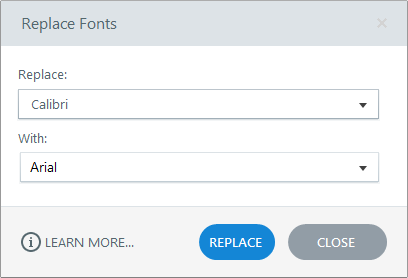
Engage 360 lets you quickly replace one font with another throughout your interaction. Simply choose the font you want to replace and the font you want to use instead, and Engage will swap out every instance of the font for you. Click Replace Fonts on the Engage ribbon. Use the Replace drop-down list to select the font you want to replace. You’ll only see the fonts currently in use in your interaction. Then use the With drop-down list to choose a new font. Click Replace. If you want to replace another font while the Replace Fonts window is still open, repeat steps 2-4. When you’re done, click Close to exit the window.98Views0likes0CommentsEngage 360: Previewing and Publishing an Interaction
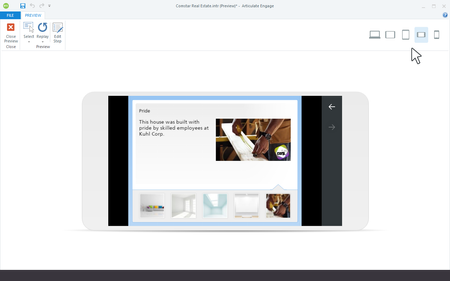
Preview how your interaction will look and behave on any device and orientation without leaving Engage 360 or interrupting your workflow. Then publish your interaction to HTML5 for a variety of platforms, including web servers and learning management systems. Watch this video introduction to learn how, then follow the activities below to practice. Practice Activities: Preview Your Interaction Choose a Publish Option Adjust the Publish Settings Publish and Distribute Your Interaction Practice Activity: Preview Your Interaction Engage 360 uses responsive preview to show you how your interaction will look and behave on any device and orientation. And it’s so easy! Just click a button. Open Comstar Real Estate.intr from your practice files. Click Preview on the Engage ribbon. Then click each device icon in the upper right corner of the preview window to see how your interaction looks and behaves on each device and orientation. Click Close Preview when you’re done. To learn more about responsive preview, see this user guide. To learn more about restricting which device orientations learners can use when viewing your interaction, see this user guide. Practice Activity: Choose a Publish Option Engage 360 supports several publish options, described below. For this tutorial, let’s publish to Review 360 where you can collaborate with stakeholders and subject matter experts. Open Comstar Real Estate.intr from your practice files. Click Publish on the Engage ribbon to launch to publishing wizard. Click the Review 360 tab on the left side of the window. Before we continue, here’s some quick info on each publishing option: Articulate Presenter Articulate Presenter 360 is the fastest, easiest way to create multi-device, presentation-based courses using PowerPoint’s familiar interface. You can create media-rich interactions in Engage 360, then publish them directly into your Presenter 360 courses. To learn more about publishing interactions to Presenter 360, see this user guide. Review 360 Publish interactions to Review 360 to test how they look on various devices and to collect feedback from stakeholders with an easy-to-use web interface. To learn more about publishing interactions for Review 360, see this user guide. Web If you want learners to access interactions over the internet or a private intranet, and if you don’t need to track their progress, then publish for web distribution. To learn more about publishing interactions for web servers, see this user guide. Articulate Online Articulate Online is our hosted tracking and reporting system for e-learning content. Publish interactions to Articulate Online when you need an efficient, cost-effective way to track learners’ progress and results. To learn more about publishing interactions to Articulate Online, see this user guide. LMS Choose the LMS publishing format if you're using a learning management system (LMS) to track learners' progress and results. To learn more about publishing interactions for AICC, SCORM, and Tin Can API LMSs, see this user guide. CD Choose the CD publishing format when you need to distribute interactions via CD, DVD, USB drive, network drive, kiosk, or email. To learn more about publishing interactions for CD or other local media, see this user guide. Word Publish for Microsoft Word when you need a printable version of your interaction. It’s a convenient way to distribute handouts or provide a transcript for accessibility purposes. To learn more about publishing interactions to Microsoft Word, see this user guide. Practice Activity: Adjust the Publish Settings After choosing a publish option, adjust the settings, such as title, description, publish location, quality, tracking options, and LMS specification. For details, see the user guide for each publishing option listed above. Since we’re publishing to Review 360 in this tutorial, configure these settings: Select Create a new item and enter a title for your interaction in the corresponding text field. If you’d like to make any last-minute changes to the player, quality, theme colors, or playback mode before publishing, click these properties and make your adjustments. Practice Activity: Publish and Distribute Your Interaction Now you’re ready to complete the publishing process. Click the Publish button at the bottom of the publishing wizard. When the process is complete, you’ll see a Publish Successful window with one or more follow-up options, depending on the publish option you selected. Since we published to Review 360 in this tutorial, you’ll see an option to view the published interaction in your Articulate 360 account in your default web browser. To learn more about the follow-up options and distribution instructions for each publish option, see these user guides: Articulate Presenter Review 360 Web Articulate Online LMS CD Word Summary In this tutorial, you learned how to use Engage 360’s stunning responsive preview features to see how your mobile-ready interaction looks and behaves on computers, tablets, and smartphones. And you published an interaction to Review 360 where you can collect feedback from stakeholders. For answers to common questions about publishing interactions for mobile devices, see this user guide.336Views0likes0Comments