presenter 360
85 TopicsComfortable with Studio 360 but Curious About Storyline 360? This Article Is for You
Note: We're ending support for Studio 360, Replay 360, and Peek 360 on December 31, 2026. Learn more. When I talk to Studio 360 users, they often tell me that they’ve been wanting to give Storyline 360 a try, but feel too intimidated. Sound familiar? I get it. Change can be scary. But thanks to the PowerPoint-like interface and the easy-import feature, the transition from Studio 360 to Storyline 360 is super-smooth. And since Storyline 360 is included in your Articulate 360 subscription, you can start using it right away—at no additional cost. Still on the fence? Take a peek at some of the things Studio 360 users appreciate most when they start using Storyline 360. 1. Creating Interactions That Reduce Cognitive Load When you’re building a course in PowerPoint, it can be hard to find ways to cut down on the amount of on-screen text—and reduce the cognitive load—so learners can focus. In Storyline 360, slide layers make it easy to create click-and-reveal interactions that let learners view content in smaller, more digestible, chunks. For example, instead of a slide like this: You can create an interaction like this: Click here to compare the two versions Not only does this second version feel less overwhelming, but presenting each point one at a time invites learners to interact, increasing the likelihood that they’ll remember the content. 2. Converting Static Slides into Engaging Interactions With PowerPoint, it can be hard to find ways to get learners to interact with your course beyond clicking the Next button. With Storyline 360, you can put learners in the driver’s seat by converting static slides into engaging interactions in just a few clicks, thanks to the Convert to Freeform feature. For example, let’s say you’re creating a course on sun safety. You might have a slide that looks something like this: It’s informative, but not interactive. Now let’s see how you could use that same content to create a lean-forward interaction that’s sure to captivate your audience: Click here to compare the two versions Put yourself in your learner’s shoes. Which version would you find more interesting and engaging? My money’s on the drag-and-drop interaction. 3. Designing Nonlinear Courses Building a single course for a target audience with varying knowledge and skill levels can be a real challenge. One way to ensure you meet everyone’s needs is by building a nonlinear, or branched, course. You can do this by creating a menu that allows learners to navigate the course content freely or by designing a choose-your-own-adventure-style course where the learner’s path through the course changes depending on their actions. Building nonlinear courses in PowerPoint can be extremely challenging. But with Storyline 360, it’s a snap. You can easily see and make changes to the flow of your courses by simply dragging your slides in Story View, as shown in the GIF below. The ability to create nonlinear courses is just one example of how building your courses in Storyline 360 allows you to quickly and easily deliver a more personalized experience to your learners. And the more personalized the experience, the more relevant the course will feel to your learners—making them more likely to remember and apply the concepts to their jobs. Want more tips on personalizing your courses? Check out this article: 3 Ways to Personalize Your E-Learning Courses. 4. Building Custom Navigation That’s Intuitive With Storyline 360, you have total control over the learner experience. You can turn virtually any object into a custom button that behaves the way learners expect it to—making navigation intuitive. Let me explain. When you’re navigating the web, how do you know that an object is clickable? If you pay close attention, you’ll notice a couple of visual cues. For example, when you hover your mouse over a clickable object, the cursor changes from an arrow to a hand. There’s also usually a slight change to the formatting of the object itself—the fill color might change to a slightly lighter or darker hue. These visual cues help you navigate the website and find what you’re looking for. You can do the same thing in your e-learning courses to ensure your learners never feel lost. Check out the GIF below to get a better idea of what that experience can feel like: Click here to explore the interactive version With easy-to-use features like states and triggers in Storyline 360, you can make any object clickable in just a few seconds. And because these objects will behave just like learners expect them to, they’ll be able to focus on the course content—instead of trying to figure out where to click. The Bottom Line Importing your Studio 360 courses into Storyline 360 is fast and easy. And with Storyline 360’s PowerPoint-like interface, the learning curve is almost nonexistent. What do you have to lose? Give it a try today! Here are some resources to help get you up and running: Tips for Importing Microsoft PowerPoint and Articulate Presenter Content into Storyline 360 Storyline 360 tutorial videos Storyline 360 training webinars Storyline 360 user guide Want to try Storyline 360, but don’t have Articulate 360? Start a free 30-day trial, and come back to E-Learning Heroes regularly for more helpful advice on everything related to e-learning. If you have any questions, please share them in the comments.277Views0likes0CommentsPresenter 360 User Guide
We're ending support for Studio 360, Replay 360, and Peek 360 on December 31, 2026. Learn more. Presenter 360: Creating a New Project Presenter 360: Setting Your Slide Size Presenter 360: Setting Presenter Options Presenter 360: Tips for Managing Project Files Adding and Editing Audio Presenter 360: Using the Consolidated Narration Window to Manage Audio, Animations, and Annotations Presenter 360: Recording Narration Presenter 360: Importing Audio Presenter 360: Removing Audio Presenter 360: Editing Audio Presenter 360: Splitting a Single Audio File Across Multiple Slides Presenter 360: Exporting Audio Syncing Animations and Adding Annotations Presenter 360: Adding Animations and Slide Transitions Presenter 360: Syncing Animations Presenter 360: Fine-Tuning Animation Timings Presenter 360: Adding and Editing Annotations Adding Quizzes and Interactions Presenter 360: Adding a Quiz to a Slide Presenter 360: Adding a Quiz to a Player Tab Presenter 360: Customizing Quiz Properties Presenter 360: Adding an Interaction to a Slide Presenter 360: Adding an Interaction to a Player Tab Presenter 360: Customizing Interaction Properties Adding and Editing Videos Presenter 360: Adding a Video from a File Presenter 360: Adding a Video from a Website Presenter 360: Adding a Video from a Webcam Presenter 360: Adding a Sidebar Video Presenter 360: Editing a Video Presenter 360: Adjusting Video Properties Adding Web Objects Presenter 360: Adding Web Objects Adding Content Library 360 Media Presenter 360: Adding and Editing Content Library 360 Characters Presenter 360: Adding Content Library 360 Photos Presenter 360: Adding Content Library 360 Illustrations Presenter 360: Adding Content Library 360 Icons Presenter 360: Adding Content Library 360 Videos Slide Properties, Presenter Bios, and Playlists Presenter 360: Managing Slide Properties Presenter 360: Managing Presenter Bios Presenter 360: Managing Playlists Translating Content and Adding Alternate Text for Screen Readers Presenter 360: Translating Courses Presenter 360: Adding Alternate Text for Screen Readers Customizing the Player Presenter 360: Working with the Player Presenter 360: Choosing Player Features Presenter 360: Customizing the Menu Presenter 360: Attaching Resources Presenter 360: Adding a Glossary Presenter 360: Displaying Notes in the Player Presenter 360: Changing the Player Colors, Font, and Font Size Presenter 360: Customizing the Text Labels Presenter 360: Changing the Browser Settings and Player Size Presenter 360: Changing the Resume Behavior Presenter 360: Enabling Right-to-Left Language Support Presenter 360: Enabling Keyboard Shortcuts and Looping Presenter 360: Setting the Quiz Timer Format Presenter 360: Saving and Switching Players Presenter 360: Restricting Which Mobile Device Orientations Learners Can Use Previewing and Publishing a Course Presenter 360: Previewing a Course Presenter 360: Publishing a Course to Review 360 Presenter 360: Publishing a Course for Web Distribution Presenter 360: Publishing a Course for LMS Distribution Presenter 360: Publishing a Course to Microsoft Word Presenter 360: Publishing a Course for Mobile Devices3.3KViews0likes0CommentsGetting Started with Presenter 360
We're ending support for Studio 360, Replay 360, and Peek 360 on December 31, 2026. Learn more. This series of tutorials will get you up and running quickly with Presenter 360. First, watch this overview, then dive into the tutorials and practice activities below. Presenter 360: Building a Course with Content Library 360 Slide Templates Presenter 360: Recording Narration and Syncing Animations Presenter 360: Importing and Exporting Audio Presenter 360: Annotating Slide Content Presenter 360: Adding Quizzes and Interactions Presenter 360: Adding Content Library 360 Characters Presenter 360: Adding Videos and Web Objects Presenter 360: Adding Interactivity with Hyperlinks and Branching Presenter 360: Customizing the Course Player Presenter 360: Previewing and Publishing a Course472Views0likes0CommentsStudio 360 User Guide
We're ending support for Studio 360, Replay 360, and Peek 360 on December 31, 2026. Learn more. New to Studio 360? Visit Getting Started with Studio 360. Explore the user guides below to learn how to transform PowerPoint slides into mobile and online courses with Presenter 360, create dynamic quizzes and surveys with Quizmaker 360, and dazzle learners with media-rich interactions in Engage 360. Presenter 360 User Guide Quizmaker 360 User Guide Engage 360 User Guide2.7KViews0likes0CommentsGetting Started with Studio 360
We're ending support for Studio 360, Replay 360, and Peek 360 on December 31, 2026. Learn more. This series of tutorials will get you up and running quickly with Studio 360, which includes Presenter 360, Quizmaker 360, and Engage 360. First, watch each overview video, then dive into the tutorials and practice activities that follow. Presenter 360 Presenter 360: Building a Course with Content Library 360 Slide Templates Presenter 360: Recording Narration and Syncing Animations Presenter 360: Importing and Exporting Audio Presenter 360: Annotating Slide Content Presenter 360: Adding Quizzes and Interactions Presenter 360: Adding Content Library 360 Characters Presenter 360: Adding Videos and Web Objects Presenter 360: Adding Interactivity with Hyperlinks and Branching Presenter 360: Customizing the Course Player Presenter 360: Previewing and Publishing a Course Quizmaker 360 Quizmaker 360: Creating a Quiz Quickly in Form View Quizmaker 360: Designing Quiz Questions in Slide View Quizmaker 360: Building Freeform Quiz Questions Quizmaker 360: Editing the Quiz Result Slide Quizmaker 360: Organizing and Randomizing Quiz Questions Quizmaker 360: Customizing the Quiz Player Quizmaker 360: Previewing and Publishing a Quiz Engage 360 Engage 360: Creating Your First Interaction Engage 360: Adding and Editing Content Engage 360: Working with Interaction Properties Engage 360: Customizing the Interaction Player Engage 360: Previewing and Publishing an Interaction2.4KViews0likes0CommentsPresenter 360: Adding Content Library 360 Icons
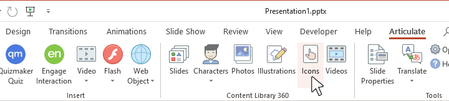
Content Library 360 has 22+ million high-resolution photos, illustrations, icons, and videos. You can access them right from PowerPoint, and they’re all available to use in your presentation without additional charge. In this article, you’ll learn how to add eye-catching icons to your Presenter 360 courses. You can even customize icons with your own colors and effects. Adding Icons to Your Course Customizing Icons Adding Icons to Your Course Go to the Articulate tab on the PowerPoint ribbon and click Icons. Type a search term in the field at the top of the media browser and press Enter. (Tip: The browser remembers your last search term during the current session.) Zoom in and out by using the zoom slider in the lower left corner or by holding down the Ctrl key on your keyboard and scrolling your mouse wheel. If you want to find a different kind of media after opening the browser, use the drop-down list in the upper right corner to switch between Photos, Illustrations, and Icons. Select the icon you want to use and click Insert to add it your slide. You can select multiple icons at the same time using Ctrl+Click or Shift+Click, then insert them all at once. Customizing Icons After adding an icon into your course, you can customize its colors to match your course design. Just select the icon on the slide, go to the Format tab on the ribbon, and use the style galleries to edit the fill color, outline color, and effects. For example, here’s the same icon with different styles. And if an icon is composed of more than one shape, you can ungroup it and format each shape individually. Here’s how to ungroup an icon in PowerPoint: Right-click the icon, scroll to Group, and click Ungroup. When PowerPoint asks if you want to convert the picture to a Microsoft Office drawing, click Yes. Right-click the icon again. If the Group option is grayed out, it means the icon is a single object. If the Group option is active, scroll to it and then select Ungroup to see all the components that make up the icon. Here’s an example of an ungrouped icon. Below is the original icon with no formatting on the left. The same icon in the middle has been recolored all at once (without ungrouping it). And the same icon again, but this time ungrouped, with specific formatting for each component is on the right.178Views0likes0CommentsPresenter 360: Adding Content Library 360 Illustrations
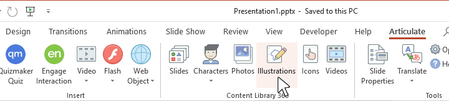
Illustrate your points with images from Content Library 360. Find the perfect pictures for your courses from 22+ million Content Library 360 assets that you can access right from PowerPoint. All assets are available to use in your presentation for no additional charge. In this article, you’ll learn how to add beautiful Content Library 360 illustrations to your Presenter 360 courses. Go to the Articulate tab on the PowerPoint ribbon and click Illustrations. Type a search term in the field at the top of the media browser and press Enter. (Tip: The browser remembers your last search term during the current session.) Zoom in and out by using the zoom slider in the lower left corner or by holding down the Ctrl key on your keyboard and scrolling your mouse wheel. If you want to find a different kind of media after opening the browser, use the drop-down list in the upper right corner to switch between Photos, Illustrations, and Icons. Select the illustration you want to use and click Insert to add it your slide. You can select multiple illustrations at the same time using Ctrl+Click or Shift+Click, then insert them all at once.106Views0likes0CommentsPresenter 360: Adding Content Library 360 Photos
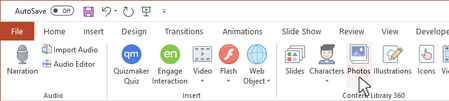
Find the perfect media assets for your courses. Choose from 22+ million Content Library 360 photos, illustrations, icons, and videos that you can access right from Presenter 360. All assets are available to use in your presentation for no additional charge. In this article, you’ll learn how to add gorgeous Content Library 360 photos to your courses. Go to the Articulate tab on the PowerPoint ribbon and click Photos. Type a search term in the field at the top of the media browser and press Enter. (Tip: The browser remembers your last search term during the current session.) Zoom in and out by using the zoom slider in the lower left corner or by holding down the Ctrl key on your keyboard and scrolling your mouse wheel. If you want to find a different kind of media after opening the browser, use the drop-down list in the upper right corner to switch between Photos, Illustrations, and Icons. Select the photo you want to use and click Insert to add it your slide. You can select multiple photos at the same time using Ctrl+Click or Shift+Click, and then insert them all at once.140Views0likes0CommentsPresenter 360: Adding Content Library 360 Videos
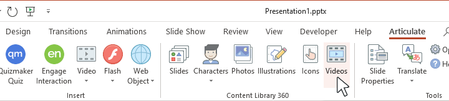
Content Library 360 has 22+ million high-resolution photos, illustrations, icons, and videos that you can access right from PowerPoint. All assets are available to use in your presentation for no additional charge. In this article, you’ll learn how to add Content Library 360 videos to slides in your Presenter 360 courses. Note: Content Library 360 videos can be added to slides but not to the player sidebar. Go to the Articulate tab on the PowerPoint ribbon and click Videos in the Content Library 360 group. Type a search term in the field at the top of the media browser and press Enter. (Tip: The browser remembers your last search term during the current session.) Zoom in and out by using the zoom slider in the lower left corner or by holding down the Ctrl key on your keyboard and scrolling your mouse wheel. To preview a video before you add it to your course, click the Preview button that appears when your mouse hovers over a video thumbnail. Select the video you want to use and click Insert to add it your slide. When the video properties window appears, make your selections, as described below, and click OK. Property Description Show video Decide whether you want the video to display on the slide or in a separate browser window. Play video Choose to play the video automatically or only when learners click it. Show video controls Mark this box to add player controls to the video so learners can play, pause, rewind, and fast-forward. Start video ___ seconds into slide Decide when you want the video to play. By default, it'll play as soon as learners reach the slide. If you'd prefer to wait a certain number of seconds before playing the video, enter a number in the field provided. Do not compress video at publish Mark this box if you don’t want the video to be compressed in your published course. Video quality may be higher, but the published output will also be larger. Uncheck the box to compress the video in your published course. It’ll be optimized for web playback, resulting in smaller file sizes. This is especially helpful for learners with slow internet connections. This property is available for MP4 videos created with baseline, main, or high profiles. If it’s grayed out, it means the video is another file type or profile, in which case the video will be compressed in your published course. Alternate text Enter a brief description of the video. Screen readers will read the description to your learners. Download our free accessibility e-book for tips on writing good alt text.203Views0likes0Comments