quizzing
26 TopicsPut Learners to the Test With These Quizzing Examples
When designing an e-learning course, it’s important to not just teach information to learners but also to test their understanding with knowledge checks and quizzes. Rather than a standard exam, get creative with the features in Rise 360 and Storyline 360 to design quizzes that engage learners and get them thinking deeply about the course content. To give you a jump start on your next quiz—or just to see what’s possible—we’ve gathered some inspiring examples created by the E-Learning Heroes community. Read on to see their unique approaches to testing learners! Storyline 360: Pre-Test Template Guide learners to specific course content based on how they perform with this customizable project by Nicole Legault. Rise 360: Phishing 101—What You Need to Know Check out this information security course by Trina Rimmer to see how you can incorporate knowledge checks, sorting activities, and an embedded quiz from the web. Storyline 360: Flashback Quiz Go back in time with this themed quiz by Sarah Hodge to see how you can use a simple click and reveal to test learners’ knowledge. Rise 360: 1912 Anatomy Quiz See how to transform a hundred-year-old exam into a fresh drag-and-drop experience like Rema Merrick does in this modernized quiz. Storyline: Course Template with Pre-Check and Final Evaluation Give learners the option to take the course or test out of it with this customizable template by Allison LaMotte. Rise 360: A Quiz to Build Buy-in for More Learning This employee engagement course by Trina Rimmer guides learners to additional content that fits their needs based on their quiz scores. Storyline: Unconscious Bias Quiz Get inspired by Steve Andrews’s game-like quiz that uses a playful approach to testing learners’ knowledge. Rise 360: Workplace Safety 101 Ensure learners complete all required content—including the final quiz—like Nicole Legault does in this injury prevention course. Storyline: Gamified Quiz Template With Timer Insert a healthy dose of competition by having learners race against the clock with this colorful template by Sarah Hodge. Rise 360: Food Allergy Awareness Before diving into course content, why not start with a pre-test to see what learners already know, like Allison LaMotte does in this attention-grabbing course. Wrap-Up Hopefully, these community-created examples inspire you to put your own quizzing skills to the test! With so many creative ideas, the possibilities for evaluating learners’ knowledge are truly endless. And if you’re looking for even more inspiring projects, check out our weekly challenges, downloads, and examples—you’ll be sure to find fresh ideas and resources you can incorporate into your next course. What are your favorite ways to test learners’ knowledge? Share your thoughts in a comment below. For more information on creating quizzes, take a look at these articles: How to Quiz Your Learners at the Right Time How to Write Good E-Learning Quiz Questions How to Match Question Types with the Skills You’re Testing Subscribe to our newsletter to get the latest e-learning inspiration and insights directly in your inbox. You can also find us on LinkedIn and X (Formerly Twitter).2.8KViews1like0CommentsHow to Customize This Storyline 360 Flexible Quiz Scoring Template
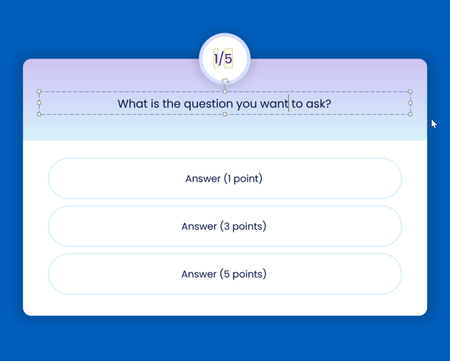
Have you ever needed to create a self-assessment, a personality test, or another quiz type that requires custom feedback depending on the score (e.g., What type of manager are you?)? If so, this Storyline 360 Flexible Quiz Scoring template is the perfect starting point. In this article, I’ll walk you through how to customize this template to fit your needs. I’ll show you how to: Add questions Edit the point values of each choice Add more feedback options Display a score or percentage on the results screen What’s the fastest way to add questions? The template includes a total of five questions. To add more questions, simply: Right-click a question slide Select Duplicate That’s it! I also included the question number along with the total number of questions in the quiz. I personally like adding this detail so learners can see their progress. And because I used the built-in slide number variables, there’s no need to update the numbers manually. When you duplicate a slide, you’ll see both the question number and the total number of questions in the quiz update on all slides—automatically. Pro tip: If you want to customize the look and feel of the quiz slides, making these changes before you duplicate them will save you time. Can I change how many points each choice is worth? Absolutely! By default, Storyline 360 lets you assign a point value for getting the question right and another point value for getting it wrong. But did you know you can also assign a different score to each answer choice? That’s exactly what I did for this template. For each question, I assigned a different point value to each choice—one choice is worth one point, one is worth three points, and the other choice is worth five points. If you want to edit the point value for each choice, simply: Select a question slide Click Form View In the Points column, edit the number value for each choice You’ll notice I included the point values for each choice in Slide View. This can be helpful for development or review purposes. Just remember to delete the point values before publishing your course so the learner is focused on their options rather than on how much each option is worth. Pro tip: If you edit the point values and want to keep the same scoring for all quiz questions, delete the other question slides in the template, and duplicate the one you customized. How do I add more feedback options? For this template, I decided to use a blank results slide so I could design the slide from scratch. I created three custom feedback layers: low score, medium score, and high score. If that works for your project as well, then simply edit the feedback text as needed and you’re all set! But what if you want to include more than three possible outcomes? No problem! Just follow the steps below. 1. Duplicate layers Start by duplicating the existing layers as many times as needed and editing the text. It’s always a good idea to rename the layers so they’re easy to identify. For template purposes, I included the text—high/medium/low score—in the results to indicate which layer is showing. You can customize it or delete it altogether so it’s not visible to learners. 2. Add/edit triggers on the base layer Once you have your layers in place, you’ll need to add/edit the triggers on the results slide (base layer). Since my template has three possible outcomes, I created three triggers to show the appropriate layer depending on the score. If you have four possible outcomes, then you’ll need to add one more trigger so that you have a total of four triggers. For five outcomes, you’ll need five triggers, and so on. Once you’ve added your additional triggers, make sure you edit each trigger to show the correct layer. You’ll also want to edit the point values that display each layer to match your own scoring rubric. What if I want to display a score or percentage on the results screen? If you’re creating a quiz that requires you to display a score or percentage at the end, you’ll want to add variable references or the following text to the results slide (base layer): Display Type Add the Text Score %Results.ScorePoints% Percentage %Results.ScorePercent%% Pro tip: Since the feedback text is on the layers, make sure you place the score/percentage text where it will be visible. One idea would be to replace the icon at the top with your chosen scoring method. Before After Wrap-Up I hope this article helps you to easily create a more personalized experience for your learners by customizing this Storyline 360 Flexible Quiz Scoring template. If you need help or have any additional questions on updating this template, please leave a comment below. Want to see more customizable quiz templates? Check out these free downloads: Storyline: Gamified Quiz Template with Timer Storyline: Countdown Quiz Game Storyline: Risk Assessment Quiz Storyline: Unconscious Bias Quiz Storyline: Timed Quiz Challenge Storyline: Around the World Quiz Want to try customizing this Storyline 360 quiz, but don’t have Articulate 360? Start a free 30-day trial, and come back to E-Learning Heroes regularly for more helpful advice on everything related to e-learning. If you have any questions, please share them in the comments.2.4KViews1like11CommentsHow to Customize the Review Quiz Experience in Storyline 360
With Storyline 360, it’s easy for learners to review their answers to a quiz and see how they did. By default, there’s a Review Quiz button on the result slide that takes them back through the quiz, where they’ll see a “correct” or “incorrect” banner across the bottom of each question. But often, learners want to know more than just whether or not they got a question right—they want to understand why. So why not tap into that teachable moment by providing some additional helpful content during the quiz review? With Storyline 360, you can do just that! And it’s super easy. In this article, we’ll walk you through how to enhance your quiz review with question-specific content like remedial help, supplemental tips or links, movies, text, images, and audio. Here we go! 1. Open the Question Editor First, open your question slide and click the Form View button above the trigger panel to open the question editor. 2. Add Text to the Post-Quiz Review Field At the bottom of the question editor, you’ll see a field called Post-Quiz Review. In that field, enter some text. When text is present, Storyline automatically creates a new layer on your question slide called Review. This layer is what learners will see if they choose to review their quiz. 3. Customize the Review Layer Next, click on Slide View to see the review layer you’ve just created. From there, you can customize it with whatever content you want learners to see during the quiz review—for example, audio, video, or imagery. Wrap-Up & More Resources Now that you know how to customize the review layer, you can transform a standard quiz review into a content-rich experience that’ll help your users extend their learning! And it only takes a few minutes. Pretty cool, right? And if you’re looking for more tips on making top-notch quizzes, check out these helpful resources: How to Match Question Types with the Skills You’re Testing How to Write Good E-Learning Quiz Questions How to Write Plausible Incorrect Answer Options for Quiz Questions 4 Ways to Use the New Quiz Tracking Features in Storyline 360 Want to try something you learned here, but don’t have Articulate 360? Start a free 30-day trial, and come back to E-Learning Heroes regularly for more helpful advice on everything related to e-learning. If you have any questions, please share them in the comments.2.7KViews2likes0CommentsHow to Write Plausible Incorrect Answer Options for Quiz Questions
As instructional designers, writing quiz questions is one of the trickiest parts of the job. To come up with effective questions that will help determine if learners understand the material and can apply it to their jobs, you have to first reflect on the learning objectives and how they were presented in the course content. It’s common for course designers to spend so much time coming up with the quiz questions that the incorrect answer options (often referred to as “distractors”) are almost an afterthought. One way to combat this is to flip your course design process on its head and design the quiz questions first—before you build out the core course content. That way you can be sure your content aligns with the quiz questions right from the start. Another good strategy is to avoid rushing through the quiz-designing phase at the end to meet your delivery deadline. Hurrying this step often results in incorrect answers that are obviously wrong, defeating the purpose of the quiz. After all, the point of quizzing learners is to make sure they know the correct answer—not to put them through a tedious exercise. So, how do you come up with plausible incorrect answers that aren’t too obvious, nor too subtle? In this article, I’ll walk you through a few best practices that can help. 1. Base Answer Options on Real-Life Situations The word plausible literally means “seeming reasonable or probable.” When you’re writing incorrect answers, think to yourself: Is this something that sounds reasonable? Is this something that someone would actually do? The easiest way to ensure your incorrect answers seem legit is to base them on real-life situations in which someone made the wrong call. Use those mistakes as your incorrect answers. Remember, the goal of quizzing people isn’t to trick them, but to offer up a few realistic options to see whether they make the right choice, based on what they learned in the course. 2. Talk to the Right People Coming up with plausible incorrect answer options is even more challenging if you don’t have well-rounded, broad-based information. If you find yourself in that situation, consider reaching out to the following people for input: A Subject Matter Expert: If you have access to someone who is an expert on the course topic, talk to them! They’re sure to have some real-life examples to share. Your Client: The person who asked you to create this course likely did so for a reason. If it’s because people aren’t doing things correctly, you could ask them to elaborate on mistakes they’ve seen people make. Your Learners: If they need to be trained on this topic, chances are it’s because they’re lacking knowledge or skills in this area. If possible, talk to a few learners and see where their current knowledge or skill level is at. Doing so can give you insight into the kinds of mistakes they might be making. Talking to people who are closer to the subject matter can help you get a better understanding of where things commonly go off the rails, which can make it that much easier to come up with ideas for plausible distractors. 3. Ask the Right Questions When you’re chatting with the people mentioned above, be sure to ask open-ended questions. Then, just let them talk. Take detailed notes or ask if you can record the meeting. You never know what off-hand comment will be helpful. Here are some questions to get the conversation rolling: For SMEs and Managers: What are some common Topic X–related mistakes you’ve seen people make? What are some commonly held myths or misconceptions about Topic X? For Learners: What’s something about Topic X that’s always confused you? What’s something you’ve always wondered about Topic X? Tell me about a time that you’ve made a Topic X–related mistake. What obstacles get in the way of you performing X task (achieving the goal of the course)? Don’t be afraid to ask follow-up questions. Let the conversation flow freely. When a response ends naturally, go back to your list of questions and start again. The Bottom Line Sitting down and asking pointed questions about mistakes people make in real life can take time, but it’s the best way to come up with plausible incorrect answers that will truly test your learner’s knowledge. If that’s the purpose of your quiz, it’ll be time well spent. Want more tips for creating effective quizzes? Check out these helpful resources: Do’s and Don’ts of Writing Effective Multiple Choice Questions How to Write Good E-Learning Quiz Questions How to Match Question Types with the Skills You’re Testing 6 Common Quizzing Mistakes and How to Avoid Them Improve Your Quizzes with These Do’s And Don’ts Subscribe to our newsletter to get the latest e-learning inspiration and insights directly in your inbox. You can also find us on LinkedIn and X (Formerly Twitter).1.4KViews0likes1Comment4 Ways to Use the New Quiz Tracking Features in Storyline 360
Quizzing is an integral part of most e-learning courses. It’s how you gauge learner understanding and ensure everyone has taken their assigned training. But quizzing isn’t a one-size-fits-all situation. When it comes to e-learning projects, each one has its own unique set of requirements. And it’s your job—as the e-learning designer—to come up with creative solutions that meet your tracking needs and provide your learners with an optimal learning experience. We’ve been working on some great new quiz tracking features that make it even easier for you to design custom quiz experiences for your learners. Let’s look at some of the ways you can put these robust features to good use. 1. Allow Learners to Test Out of Your Course If you’re creating an e-learning course for learners with differing levels of prior knowledge on the topic at hand, why not give advanced learners the opportunity to test out of your course from the get-go? That way, if they already know the content backward and forward, they won’t waste any of their valuable time clicking through your course. And if it turns out they don’t know as much as they thought they did, they can take your course to learn more. Here’s an example of what that experience might look like: View interactive version | Download the template With the new Expanded Quiz Tracking feature in Storyline 360, you can create a course with both a pre-check and a final assessment. If the learner passes the pre-check, the score they received will be sent to the LMS when they exit the course. If they fail, they can complete the course, take the final assessment, and that score will be reported instead. And it’s super easy to set up! Simply open the LMS tracking options and ensure you’ve selected Pre-Check for the first quiz and Final Assessment for the second one, as shown below: 2. Create One Course with Multiple Learning Paths Have you ever needed to create a course on a topic for different populations? Let’s say you’re building a course on conflict management for individual contributors and people managers. You could create two separate courses, but since a lot of the information overlaps, that might create extra work for you down the line if any of the content needs updating. Not to mention that with two courses, you’d have to upload and track them separately in your LMS. What a headache! Another way to handle this situation would be to create one course with multiple learning paths, like in the example below: View interactive version | Download the template But if you have a quiz for each role, how do you track only the quiz that the learner viewed? With the new Expanded Quiz Tracking feature, it’s easy. All you need to do is ensure that both quizzes are marked as Final Assessments in the LMS tracking window, as shown below: 3. Give Learners More Than One Way to Succeed Another way to tackle training a group of learners with varying degrees of knowledge on a topic is by giving them a few different ways to complete your course. For example, let’s say the majority of your learners have no prior knowledge of your content, so you’d like to ensure they’ve viewed a certain number of slides in order to get credit for the course. But then let’s say that another group of learners has a great deal of prior knowledge on the topic. Instead of forcing all the learners—even those who are already well-versed in the subject matter—to take your course from start to finish, why not give everyone the best of both worlds? allow advanced learners to complete the course by passing the pre-check AND allow novice learners to complete the course by viewing a certain number of slides With the new Track Multiple Completion Criteria feature, you can do just that! You can select one, two, or all three of the possible completion methods in the LMS tracking window: Then, whichever one the learner completes first is submitted to your LMS. It’s as easy as that! 4. Create a Quiz That Adapts Based on the Learner’s Responses Want to really dig in and determine whether your learners have grasped the content of your course? Try building a quiz that dynamically adapts the questions learners see based on their responses. For example, let’s say a learner answers a question about Topic 1 incorrectly. Before presenting them with a question on Topic 2, you might want to ask a follow-up question about Topic 1. By giving them another chance to test their knowledge of Topic 1, you can determine whether they need a refresher. Here’s an example of what that might look like when you’re authoring: View interactive version | Download the template In the example above, you can see there are a total of seven possible questions, but each learner only sees three. Now, you might be wondering, but how do I ensure that learners aren’t penalized for the questions they skip over? Thanks to the new Score Only Viewed Questions feature in Storyline 360, it’s simple. Once you’ve set up your branching, just navigate to the results slide, open the quiz settings, and check the box next to Only Score Viewed Questions: Storyline 360 takes care of the rest! More Resources We hope you’re as excited about these new features as we are! We can’t wait to hear about all the great ways you put them to use. For more detailed information on these features, check out this tutorial. And for more tips on creating effective quizzes with Storyline 360, be sure to dig into all the great resources in this article: Your One-Stop Shop for Storyline 360 Quiz-Building Tips. Want to give these hot new features a spin, but don’t have Storyline 360? Start a free 30-day trial of Articulate 360, and come back to E-Learning Heroes regularly for more helpful advice on everything related to e-learning. If you have any questions, please share them in the comments.4.2KViews2likes38CommentsHow to Randomize Quiz Questions in Storyline 360
A big part of being an e-learning developer is creating quizzes. Choosing question types, writing plausible choices, crafting meaningful feedback—these all go into building a great quiz. When putting together your quizzes, you might have encountered a situation where you’ve wanted or needed to randomize the questions in your quizzes. Why randomize questions? Perhaps your subject matter expert (SME) has provided you with more questions than you actually need to test learners on, or you might want to ensure that the order of the questions is different every time learners take the quiz, to minimize cheating and keep it interesting. Whatever your reason for randomizing quiz questions, one simple and straightforward way to do so in Storyline 360 is to use question banks. Here are the steps you can follow to randomize questions in a bank: Create a Question Bank Your first step is to create the question bank. To do so, you’ll head to the slides tab on the Storyline 360 ribbon. There you’ll notice the Question Banks button with a small arrow pointing down, indicating there is a dropdown menu. The Question Banks button is located under the slides tab on the ribbon. Click the Question Banks dropdown and select Create Question Bank. Once you’re in the Question Bank view, you can either import existing questions you already have in your .STORY project, or you can create new questions from inside the question bank. Once you’ve got all your questions inside the bank,you can also easily set all of your attempts and points in one fell swoop. A question bank that has been populated with question slides. Keep in mind you can have multiple question banks within one Storyline 360 project. You might create one bank of easy questions and one bank with more advanced questions. Or you might have one bank of questions for customer service reps and a different set of questions banked for sales reps. You can have as many question banks in your project as you need. Insert a Slide Draw Once you’ve set up your question bank, the next step is to insert a slide draw into your project. The slide draw is the slide in your project that displays the question bank to the learner. To insert a slide draw, head to the Question Bank dropdown button once more and click New Draw from Question Bank. The slide draw is inserted into your project and has a question mark on it, as indicated in the image below: Slide draw appears as a slide. Adjust Slide Draw Properties You can now double-click on the slide draw slide you’ve just inserted to open up the Draw Questions from Bank window. From here, you can control all the settings for how the question bank will appear for learners. Question Bank dropdown. If you have multiple question banks, use the Question Bank dropdown field to select the question bank you want to pull from on this slide draw. Edit Question Bank. Click this to open the selected question bank and make changes to the questions and slides contained within it. Draw Questions Randomly. Ding! Ding! Ding! This is the option you will select if you want to randomize the order of your questions. Include X Questions dropdown. From this dropdown you can select “All” or specify the number of questions you want included in the draw. Include in Shuffle dropdown. This can be set to “Randomly,” “Never,” or “Always,” depending on how often you want a question to appear. Here’s an example of how I can customize my question bank settings: I want to create a question bank that randomly draws five of the seven questions included in my bank, but I always want Question A to be included. I would simply set the Include X Questions dropdown at “5” instead of “All,” and I would change the Include in Shuffle option for Question A to “Always.” These settings will randomly draw five questions from the bank. Question A will always be included in the shuffle. Test Your Slide Draw Once you’ve set up your slide draw with all the right options, you’ll want to preview the scene that your question bank is in to test it out and see how it all comes together. Run through your question bank a few times to ensure that the correct number of questions are drawn, and in a random, different order each time. Hopefully these simple steps will help you create your own randomized quizzes. If you want to learn more about using question banks, here are a few additional helpful articles: 5 Things You Should Know About Storyline 360 Question Banks 3 More Tips for Using Question Banks Like a Pro Want to try something you learned here, but don’t have Articulate 360? Start a free 30-day trial, and come back to E-Learning Heroes regularly for more helpful advice on everything related to e-learning. If you have any questions, please share them in the comments.4.1KViews1like18CommentsYour One-Stop Shop for Storyline 360 Quiz-Building Tips
If there’s one thing most e-learning courses have in common, it’s that they have a quiz. Whether there are knowledge checks peppered throughout or an evaluation at the end, it’s rare to see a course without a quiz question or two. We’ve rounded up our most helpful quiz-related content on E-Learning Heroes so you can easily get up to speed on creating quizzes in Storyline 360, as well as learn more about designing effective quizzes. And how about getting off to a running start with some free downloads? Tutorials If you’re new to creating quizzes in Storyline, first things first! Start by taking a look at these helpful tutorials: Creating Quizzes with Form-Based Questions Creating Quizzes with Freeform Interactions Adding Quiz Result Slides Instructional Design Tips Once you’ve got the technical side of things down, check out these articles for tips on designing meaningful quizzes: How to Write Good E-Learning Quiz Questions Do’s and Don’ts of Writing Effective Multiple Choice Questions 20+ Tips for Writing Great Quiz Questions and Response Options 6 Common Quizzing Mistakes and How to Avoid Them How to Quiz Your Learners at the Right Time How to Write Effective Quiz Feedback How to Match Question Types with the Skills You’re Testing Creating Quizzes: Choose a Passing Score How to Write Plausible Incorrect Answer Options for Quiz Questions Downloads Whether you’re short on time or just looking for inspiration, these downloads are just the thing: Countdown Quiz Game Movie Trivia Game Question Bank Template Italian Drag and Drop Quiz Multiple Choice Quiz with Badge Awards Color Gradient Quiz Process Interaction Quiz Combination Lock Quiz Dog-Themed Jeopardy Template Wrap-Up These tutorials, articles, and downloads should be more than enough to get you ready to build your next quiz. But if you get stuck somewhere along the way, we’re always here to help! Feel free to reach out to us in the discussion forums with any technical- or design-related questions you may have. Did you find these resources helpful? Subscribe to our newsletter to get the latest e-learning inspiration and insights directly in your inbox. You can also find us on LinkedIn and X (Formerly Twitter).2KViews0likes5CommentsDo’s and Don’ts of Writing Effective Multiple Choice Questions
Multiple choice questions (MCQ) are a commonly used and super-versatile question type. They can be used to assess various types of learning, from testing knowledge of basic facts and concepts to crafting thoughtful scenario-based questions. There are many possibilities with multiple choice questions, but it’s important to remember that with multiple choice questions, learners are choosing from a set of potential answers. This means the correct answer is given away in the choices. If you need a learner to recall information without any prompting or guidance, then MCQs might not be the right choice for you. Let’s take a closer look at the two parts of an MCQ: Stem: This states the problem or the question. Alternatives: This is a list of suggested choices. There are two kinds of alternatives: key: the correct or best alternative; the right answer. distractors: incorrect or inferior alternatives; incorrect choices. Whether it’s your first time writing quiz questions or you’ve been doing it for years, following are tips and guidelines you can follow to craft effective multiple choice questions: Do use plausible distractors Plausible distractors are one of the keys to writing effective MCQs. You want your incorrect choices to pose a challenge to your learners, causing them to pause and think about which answer is correct. Obviously incorrect or outrageous distractors defeat the entire purpose of your quiz, because they don’t make learners think. In fact, using them means you’re just giving away the correct answer. Coming up with plausible distractors can be quite challenging, so it might be helpful to talk with a Subject Matter Expert (SME), employee, or stakeholder who can provide crucial insights into the content. It can be helpful to identify common errors or mistakes and then incorporate that information into the distractors. It’s also a best practice to avoid “none of the above” and “all of the above” as distractors. They tend to be easy fallbacks that people use instead of crafting more meaningful, authentic distractors. The same goes for “true or false” questions; these are best avoided if you want to truly test knowledge and challenge your learner. Don’t give clues In order to make an MCQ fair and challenging, it’s best to refrain from including clues about which alternative is the correct one. Sophisticated learners may be on guard for inadvertent clues to the correct answer, such as differences in length or formatting of the alternatives. It’s therefore important that your alternatives are similar in both length and language. It’s also smart to avoid unintentionally giving away an answer to a question in another part of the quiz. Another clue learners may be on the lookout for is the use of extremes. Try to avoid using the words “never,” “always,” and “only” in your distractors. It’s also wise to steer clear of outlandish or unreasonable statements; that’s a dead giveaway of a distractor. Do balance placement of correct alternatives Correct answers (also known as “the key”) tend to be placed as the second and third option in a list of choices. Keep this in mind when you randomize your question choices. Have a mix of key placement, as first, second, and third choice. If you’re using an authoring tool that lets you randomize the order of choices (such as Articulate Storyline 360), you should go ahead and enable that feature. Don’t use negative questions The negative question asks learners to choose the answer that is incorrect; it’s one way that test designers try to challenge or “trip up” the learners. I personally think it’s best to avoid questions that are intentionally (or unintentionally!) misleading. Here’s an example of a negative question: Which of the following is not a company policy? Eating in your workspace Using the computer for personal use Taking a monthlong sabbatical Isn’t that confusing? Negative questions often lead to situations where learners have to work hard simply to decipher complicated choices and understand the question before they can even begin looking for the right answer. Do use other question types! Let’s face it: multiple choice questions tend to be overused. They are a crutch that instructional designers fall back on time and time again. Next time you’re considering using an MCQ, ask yourself: Is there a different or more original way of presenting this question? Would a matching drag-and-drop activity be more appropriate? Would a hot-spot interaction work instead? Try to think outside the box and be creative with the types of quiz questions you use. Mixing it up will also make your content more varied and interesting for your learners. Here’s a great article about Matching Question Types with the Skills You’re Testing. By following this list of do’s and don’ts, you’ll be well on your way to crafting engaging multiple choice questions with thoughtful choices that challenge your learners. Follow us on Twitter and come back to E-Learning Heroes regularly for more helpful advice on everything related to e-learning. If you have any questions, please share them in the comments.2.8KViews0likes8CommentsHow to Match Question Types with the Skills You’re Testing
Most e-learning courses end in the same way: with a quiz. The goal of these quizzes is to find out if your learners absorbed the information or skills presented in the course. Seems pretty straightforward, right? But designing quizzes that give you real insight into what your learners have absorbed and how well they’re prepared to apply it is equal parts art and science. Today, let’s focus on one of the most important factors in designing an effective quiz: choosing the right question type. For example, if learners need to be able to explain something, it doesn’t make sense to use a multiple choice question. Even if they get the question right, you still won’t know if they’re actually capable of explaining it. You’ll just know that they’re able to select the correct explanation from a list of choices. In this case, an essay question is a better fit since learners can try their hand at explaining—which is what you want them to be able to do. So how do you know which question type is best suited for each situation? Start by thinking about what your learners need to do with the information or skills you’re teaching them. For example, do they need to recognize a street sign? Locate a specific gear on an engine? Categorize products by type? If you’re not sure, go back and review your learning objectives and think about how you can turn them into questions. Then, use the following list of common question types and the kinds of situations they’re best suited for to decide which question type is most effective. Multiple Choice and Multiple Response Questions Multiple choice and multiple response are the most commonly used question types in e-learning courses. They’re also the most commonly misused question types in e-learning courses, as people often select them by default without considering any other question types. These question types are perfect for situations when your learners need to be able to recognize information or identify the correct response(s) from a set of options. For example, in this course on driving in France, learners need to be able to recognize road signs and identify their meaning. To measure whether or not they’re able to do that, I included a multiple choice question asking them to choose the meaning of a specific sign: You can also create scenario-based multiple choice questions when you want learners to analyze a situation, evaluate the possible outcomes, and identify the best possible option, like in this customer service course: However, it doesn’t make sense to use multiple choice when your learner needs to be able to explain or recall something from memory, because it won’t give you an accurate picture of whether they’re able to do that. It will only allow you to determine if they’re able to pick out the correct answer from a list. Another thing to keep in mind with multiple choice questions is that learners are often able to guess the correct response based on the process of elimination. To avoid this, do your best to come up with plausible incorrect responses (also referred to as distractors) and try to make them all roughly the same length. The risk of this happening is mitigated in multiple response questions where learners don’t know how many of the choices are correct. Hotspot Questions Hotspot questions—or questions where learners are asked to select a specific area on the screen—are best suited for situations when learners need to be able to locate something, for example, a country on a map or a specific gear on an engine. If, instead of asking learners to locate something, you want them to identify an object, you’d be better off using a multiple choice question where the choices are images of those objects, like in this skeletal system example, where the bone name is highlighted when learners click on it: Drag-and-Drop Questions There are four main types of drag-and-drop questions. Let’s take a look at the situations where you should use each of them. Sorting This kind of drag-and-drop is best for when you want learners to categorize concepts. For example, in this sun safety course, learners have to drag items that will help protect them from the sun to the beach bag and items that won’t to the trash can: Ordering You can use this kind of drag-and-drop when learners need to prioritize tasks, rank items, or put items in order. For example, in this sales course, learners have to put the sales steps in the correct order: Matching This question type is great for when learners need to match two related items. For example, in this course on trees, learners need to match the common tree names with the scientific names: Placing If your learners need to be able to organize objects in a certain way or place objects in a specific spot, you can create a drag-and-drop question where learners can do just that. For example, in this course on etiquette, learners are asked to place the utensils in the correct spot on the table: And in this course on Canadian geography, learners must drag the cities to the correct spots on the map: Fill-in-the-Blank or Short Answer Questions When learners need to recall information without any prompts, you should use a fill-in-the-blank or short answer question. What makes fill-in-the-blank questions more complex than other question types is that learners have to provide exactly the same answer as you in order to get the question right. For this reason, it’s important to anticipate as many possible correct answer variations so the course doesn’t mark their answer as incorrect when they’ve actually responded correctly. For example, in this course on animal names, learners need to type in the name of the animals they see pictured: Essay Questions If learners need to be able to explain something, the only way to test their ability is by asking them to complete an essay question. Because these kinds of questions are open-ended, it’s next to impossible to accurately predict all the correct answers a learner could give. For this reason, these questions can’t be corrected automatically. If you include an essay question, someone—likely you or the subject matter expert (SME)—will have to correct them manually. Depending on the number of learners and the amount of time you or the SME have to dedicate to this course, you’ll need to decide whether or not to include this type of question. Before adding an essay question to your e-learning quiz, you’ll also want to find out if your LMS can capture learner answers. Unfortunately, not all LMSs have this capability, so you’ll want to check in with your LMS provider first. Once you determine it’s possible, ask them to walk you through the process of collecting and correcting the responses in the LMS to make sure it’s not too labor-intensive. If you don’t have time to correct each answer manually or if your LMS can’t capture learner answers, another option is to give learners an opportunity to compare their answer to your pre-written answer and self-evaluate, like in this interactive writing example: The Bottom Line If you want your quiz to accurately measure the learner’s ability to apply their newfound knowledge and skills, the questions need to be as realistic as possible. And in order for them to be realistic, you need to choose the type of question that most closely resembles what learners will need to be able to do in real life. Hopefully this list will make that easier! More Resources Choosing the question type that best suits the associated learning objective is only half the battle. It’s equally important to write quiz questions that are clear, include plausible distractors, and provide helpful feedback. Here are some additional resources to help you take your quizzing skills to the next level: How to Write Good E-Learning Quiz Questions 20+ Tips for Writing Great Quiz Questions and Response Options Improve Your Quizzes with These Do’s and Don’ts 6 Common Quizzing Mistakes and How to Avoid Them 3 Ways to Create Better Quizzes with Storyline Like this article? Subscribe to our newsletter to get the latest e-learning inspiration and insights directly in your inbox. You can also find us on LinkedIn and X (Formerly Twitter).2.8KViews1like27CommentsCreating Quizzes: Choose a Passing Score
Designing quizzes is one of the most challenging parts of instructional design. Selecting the best question type, crafting the perfect question text, coming up with plausible wrong choices, writing meaningful feedback … these are all demanding tasks. In addition to those tasks, you also need to assign a score to each question and select a passing score for the quiz. When it comes to those last two tasks, many e-learning developers simply stick with the default passing score and hit Publish. Taking the time to consider how to calculate points and score quizzes is often an afterthought, but these are important considerations when you're trying to get an accurate measurement of your course’s impact. After all, the training’s effectiveness should ultimately tie into business metrics (KPIs) so you and your team can clearly demonstrate the value of your work to the organization. Read on to learn a few tips that will help you figure out what value to assign to your questions and your passing score in your next course. Choose a Meaningful Passing Score The passing score is the score that learners need to pass a quiz. How do you choose the passing score? Should it be 50%, 80%, or 100%? Should you give learners a chance to retake the quiz if they fail? If so, how many times? There is no clear-cut answer; it depends on the specific situation. You’ll want to consider what your learners are learning, why they are learning it, and what the real-life outcomes would be if they fail the quiz. The passing score, as well as number of attempts, is something you should discuss with your stakeholders during the project planning phase. This is a good time to identify if there are laws or regulations in place that demand a certain passing score, which may be the case for some compliance training courses. If there’s no predetermined passing score, you should decide who will choose the passing score and get stakeholder approval. The passing score you select will depend on the difficulty of the subject matter and its level of importance. For example, if you’re creating a new employee orientation course, your learner’s passing score is important, but perhaps not crucial. On the other hand, if it’s a medical exam that people need to pass to become a doctor, the passing score is much more significant. At the end of the day, you and your project team need to make a judgment call for setting every passing score. Someone needs to decide what the passing score should be. Here are a few tips: Make sure the person choosing the passing score is the right person to make the call: someone who is qualified to make a judgment, for whom the passing score is meaningful, and who understands the purpose of the quiz. Be able to articulate why you chose the passing score you did: if you need 100% to pass, why is that? If it’s fine to get by on 50%, why did you choose that score? Keep in mind that setting a passing score of 100% can be frustrating to learners, especially if you keep forcing them to retake the same course and quiz until they achieve that score. This is a great way to turn your quiz into a guessing game, rather than a test of the person’s knowledge and skills. When you select your passing score and number of attempts, think about how it will impact the learning experience. Identify the Value of Each Question Each question in your quiz has a score or value, usually represented in points; this is how the passing score is calculated. When you assign how many points each question is worth you want to consider: The difficulty of the question The importance of the question’s subject matter Some questions are more important than others. Here are two questions from a new employee orientation quiz: Question 1 Question 2 Where can you locate the company’s email footer text? In the document library In SharePoint In Google Drive Which of the following is a breach of privacy, punishable by a heavy fine? Reading unauthorized documents Improper filing of personal documents Downloading financial records Can you tell which of these questions is more important? One of the ways to measure importance is by understanding what would happen if learners DIDN’T have the proper information. In the case of question 1, not having the proper information means an email goes out with the wrong footer text. In question 2, not having the proper information could result in a big fine to the organization. I think most people would agree that question 2 should be worth more points than question 1. By assigning a specific value to each of your quiz questions and taking the time to settle on a meaningful passing score, you’ll be well on your way to a well-thought-out quiz that is fair and relevant for learners. Interested in learning more about the science of setting passing scores? There is quite a bit of literature on setting passing scores and some well-known methods, including the Nedelsky Method, the Angoff Method, and the Ebel Method. Ready to set the passing score in your own courses? Here are some resources for setting the passing score in Articulate Storyline and Rise: Storyline 360: Assigning a Score to Graded Questions Storyline 360: Adding Result Slides Rise: Quiz Settings If you have any thoughts or comments on setting an appropriate passing score, let me know in the comments. Follow us on Twitter and come back to E-Learning Heroes regularly for more helpful advice on everything related to e-learning. If you have any questions, please share them in the comments.1.5KViews0likes8Comments