Forum Discussion

Invalid or corrupt storyline (created in an earlier version)
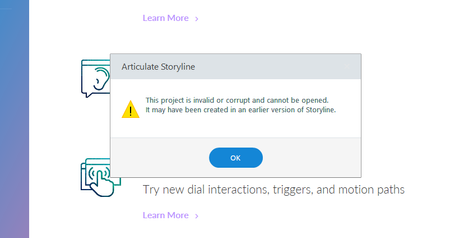

Hi Mehmet,
I saw you also reached out to our Support team - the right idea when running into issues with file corruption. I see Anna got back to you and shared the following:
I understand that you are unable to open your Storyline 360 project and being prompted with a message that it "The project is invalid or corrupt and cannot be opened".
Just to verify, are you working locally? Is your project file (.story) saved in the local hard drive (C:\) of your computer?
Be sure you're working on your local hard drive (typically your C: drive) when creating, editing, and publishing Storyline courses. Working on a network drive or a USB drive can cause erratic behavior, such as file corruption or an inability to save changes. See the following article for more information and tips.
https://www.articulate.com/support/article/create-edit-and-publish-articulate-storyline-courses-on-your-local-hard-drive
If your .story file is already saved locally and you have done restarting your computer but continues to experience the problem, there may still be a working version of your project in your temp files. Here's how to check:
1) Open this folder in Windows Explorer: %appdata%\Articulate\Storyline
2) Scan the contents of this folder for a file that starts with the name of your project. If you find one, copy it to your desktop. If you find more than one, copy the latest version to your desktop.
3) Change the file extension of the copy on your desktop from *.tmp to *.story.
4) Double-click the file to open it in Storyline.
File corruption is unpredictable, and there's no straightforward way to determine what causes it. Common causes are environmental (disk errors, power outages, improper shutdowns), viruses, failed Windows updates, and even file size (i.e., very large files have a higher risk of corrupting). Consider using the preventative measures described in this article to protect your project files: http://articulate.fyi/1MHtYPt