Forum Discussion

New in Labs: Block Defaults
Block defaults are still in development and will receive updates as part of Labs. Functionality will change over time. Some options could be modified, while others may be removed based on feedback and feature stability.
While theme settings in Rise 360 are a great way to modify the look of your training, there's currently no way to change the appearance of existing blocks and affect how your blocks appear by default. The block defaults experiment changes that by giving you background and font-size settings that affect all existing and future content in your training.
But that's just the start! We want to expand this feature so that it best meets your needs, and we need your feedback to do it. Read on to find out how to use block defaults and shape its direction.
Set Block Defaults
Start by enabling this experiment from the Labs section of your account profile. Then follow these steps:
- Open a course and click the Theme icon at the top of the screen.
- Select Block Defaults.
- Modify the block background and heading size. Use the example blocks on the right to see how your changes affect sample content.
- For each default you modify, click Apply to All and confirm. This overwrites the settings for all current blocks in your training.
Note: Modified settings become the default for new blocks only after you've clicked Apply to All. - Exit the Themes menu.
Revert Your Settings
A Snapshot with your original settings is saved just before the new block defaults are applied. Restore that Snapshot to revert to your previous settings. Any content created after you applied the new block defaults will be lost.
Block Defaults FAQ
Are there any accessibility or collaboration issues?
When using block defaults, please be mindful of accessible course design practices, especially regarding color contrast and text sizing. Only those collaborators who have the feature enabled will be able to modify block defaults.
Can I apply block defaults only to specific block types?
At this time, block default settings affect all block content in your course, regardless of block type. Quiz lessons aren't affected by block defaults.
Do you plan to add additional block default settings?
As part of this Labs experiment, we welcome your feedback as to what additional block default settings you'd find useful. Please see the next section.
Share Your Feedback
We're excited about block defaults, but we want to hear from you on how we can make it even better. Your feedback will directly influence development, so consider sharing your thoughts on the following topics:
- Uses. How are you using block defaults? Does the feature meet your needs?
- Bugs. Is anything not working as expected?
- Improvements. How could this feature be better? What defaults would you like to see?
- Insights. How does this feature benefit you and your learners?
You can enable and disable this feature from the Labs page in account settings. Share your thoughts in the Labs forum or by accessing the feedback form directly from within the feature.
Good news everyone! Based on your feedback, we've added continue block behavior to block defaults. Keep that input coming!
47 Replies
- LaurenHayanoCommunity Member
I haven't yet tried this, but it would be AMAZING if there was an "apply to all" when selecting where you want audio - at the top or bottom of blocks. Having to set this block by block is a pain and takes precious time.
- PlusPortCTCommunity Member
Would love to see this as a Theme default! So when starting a new course, you can select a saved theme with colors, fonts, logo etc.
Hi PlusPortCT,
Great idea!
If you have any other ideas for enhancing the feature, don't hesitate to let us know here or in this feedback form!
- amytautCommunity Member
It would be great to have control over spacing between paragraphs as part of a block defaults option.
- andres_marcosCommunity Member
Good point!
I was also looking for this! Thanks for the feedback, amytaut! I've logged this internally.
Good news everyone! Based on your feedback, we've added continue block behavior to block defaults. Keep that input coming!
Hi PaulBrewer,
We appreciate hearing your feedback! I've shared this with our product team.
- PaulBrewerCommunity Member
I love how easy this made it to change font size across all of my text blocks in a course. It would also be nice to be able to change the default font spacing, as that is currently block-by-block. I appreciated that on an existing course where my font spacing was already set, changing the default font size did not revert that change.
Quotes, statements, knowledge check blocks (both inside a lesson and inside a quiz), and some of the interactive blocks like the Labeled Graphic did not change their default font sizes.- OpforArticulateCommunity Member
I love the fact that we can bulk change font size for text blocks. It would also be nice if that were available for knowledge checks (question, answers and feedback) and interactive blocks (tabs and accordeons, flash cards, and, why not, sorting and matching (although I suppose the character limit could be an issue there).
SusanSewell and AmeliaAltstadt,
Thanks so much for your input!
- SusanSewellCommunity Member
The main thing I'd like to see in the Defaults setting is the font color. For a large subset of my projects I need all text to be in the client's branded color and it's a pain to have to set that in every block. (I get around this using blocks already, and using the Rise version of Paste Special to pick up the existing modifications, but it would be great if default font color could be part of the theme.)
- AmeliaAltstadtCommunity Member
I'd also love to see font color added!
- MeeraLynn-UKCommunity Member
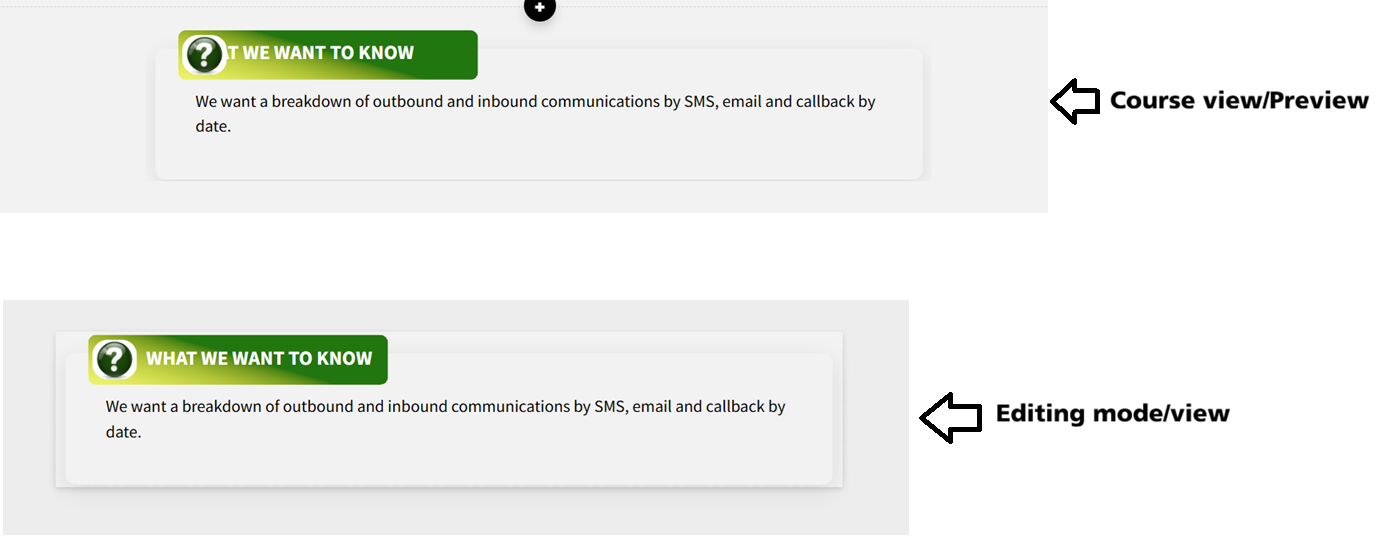
I agree with HVfb0f498d-053b - my custom blocks are all messed up.
All of the text inside these blocks has shifted to the left and appears masked or hidden — it’s not visible at all.
The strange part is that everything looks completely fine in editing mode. The text only becomes misaligned or invisible when I preview the lesson or view it in the published course.
Because the blocks look correct while editing, there’s no way to fix the issue — there’s nothing visibly “wrong” to correct.
Thank you for submitting this via the feedback survey as well. Our developers will look into it.
For now, you should be able to reverse these changes by restoring a snapshot that was automatically saved before the bulk edits were applied.
- MeeraLynn-UKCommunity Member
- HVfb0f498d-053bCommunity Member
Need to be careful when applying to all. I tried in my test course and it affected some custom blocks which were fairly basic, so unexpected, the positioning had changed., so I had text moved/overlapping icons.
Perhaps before applying could there be an alert saying: 'This will affect X blocks, are you sure you want to continue?' or do a quick summary list of all the affected blocks?
Thanks HVfb0f498d-053b
It looks like this issue was introduced by an unrelated update to Custom Blocks on Friday. The team has since reverted that change. Please let us know if you’re still seeing the problem.
If you published any courses containing custom blocks during that window, you may need to re-export them for the issue to be fully resolved.
Thank you for sharing this issue. I saw it was submitted via the feedback survey this morning. Our team will look into it! In the meantime, please note you can revert your course to its previous state by restoring a snapshot which was automatically saved just prior to the bulk changes.