Example

Pop Up floating Notes Panel
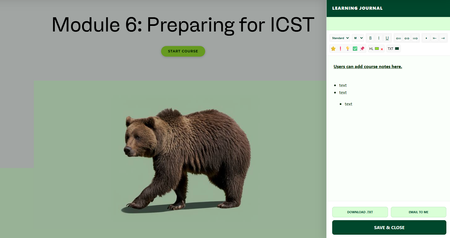

It looks really cool in the pictures. Maybe I'm doing it wrong 😁 but I wasn't able to copy the code from the text file and just drop it in a Code Block 😔 When I did it just showed the entire code on the page.
Before you start: one tool you need
A plain-text editor. DO NOT USE MICROSOFT WORD — Word will silently corrupt the file with curly quotes and formatting. You want one of these:
Windows: Notepad (built-in, works fine)
Mac: TextEdit works only if you set it to plain text (Format menu → "Make Plain Text").
Step 1 — Publish the Rise course
In Rise, click Publish (top-right) and choose one of these:
Web — if you're hosting the course yourself (static hosting, company intranet, etc.)
LMS → SCORM 1.2 or SCORM 2004 — if you're uploading to an LMS (Moodle, Canvas, SuccessFactors, etc.)
❌ Don't pick Review 360 — those files are locked and you can't edit them.
Rise saves a ZIP to your Downloads folder.
Step 2 — Unzip it
Find your-course-name.zip in Downloads.
Windows: Right-click → Extract All
Mac: Double-click the ZIP
You'll get a folder containing index.html (inside the scormcontent folder), a lib folder, assets, content, and (for SCORM) imsmanifest.xml.
Step 3 — Open index.html IN YOUR TEXT EDITOR
⚠️ Do NOT double-click index.html — that opens it in a browser, and you can't edit a browser-view.
Windows: Right-click index.html → "Open with" → Notepad (or Notepad++)
Mac: Open TextEdit/VS Code first, then File → Open and pick index.html. If TextEdit complains or shows it in a funny way, do Format → Make Plain Text first.
Step 4 — Find </body>
Press Ctrl+F (Windows) or ⌘+F (Mac). Search for exactly:
</body>
It's near the very bottom of the file. There should be only one match.
Step 5 — Paste the script RIGHT BEFORE </body>
Open paste-this-into-index-html.html (the file I just gave you). Select everything (Ctrl+A / ⌘+A), copy (Ctrl+C / ⌘+C), then paste into index.html on a new line just above the </body> tag.
The bottom of your index.html should end up looking roughly like this:
html ...lots of existing stuff...
<!-- ===== Floating ELearning Journal WIDGET - This is where I pasted the "paste-this-into-index-html" file ===== -->
<script>
(() => {
// ...the whole widget code...
})();
</script>
</body>
</html>
Save the file (Ctrl+S / ⌘+S).
Step 6 — Re-zip (SCORM only — skip for published as Web)
⚠️ This is where most SCORM uploads go wrong. The re-zip needs the SCORM files at the top level of the zip, NOT inside a subfolder.
Windows: Open the unzipped folder. Press Ctrl+A to select all files inside. Right-click → "Send to" → "Compressed (zipped) folder."
Mac: Open the unzipped folder. Press ⌘+A to select all files inside. Right-click → "Compress [N] Items."
✅ Correct: mycourse.zip opens to reveal imsmanifest.xml, index.html, lib/, etc. directly.
❌ Wrong: mycourse.zip opens to reveal a folder mycourse/ that contains those files.
For Web export: no re-zip needed — just upload the unzipped folder contents to your web host.
Step 7 — Upload and test
Upload the new zip to your LMS (or push the folder to your web host). Open the course.
You should see: a green 🗒️ "COURSE NOTES" button floating in the bottom-right corner on every lesson. Click it → drawer slides in from the right → type some notes → hit SAVE & CLOSE → navigate to a different lesson → reopen the drawer → your notes are still there. ✅
The reality of this workflow
Every time you re-publish a course, you redo steps 1-6. After three or four publishes, you'll have it memorized.
One nicety you can add later: save a shortcut to paste-this-into-index-html.html somewhere easy to find (desktop, a "Rise tools" folder, whatever) so you're not hunting for it each time. That's 90% of the ongoing friction right there.
I've attached my completed file with all of the changes for you to see.
Here are two images to show you that it still works without the Mighty Extension.
Keep in mind that this is a local device save only. If your users change devices, their notes will not follow them.
I've attached all of the files that you will need. My example file is called Floating ELearning Journal.zip.
Please let me know if you need anything else.





Getting Started with the E-Learning Challenges
Find practical answers to common questions about the E-Learning Challenges, a weekly event that helps you build skills, create your portfolio, and grow as an e-learning professional.