graphic design
4 TopicsUsing Vector Graphics to Design E-Learning Courses #545
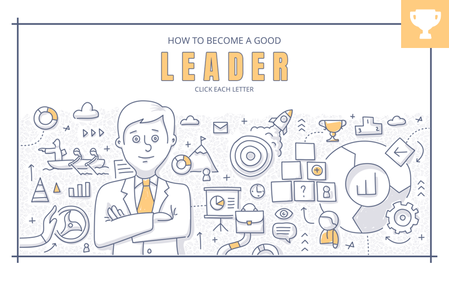
As course designers, you know that coming up with new design ideas can be a challenge. With so many free stock photos, videos, and AI-generated images out there, you'd think things would be easier, right? But the real challenge isn’t finding design assets. It’s using them in a way that doesn’t look like every other cookie-cutter course out there. This is where setting some creative limits or constraints can actually help. For example, you could use a single vector illustration as the foundation for your entire course. It might sound impossible, but it can lead to some surprisingly creative results. Let me show you an example so you can see how it works. How to Become a Good Leader Andrzej's example is one of my favorite examples of this technique. Using a stock illustration, he built a six-slide course template from the individual elements. Take a look at the following example to see how his final project turned out. View project | Download | Andrzej Jabłoński Ex Uno Plura At first glance, you might see just one image, not the many smaller pieces that make up the illustration. To work with these parts, open the file in a graphics program like PowerPoint or Illustrator. Open the vector file (.ai, .eps, or .svg) and ungroup it to select the individual shapes you want to use. Depending on how complex the illustration is, you might see a lot of layers. I like starting with the smaller elements since they’re easier to select. You can then select, group, and export these elements to use in your course design. Now you have everything you need to create the visual elements for your e-learning template. 🏆 Challenge of the Week This week, your challenge is to build a simple interaction or course starter template in Rise or Storyline using just one illustration. Be sure to include a screenshot or a link to the stock graphic you used, so others can learn from your example. 🙌 Share Your E-Learning Work You put in the effort, now make sure your work gets seen: Personal blog: If you have a blog, please write about your example from this week’s challenge and share the link with your submission. Social media: Please share your examples on LinkedIn and mention both David & Articulate using the #ElearningChallenge tags so we can help promote your work. Support your peers: With the new submission format, you can comment directly on each example. Try leaving helpful feedback on at least three projects this week. Community forums: Feel free to cross-post in the forums to give your work even more visibility. 🙌 Last Week’s Challenge: Before you break apart this week’s challenge, check out the accordion examples your fellow challengers shared over the past week: Accordion Interactions for FAQs in E-Learning #544: Challenge | Recap 👋 New to the E-Learning Challenges? The weekly e-learning challenges are ongoing opportunities to learn, share, and build your e-learning portfolios. You can jump into any or all of the previous challenges anytime you want. I’ll update the recap posts to include your demos. Learn more about the challenges in this Q&A post and why and how to participate in this helpful article.1.8KViews1like1Comment