series
100 TopicsEverything You Need to Get Started with Articulate 360 AI
Welcome! This series of articles will show you how to get up and running with Articulate 360 AI, fast. You’ll learn how to access all the apps in your subscription, get started with your first project, and make the most of all the powerful tools in Articulate 360. Click on “Get Oriented to Articulate 360” to get started. Get Oriented to Articulate 360 Pro Tips for Choosing Between Storyline 360 and Rise 360 Build Responsive Courses with Rise 360 Create Interactive Courses with Storyline 360 Get Started with Assets from Content Library 360 Accelerate Course Creation with AI Assistant Everything You Need to Know About Articulate 360 Teams Speed Collaboration with Review 360 Boost Your Skills with Articulate 360 Training298Views0likes0CommentsCourse Starters - E-Learning Challenges
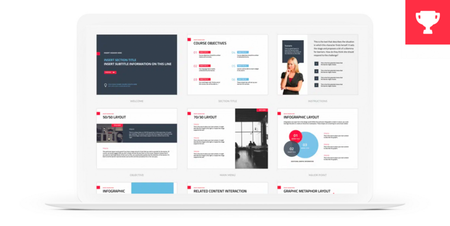
Course Starter Templates for E-Learning #123 Share Your Course Starter Templates for the Medical and Healthcare Industry #171 Course Starters: Construction Theme E-Learning Templates #183 Course Starters: Comic Book Theme E-Learning Templates #204 Course Starters: Academic and Higher Education E-Learning Templates #212 Course Starters: E-Learning Templates for Information Technology #215 Course Starters: Using Desktop and Office Themed Designs in E-Learning #234 Design an E-Learning Course Starter Template for the 2020 Olympics #338 Design a Course Starter Templates Inspired by Restaurant Menus #3731KViews0likes0CommentsHow to Learn with Reach 360
Reach 360 is an online learning platform that makes it easy to take training wherever you are. Explore the user guide to discover how it works. A quick note: you may see references to admins or other roles in some articles. Your role in Reach 360 is learner. Reach 360: Get Started Using Reach 360 Reach 360: Manage Your Profile Reach 360: Access Your Training Reach 360: Take and Complete Training Reach 360: How to Search For Content in Courses Reach 360: Browse the Library Want to learn more about Reach 360? Check out the User Guide.23KViews0likes0CommentsStoryline 360: Building Quizzes
Learn how to build quizzes in Storyline 360. Create quizzes from form-based questions and freeform interactions, use question banks to randomize assessments, and track quiz results. Here's how. Working with Quiz Slides Storyline 360: Adding Form-Based Questions Storyline 360: Adding Freeform Questions Storyline 360: Drag-and-Drop Questions Storyline 360: Pick-One Questions Storyline 360: Pick-Many Questions Storyline 360: Text-Entry Questions Storyline 360: Hotspot Questions Storyline 360: Shortcut-Key Questions Storyline 360: Converting an Existing Slide to a Freeform Interaction Working with the Question Editor Storyline 360: Editing Questions in Form View Storyline 360: Editing Questions in Slide View Storyline 360: Shuffling Answer Choices Storyline 360: Choosing Feedback and Branching Options Storyline 360: Using the Feedback Window Storyline 360: Working with Feedback Layers Storyline 360: Assigning a Score to Graded Questions Storyline 360: Choosing the Number of Attempts for Graded Questions Storyline 360: Making Ungraded Questions Required or Optional Storyline 360: Assigning Questions to Result Slides Working with Result Slides Storyline 360: Adding Result Slides Storyline 360: Limiting Quiz Attempts Storyline 360: Submitting Answers All at Once Storyline 360: Confirming That Learners Are Ready to Submit Their Answers Using Question Banks Storyline 360: Understanding Question Banks Storyline 360: Creating and Managing Question Banks Storyline 360: Adding and Editing Slides in a Question Bank Storyline 360: Drawing Slides from a Question Bank Tips Your One-Stop Shop for Storyline 360 Quiz-Building Tips 20+ Tips for Writing Great Quiz Questions and Response Options How to Match Question Types with the Skills You’re Testing How to Write Plausible Incorrect Answer Options for Quiz Questions Do’s and Don’ts of Writing Effective Multiple Choice Questions Examples Want to see what's possible? Check out these quizzing examples.7.8KViews0likes0CommentsHow Stakeholders Review Content in Review 360
Review 360 lets e-learning developers and stakeholders collaborate on projects and speed up content reviews. Gather feedback, follow threaded discussions, resolve comments, and track version history, all in one easy-to-use web app. See the links below to learn more, or download this quick-start guide (PDF). Review 360: Get Started Review 360: Use Comments to Give Feedback Review 360: Subscribe and Change Notification Settings Review 360: Understand Tasks and Permissions6KViews1like0CommentsHow Owners Manage Review 360
Calling all e-learning developers! Speed up your content reviews with Review 360. Simply publish your content to Review 360 and invite stakeholders to offer feedback in a web app they can access anywhere, anytime. Collaborate with stakeholders in threaded discussions, mark comments resolved, and track version history. Here’s how. Review 360: Publish Content to Review 360 Review 360: Invite Stakeholders to Review Content Review 360: Manage Feedback Review 360: Organize Items on Your Dashboard Review 360: Share Items with Team Folders Review 360: Manage Versions of Your Content1.1KViews0likes0CommentsQuick Tips & Tricks
Storyline 360 Quick Tips Tutorials: Reset Incorrect Drop Choices in Storyline 360 (w/ VIDEO) Tutorials: How to Start & Stop a Zoom Region in Storyline 360 Tutorials: Create a 3 Second Press & Hold Interaction Tutorials: Unrestricting Navigation in Storyline 360 Tutorials: How to Create a Smoother Interaction with Multiple Mouseovers in Storyline Tutorials: Working with Slide Layer Properties Tutorials: Require Learners to Click All Buttons in Accordion Interactions Tutorials: How to Toggle Hidden & Disabled States in Storyline 360 Tutorials: How to Combine Hover & Selected States in Storyline 360 Tutorials: Working with Audio and Interactive Markers in Storyline 360 Tutorials: How to Give Visual Feedback with Drag-and-Drop States Tutorials: Show Quiz Attempts with Hints in Drag-and-Drop Interactions Tutorials: Animate Drag Items as They're Dropped on Targets Tutorials: Show Feedback for Each Step in Sequence Drag-and-Drops Tutorials: Unlimited Drag Items from a Single Object in Articulate Storyline 360 Tutorials: Three Ways Learners Can Skip Slide Animations & Other Content in Storyline 360 Tutorials: How to Customize Interactive Markers in Storyline 360 Tutorials: Create Custom Drag & Drop Exit Animations in Storyline 360 Tutorials: How to Maintain Consistent Character Sizes in Storyline 360 Tutorials: Here's a Hidden Animation Effect for Storyline 360 (Free Template) Tutorials: Avoiding Overlapping Audio & Text Layers in Storyline 360 Tutorials: Production Tips for Mobile Only Courses in Storyline 360 Tutorials: How to Create a Progressive Scavenger Hunt with 360° Images in Storyline 360 Tutorials: How to Create Badges for a Gamified Scavenger Hunt Using 360° Images Tutorials: Use the Translation Feature for Quick Text Edits in Storyline 360 Tutorials: How to Customize the Design Theme Colors in Storyline 360 Rise 360 Quick Tips Tutorials: Media Production Tips for Rise 360 Tutorials: Creating Dividers for Rise 360 Tutorials: Creating Graphics in Google Slides for Rise 360 Tutorials: Embedding Content in Rise 360 Tutorials: Create a Meet the Team Interaction with a Quote Carousel Block General E-Learning Tutorials: Cut Long Audio Into Shorter Audio Tracks with Articulate 360 Tutorials: Using Subtle Textures & Patterns for Slide Backgrounds Tutorials: Enabling SVG When Using Cloudberry Explorer to Share Courses Tutorials: Quick and Easy Background Makeovers for E-Learning Courses Reach 360 Reach 360: Import Third-Party Training Content 6 Ways to View & Export Reports in Articulate Reach 360 Using the Activity Reports in Articulate Reach 360 Using the Learning Path Reports in Articulate Reach 360 Using the Active Learner Usage Reports in Articulate Reach 360 Using the Course Reports in Articulate Reach 360 Using the Group Reports in Articulate Reach 360 Using the Learner Reports in Articulate Reach 360 Reach 360: Publishing a Storyline 360 Course to Reach 360 Reach 360: Publishing a Rise 360 Course to Reach 360 Reach 360: Library Visibility Reach 360: Creating and Managing Custom Libraries1.2KViews0likes0Comments