slider
13 Topics
Mission: Survive the Stakeholder 😅 | Things to Say & Not Say to IDs
Hi everyone! 👋 For this week's challenge, I decided to gamify the classic "Instructional Designer eye twitch" moments we've all experienced during project kick-offs. Welcome to Mission: Survive the Stakeholder! In this short interaction, you play as a project manager meeting with Alex, your ID. Your goal is to choose the right things to say to get the project moving without causing his stress meter to max out. Behind the scenes: Visuals: I generated the 3D Pixar-style character states using AI to capture those perfect, relatable expressions of creeping panic. The Tech: To make the stress meter feel fluid, I built a custom HTML/CSS/JS interaction and embedded it as a Web Object in Storyline. The custom slider is dynamically synced with the background video, so Alex's reactions update smoothly in real-time as your score changes. You can play the demo here: Mission: Survive the Stakeholder I had so much fun putting this together. I’d love to hear your thoughts! Did you manage to keep Alex calm, or is he currently updating his resume? 😂629Views5likes2CommentsBurning Questions
Hello! Another tongue-in-cheek demo, with a serious message. But I don't recommend that you take this passive-aggressive route to explain gamification to your boss... This demo is built around an oversized slider, which is animated using rapid state changes controlled by Javascript. Video sections created in Powtoon. Any questions, please ask. I promise I won't turn you into a computer game character in a burning building. Try it for yourself here: https://bit.ly/elhc542
The Anti-Snob Coffee Guide
First time creating my own number variable! Woohoo!😁 Thanks to this training Using Number Variables in Storyline, I was able to use a number variable for the coffee calculator. As always, I used Articulate AI and 360 content for videos, art, icons, and TTS. I also used Gemini for a couple of videos. I like these challenges because it gives me a chance to learn new skills, inject some humor🤠, and be creative with visual design. I have to comply with corporate templates and branding guidelines all day, so I enjoy the freedom with these challenges!The best weigh to make an espresso
Hello! I like to mimic real-life machinery, dials, switches, and buttons in eLearning where it's appropriate. Sometimes learning by doing can be very literal. But these features can also impact #accessibility. In this week's coffee-themed demo, I have ensured the drag and drop, slider and dial interactions are also accessible from the keyboard. All of the vectors in this week's demo were 'handmade' in PowerPoint and Storyline using the 'merge shapes' feature. Most of my time was spent making sure the interactions perform as intended when the keyboard is used instead of a mouse. But I'm pretty pleased with the overall effect. What do you think? PLAY HERE
Using picture as slider, not only thumb (slider itself invisible)
Hello everyone, I'm not very advanced in using Storyline yet, but I hope that my question is not too obvious. I have tried searching but have not found an answer under my keywords. I would like to animate a fly swatter as a slider. It should scare away a fly on a window and I would like to use a slider for the movement (but the typical slider should be invisible). I thought this would work because I found a very similar example on YouTube (a hand with a computer mouse moving back and forth on a desk - picture attached. It is a tutorial, but I don't get, how he has done the slider itself). I can certainly solve this differently (e.g. via motion path), but the whole exercise was really just to see how I can create really individual sliders that no longer look like sliders at all. So it's not just about filling the thumb of the slider with an image. Does anyone have the crucial hint for me? Many thanks in advance!336Views0likes5CommentsStoryline: Slide-to-Reveal Interaction Template
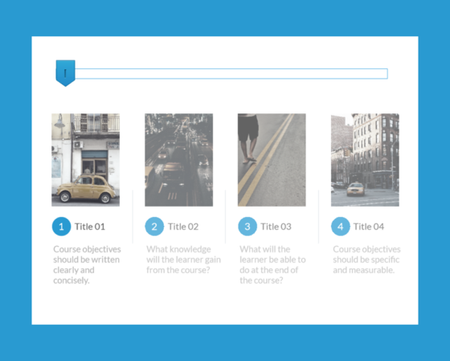
Click-and-reveals are a great way to chunk information so it’s less overwhelming for your learners. But have you ever considered using a slider instead of buttons? This novel approach is sure to surprise your learners and keep them engaged. And since it’s all built in Storyline 360, it’s easy to customize to fit your needs. In just a few minutes, you can change up the color scheme, swap out the photos, and pop in your content. Explore this example. This template will work for folx using Storyline 360, the continuously updated version of Storyline included in Articulate 360. Want to try it out? Get a free trial of Articulate 360 right here.4.7KViews2likes5CommentsPaper Computer Screens
Description In this demo I used AI Assistant to create some paper computer screens. I then created a top and bottom version of those images and cut the screen out of the top version. I also created some paper cutout people and used them as a simple slider interaction. Attached is the source file with the paper cutout images. Use them as you wish. Example View the example here. Resources Learn to use sliders How to create that interaction About Me I love helping people learn to use the Articulate software to meet their needs at work. I especially like to help those new instructional designers who are trying their best to get a handle on things. I regularly contribute to the training team's blog where we assemble all sorts of tips and tricks. Follow it to stay up to date. I post every Wednesday to Articulate's company blogwhere I share more general instructional design tips. I used to write the Rapid E-learning Blog. Still lots of good tips & tricks in there. Connect with me on LinkedIn and follow my YouTube for more tips & tricks.