sliders
5 TopicsNeed to Know? Sorting Doug's 200 Slides 📄😱
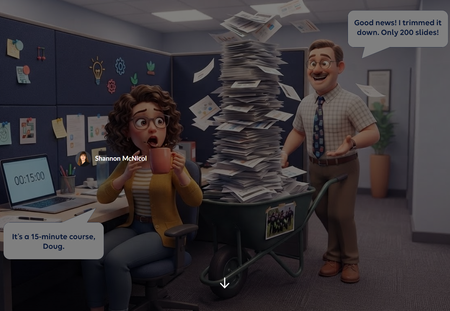
We've all met Doug. Doug is a lovely SME who knows everything, and he just rolled 200 slides into your cubicle for a 15 minute course. "Good news! I trimmed it down!" 🙃 For this week's challenge, I turned that moment into a sorting activity. Learners drag each of Doug's slides into one of three zones: Need to Know (teach it), Nice to Know (link it), or Never to Know (cut it, kindly). Then they hit Submit, and Doug weighs in. Try sending his paintball offsite photo to the cut zone and see what happens. 🎯 Why a slider? Drag and drop isn't fully keyboard accessible yet, and this interaction only needs to move one way: left to right. So the slide card rides on a slider. Learners can grab the card or the slider button with a mouse, or tab to it and use the arrow keys. Screen readers hear which zone the slide is in, not a random number. Same feel as drag and drop, and everyone gets to play. 🙌 What I learned: Get one axis right before anything else. If the movement only goes one way, a slider gives you drag and drop feel with accessibility built in. Feedback with personality sticks. Doug reacts differently depending on where you drop each slide. It's funny, but it also shows why something belongs in a zone. Show the payoff. The end screen compares Doug's 3 hr 40 min version with your trimmed course. That's the real lesson for any LED. ⏱️ Shout out to Claude, my co-creator for the build. Doug and our caffeinated LED were brought to life with Articulate's AI image generation. ☕🤖 👉 The SME Content Dump Have you ever had a Doug? What's the wildest slide you've had to cut? 😂Using Sliders for Accessible Drag-and-Drop Interactions #569
Drag-and-drop is one of the most flexible features in Storyline. With freeform drag-and-drop, you can use images, text, shapes, and graphics to build almost any interaction you can dream up. There's one catch, though: drag-and-drops aren't fully keyboard accessible yet. That can leave some learners out when you want everyone to take part. If your interaction only needs to move in one direction (side to side or up and down), there's another object that works beautifully: the slider. Sliders for Drag-And-Drop Interactions? Most of us reach for sliders to compare values, explore data, or add quick microinteractions. But with a little customization, they can power drag-and-drop-style interactions that work with a keyboard and keep movement locked to the X or Y axis. Aman shows just how well this works in his typography example. View the example The first time I saw it, I thought, "Wait, how'd he do that?" The trick is surprisingly simple when you understand how sliders work. Aman swapped the standard slider thumb for a letter graphic. Now learners can move that letter left and right or up and down, just like they would in a drag interaction. And because sliders are tied to variables, you can make things happen when the values change. That makes sliders a great fit for typography concepts like kerning and leading, where learners need to move an object in only one direction. With a little customization, a slider can measure distance, set an object's position, or step through a sequence. It can even stand in for drag-and-drop, and that's exactly what this week's challenge is all about! 🏆 Challenge of the Week This week, your e-learning challenge is to share an example that shows how you can use sliders to build drag-and-drop-style interactions. Go beyond traditional number scales and use sliders to explore concepts like distance, position, sequence, intensity, or other relationships that benefit from hands-on movement. 🙌 Share Your Work You put in the effort. Now make sure your work gets seen: Personal blog: If you have a blog, write about your example from this week's challenge and share the link with your submission. Social media: Share your examples on LinkedIn and mention both David and Articulate using the #ElearningChallenge tag so we can help promote your work. Peer feedback: Try leaving helpful feedback on at least three projects this week. Community forums: Cross-post in the forums to give your work even more visibility. 🙌 Last Week’s Challenge: Before you slide into this week's challenge, check out the interactive video examples your fellow community members shared over the past week: Turning Video Into Learning Experiences #568: Challenge | Recap 👋 New to the E-Learning Challenges? The weekly e-learning challenges are ongoing opportunities to learn, share, and build your e-learning portfolios. You can jump into any or all of the previous challenges anytime you want. I’ll update the recap posts to include your demos. Learn more about the challenges in this Q&A post and why and how to participate in this helpful article.42Views0likes0CommentsHow to Turn a Slider into a Quiz Question
This tip comes from our certified training partner, Yukon Learning. Sliders a fun way to create interactive elements on a slide in Storyline, and you may have used them to do things like show a timeline of events or even used them in a gamified slide. But did you know that you can you use them to answer quiz questions? In this video, we'll show you how to use slider values to control a freeform multiple choice question. You'll learn how to: Add a slider to your freeform quiz slide Adjust slider design properties Link slider stopping points to quiz answers using triggers Resources: Yukon Learning YouTube Channel Sign Up for Facilitated Certified Training289Views2likes0CommentsSnapshot graphics + click-and-reveal = engaging cybersecurity learning
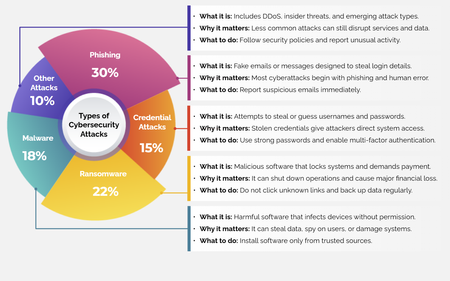
For this week’s challenge, we used snapshot graphics and a click-and-reveal interaction to help learners quickly recognize common cyber attacks—without overwhelming them. View the activity using the link below. https://www.swiftelearningservices.com/custom-elearning-snapshot-graphics-click-reveal-cyber-security-attacks/250Views2likes0CommentsTip of the Iceberg
Happy New Year! When I take part in a Challenge, I'm often asked, "How long did it take you to build that demo, Jon?" The answer can vary, depending on whether I'm experimenting with a new feature, revisiting an earlier concept, or building something completely new. What you see is just "the tip of the iceberg". The next question is: "Is the juice worth the squeeze?" Maybe. Maybe not. Depends on the project, your audience, and the subject matter. Remember, interaction doesn't always aid knowledge transfer. But by regularly practicing with your tools, you can bring your development time down, and make interactions like this one more viable on a real project. Click below to test the demo for yourself, and let me know what you think. https://bit.ly/elhc536 399Views3likes2Comments