Example

Are You Sure? Turning a Confirmation Prompt Into a Checkpoint 🛑
We've all done it. You're halfway through a required course, your inbox is screaming, and you click the first answer that looks right just to keep moving. So when this week's challenge landed on confirmation prompts that little "Are you sure?" pause before you submit I knew exactly the moment I wanted to design for.
But I didn't want to bolt a generic pop-up onto a quiz. I wanted the pause to actually do something.
The idea id💡
I built this as a Checkpoint inside my course AI Prompts for Learning Experience Designers and here's the part I had a little too much fun with: it's a course about prompting, and the checkpoint itself models the single most important prompting habit there is. Don't fire off the first thing that comes to mind. Pause. Reread. Reconsider. Then commit.
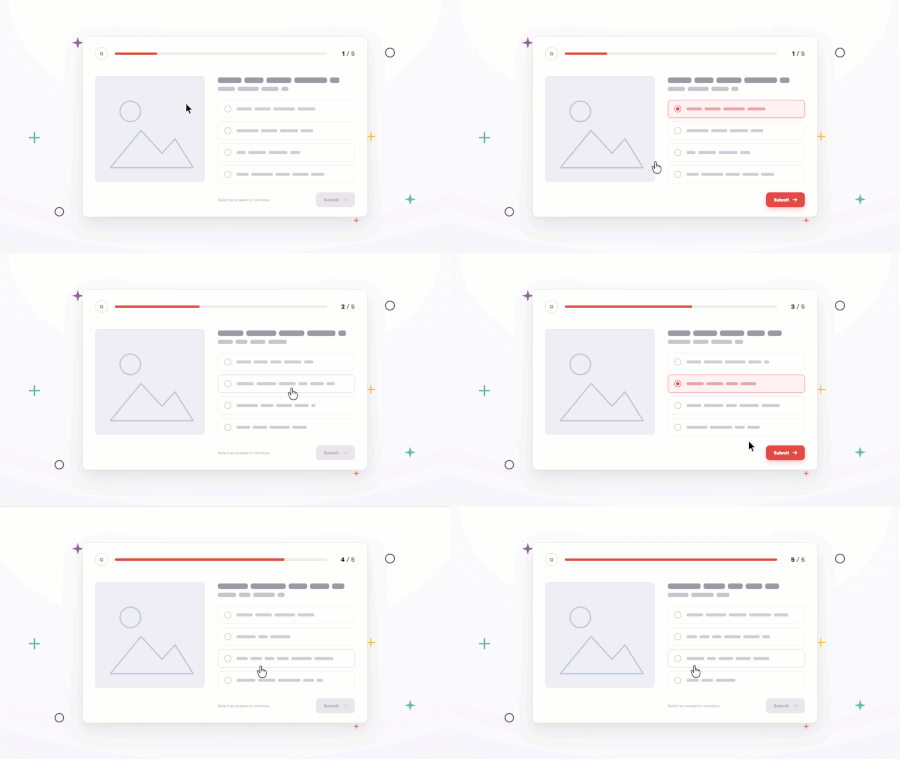
The interaction drops the learner into four real-world scenarios, one drawn from each module of the course writing intro copy under a deadline, drafting measurable objectives, iterating on a draft that's almost right, raising the ceiling on generic questions. They pick an answer. And then, before anything locks in, the pause hits.
What makes the pause smart ⏸️
This is the bit I'm proudest of. Instead of the same flat "Are you sure?" for every option, the confirmation reacts to the exact answer you picked. Choose the vague prompt and it nudges you: "Three words, zero context — you'll spend the time you saved rewriting the output. Sure?" Choose the strong one and it affirms your thinking instead. It reads like a prompt coach leaning over your shoulder never giving away the answer, just helping you check your own work.
Then at the end, a little tally shows what the pause actually did: how many times reconsidering rescued a wrong answer, and how many times it talked you out of a right one. Turns out the value of slowing down is surprisingly easy to measure. 😄
A couple of build notes 🗒️
- Placement matters. The Checkpoint sits before the hands-on Practice Lab on purpose recognition first (spot the better prompt), then production (write your own). Nice little scaffolding ramp.
- All Rise 360 Code Block, and entirely transform-free the gradient hero, the twinkling tokens, the glowing progress bar, the staggered fade-ins, and the count-up score are all pure opacity, shadow, and gradient. Keeps it rock-solid inside Rise's iframe.
- Matched to my course palette so it feels native, not bolted on.
And yes — I built this side by side with Claude as my co-creative partner. The taste and the instructional intent are mine; the AI just helped me get there faster and iterate without losing my mind. Which, fittingly, is exactly what the course is about. 🙂
The real lesson of a good confirmation prompt isn't "gotcha." It's "hey — you've got this, just take half a second to be sure." That's the kind of friction I'm always happy to design in.
Would love to hear how you'd use a pause like this in your own work. 👇
10 Replies
- AEG-911Community Member
This was amazing! As well as informative. I learned information about working with AI that I shared with the team. The way the course was built is a whole another level, thatI will have to take apart and see if I can replicate.
- SMcNicolCommunity Member
Thank you! ❤️
- julieoCommunity Member
love this Sharon, we are new to AI in design so found this so helpful and engaging thank you
- SMcNicolCommunity Member
Thank you! ❤️ I created a custom AI Avatar in Articulate (not one of the stock options) for the video, then built a custom wrapper with Claude to give it a more tailored look. Happy to share more about the process if you're interested!
- TamelaCricke765Community Member
I'm very interested in learning how you built the custom wrapper and what you did to incorporate it with the AI avatar. I use HeyGen for my custom avatar animations, but have never tried Articulate's option. I thought it was just the usual stock options which are limiting. Thanks for showcasing this so I can see what's possible!
- KelleyDurdella-Community Member
When creating the custom wrapper, how did you add it into the video?
- SMcNicolCommunity Member
A wrapper is just a frame around your video — like a picture frame around a photo. The video is the photo. The frame is the nice stuff you put around it: your colors, rounded corners, a title, a caption. That's the whole idea. When we say "custom wrapper," we just mean "the frame you built yourself."
Rise gives your Code Block two ways to take your work:
- Add Code: You paste code (text) into a box. Fine when there's nothing but text.
- Upload Project: You hand Rise a whole folder, zipped up. You need this one any time a real file is involved, like a video or an image because you can't paste a file into a text box. You have to give Rise the actual file.
So: Video or Image? You're using Upload Project. Every time.
Now the one thing that trips up almost everyone: how you pack the folder. Everything goes loose in one folder, sitting side by side — your index.html and your video right next to each other. No folders tucked inside other folders. Picture one envelope with everything dropped in it, not envelopes stuffed inside envelopes. Rise gets lost digging through layers, so flat and simple always wins.
Your folder should look like just this, both items at the top level:
index.html
intro-video.mp4The code that connects them is short. You don't need to understand every piece — you just need to point it at your file:
HTML Code:
<div class="video-wrapper"> <video controls width="100%"> <source src="intro-video.mp4" type="video/mp4"> </video> </div>
The part that matters to a beginner is src="intro-video.mp4" — that's the name of your video file. It works because the video is sitting right next to index.html in the same folder, so the code just calls it by name. If you rename your video, you change that one spot to match. Everything else (video-wrapper) is the frame, and the styling for it lives further up in the file.
Zipping it — this is where people slip. You don't zip the folder. You zip what's inside it:
- Open the folder.
- Select the files inside it (index.html and your video).
- Zip those two things.
If you right-click the folder itself and zip it, you accidentally wrap everything in one extra layer, and Rise can't find index.html. (Same "folders inside folders" trap as before.) Then upload that zip using Upload Project.
Four things that cause most "why won't it work" moments:
- Save your video as an MP4. It's the format that plays everywhere. Other formats might play fine on your computer and then break for a reviewer on a different one.
- Videos won't start on their own unless they're silent. Browsers block auto-play with sound. The easy path: don't auto-play at all just let the learner press the play button.
- Shrink your video before you zip it. The video gets packed inside your course, so a giant file makes your whole course giant and slow to load. Compress it first.
- If you ever add your own custom buttons later, there's a specific way to hook them up so Rise doesn't strip them out — but ignore that for now. When you're starting out, the built-in play button (that's the controls word in the code) is all you need.
I've included two things to get you started- An example file — a ready-made wrapper you can open, drop your own video into, and zip up. Use it as your template instead of starting from a blank page.
- This cheat sheet — keep it open (or printed) beside you while you work.
 Jazmine_rnldsCommunity Member
What software did you use for the AI Avatar's video? Great work!
- SMcNicolCommunity Member
I used Articulate AI avatar. 😁
- KelleyDurdella-Community Member
Yes! I would love to know also. It's very cool.







Getting Started with the E-Learning Challenges
Find practical answers to common questions about the E-Learning Challenges, a weekly event that helps you build skills, create your portfolio, and grow as an e-learning professional.