Forum Discussion

Adding scrollbar to text entry field in Storyline 360
- 5 months ago
Hi Everyone!
I'm happy to share that we just released a new update for Storyline 360!
In version 3.107.35958.0 we included essential fixes and new features. One of the bugs we’ve fixed is:
- A scrollbar didn't appear as expected when text overflowed
Launch the Articulate 360 desktop app on your computer to take advantage of this update, and click the Update button next to Storyline 360. You’ll find our step-by-step instructions here.
Please let us know if you have any questions!


Hey folks! I'm happy to let you know that we just released Update 12 for Storyline 360, and you can check out the new features and fixes here!
Specifically included in this version is a fix to address some issues with data entry fields:
- Data entry fields that should have focus when slides load weren't immediately accepting learner input.
- Text entry fields didn't always have scroll bars when learners entered overflowing text.
Simply update Storyline to the latest version and republish your project to see the fix. Here's how updating Storyline 360 works.
I'm happy to hear how you make out!
Thanks for the update Crystal.
Text entry fields seem to get scrollbars now when text overflows which is great, thanks for the fix.
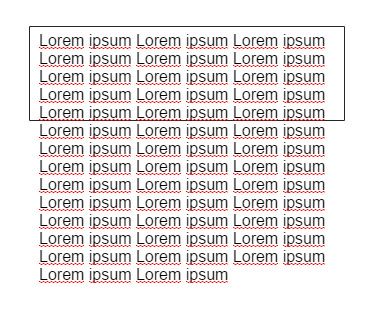
The only negative I can find is that when I publish an existing course the text entry fields automatically have a mis-sized scrollbar attached (see top right of grab). To avoid this happening you need to add the text entry fields again in the latest version.
Do you know if this is fixable as I have 18 courses, all with multiple text-entry fields in them that need to be published soon!