Forum Discussion

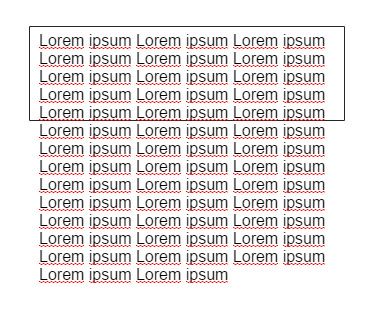
Adding scrollbar to text entry field in Storyline 360
- 5 months ago
Hi Everyone!
I'm happy to share that we just released a new update for Storyline 360!
In version 3.107.35958.0 we included essential fixes and new features. One of the bugs we’ve fixed is:
- A scrollbar didn't appear as expected when text overflowed
Launch the Articulate 360 desktop app on your computer to take advantage of this update, and click the Update button next to Storyline 360. You’ll find our step-by-step instructions here.
Please let us know if you have any questions!


Hi David,
Thanks for a file - even a stripped down one! Now through each of the things in your display.
1. The text entry with the scroll bar - I saw the same thing in your project file, even when I duplicated the text entry box. Oddly enough, the odd scroll bars disappeared when I changed your story size. So here's what I tried:
- Creating a new project with the same dimensions, story size, colors, etc. - Couldn't reproduce it
- Importing into a new project file with the default set up - Couldn't reproduce it
- Importing into a new project that is set to match your original story size - Reproduced
So there is something in the custom story size and this project itself that's causing it. Can you tell me any more about how you created this file, how you added the text entry, changed the text entry, anything that seems out of the ordinary? Also, I know you've been using Articulate for some time, but always worth checking the best practices here about working locally.
2. The variable reference shrinking, I know you opened up a support case for that too! So I'll follow along in your case, but one thing I did spot was it only occurred to me in your file when the font size was set below 15 pts.
3. For the printing issues, I also see you started a support case on that too! I'll touch base with my team on that as well.