Forum Discussion

Adding scrollbar to text entry field in Storyline 360
- 5 months ago
Hi Everyone!
I'm happy to share that we just released a new update for Storyline 360!
In version 3.107.35958.0 we included essential fixes and new features. One of the bugs we’ve fixed is:
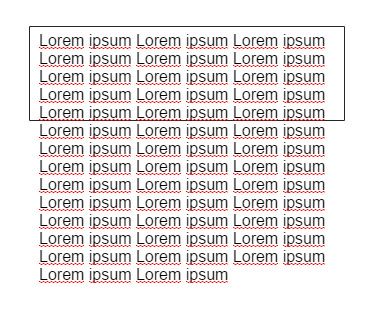
- A scrollbar didn't appear as expected when text overflowed
Launch the Articulate 360 desktop app on your computer to take advantage of this update, and click the Update button next to Storyline 360. You’ll find our step-by-step instructions here.
Please let us know if you have any questions!


Hi Marcela,
If you have a text entry that is set up to only a single line, Storyline won't expand the box as you continue typing or try to navigate to a new line. You'll see that the line of text continues to expand, and the user can keep typing, but it all remains on one line.
When using the Enter key:
- If the text-entry field is tall enough to accommodate more than one line of text, the Enter key will add a line break (return), so the learner can start a new paragraph. For example:
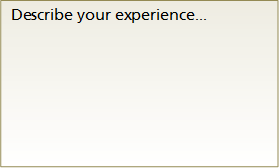
- If the data-entry field is only tall enough for a single line of text, the Enter key will assign the learner's response to the variable. In other words, it will submit the learner's response. For example:

The issue with the scrollbar not appearing for a larger text entry field that can accommodate multiple lines of text is something we reported to our team, so we'll keep you posted on that here. It's worth noting that you can still scroll in that field, you just won't see a scrollbar.
Hope that helps clarify the setup, and we'll keep you posted on that other issue here.