Forum Discussion

AI Avatar GUI needs work

Hi GeorgeMoureau,
Thanks for sharing this feedback!
I can see how being unable to move back and forth between Storyline and the AI Avatar window while you’re working can interrupt your workflow. I’ve shared your feedback about allowing more flexibility there with our team.
You can create or customize a character and save it for reuse. Here's where the Save button is located.Once you start adding a voiceover, the current workflow requires you to generate the video to save that work. I can see how the “unsaved changes” message would be confusing when there isn’t an obvious Save option at that stage, and I’ve logged this internally as well.
Please let me know if you have any questions!
Hi Kelly, thanks for responding. When I create or customize a character I do have a save option. I would like to also be able to select and save the voice for that character. Right now for each voiceover I have to re-select the voice I want. The default voice for these characters are not necessarily what I want to use.
The nature of our programs don't require a talking head for every slide. I create or generate a voiceover and save just it (the save for this is a little buggy, sometimes i get an empty file and have to try several things to get it to save). I don't need the .png image so I save the mp3 and cancel the .png save. Once I have the voiceover I want, I exit the AI generator. That's when I get the message about Unsaved Changes/Discard or Cancel.
Right now I'd be happy with being able to select a voice for a character and have it remain attached to the character.
George
- KellyAuner2 days agoStaff
Hi GeorgeMoureau,
Thank you so much for the clarification!
I can definitely understand how having to reattach a voice to a specific character each time can feel repetitive. The additional context you've shared will be really helpful in illustrating this workflow to our product team.
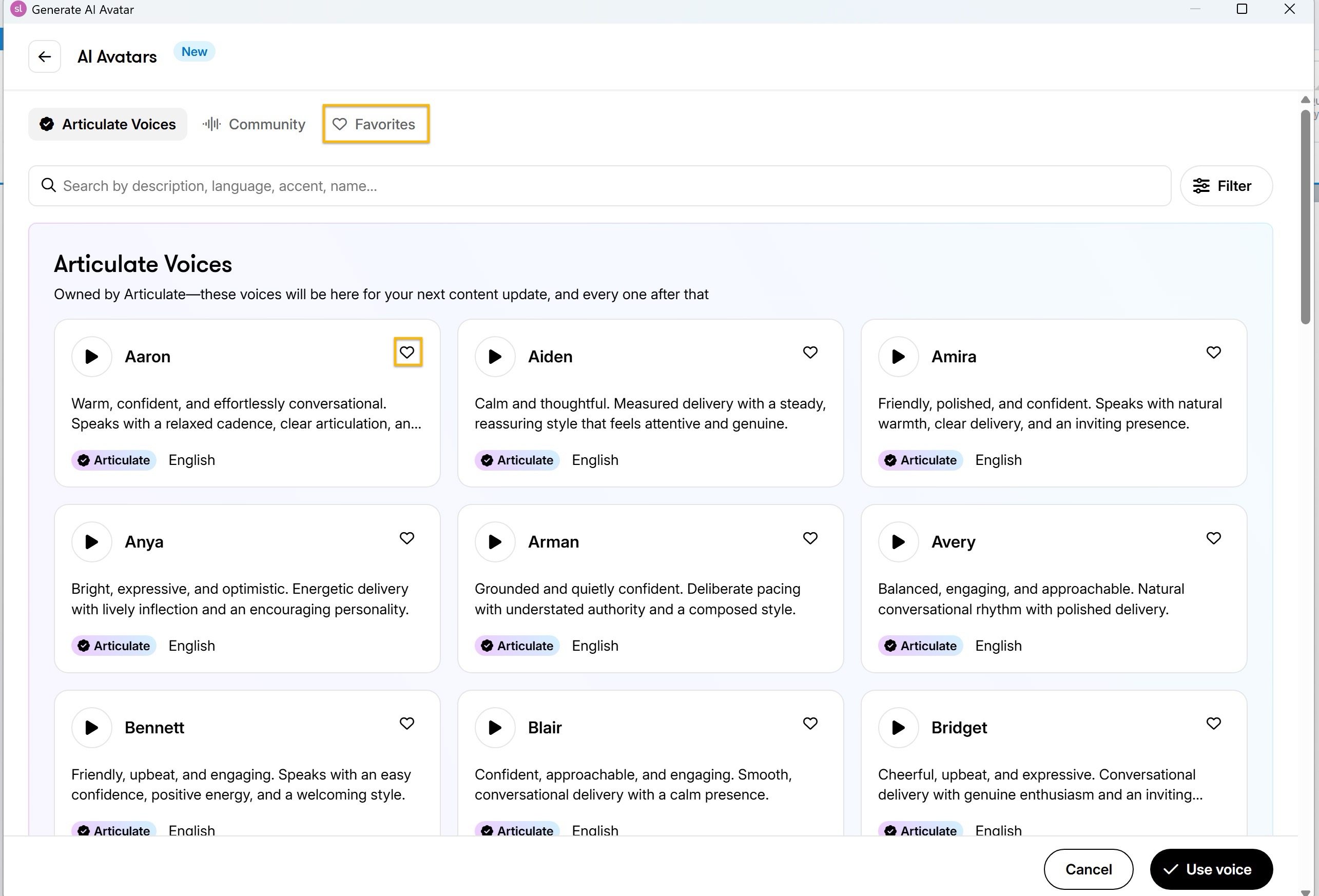
While it isn't a solution to the specific request you've described, I did want to share one tip that may help save a little time. You can Favorite your frequently used voices. When creating a voiceover, select View all, then click the heart icon next to any voice you'd like to save. From then on, you can quickly access those voices from the Favorites tab at the top of the AI Avatars window.
Thanks again for taking the time to share these details!
Related Content
- 1 month ago
- 4 months ago
- 9 days ago
- 3 months ago