Forum Discussion

Error: Media Playback error in RISE file published to LMS.


This sounds very similar to an issue that we've experienced using PeopleFluent / NetD LMS.
We uploaded a video directly into the course, blocked users from skipping through the video, and blocked the "continue" button until the video was completed. I exported as Scorm 2004 v4 (although I tried others to troubleshoot also).
Troubleshooting:
- Cleared browser cache
- Updated Chrome from v. 114.0.5735.110 to v. 114.0.5735.134
- Re-published the course in the same format and other formats
- Attempted the course in incognito window
- Watched the video within Rise360, no error
- Attempted the course in Firefox. Lost audio and the video froze but I was able to resume playback.
- Unable to test on SCORM Cloud due to file size
- Reviewed and even republished the original video file
- Enabled de-bug mode
- Created a brand new course with a different recording; same error
Some other observations:
- SCORM file is 253 MB
- The video freezes at different times for different users but is usually around the same time each time.
- Multiple users reported this issue; Edge, Chrome and Firefox all experience an issue; users were located in different locations with different internet connection speeds; some were at the office with high speed.
We have hosted the video on Youtube and allowed users to skip forward in order to work around the issue for now; however this is not ideal as users can ignore the video completely and skip forward in the course.
The video is a mp4 file and is an hour-long recording. I'm wondering if although RISE does not indicate a maximum file size, and the video does upload, the 250-300 mb video file could be slightly corrupting on upload or publication. (Although, some users can relaunch the course in incognito mode and finish the course after several attempts.)

Hi Talent Development! So sorry to hear that you're encountering an issue with a video in your Rise course. Does this happen to all your videos or just this one?
I would suggest encoding the file in Handbrake, and then try uploading to Rise again. Here are some instructions:
- Download, install, and open the HandBrake app.
- Drop your video file on the HandBrake app. Or, click Open Source on the ribbon and import your video file.
- In the summary settings, mark the Web Optimized box, as shown below. You can leave all the other settings as they are.
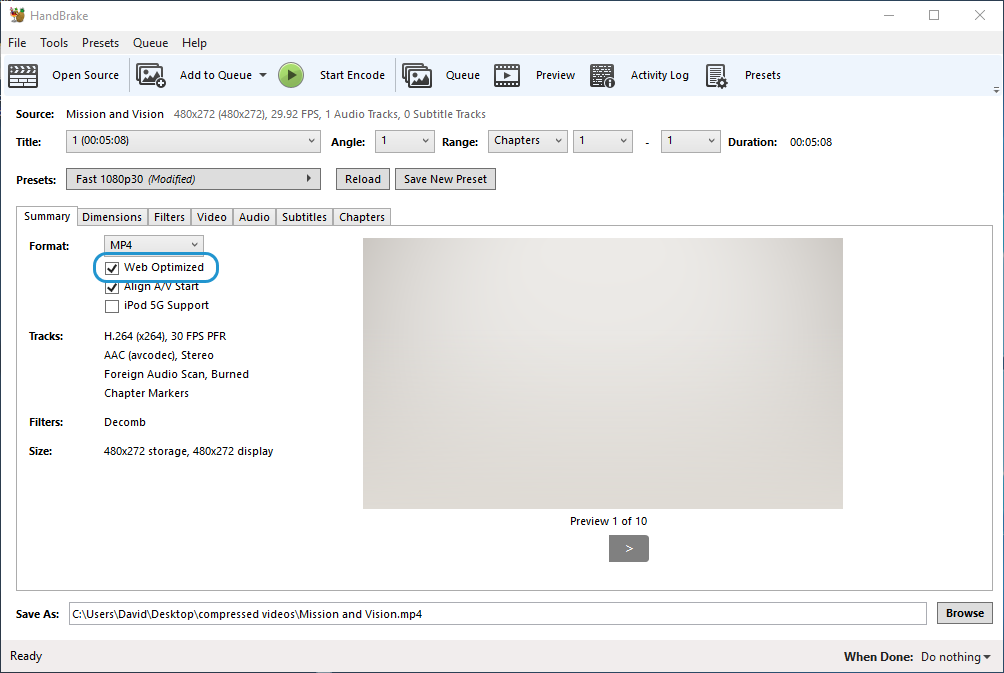
- Click Start Encode on the ribbon to re-encode your video.
Insert the new video file into your e-learning project and republish the course.
Let me know if this worked for you! If not, you can always open a case here.
Related Content
- 3 months ago
- 8 months ago