Forum Discussion

Overlapping States
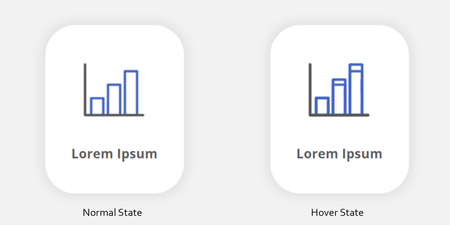

It possibly could. Who knows. It certainly would make life easier in building better buttons.
There have been issues with the Hover State over-riding Selected States for years now, but Articulate's official position is that States behave in the expected way, and it's probably us, awkward and annoying people who are doing things wrong, despite EVERY client I have ever had asking for the button to display as Selected once it has been clicked (not dependent on the user's mouse moving off the button in order to display).
My default "solution" is to just focus on a Normal, Hover and Selected State, and/or Disabled if required. Visited States are essentially meaningless, as are Hover States (being honest) and it reduces the chance of issues by 50%. I tell my clients they do not need to know where they have been (I know, right?).
But it's the randomness that annoys me most. Sometimes, the only difference between my button states is the colour of the text, and sometimes it is the Normal State that trumps the Selected State.
If I did use a shape, such as a chevron, like in Jessica's example above, I find that (sometimes) choosing the Hover State, selecting all and then "send to back" can work as a solution to hide the Chevron's appearance on the Selected State (if Hovered over).
Then applying the workaround that Spencer Wolf mentions above about selecting ALL the elements within the Selected State, deleting them, and then immediately pasting them back in the same state. This seems to sever any connection with the Normal and Hover States, but hasn't really been working in recent versions of Storyline.
Programming the button to display a Disabled State that is identical to a Selected State seems to be the most 'efficient' workaround, as Spencer notes. It just has to be reactivated once another button is clicked (either via Trigger Variables or a Button Set).
But yeah, your mileage may vary. If you have a demo of what you created, it might be easier to describe a better solution.
And apologies to everyone for rehashing the basics.

The problem I have is that I like to shrink the elements on the DOWN state (by a few pixels in all directions) to give the impression that the button has been pressed down. Most of the time, I can still see the outer edges of the full-size Normal state. If the elements are all the same shape/size, between the states, the proposed workarounds are OK (still painful to have to apply and often catches me out. The moment one of the shapes of the states changes, you're stuffed!
Articulate, PLEASE schedule a fix for this!!!!
- Spencer2 years agoCommunity Member
Hi Brett,
I've been in that exact situation, where I need the button to appear as those it's pressed down, and there are several ways I've gotten around it.
I'm attaching an SL file with 4 buttons:
The first three are all based on "covering up" the original state, as has been suggested. HOWEVER, we're going to make the bottom most layer match the background. I'll refer to this as the "False Background" method.
False Background Method
- Create your button and it's Normal state.
- Go to States > Edit States > Duplicate or New State > Hover
- Make your shrunken Hover state
- Now... here's where the magic happens. Go to your first state and copy the shape of the original button.
- Paste in Place (CTRL + SHIFT + D) on your Hover state.
- Delete any text and recolor it so it matches the background of the slide (in this case, I made the purple rectangle WHITE)
- Go to Arrange > Move to Back
- If that doesn't work right away, copy EVERYTHING on the Hover state, delete it, and paste in place everything. That sometimes gives it the extra push it needs.
I've used this method on 3 different buttons in the example; one with a hover state, a down state, and one that is even 3D.
If you'd like to dissect them, just CTRL + A and copy everything inside the Edit States function, and then paste it outside on the timeline!
New State Method
This method is preferred if you cannot cover up the background. Such as if you have a photo background, video background, gradient, etc. and either can't or don't want to cover it. If you like working with triggers, it's especially fast and easy - albeit cumbersome and not as evergreen.
- Create your button's Normal state
- Create a New State, DO NOT PICK A PREMADE STATE MAKE A NEW CUSTOM STATE
- Name your State (I named this one "_Hover")
- Edit State > Edit the button's New State to look how you want
- Exit Edit States
- Create a new trigger: Set state of (Button) to (New State) When the (user hovers over) (Button) (restore previous state when the user hovers out)
- If it doesn't work right away, do the COPY/DELETE/PASTE IN PLACE step mentioned above on your New State.
I hope this helps out! Let me know if it does, or if there's anything else!
Related Content
- 1 year ago