Forum Discussion

Remove black outline & hight around text entry field
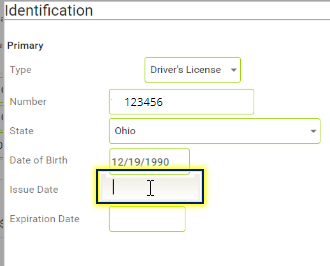

Hi KevinReagh,
I agree with PhilMayor that its more beneficial to keep the accessibility box.
However, you can turn off the yellow accessibility box for an object by removing it from the slide's tab order (see the custom tab order articles mentioned above) or by unchecking the accessibility visibility box on the Size and Position window.
This article explains what the box is for, as well as how to disable it:
Hope this helps!

I followed the instructions to uncheck "Object is visible to accessibility tools", which removes the ability to tab to the next field.
When I click into the field the, the bee-colored highlight displays. You wrote that this would turn this off. What other steps are there to turn this highlight off?
- elizabeth1 month agoPartner
You can try changing the Accessibility Focus colors in the Colors & Effects in the player, but that will be course-wide.
- UFCU_DevTeam1 month agoCommunity Member
Thanks, that worked.
Next question: How can I have items display over the top of the highlighting? Normally, I can adjust this via the timeline.
- StevenBenassi1 month agoStaff
Hi UFCU_DevTeam,
It would be easier to provide design suggestions if we could see a sample of the course you've been working with. Do you mind uploading your .story file so we can take a closer look?


Related Content
- 2 months ago