Forum Discussion

Sliders and Adjusting Fill States

My response to this post might give you guidance: Get multiple sliders to interact with each other / Triggers running in succession - Articulate Storyline Discussions - E-Learning Heroes
Thank you, Judy! I did see your reply there in my search and it definitely helped a bit, but I’m still struggling with how to translate the concept to a full state. Maybe I’m overthinking it, but the toggling didn’t seem to allow for fill state changes by increments
- JudyNollet2 years agoSuper Hero
Let me try to clarify.
Moving any of your sliders should toggle a T/F variable.
The triggers that change your coffee cup to the appropriate state would run whenever that toggling variable changes.
In other words, the value of the T/F variable doesn't matter. It just lets the program know that a slider moved, which means the state of the cup has to be changed based on the new set of slider values.
If you did it like my example, you would use multiple triggers for changing the state of the cup: one for each possible combination of slider values. (In my demo, the triggers were showing different layers. But the same idea works for showing different states.)
- Each trigger would have conditions that check for one of the possible combinations of slider values. Thus, the triggers' format would be something like this:
Change the state of [the cup] to [this state]
When the [Toggle variable] changes
If [classes variable] = [this value]
and [hours variable] = [this value]
and [responsibility variable] = [this value]
- Some combinations might result in the same "fill" level of the cup. But since the user can only move one slider at a time, they would see the level go up or down before possibly returning to a given level.
Obviously, you need to plan in advance how each combination will "fill" the cup. Refer to that when you're working on the triggers. Having meaningful names for objects, states, and variables will help.
Alternately, you could this:
- Have a number variable to track the sum of the slider values.
- When each slider moves, have triggers that do this:
- One trigger to set the [Sum variable] to 0.
- One trigger to add [classes variable] to [Sum variable]
- One trigger to add [hours variable] to [Sum variable]
- One trigger to add [responsibilities variable] to [Sum variable]
- Multiple triggers that change the state of the cup based on the value of the Sum variable.
- JoshWatson2 years agoCommunity Member
Thank you both for your time and patience here. Judy: Could you clarify a bit more about this build process? If you can't tell yet, I'm extremely green and learning as I go. I've done a number of searches this morning and I'm having a hard time visualizing this set up.
- JudyNollet2 years agoSuper Hero
The alternate method assumes that the sum of your slider values directly relates to the height of the fill in the cup (shown in different states).
The attached file demonstrates the programming, based on my understanding of what you want to do.
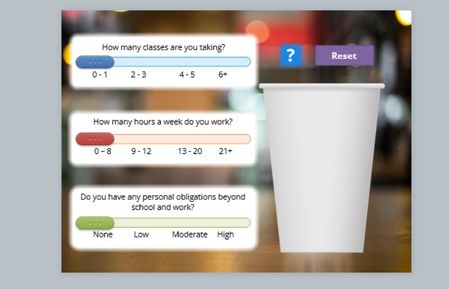
- Each slider has four positions, with the values ranging from 0 to 3 (that is, 0, 1, 2, 3).
- The cup has 10 states: Normal plus 9 levels of fill. Those correspond to the potential sums (0-9) of the three sliders.
- Moving any slider changes the variable that holds its value. Changing those variables is used as the "when" to show the layer with the triggers.
- The first triggers on the programming layer calculate the sum of the slider values.
-
-
- Note that the first triggers Sets the sSum variable to the value of the first slider. The other triggers Add the value of the other sliders.
- When editing triggers, dashed underlines indicate the parts of the trigger can be edited. Different options are available based on the type of variable (T/F, text, or number).
-
- The rest of the triggers change the state of the cup, with conditions based on the calculated sum. There is one trigger for each of the potential sums/states.
A final trigger closes the layer when the layer's timeline ends. (The timeline is very short.)
The demo slide includes text boxes that show the value of each variable. You wouldn't need (or probably even want) to show those to the users. However, it helps with troubleshooting to see variable values, so you can check whether they change as expected.
If the user doesn't need to see variable references, I recommend hiding them or moving them off the slide before publishing. That keeps them available for future troubleshooting.
FYI: It’s worth the effort to learn about variables and trigger conditions, because they provide the real power in Storyline. Here’s the User Guide info:
Related Content
- 1 year ago
- 1 year ago
- 3 months ago