Forum Discussion

Typing or Typewriter Animation for Storyline Textboxes
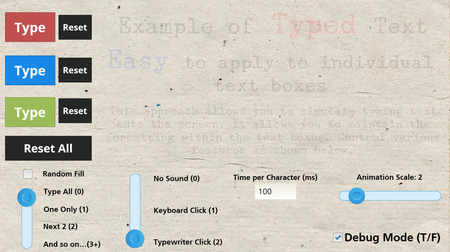
I have attached a simplified demo here. Main points would be:
- Make sure you have all of the Storyline variables set up to match these, with the initial values as required
- The initialization script (first JavaScript Trigger in the list) has a textKeyList variable that lists the text keys for each textbox you will be using on the slide. This is for the first initialization, which is done using an empty textKey variable. If you only use one one textbox, make sure to edit this list to match the single text entry. Also, make sure the accessibility tag asigned by Storyline matches the text you entered, or at least the textKey value you are using.
- textKey only has to be long enough to uniquely identify each textbox by its content
- Make sure you don't assign a default value to the textKey variable (in the Storyline variable list). It need to be blank when first being initialized.
- To change the way things are typed, modify the variables (as listed in the initialization script (step 2)) before you toggle typeTextNow
- Make sure to set textKey to the value appropriate for your target textbox before toggling typeTextNow
- To reset a textbox, set initializeText to true before toggling typeTextNow
Simplified Demo: https://360.articulate.com/review/content/93beee0f-5dba-4334-8f96-2e6ace215c61/review

Thanks for your reply Nathan_Hilliard . I feel like i've done everything you said, still I can't get it working when I'm copying your method into my own slide. I added my own Storyline document as an attachment. Can you spot what I've missed?
- Nathan_Hilliard1 year agoCommunity Member
I looked at your project.
First, as the script is written, it sets up an audio stream during the initialization step (in case you want sound effects). Because of this and browser restrictions, the user must interact with the page before it will work. (You can see an error message in the inspector panel of the browser (F12)). It's only an issue if the typing simulation is on the very first (or only) slide. Later slides are not an issue. This is why the demo had an opening slide (or layer).
I see you removed the sound samples, so you don't want to use sound. If you're not going to use sound at all, you can comment out the function call on your script's line 216 of the main script (i.e., // audioPlay(""); ). This way, the audio is never initialized, and you don't need to worry about the user interaction requirement.
Second, there is something wrong with the project file itself. I'm not sure if you copied content into it or made it from scratch, but the toggle triggers are not working. To get your project working, I added the opening slide, with a button to click, and then deleted and then recreated both of the toggle triggers on your main slide. I also made a couple of changes to your replay button logic, but they are unrelated to the script functionality.
I attached the modified working project here. You can try commenting out line 216 and removing the first slide, and it should still work for you.
Since I don't know what happened to your original project file that caused the toggle triggers to stop working, you might want to manually recreate this from a fresh project file before building a whole project on top of it.