Forum Discussion

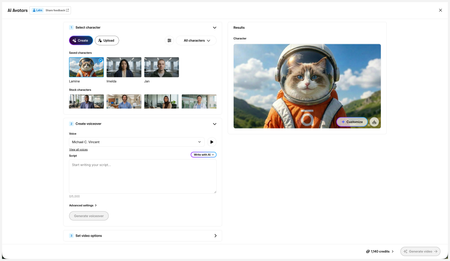
New in Labs: AI Avatars
- 2 months ago
Hi everyone,
We’ve just released a few exciting enhancements to AI Avatars, and we’d love for you to check them out! Here’s what’s new:- AI Avatars in Custom Blocks
- AI Avatars in Storyline 360
- References
- Use References to guide character generation with your own visual assets. This is now available in the Create and Customize Character workflows.
- Quick Prompts
- Choose from prebuilt prompts for style, framing, presentation, pose, environment, clothing, and expression. Available in the Create and Customize Character workflows.
- Tips
- A new Tips icon is now available in the Create and Customize Character workflows to help you get even better results.
- Delete and Rename Saved Characters
- Keep your library organized by renaming or deleting saved characters.
- Upload Character
- Upload your own character to your Saved Character library.
- Download your Avatar Video
- To download your avatar video, click play, then select the Download icon in the lower-right corner.
As always, we welcome any feedback! You can share that here in this discussion, or use this feedback survey link!


Hello,
I generated a video, but for an unknown reason, the avatar is playing with its hair. Is this a behavior that I can adjust in the avatar customization settings?
Also, is it possible to download the generated video in MP4 format or in another format?
- KellyAuner3 months agoStaff
Hi, servicedeformat!
There is a way to customize the avatar! If you're viewing the video block in your course, please select Content > Replace with AI avatar. Once you select your saved character, choose Customize, and describe what you'd like to change.
Regarding your second question, you can currently download the character image directly. At this time, downloading the generated video file isn’t officially supported. Although, some customers have found a way to download the video file by searching for the video URL in the browser's Inspect tool.
I hope this helps!- Frostworn3 months agoCommunity Member
KellyAuner wrote:
download the video file by searching for the video URL in the browser's Inspect tool.
So transparent! 😲
- ChalyceHager6513 months agoCommunity Member
You can also get to the video by publishing your course to a web file; open the zip, find the folder called 'assets' and that'll have all files in there. sort by MP4 and you can get all your vids that way super easy. The file names are obnoxious alphabet soups, so you have to open the vids to see what's what and rename them, but it's an easy way to grab all the vids from an entire course.
- GabeShulman3 months agoCommunity Member
thats honestly pretty funny. i get why you dont want it but what a wild mannerism for it to add.
- KellyAuner3 months agoStaff
Hi, servicedeformat!
I'm happy to share that we've added a Download button to all video blocks, including generated AI Avatar videos!
- DK-ZG3 months agoCommunity Member
Thank you! Download option - great feature!
Any hints regarding future pricing of credits for "avatarisation"?- KellyAuner3 months agoStaff
Hi DK-ZG,
We're glad you're liking it! I don't have any news on pricing just yet. We'll be sure to share when we do!





Related Content
- 3 months ago
- 5 months ago
- 5 months ago