About LabsFind out about and discuss the latest experimental features for Articulate products.Open Group
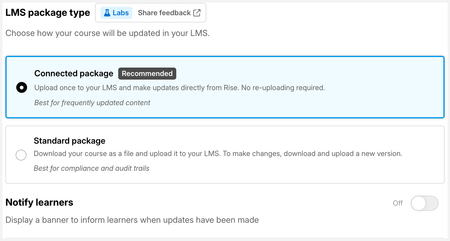
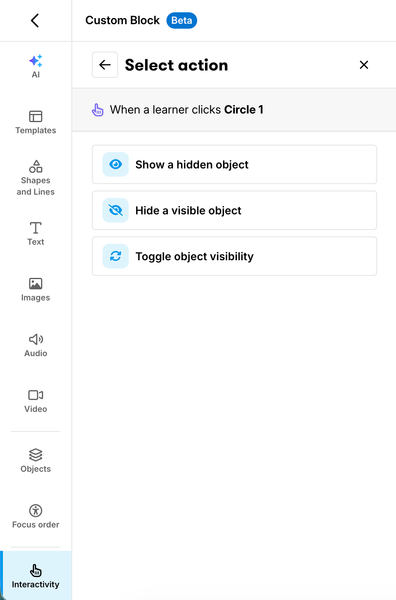
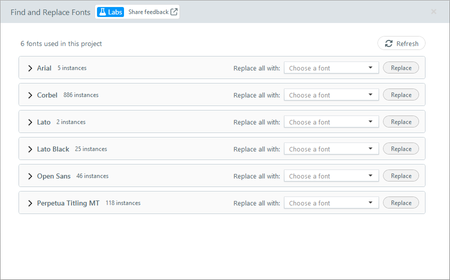
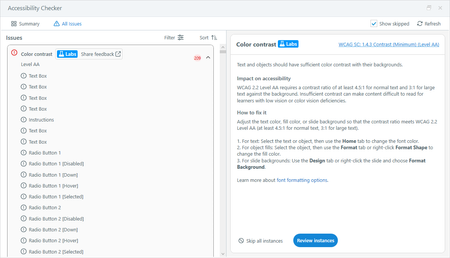
AnnouncementsNew in Labs: Interactivity in Custom Blocks Interactivity in Custom Blocks is in active development and will receive updates as part of Labs. Functionality will change over time. Some options could be modified, while others may be removed base...New in Labs: Responsive Custom Blocks Responsive Custom Blocks is in active development and will receive updates as part of Labs. Functionality will change over time. Some options could be modified, while others may be removed based on f...New in Labs in Storyline 360: Find and Replace Fonts The find and replace fonts feature is still in development and will receive updates as part of Labs. Functionality will change over time. Some options could be modified, while others may be removed b...New in Labs: Color Contrast Check in the Accessibility Checker This post was updated on June 23, 2026 to note the updates mentioned in this comment. The color contrast check is still in development and will receive updates as part of Labs. Functionality will c...New in Labs: Connected Packages Connected packages is still in development and will receive updates as part of Labs. Functionality will change over time. Some options could be modified, while others may be removed based on feedback...Welcome to Labs! Updated on June 9, 2026 to include Storyline 360 You're probably wondering just what Labs is and how it works. Let's dive in. What is Labs? Labs is where you, our most adventurous users, have t...
Most RecentNewest TopicsNew in Labs: Responsive Custom Blocks Responsive Custom Blocks is in active development and will receive updates as part of Labs. Functionality will change over time. Some options could be modified, while others may be removed based on f...New in Labs: Connected Packages Connected packages is still in development and will receive updates as part of Labs. Functionality will change over time. Some options could be modified, while others may be removed based on feedback...New in Labs: Interactivity in Custom Blocks Interactivity in Custom Blocks is in active development and will receive updates as part of Labs. Functionality will change over time. Some options could be modified, while others may be removed base...New in Labs: Block Defaults Block defaults are still in development and will receive updates as part of Labs. Functionality will change over time. Some options could be modified, while others may be removed based on feedback an...SolvedMagic lesson import Hi, Magic lesson import is greyed out in Rise 360. How do I enable this? I have enabled the feature in Labs, however I can't seem to use it yet. Any ideas welcome. New in Labs in Storyline 360: Find and Replace Fonts The find and replace fonts feature is still in development and will receive updates as part of Labs. Functionality will change over time. Some options could be modified, while others may be removed b...Solvedplans to expand connected packages to xAPI? Hi! I would dearly love to be able to use connected packages to keep my Rise courses updated. I use them for teaching my online college courses, so I make updates regularly. My LMS behaves best wit...In Public Beta: Source Content Image Extraction Source Content Image Extraction is in active development as part of Labs. Functionality will evolve, and we may modify or remove certain features based on user feedback and stability. This feature is...SolvedNew in Labs: Color Contrast Check in the Accessibility Checker This post was updated on June 23, 2026 to note the updates mentioned in this comment. The color contrast check is still in development and will receive updates as part of Labs. Functionality will c...SolvedReleased: Hyperlink Enhancements Hyperlink enhancements is still in development and will receive updates as part of Labs. Functionality will change over time. Some options will be modified and others may be removed based on feedback...SolvedIn Public Beta: Update Content with AI Update Content with AI is in active development as part of Labs. Functionality will evolve, and we may modify or remove certain features based on user feedback and stability. To access this featu...SolvedUnsable Background With changing the background on an avatar (uploading an image) and, when previewed the background image would move back and forth. (left to right and right to left in a loop) When I typed in "make ...Accessing Labs Sorry if I am being dense. Do you need to have AI access in Storyline to have Labs access? Welcome to Labs! Updated on June 9, 2026 to include Storyline 360 You're probably wondering just what Labs is and how it works. Let's dive in. What is Labs? Labs is where you, our most adventurous users, have t...Magic Quiz Import - into banks? I have had much success using the magic quiz import. As long as I upload a properly formatted word doc it works very well. I can even get AI to format the doc for me correctly from a raggedy excel sh...