ai
23 TopicsElectrical Safety for Electricians
This is the beginning of a course on electrical safety for electricians (if I didn't have to comply with corporate branding requirements). 😭 Electrical Safety I used: Articulate AI art - backgrounds and character. Character - removed background in MS Designer. Sparks - made with Articulate AI art then removed background, added pulse-shrink-grow-pulse animations at different intervals. Giphy.com - used Matrix screen. Gemini AI helped me make the script more anime style and Articulate AI converted the script to audio. I tried making a gif with Snip & Sketch but it didn't want to cooperate 😑Case: Operation Dopamine - A Noir Comic Mystery
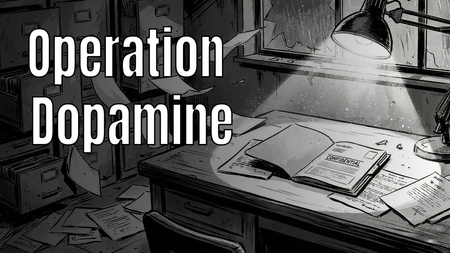
Hi E-Learning Heroes! 👋 For this week's Comic Book-Inspired Challenge, I decided to go full "Noir Detective" graphic novel style. 🕵️♂️✨ In my project, "Case: Operation Dopamine", the learner steps into the shoes of a private investigator exploring a ransacked laboratory. The mission? To find the 6 stolen components of Gamification (such as Engagement, Customer Lifetime Value, and Emotional Connection) and restore color to a black-and-white corporate world. 🔍 Play the interactive demo here: > Play Operation Dopamine I had so much fun blending storytelling, visual design, and instructional concepts into this one. I would love to hear your thoughts and feedback!Cyber Shield
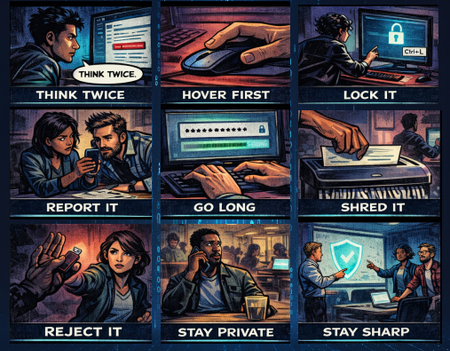
I had so much fun with this week's challenge! I created "Cyber Shield" - a cybersecurity awareness course designed as a noir comic book. The concept is simple but impactful: 9 essential cyber safety habits, each told through a single comic panel with a short, punchy caption. Audio narration expands on each tip as the panels are revealed one by one. What I focused on: Dark noir comic book aesthetic with consistent visual style across all panels AI-generated images using ChatGPT for the comic panels Audio narration for each tip, keeping the on-screen text minimal (1-2 words per panel) while the voiceover carries the detail Tools used: Articulate Storyline 360 ChatGPT (image generation) ElevenLabs (voiceover) Pixabay (sound effects) View the demo here. ABOUT ME: I'm an Instructional Designer who loves creating interactive e-learning experiences that are engaging, visual, and fun to build. Connect with me on LinkedIn!Comics in Music Video
Corporate Rock, A Comic Book Take on Learning Through Music For this week’s Comic Book challenge, I leaned into bold visuals, panel‑based storytelling, and a little nostalgia to explore a simple idea: what if learning content worked more like Schoolhouse Rock? Corporate Rock is an experiment in using music and comic book visuals to teach workplace learning concepts. I partnered with AI throughout the process, starting with the design of a Knowledge Management course strawman, then breaking topics into short, focused scripts. One subtopic was transformed into a song using an alternating verse and hook structure, with spoken moments to reinforce key ideas. From there, AI helped generate detailed image prompts for each verse and spoken section, intentionally designed as comic book panels. Verses became three‑panel cartoon sequences, while spoken moments landed as single, punchy panels. Each image was generated with a consistent illustrated style to feel like pages pulled straight from a comic. The final step was bringing everything together into a music video, syncing the song with the comic visuals and editing it all in DaVinci Resolve. The result is a learning experience that blends instructional design, music, and comic storytelling to make content more engaging and memorable. This project was a reminder that learning does not always have to look like slides. Sometimes it can look like a comic book that rocks. https://360.articulate.com/review/content/60255320-a8d6-4676-bb6a-b112b189b074/reviewWhat if cybersecurity training felt like reading a comic instead of a policy manual?
A comic-style custom eLearning sample that turns cybersecurity awareness into an interactive story, helping learners spot suspicious emails in a simple and memorable way. https://www.brilliantteams.com.au/cybersecurity-comic-style-custom-elearning-course/A Career in Learning Design
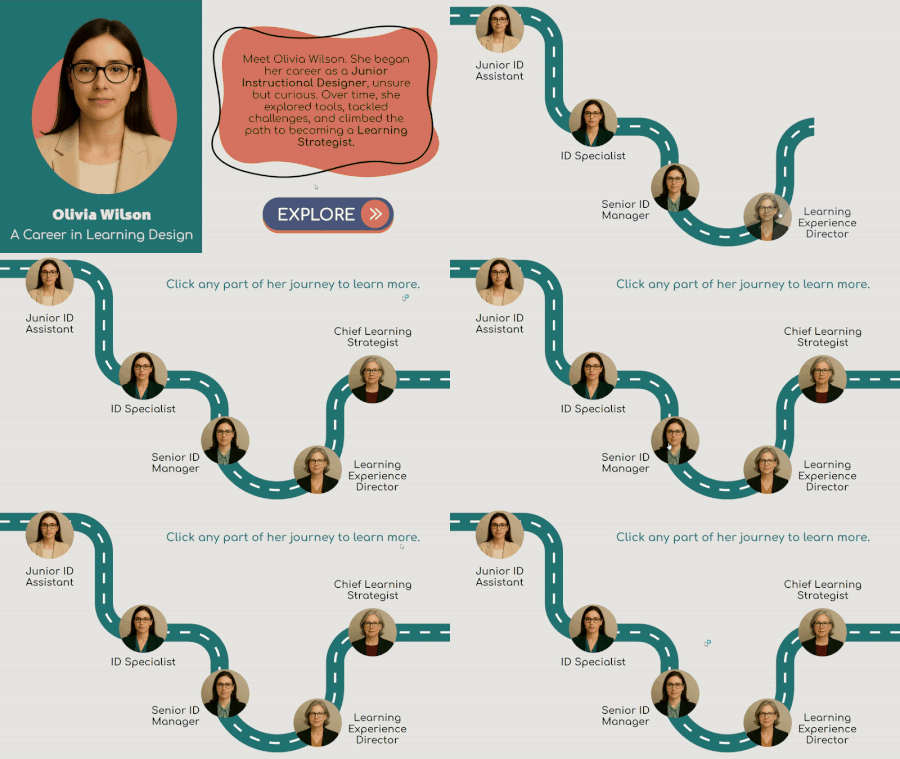
This project started with a simple idea — what if you could follow one person's entire learning design career, step by step? "The ID Path” is a character-based experience that follows the fictional career journey of Olivia Wilson, a learning designer whose path begins as a Junior ID Assistant and evolves into a leadership role as a Chief Learning Strategist. The goal is to highlight not just career progression, but also how responsibilities and skills evolve along the way. About the project Viewers can explore five key roles from Olivia’s career using a timeline of circular photo icons. Each click opens a Polaroid-style pop-out layer where Olivia’s portrait is paired with a brief story and three key skills that define that stage. The character pop-out effect is used within each profile layer. Implementation The character and portraits were created using ChatGPT and AI image tools, simulating a consistent persona as she grows across decades. Layout, voiceover, and accent colors were designed to keep the interaction simple, warm, and story-driven. Try the demo Follow Olivia’s journey and explore how her roles shaped who she became. About Me Jayashree Ravi Curious about more e-learning innovations? Connect with me on LinkedIn to share ideas, discuss implementation techniques, or discuss instructional design challenges.AI Assistant: Building Effective Quizzes and Knowledge Checks
Developing a good quiz or knowledge check is essential for assessing and reinforcing learning. But, as every course author knows, it’s also time-consuming. Designing questions that are clear, relevant, and aligned with your learning objectives isn't easy. Effortless Quizzes Available in Rise 360 and Storyline 360, AI Assistant’s quiz generation feature allows you to create a full quiz based on existing lessons in just a few clicks. Quick Tip: When details are missing, AI Assistant may rely on general knowledge compiled from its training to fill in gaps. For best results, provide as much context and source materials as possible. More information helps AI Assistant tailor content to your needs, and using custom prompts can further guide it to stay focused on your course content instead of drawing from general knowledge. Rise 360 In Rise 360, select Quiz generation from the AI Assistant dropdown menu within the course overview page. Customize your questions via prompt—set a focus topic, learning objective, and level of difficulty—or skip directly to quiz generation. Once the quiz is generated, you can open it to see more options, such as adding or editing questions. Editing your quiz allows you to use AI Assistant to fine-tune the questions, answer choices, and feedback. For example, you can prompt AI Assistant to turn a multiple choice question into a multiple response and add more answer choices. You can also change the learning objective or increase the difficulty level. If you want to edit the question feedback, you can do so with the write and edit inline feature. Simply select the feedback text you want to modify and click the sparkle icon in the floating toolbar to start editing with AI Assistant. You have the option to generate new questions from here as well. AI Assistant in Rise 360 supports the following question types: Multiple choice Multiple response Fill-in-the-blank Matching Storyline 360 In Storyline 360, select the Quiz icon in the AI Assistant menu from the ribbon or chat with AI Assistant in the side panel. Select all or just specific scenes and slides as a reference, and then click Continue. Next, choose whether to add the quiz to new slides or a question bank. When you choose the latter, AI Assistant will create a new question bank and insert a new slide draw from it. You can customize the quiz by specifying your learning objectives or ask AI Assistant to focus on a topic or difficulty level–otherwise, click Generate the quiz to skip customization Once the quiz has been generated, you can continue to refine it by adding, deleting, or editing questions. AI Assistant will also display a link in the chat that you can easily click to jump to the newly created questions. When you replace a question after editing, the original question slide will be deleted and a new slide added with the new question. Any other objects or custom triggers on the original question slide will be lost. To prevent that loss, choose the Insert below option and then copy and paste objects into the new slide before deleting the original question slide. AI Assistant in Storyline 360 supports the following question types: Multiple choice Multiple response Aside from slide text, AI Assistant also pulls content from the following as references when generating quizzes: Alt text on the base slide and layers Text-to-Speech scripts Audio and video captions Text and captions on markers and hotspot labels within 360-degree images Slide notes (if enabled in the Player Properties) Note that AI Assistant doesn’t reference content from existing quiz slides. How many questions are generated? The underlying AI model can have difficulty fulfilling requests for a specific number of questions. In Rise 360, AI Assistant generates questions that cover the key points across your entire course, up to a maximum of 25 questions. In practice, it tends to generate one to two questions per lesson. In Storyline 360, you can use the word count of your text content to determine how many questions are generated. Initially, AI Assistant splits text content into segments of 1,000 words each, with a maximum of seven segments. If your text content exceeds 7,000 words, AI Assistant splits them evenly over seven segments to stay within the limit. Each segment returns two questions, so you’ll always get at least two questions, up to a maximum of 14, depending on the total word count. Single Question Generation To insert a single question as a knowledge check, select the Question icon from the ribbon or chat with AI Assistant in the side panel. Select all or just specific slides as a reference, then click Continue. Next, enter a question topic or let AI Assistant choose a topic based on your content by clicking Preview the question. Once you have a question draft, you can further customize it. Get creative in providing additional directions for AI Assistant to follow, or try some of the following prompts: Adjust the difficulty level Change the Bloom’s Taxonomy level Change the tone and target audience Change the question type from multiple choice to multiple response, or vice versa Once you’re satisfied with the draft, click Insert to generate the question. Tips: AI Assistant uses the Question layout for question or quiz slides. Customize this layout if you want to apply your personal or company brand style to question or quiz slides generated by AI Assistant. To add interactivity, try a freeform question. Just copy the question draft and cancel the quiz generation process. Paste the content into a new slide, make adjustments, and then convert the slide into a freeform question. Quick Knowledge Checks Available only in Rise 360, a knowledge check block can be generated based on the current lesson. Go to the AI Assistant menu in the upper right and then choose Generate knowledge check when you’re inside a lesson. You can also find this option in the block library under the Knowledge Check menu. Enter a topic, select the question type—choose from multiple choice, multiple response, fill-in-the-blank, or matching—and AI Assistant will generate a full draft. Prompt AI Assistant to make the changes you want, such as changing the learning objective, difficulty level, or question type. You also have the option to choose prebuilt prompts, like changing the focus, answer choices, or the feedback type. Once you’ve finalized the question, click the Insert block button below the draft. Your knowledge check is inserted at the bottom of the page. Anytime you need to modify the block, simply hover over it and click AI Block Tools (the sparkle icon) on the left. You can select Edit with AI to edit the knowledge check using AI Assistant’s block editing feature. Pro tip: Instantly convert blocks into interactive, AI-generated knowledge checks that boost learner retention by hovering over a supported block and clicking AI Block Tools from the content menu on the left. Choose Instant convert from the dropdown, then select Knowledge Check. The new knowledge check will be inserted right below the original block. Video Tutorials Want to learn more before getting started? Check out our video tutorials for additional guidance on using AI Assistant to generate quizzes and knowledge checks. Create AI-generated Quizzes in Rise 360 Create AI-generated Knowledge Checks in Rise 360 Create AI-generated Questions in Storyline 360 Articulate 360 Training also has additional video tutorials on using other AI Assistant features. Use AI Assistant features in Rise 360 Use AI Assistant features in Storyline 360 You must be logged in to your Articulate 360 account to watch the videos. Don’t have an account yet? Sign up for a free trial now!3.9KViews1like0CommentsAI Assistant in Storyline 360: Voice Library
You already know that AI Assistant makes generating ultra-realistic text-to-speech narrations easy. Now, with the addition of a voice library with thousands of voices and intuitive search and filter options, finding the right voice for your content is even easier. Keep reading to learn how to use the voice library in Storyline 360. Browse Voices Start exploring with either of the following methods: In Slide View, go to the Home or Insert tab on the ribbon. Then, click the Insert Audio drop-down arrow and choose Voices. In Slide View, go to the Insert tab and click the Audio drop-down arrow. Then, hover over AI Audio and choose Voices. When the Generate AI Audio window displays, click the Voice Library button on the right. On the next screen, you’ll see a list of all the available voices in the library. Each row displays the name, description, and other details about the voice. Scroll down the list to load more voices. Some voices have long descriptions, so some of the text may be hidden. Hover over the description to reveal a tooltip with the complete text. Preview Voices To preview a voice, click the play icon—a little circle with a play button—just to the left of each name. You can preview voices one at a time. Use a Voice Once you find the voice you want, click the Use button located on the right. This adds the chosen voice to your library under the My Voices tab. The screen then automatically switches to the Text-to-Speech tab, where you can generate narrations using the selected voice. If you find a voice you’d like to use later, save it to your library by clicking the Add to My Voices pill button located just to the left of the Use button. Once added, the button changes state to display Remove from My Voices. If you want to remove the voice from your library, click the button and it reverts to its initial state. You can add up to 10,000 voices to your library. The Added Voices counter in the upper right corner displays the remaining number of voices you can add. Once you’ve added 10,000, the buttons become grayed out. Other information about each voice is shown at the top of the buttons. Find the date a voice was added, its quality, the number of times it’s been added to user libraries, the total number of audio characters the voice has generated, and the removal notice period. Search, Sort, and Filter Voices Right above the list of voices are the search, sort, and filter functions. From there, you can do any of the following: Search specific voices by entering text into the search box. You can search voices by name, keyword, or description. Note that voice library uses a fuzzy search technique—finding results that are similar to, but not necessarily an exact match for, the given search term. Reorder the list by Trending, Latest, Most Used, or Most Characters Generated using the Sort dropdown menu. By default, voices are sorted by Most Used. Find voices based on age, gender, and use case with Filters. The table below provides a list of available options for each filter. Age Young, Middle aged, Old Gender Man, Woman, Non-binary Use Case Narrative & Story, Conversational, Characters & Animation, Social Media, Entertainment & TV, Advertisement, Informative & Educational4.2KViews1like0CommentsAI Assistant: Producing Highly Realistic Audio
As a course author, you want to do more than just present information—you want to create multi-sensory e-learning experiences that resonate with learners. Using sound creatively can help you get there. AI Assistant’s text-to-speech and sound effects features let you create highly realistic AI-generated voices and sound effects for more immersive and accessible content. Originally, both of these features could only be accessed in Storyline 360. However, as of the July 2025 update, AI Assistant in Rise 360 can generate text-to-speech narration. Visit this user guide to get started creating AI-generated narrations in Rise 360. In Storyline 360, these features can be accessed from the Insert Audio dropdown in the AI Assistant menu within the ribbon. Find them under the Home or Insert tab when you’re in slide view or chat with AI Assistant in the side panel for added convenience. Bring Narration to Life with AI-generated Voices If you’ve ever used classic text-to-speech, you probably wished the voices sounded less, well, robotic. AI Assistant’s text-to-speech brings narration to life with contextually aware AI-generated voices that sound more natural—and human! Check out the difference in quality between a standard voice, neural voice, and AI-generated voice by playing the text-to-speech examples below. Standard Voice Your browser does not support the audio element. Neural Voice Your browser does not support the audio element. AI-generated Voice Your browser does not support the audio element. To get started in Storyline 360, click the Insert Audio icon in the AI Assistant menu to open the Generate AI Audio dialog box. A library of AI-generated voices—which you can filter by Gender, Age, and Accent—displays under the Voices tab. The voices also have descriptions like “deep,” “confident,” “crisp,” “intense,” and “soothing” and categories that can help you determine their ideal use cases, from news broadcasts to meditation, or even ASMR. Find these qualities under the voice’s name, and use the play button to preview the voice. Toggle the View option to Favorites to find all your favorite voices, or In project to see voices used in the current project. Once you’ve decided on a voice, click the button labeled Use to switch to the Text-to-Speech tab. Your chosen voice is already pre-selected. Next, enter your script in the text box provided or click the add from slide notes link to copy notes from your slide. For accessibility, leave the Generate closed captions box checked—AI Assistant will generate closed captions automatically. You can instantly determine if your text-to-speech narration has closed captions by the CC label that appears next to each output. In Rise 360, insert an AI Audio block to open the Course media window. Under Voice in the AI audio tab, click the drop-down menu and select a voice from the Recommended list. Click the View all voices link right underneath to explore more voices in the voice library. Once you’ve selected a voice, enter your script in the text box or click insert block text if you’re adding audio to an existing block with text. Currently in both apps, there are 52 pre-made voices to choose from—as listed in the table below—and you can mark your favorites by clicking the heart icon. This way, you can easily access your preferred voices without having to scroll through the list. Note that voices labeled as ”Legacy” won’t be updated when future AI models improve. In Rise 360, pre-made voices can be identified by the absence of the open book icon on their voice cards. Pre-made voices (non-legacy) Pre-made voices (legacy) Alice Bill Brian Callum Charlie Chris Clyde Daniel Eric George Harry Jessica Laura Liam Lily Matilda Rachel River Roger Sarah Thomas Will Adam Antoni Aria Arnold Charlotte Dave Domi Dorothy Drew Elli Emily Ethan Fin Freya Gigi Giovanni Glinda Grace James Jeremy Jessie Joseph Josh Michael Mimi Nicole Patrick Paul Sam Serena Find More Voices in the Voice Library In addition to the pre-made voices, you also have access to an extended voice library with thousands of ultrarealistic, AI-generated voices that can be filtered by age, gender, and use case. Discover the right voice for your content in the voice library by checking out the following user guides. Voice library in Rise 360 Voice library in Storyline 360 Voice Removal Notice Period A voice may have a notice period, which specifies how long you’ll be able to access the voice if its creator decides to remove it from the voice library. When that happens, the removed voice will no longer be available from the library. If you’ve previously added it to My Voices in Storyline 360 or Favorites in Rise 360, the removed voice will still appear on your list and can be used to generate new content, but you’ll see a warning and the date when it’s no longer available. Once the notice period expires, the voice will display an error, and it can no longer be previewed or used to generate new content. Most voices have notice periods, but some don’t. Voices without a notice period disappear immediately from the voice library if the voice creator decides to delete them. Generated content using a voice that’s been removed from the voice library will continue to function as a regular audio file. Adjust the Voice Settings Unlike classic text-to-speech, the AI-generated voices in AI Assistant’s text-to-speech can be customized for a tailored voice performance. The Model setting lets you choose from three different options: v3 (beta) - Most expressive, high emotional range, and contextual understanding in over 70 languages. Allows a maximum of 3,000 characters. Note that this model is actively being developed. Functionalities might change, or you might encounter unexpected behavior as we continue to improve it. For best results, check out some prompting techniques below. Multilingual v2 (default model) - Highly stable and exceptionally accurate lifelike speech with support for 29 languages. Allows a maximum of 10,000 characters. Flash v2.5 - Slightly less stable, but can generate faster with support for 32 languages. Allows a maximum of 40,000 characters. Pro tip: Some voices sound better with certain models, and some models perform better in specific languages. Experiment with different combinations to find what works best. For example, the Matilda voice sounds more natural in Spanish with the Multilingual v2 model than with v3. The setting for Stability controls the balance between the voice’s steadiness and randomness. The Similarity setting determines how closely the AI should adhere to the original voice when attempting to replicate it. The defaults are set to 0.50 for the stability slider and 0.75 for the similarity slider, but you can play around with these settings to find the right balance for your content. Additional settings include Style exaggeration, which amplifies the style of the original voice, and Speaker boost, which enhances the similarity between synthesized speech and the voice. Note that if either of those settings is adjusted, generating your speech will take longer. Note: Some voices in the Multilingual v2 model tend to have inconsistent volume—fading out toward the end—when generating lengthy clips. This is a known issue with the underlying model, and our AI subprocessor for text-to-speech is working to address it. In the meantime, we suggest the following workarounds: Use a different voice Switch to the Flash v2.5 model Increase the voice’s stability Manually break your text into smaller chunks to generate shorter clips Do I Need to Use SSML? AI Assistant has limited support for speech synthesis markup language (SSML) because AI-generated voices are designed to understand the relationship between words and adjust delivery accordingly. If you need to manually control pacing, you can add a pause. The most consistent way to do that is by inserting the syntax <break time="1.5s" /> into your script. This creates an exact and natural pause in the speech. For example: With their keen senses <break time="1.5s" /> cats are skilled hunters. Use seconds to describe a break of up to three seconds in length. You can try a simple dash - or em-dash — to insert a brief pause or multiple dashes for a longer pause. Ellipsis ... will also sometimes work to add a pause between words. However, these options may not work consistently, so we recommend using the syntax above for consistency. Just keep in mind that an excessive number of break tags can potentially cause instability. Prompting Techniques for v3 (beta) The v3 (beta) model introduces emotional control via audio tags, enabling voices to laugh, whisper, be sarcastic, or show curiosity, among other options. The following table lists various tags you can use to control vocal delivery and emotional expression, as well as to add background sounds and effects. It also includes some experimental tags for creative uses. Voice and emotion Sounds and effects Experimental [laughs], [laughs harder], [starts laughing], [wheezing] [whispers] [sighs], [exhales] [sarcastic], [curious], [excited], [crying], [snorts], [mischievously] Example: [whispers] Don’t look now, but I think they heard us. [gunshot], [applause], [clapping], [explosion] [swallows], [gulps] Example: [applause] Well, that went better than expected. [explosion] Never mind. [strong X accent] (replace X with desired accent) [sings], [woo] Example: [strong French accent] Zat is not what I ‘ad in mind, non non non. Aside from the audio tags, punctuation also impacts delivery. Ellipses (...) add pauses, capitalization emphasizes specific words or phrases, and standard punctuation mimics natural speech rhythm. For example: “It was VERY successful! … [starts laughing] Can you believe it?” Tips: Use audio tags that match the voice’s personality. A calm, meditative voice won’t shout, and a high-energy voice won’t whisper convincingly. Very short prompts can lead to inconsistent results. For more consistent, focused output, we suggest prompts over 250 characters. Some experimental tags may be less consistent across voices. Test thoroughly before use. Combine multiple tags for complex emotional delivery. Try different combinations to find what works best for your selected voice. The above list is simply a starting point; more effective tags may exist. Experiment with combining emotional states and actions to find what works best for your use case. Use natural speech, proper punctuation, and clear emotional cues to get the best results. Multilingual Voices Expand Your Reach Another compelling benefit of AI-generated text-to-speech is the ability to bridge language gaps, allowing you to connect with international audiences. With support for over 70 languages depending on the model—including some with multiple accents and dialects—AI Assistant’s text-to-speech helps your content resonate with a global audience. All you have to do is type or paste your script in the supported language you want AI Assistant to use. (Even though the voice description notes a specific accent or language, AI Assistant will generate the narration in the language used in your script.) Note that some voices tend to work best with certain accents or languages, so feel free to experiment with different voices to find the best fit for your needs. The table below provides a quick rundown of supported languages. Available in v3 (beta), Multilingual v2, and Flash v2.5: Arabic (Saudi Arabia) Arabic (UAE) Bulgarian Chinese Croatian Czech Danish Dutch English (Australia) English (Canada) English (UK) English (USA) Filipino Finnish French (Canada) French (France) German Greek Hindi Indonesian Italian Japanese Korean Malay Polish Portuguese (Brazil) Portuguese (Portugal) Romanian Russian Slovak Spanish (Mexico) Spanish (Spain) Swedish Tamil Turkish Ukrainian Available in v3 (beta) and Flash v2.5: Hungarian Norwegian Vietnamese Available only in v3 (beta): Afrikaans (afr) Armenian (hye) Assamese (asm) Azerbaijani (aze) Belarusian (bel) Bengali (ben) Bosnian (bos) Catalan (cat) Cebuano (ceb) Chichewa (nya) Estonian (est) Galician (glg) Georgian (kat) Gujarati (guj) Hausa (hau) Hebrew (heb) Icelandic (isl) Irish (gle) Javanese (jav) Kannada (kan) Kazakh (kaz) Kirghiz (kir) Latvian (lav) Lingala (lin) Lithuanian (lit) Luxembourgish (ltz) Macedonian (mkd) Malayalam (mal) Mandarin Chinese (cmn) Marathi (mar) Nepali (nep) Pashto (pus) Persian (fas) Punjabi (pan) Serbian (srp) Sindhi (snd) Slovenian (slv) Somali (som) Swahili (swa) Telugu (tel) Thai (tha) Urdu (urd) Welsh (cym) Create Sound Effects Using Prompts Sound effects that align with your theme and content can highlight important actions or feedback, like clicking a button or choosing a correct answer, offering a more engaging and effective e-learning experience. With AI Assistant’s sound effects, you can now use prompts to easily create nearly any sound imaginable. No more wasting time scouring the web for pre-made sounds that may cost extra! Start creating high-quality sound effects by going to the AI Assistant menu in the ribbon under the Home or Insert tab. Then, click the lower half of the Insert Audio icon, and choose Sound Effects. (You can also access it from the Audio dropdown within the Insert tab. Simply select Sound Effects under the AI Audio option.) In the text box, describe the sound effect you want and choose a duration. You can adjust the Prompt influence slider to give AI Assistant more or less creative license in generating the sound. Since AI Assistant understands natural language, sound effects can be created using anything from a simple prompt like “a single mouse click” to a very complex one that describes multiple sounds or a sequence of sounds in a specific order. Just note you have a maximum of 450 characters to describe the sound you want to generate. Play the following audio samples to listen to sound effects created using a simple prompt and a complex one. Your browser does not support the audio element. Prompt: A single mouse click Your browser does not support the audio element. Prompt: Dogs barking, then lightning strikes You can also adjust the Duration—how long the sound effect plays—up to a maximum of 22 seconds. For example, if your prompt is “barking dog” and you set the duration to 10 seconds, you’ll get continuous barking, but a duration of two seconds is one quick bark. Adjusting the Prompt Influence slider to the right makes AI Assistant strictly adhere to your prompt, while sliding it to the left allows more free interpretation. Pro tip: You can instantly determine if your sound effect has closed captions by the CC label that appears next to each output. Some Pro Terms to Know Using audio terminology—specialized vocabulary that audio experts use in their work—can help improve your prompts and produce even more dynamic sound effects. Here are a few examples: Braam: A deep, resonant, and often distorted bass sound used in media, particularly in trailers, to create a sense of tension, power, or impending doom. Whoosh: A quick, swooshing sound often used to emphasize fast motion, transitions, or dramatic moments. Impact: A sharp, striking noise used to signify a collision, hit, or sudden forceful contact, often to highlight a moment of action or emphasis. Glitch: A short, jarring, and usually digital noise that mimics a malfunction or distortion, commonly used to convey errors. Foley: The process of recreating and recording everyday sound effects like movements and object sounds in sync with the visuals of a film, videos, or other media. Here’s something fun to try! Generate a 3-second sound effect using the prompt “studio quality, sound designed whoosh and braam impact.” Increasing the duration may produce better sound effects but will also create more dead air towards the end. Pro tip: Onomatopoeias—words like “buzz,” “boom,” “click,” and “pop” that imitate natural sounds—are also important sound effects terms. Use them in your prompts to create more realistic sound effects. Video Tutorials Want to learn more before getting started? Check out our video tutorials for additional guidance on using AI Assistant to generate text-to-speech and sound effects. Create AI-generated Text-to-Speech Create AI-generated Sound Effects Articulate 360 Training also has additional video tutorials on using other AI Assistant features. Use AI Assistant features in Rise 360 Use AI Assistant features in Storyline 360 You must be logged in to your Articulate 360 account to watch the videos. Don’t have an account yet? Sign up for a free trial now!22KViews14likes0Comments