graphics
29 TopicsAI Talking Heads: Uncanny Valley Test
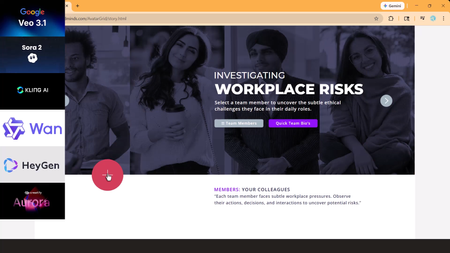
AI talking heads are everywhere, but most still fall straight into the Uncanny Valley. When lip-sync drifts or facial movements glitch, the learner stops focusing on the scenario and starts focusing on the AI mistake. I tested Veo 3.1, Kling 3.0, Creatify Aurora, Seedance 1.5, and HeyGen using the same image, script, and workplace scenario. One model clearly stood out as production-ready for realistic eLearning conversations. Watch the tutorial: https://www.youtube.com/watch?v=zroW6I7CGO0&t=317s Try the Storyline live demo: https://www.redesignedminds.com/AvatarGrid/story.html61Views0likes2CommentsGraphic Design Resources
I've been in ID for years now but was never formally trained - just figured it out as I went. Other companies I worked for didn't have the budget for certification and neither did I. I'm confident in my ability to create clear, engaging content. What I'm less confident in is my ability to "make it pretty." I rely heavily on the available formats and templates, which isn't a bad thing, but I want to grow beyond that. How does someone decide on a splash of color here, a swoop there, creative transitions or animations? I'd appreciate any tips, tricks, resources for improving my graphic design skills in course creation, because I feel a bit stuck at the moment.178Views1like4CommentsEMFs import differently
Hey y'all, So I like making my own icons/freeforms. I typically use Inkscape for the vector work. Storyline accepts SVGs, but I can't change the colors per project. Typically, I make an emf and ungroup it to turn it into a freeform. Unfortunately, I cannot get that behavior to play nicely from an emf made in Inkscape. Instead, I have to import the svg into PowerPoint, and then save it as an emf; then I can import the emf into Storyline and ungroup it. Can somebody clarify what is so different about the emf from Inkscape as opposed to the emf from PowerPoint? Is the issue with Inkscape's codec? Is the issue with Storyline's import process? I would offer to share my .emfs as an example, but its not a permissible file type. Thanks, Pierre59Views0likes1CommentCourse Design Best Practices
Hello everyone...a few months ago, our Senior eLearning Instructional Designer retired and I've inherited a catalog of eLearning courses that were authored in Storyline 2. I'm working on updating courses as needed and turning my attention to better processes and best practices for course design. One of the standards I'm examining is course navigation and baseline expectations for any given course with regard to seat time, whether it has audio, etc. Because the courses I'm updating and developing will be authored in the new versions of Storyline and Rise, there is also a learning curve for the organization on using these new player interfaces. I've seen a number of creative ways this has been done, but wanted to ask if there were any recommendations for things that have worked well for you. For things like orienting the learner to the player controls, fullscreen options, etc. do you recommend creating a Lightbox overlay for Storyline courses at the beginning? What about Rise courses? Do you include a block at the beginning, during the introduction that shows learners how to use the player, etc.? I appreciate any creative inspiration and recommendations! Added screenshots as examples. My apologies for not knowing the author of the first example. I grabbed a quick screenshot when I saw this in one of the community downloads as it was very close to what I'm wanting to do. The second is an example (from a recent video course I just finished) of similar information I'd like to include in eLearning courses.Solved200Views0likes3CommentsDesigning eLearning for a Major Brand Like Amazon Echo: Why Prototypes Matter
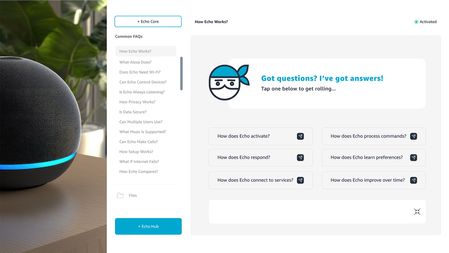
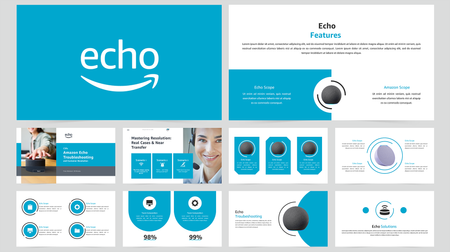
Watch the full design and prototyping walkthrough here: https://www.youtube.com/watch?v=goWNmf6XWWc Designing eLearning for a major brand like Amazon Echo requires more than strong visuals it requires experience architecture, UX systems, and functional prototyping. A moodboard is only the starting point. It defines visual language, interaction patterns, and design direction. Real value happens when that inspiration becomes a working prototype that stakeholders can interact with, test, and validate. In enterprise learning, prototypes serve three critical functions: 1. Stakeholder Confidence Prototypes replace abstract explanations with real experiences. Decision-makers can see how learning flows, how interactions work, and how the system will scale across a full learning ecosystem. 2. Scalable Learning Systems Proper template setup, including theme colors, typography, accessibility standards, and layout structures, creates consistency, speed, and reusability across modules, courses, and platforms. 3. Learning Experience Validation Prototypes test real interaction and UX logic, not theory. They validate usability, engagement, and performance before full production begins. For enterprise learning teams, prototyping isn’t optional, it’s infrastructure. It's the bridge between concept and execution. Between design vision and operational delivery.44Views0likes0CommentsHelp Needed: Magnifying Glass on 360 Images?
Hello, I am working on a project that requires magnifying a part of the 360 image when students hover over it. Similar to this one: Magnifier1.2, but with a 360 image rather than a flat image. Any ideas/suggestions? Thank you in advance! Tool: Storyline360118Views0likes2CommentsAvatarGrid (Unfolding UI) for Storyline
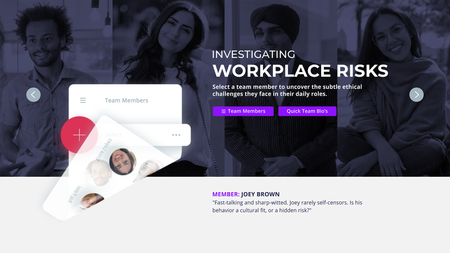
AI video is everywhere in learning design, but the experience hasn’t caught up. Too often, video is dropped onto a slide and left to do all the work. AvatarGrid challenges that approach. Built for Articulate Storyline, AvatarGrid is an unfolding UI system that uses purposeful motion and cinematic transitions to reveal content progressively. AI videos/images, created with Higgsfield AI, Nano Banana, and HeyGen AI, feel integrated, not pasted in, supported by layered vector UI. The result is an immersive, modern learning experience where motion has meaning. Every interaction supports the story. This is what video AI-first, motion-driven UXD looks like in practice. Watch the short tutorial: https://www.youtube.com/watch?v=iLXJ_-K4vXI53Views0likes0CommentsSourcing Quality Clipart
In my quest to be as efficient as possible when making a Storyline training, I'm finding that I will get stuck on sourcing quality clipart. Storylines included "illustrations" leave a lot to be desired and look quite dated. Using the AI image generator sometimes can be bring up what I need, but often times that requires spending a good amount of time getting the prompt just right Our work has access to Adobe Stock, wherein you can download vector .ai files that include numerous images. This helps with uniformity but are too basic When I use another program like Powtoons, Vyond, or Canva, you can do a clipart image search and find varying images that are somewhat of a similar style. This makes producing work efficient. I just can't seem to find that same "stride" when working in Storyline, and wondered what others do?67Views1like1CommentFast AI Moodboards in Visily.ai
In this short tutorial, I walk through how I use Visily.ai to create a polished 12-slide AI moodboard for training and instructional design projects. The workflow is simple: gather your inspo, align with brand assets, write a clear prompt in Grok 4.1, and let Visily.ai generate high-fidelity layouts that guide the entire visual direction of the course. This approach helps you explore concepts quickly and present a strong visual foundation before moving into development. You can watch the full breakdown here: https://youtu.be/AcndXNYe7DM?si=kCcFqOon9vyBZuf163Views0likes0CommentsImages in Shapes - Stretch Options
I'm trying to create a click and reveal interaction using custom shape buttons. I've created circles that I want to hold images representing a topic. However when I try to adjust the image using the Format Shape/Stretch Options instead of stretching the image it offsets it from the Shape Outline. Is this fixable? I know I can just create the image/shapes I want and then bring them into storyline but that becomes challenging when I start adding states.160Views0likes5Comments