articulate 360 training
317 TopicsTrouble with 360* images in Storyline
Hi everyone! Did anyone else have issues with uploading 360* images in Storyline recently? I finished my free trial a couple of days ago, and I never got it to work properly. Every time I added an image, I would get stuck in the preview screen. Did anyone else experience this and find a work around? There were a couple of other glitchy features, but this is by-far the most important for me to try before I commit. Thank you!45Views0likes1Comment(Kind of urgent) How do I make an icon animate across a map in multiple slides?
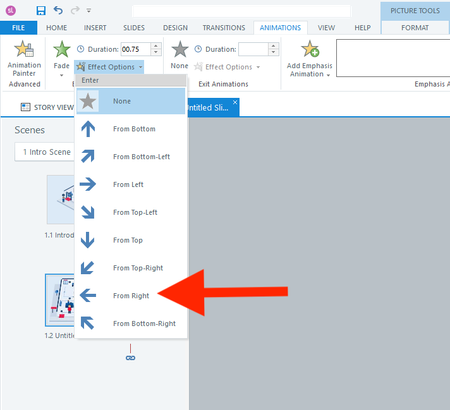
Hi everyone, I actually have two questions. I will start with the easier one first. Question 1 In a fade-in from the right animation, is there a way to adjust how far to the right the object starts? I don't want it to animate from off the right side of the slide. I only want it to start a few pixels to the right. Question 2 How do I animate the red shirt character below across 13 slides? I want it to follow each button from 1 to 13. I realize I should use the Motion Path. But what's the smartest way to use the motion path across slides? I have always found the motion path to be challenging. Thank you all for your help! :)73Views0likes3CommentsBlack Bars on the Left and Right Sides of Published Storyline 360 Course
Hi team, I’m using Articulate Storyline 360. When I preview or publish my course, I get black vertical bars on both the left and right sides of the slide, as shown in the attached screenshot. I have already turned off the Player menu/sidebar, but the black spaces are still there. I want the course content to fill the available browser/player area without these black sidebars. What is causing these black areas, and how can I remove them? Is this related to the Storyline slide size/aspect ratio, Player settings, or responsive scaling? Thanks in advance.61Views0likes2CommentsStoryline 360 drag-and-drop issue: object moves away from cursor after state change
Hi everyone, I am having an issue with a drag-and-drop interaction in Articulate Storyline 360. I have a draggable object with two states: Normal: approximately 6 × 48 px Drop Correct: approximately 1 × 328 px When the object is dropped correctly, its state changes from Normal to Drop Correct, so it appears as a full-height installed membrane. Later, I want the user to drag the material back to its original position. When the user starts dragging the object and I change its state from Drop Correct back to Normal, the visible object is no longer under the mouse cursor. There is a noticeable distance between the cursor and the object. What I would like is: When the user starts dragging the dropped object, it changes back to the Normal state. The centre of the Normal-state object should immediately appear under the mouse cursor. The user should then be able to drag it normally back to its original drop target. Is there a native Storyline method to reset the drag anchor or make the object's centre align with the cursor after changing states? If not, is there a reliable workaround using separate objects, triggers, or the Storyline JavaScript API? I have attached screenshots/video showing the behaviour. Thanks.170Views1like10CommentsStoryline 360 - Feedback Master Error After Updating
Since recently updating Articulate Storyline I have gone back into a file I made a few months ago. I have found that since the update: For quiz questions using the default feedback master slides, whilst the layout selected shows on the preview, when looking at the slide in create/review/publish it is incorrectly formatted Text has been moved so it no longer aligns with the page Has anyone come across this issue before?80Views1like3CommentsText to Speech - Sound help Phonetic spelling (make this sound like...)
Hi, what am I doing wrong? I need this to say "con-duct" - not conduct. like, conduct a training. Do I have this programmed correctly? I have the <speak> and </speak> in the beginning/end of the text. below is what I am using.... <phoneme alphabet="ipa" ph="ˈkuhn‑DUKT">conduct</phoneme>Solved98Views0likes4CommentsLive Typing +Submit Button Function
Hi Community! I am working on this project where I have a slide with two text entry boxes. They both have the same setup where they have the exact same "Submit" button at the bottom of each input box. I need help adding the following features to the slide: User can only type in one box at a time. "Submit Note" button becomes Normal when the user starts typing, not when the box loses focus. Otherwise Submit should be disabled. Since user can only type in one box at a time, of course only one Submit button at a time should be enabled. Users should have the option to type in one or both of the boxes in order to advance There are already some codes in here but neither of them is accomplishing the above. Note: Please avoid rearranging other triggers on the slide not related to the objects in question. Advice? Thanks in advance!72Views0likes2CommentsRetrieve Reports from"Survey" Integrated in Rise Courses
Hello everyone, I have created a survey questionnaire using the "Survey" feature in Rise (not Storyline). I followed the instructions to retrieve the analytic report after learners completed the survey but responses are nowhere to be found. Can you anyone please further assist me on this issue? I appreciate you! Best, Jonathan164Views2likes6Comments