e-learning essentials
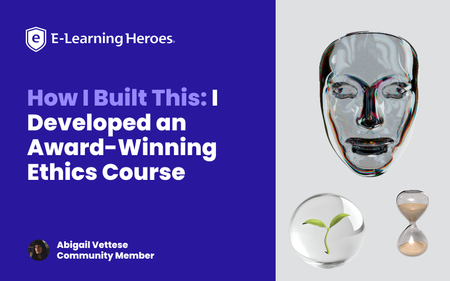
121 TopicsHow I Built This: I Developed an Award-Winning Ethics Course
Why I Built This: When I first learned about branching scenarios, something clicked for me that I hadn’t seen other eLearning developers execute: visually compelling, philosophically rich thought experiments. I studied Moral Philosophy in my undergrad and became obsessed with ethical dilemmas. Naturally, I decided to build an ethics course about technology. Think The Trolley Problem, only I wanted to pose questions about the growing reliance on AI and its implications by employing Instructional Design strategies. An opportunity came up through my Master’s program to attend DevLearn and compete in DemoFest, so it was time to start building my concept. I designed and developed a course in Storyline called The Agency Algorithm that confronts learners with issues regarding three main topics: algorithmic warfare (The Armory), AI assisted resource allocation (The Triage Garden), and surveillance (The Mask Archive). The Experience & Design Intent: A quick walkthrough of the multi-room experience. The Agency Algorithm is a multi-room interactive learning experience that blends instructional design, game-like mechanics, and philosophical inquiry. It immerses learners in ethically complex scenarios by leveraging branching logic, and integrating experiential aesthetics with conceptual depth. My primary goal with this project was to encourage critical reflection on the role of technology on human agency and autonomous choice. The concept itself was pretty clear to me, but I wanted to push the limits of Storyline visually, so I acquired a number of 3D assets from Adobe Stock, some of which I further modified in Adobe Dimension. I wanted the visuals to anchor the learner in a unique environment that did not feel reminiscent of traditional eLearning, and rather create space to explore and feel like a participant in something unfolding. There aren’t often black and white answers to ethical questions, and branching scenarios are an excellent way to illustrate this while offering learners a safe place to experiment and think through various outcomes based on their decision making. Visual Worldbuilding/Making It Not Feel Like eLearning: Initially, I intended to hand draw assets myself to really hone in on the human vs AI dynamic, but quickly realized the time I’d have to accomplish this was dwindling. While I drafted a few loose concepts in my journal, I ultimately decided to stick with digital assets. While I landed on 3D assets largely due to time constraints, the outcome is reminiscent of an old experimental video game or some sort of immersive idea gallery. As an artist, I often approach my work from a minimalist lens so this project was a fun way to really add some artistry that corporate training often doesn’t have room for. Variables, Multi-state objects, Cue points, and other mechanics: I relied heavily on multi-state objects to create hover states, “tip” cards, text labels, and more, for example in the circuits with definition reveals. I enjoyed building the “loading” effect in the Mask Archive, although it was a bit clunky and took a lot of trial and error! I learned a lot along the way and used a cue point on an orb with a glow effect beneath the mask and used triggers to cause the effect to work. The course overall has a few hundred triggers (slide, object, and variable triggers) and somewhere around 40 variables (mostly T/F variables). What I learned: I think it is important that we don’t hand-hold learners through every learning experience. I want users to think through complex challenges and autonomously choose and feel like a true agent in the process of acquiring knowledge. A lot of eLearning makes it too easy for the learner and we lose engagement when we undermine the intelligence of our audience. I learned SO much about how to leverage Storyline in new ways. I am still a relatively new user to the tool, so this project allowed me to freely explore and be guided by curiosity. Link to my portfolio: https://www.abigailvettese.com/1.4KViews12likes7CommentsYour Handy E-Learning Course Review Checklist
Remember taking tests back in elementary school when your teacher told you to always check your answers before turning it in? Same for an e-learning course. Before you deliver a course to learners, you want to look over your course to make sure it’s the very best it can be. But when you’re reviewing your course, what should you look out for? Every e-learning project is different, so no one checklist will work for everyone; however, here are some of the main things you’ll want to watch out for in your review. Review the Course Content No surprise here. The content is the most important part of your course, so you want to make sure you’re hitting the mark. If you’re not a subject matter expert, you should find one to help you with this part. Here are some questions to ask as you look through your course: Are the learning objectives measurable? Does all the content support the learning objectives? Is there any content that could be taken out? Is there any content missing? Have all the facts been checked and referenced appropriately? Does the course follow a logical order? Do the images accurately represent the course material? Do the examples and/or scenarios accurately portray the real-life context? Will the learners find the characters relatable? Does the quiz focus on the course objectives? Are the quiz questions clearly stated? Are all the quiz options believable (even the wrong answers)? Do you clearly state what learners need to do to pass the course? Here are some additional resources to help you fine-tune your content: How to Write Good E-Learning Objectives for Your Online Course The Dos and Don’ts of Separating Need-to-Know from Nice-to-Know What to Do When Your Course Has Too Much Content How to Create a Successful E-Learning Knowledge Check Copyedit the Text If your course is like most, text is a key part of the learning experience. Grammar and spelling errors are not only distracting, they actually skew your key messages. Here are some things to keep in mind to make sure you’re getting your point across: Are there any grammatical or spelling errors? Are you using punctuation and capitalization appropriately? Are there any run-on sentences that you could split up into shorter, more concise sentences? Are you using the active voice? Are you using the same voice throughout (for example, “I” or “you”?) Can you replace any adverbs (for example, running rapidly) with more precise verbs (for example, sprinting)? Are there any superlatives like "high-quality" or "excellence" that you could take out? Is there any jargon you should take out or explain? Is the voice-over script written in a conversational tone? Does the voice-over script provide notes to the voice talent on pronunciation? If writing isn’t your strong suit, check out these articles for more tips: Top Writing Tips for E-Learning 5 Tips to Improve Your Technical Writing Skills More Than a Dozen Tips for Writing Awesome Audio Narration Scripts Listen Closely to the Audio If your course has any voice-over audio, make sure to listen to it with these questions in mind: Is the audio used meaningfully? Or is the narrator just reading the on-screen text to learners? Does the voice-over follow the script word for word? If not, do any of the slight changes make a difference? If not, edit the script to match the audio. If there are changes that affect the meaning, ask the person to re-record that section. Are there any distracting background noises that need to be taken out? Is the audio volume at a good level (not too loud, nor too soft)? Is the volume and quality consistent throughout the course? Does the tone and inflection sound natural? Never worked with audio before? This article will help you get started: Audio Basics for Online Course Design. Assess the Design While people say not to judge a book by its cover, the reality is that we all do it. The course design is the first thing your learners will notice. If you want them to pay attention, it’s important their first impression be a good one. Here are some questions to ask yourself to make sure you’re on the right track: Does the design respect the brand guidelines (if applicable)? Does the design complement the subject matter? Is the design cohesive throughout the course? Are the objects aligned as they should be? Are all the images of similar style and quality? Are images and illustrations meaningful? Or are they merely decorative? Are fonts used consistently throughout (type and size)? Are all screenshots free of personal information? Do all buttons and hyperlinks look and behave the same (for example, if one button has a hover state, do they all?) so learners understand they’re clickable? If your design skills need a little work, check out these helpful resources: Visual Design How-Tos for E-Learning Developers User Interface Design: 3 Things E-Learning Designers Need to Know Test the Functionality Building a course from scratch using a tool like Storyline that allows you to personalize everything (the player, menu, navigation, quiz options, etc.) lets you create your course exactly how you imagine it. But with all this freedom comes responsibility: it’s your job to make sure everything is working the way you intended. Here are some items to add to your review checklist: Buttons and Hyperlinks If you’ve personalized the navigation of your course in any way (by adding buttons, changing the branching options, etc), check and make sure everything’s working as expected. Here are the steps I recommend going through: Make sure there’s no Previous button on the first slide. Go through the course from start to finish, click on all the Next buttons. Make sure there’s no Next button on the last slide. Go backward through the course, clicking on all the Previous buttons. Now go through the course again, starting from the beginning. Click on any other buttons (that open a layer, for example) or hyperlinks and make sure they’re working as expected. Menu Can you access all the sections of your course from the menu? Are all the titles correct? Is everything in the right order? Player Is there a seekbar on all slides with audio or video? Does the seekbar end at the end of the audio or video? Or does it extend far beyond it? If your course has audio, did you include an audio button so learners can turn the audio off or adjust the volume? Animations Are the animations synchronized with the audio (if applicable)? Do all the animations appear and disappear as expected? Videos Does the video play all the way through? Is the audio high quality? Quiz Questions Go through the quiz, making sure to select the correct answers and review the feedback. Make sure the score correctly shows you’ve gotten 100% at the end and that the correct amount of points is shown (if applicable). Go through the quiz again, this time selecting the incorrect answers and reviewing the feedback. Make sure the score correctly shows you’ve gotten 0% at the end and that the correct amount of points is shown (if applicable). Go through the quiz a third time. Alternate right and wrong answers. Check the score again and make sure it’s correct. Go through the quiz a final time, alternating right and wrong answers again but in the opposite order as the time before. Make sure the score is reporting correctly. Note that if you’re using a tool like Rise, you can skip this part of the review since all the functionality is prebuilt and it works perfectly every time. Check for User-Friendliness Once you’ve tested your course and you’re sure the content, design, and functionality are as expected, ask a potential learner to test it. They’ll be able to give you some great feedback about the course content and usability that you, as the course creator, are too close to the project to see. Here are some questions you should ask them when they’re done viewing the course: Content Was the course helpful and relevant to your job? What are the three most relevant things you learned? How confident are you that you can apply the new skill(s) you learned on the job? Is there anything you didn’t understand? Do you think the quiz accurately assessed your understanding of the course materials? Were the questions too easy, too hard, or just right? Was the feedback too detailed, not detailed enough, or just right? Usability Were the navigational instructions provided explicit enough? Did you always know where to click, or did you sometimes feel lost and unsure where to click? Armed with this checklist, you can deliver your course to learners knowing you did everything you could to make sure it fits their needs, works properly, and looks professional. Remember: if it’s not perfect (and no course ever is) you can always go back and make changes later on, after you get learner feedback. And while we’re on the topic of course review, here are some other great resources you should check out: Why We Love Articulate Review (and You Will, Too) Speed Collaboration with Articulate Review 3 Ways Articulate Review Is a Big Gift for Course Developers 5 Steps to an Easier E-Learning Course Review Process Follow These 3 Tips to Put the “Pro” Back In Your Review Process Rise Example: A Course for Stakeholders on the Review Process What do you think of this checklist? Is there anything on your review checklist that I missed? If so, please share in the comments section below! Subscribe to our newsletter to get the latest e-learning inspiration and insights directly in your inbox. You can also find us on LinkedIn and X (formerly Twitter).5.7KViews3likes28Comments- 401Views2likes3Comments
Community Insights: Peer Guide Spotlight
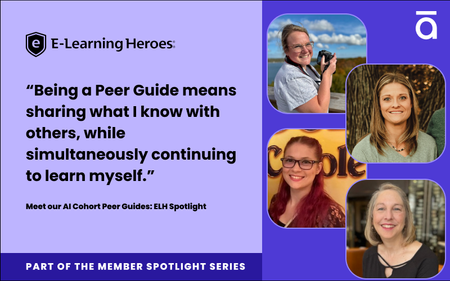
Many of you have seen buzz about our AI Assistant Certification Cohort , regardless if you have participated. Our second run of the program just wrapped up, and it’s safe to say that the biggest difference between these two sessions lies in the hands of four community members. Our peer guides: MelAngiulo SusanWhalen0822 lane_jacole & TaylorSakinsky- What is a peer guide? These are community leaders who help with community programs. Right now those programs are our AI Assistant Certification Cohort and Peer Pods. These initiatives are leveling up the way we learn in ELH by creating bite sized communities of practice. This increases peer to peer connection: they’re opportunities to learn not just with each other, but from each other. As these programs continue to grow we realized they needed one major improvement: peer leadership. That’s where these four community members come in! Their journey to LD varies: from a recent M.S in Instructional Design (congrats Melissa!) to having left teaching middle school after 16 years (an incredible tenure, Jacole!). The path specifically to becoming a peer guide was more straightforward, as they all participated in the first AI cohort. All four guides shared that filling this role was anything but a re-hash of their first experience. Rather, being a peer guide meant a front row seat to the variety, creativity, and possibilities that each participant brought to the assignment. “We all had the same prompt, but it was fascinating to see how many different directions everyone took it in. There were some genuinely creative ideas and modifications that inspired me to try something new in my own work.” - Melissa “It's so fun to see everyone's take on the same task, and it shows just how truly unique we all are! The creativity was inspiring.” - Taylor “I love the different color schemes, the images generated, and the creativity applied to the activity. It truly inspired me!” - Susan “I saw some new ideas that I haven't seen before, and those submissions helped me grow as well!” - Jacole The willingness to experiment with the assignment is just the surface of successful community based learning. Being open to resources, learning from others, sharing pain points (and of course bonding over pet pictures) are all central elements to maximizing the opportunity for personal growth in a learning community. Taylor and Melissa emphasized the diversity of expertise in ELH, reminding us “lean on those around you” and that “we can all leverage and learn from one another.” Jacole pointed out that “sometimes the best learning comes from the workarounds others have found and shared for their similar frustrations.” Susuan corroborated, sharing the reward of this is discovering “shared experiences, from our love of pets to the all-too-familiar challenge of getting AI to generate exactly the image we envision.” Being intentional about openness to growth, to sharing, to learning with and from one another is a huge part of their success as peer guides. Another part is simply the joy of building up others. When asked what being a peer guide meant to them there was a resounding consensus: they wanted to help and connect with the community. “Stepping into the peer guide role gave me the opportunity to build meaningful connections with individuals across the global Articulate community.” -Susan “I wanted to be a witness to the growth and trials of my peers, celebrate the wins no matter how big or small, and commiserate over any pain points.” - Jacole “I thought it would be a great opportunity to help the next group of members navigate their experience.” - Taylor “Being a Peer Guide means sharing what I know with others, while simultaneously continuing to learn myself.” - Melissa And in the spirit of helping others by sharing what they know, each of our peer guides offered some advice: About using AI tools, make sure you check the final product. “As trained professionals, we have the expertise and responsibility to design effective courses—LLMs should be viewed as just another tool in our toolbox, not a replacement for our judgment.” -Susan What this looks like: integrating AI into your workflow means integrating a system of checks you might not have thought about before. The usual read-through for clarity, typos, and other common human errors should be joined by reviewing images, making sure quiz questions match the type of answers available, and keeping a library of prompts that are more effective than others. About ELH, explore the full extent of resources available “There are so many cool features and how-to videos that I wouldn't have known about if I didn't get an email about an "updated features walkthrough" or if I wasn't scrolling through the ELH resources.” -Melissa What this looks like: take advantage of our download library, ask for feedback on builds, and attend webinars whenever possible. Don’t hesitate to search for a keyword or interaction type- the well of knowledge here is deep. “Lean on those around you (and in the ELH community)! All of us come from varying backgrounds with different levels of experience, and none of us knows it all!” - Taylor What this looks like: reach out to your peers, pose questions about best practices, and specify if you think a certain lens will help you that you’re missing. Chances are high someone here has that perspective. About life outlook, stay in a growth mindset “There are always so many ways to grow when you are intentionally open to it.” - Jacole What this looks like: stay alert for opportunities to learn, to revisit things you once knew, and to share what you know now. 🌟Our peer guides are wonderful resources for advice, and we know there are many more in the community who just need the right chance to shine. If this is you, sound off in the comments with what you’d like to bring to the community! It can be an article, a build, or a community leadership position. 💬If you’re not ready for the spotlight, chime in below with what you believe is essential to learning in a community.362Views2likes5Comments5 Ways to Use Animated GIFs in Your E-Learning
Animated GIFs—or image files that act like a short video that loops endlessly—are everywhere these days, on social media, in blogs, and even in e-learning courses! That’s right, instructional designers are using these eye-catching multimedia assets to grab their learners’ attention—and you can too. Check out these ideas to get inspiration on how to incorporate animated GIFs in your courses. 1. As Course Header Images If your learners have a ton of courses in their dashboard and you want yours to stand out, try using an animated GIF in the course header, like in this example: Mars Curiosity Rover. It’s a surefire way to get your course noticed. 2. As Attention Getters GIFs are eye-catching. Have you noticed how hard it is to look away even when you’ve already seen the same animation loop 10 times over? That’s what’s so great about them. Their movement naturally draws your learners in and incites them to pay attention. Not convinced? Take a look at this Rise 360 course: Space Travel–Themed Interactive Infographic See how the GIFs draw you in and make you want to click on the interactive parts? I thought so. 3. To Illustrate Key Messages But GIFs can do more than just catch your learners’ eye. They can actually help learners better understand the concepts you’re teaching them. Check out the GIFs in this course, for example: An American’s Guide to Driving in France. See how the GIFs support the key messages? 4. To Lay Out the Steps in a Process If you’re creating a how-to course, you might be tempted to make a video. And that’s definitely one way of doing it! But if people need to replicate the steps one by one, they might need to rewind each step and watch it over and over again. What a pain! Instead of creating a lengthy video or screencast, why not create a GIF of each step, making it easy for people to rewatch the steps as needed, like in this article on how to make coffee? 5. For Comic Relief If the topic of your course is particularly dry, it might be a good idea to work in some humor to make sure your learners don’t fall asleep. GIFs are a great way to do that! However, be careful to not overdo it. A humorous GIF here and there is one thing; peppering every section of your course with them is another. Here's an example that uses humorous GIFs effectively. Another thing to keep in mind with humor is that it’s subjective. Test your course out on a trusted coworker or two and make sure they find the GIFs to be both work-appropriate and funny. The Bottom Line As with anything, it’s important to keep in mind that too much of a good thing is bad. When using animated GIFs, make sure they’re helping and not hindering the learning process. After all, the goal is to get your learners to focus on the content and retain the key messages. If you’re sold on using animated GIFs in your courses but aren’t sure how to go about creating your own, check out this tutorial. Like this article? Subscribe to our newsletter to get the latest e-learning inspiration and insights directly in your inbox. You can also find us on LinkedIn and X (Formerly Twitter).3KViews2likes13CommentsAn Introduction to SAM for Instructional Designers
The ADDIE model is probably the most well-known approach for mapping out the course design process. But it isn’t the only game in town these days. One popular alternative is SAM: the Successive Approximation Model. Created by Allen Interactions, SAM offers an instructional design approach consisting of a few steps that you repeat as many times as necessary. These iterations address common instructional design pain points like meeting timelines, staying on budget, and collaborating with Subject Matter Experts (SMEs). So what is SAM? And how is it different from ADDIE? Is one better than the other? Let’s dig in and uncover some answers to these questions. What’s the difference between ADDIE and SAM? ADDIE and SAM are two different approaches for crafting learning solutions that share some similar language. To better see where they differ, it’s helpful to understand how each of them works. Let’s start with ADDIE. ADDIE ADDIE stands for Analyze, Design, Develop, Implement, and Evaluate. It’s a linear approach—like a production line—with each step depending on the successful completion of the previous one. To borrow some terminology from project managers, ADDIE is a “waterfall approach.” And in a traditional waterfall method, analysis, design, development, implementation, and evaluation are all treated as ordered steps in the overall development process. While this model is preferred in many organizations, some folks say this sequential approach contributes to many of the challenges faced by instructional designers, including: Prolonged development cycles: Have you ever had your project come to a screeching halt in the development phase? It’s not uncommon for new training or technology requirements to emerge in the project development phase, bogging down your productivity with re-work. Communication challenges with SMEs and stakeholders: Even the most thorough explanations and storyboards are still open to interpretation. And with a sequential approach, SMEs and stakeholders typically don’t get to try a hands-on version of the project until well into the development phase. This can mean it’s not until you’re near the end of the project—when you’re out of time and money—that you discover your vision doesn’t match theirs. No time for testing: When projects run out of time or money, what’s the phase of the process we tend to skimp on? In my experience, it’s testing. Shortchanging this step may save you time, but with risky downsides like a training product that doesn’t work—or work effectively—to address a critical performance gap. Successive Approximation Model (SAM) SAM, on the other hand, is considered to be an “agile approach” that can be scaled from basic (SAM1) to extended (SAM2) to suit your needs. Both SAM models use iterative cycles to create the end product right from the start—all while continually analyzing and refining your work as it’s being produced. Proponents of using agile methods for creating e-learning claim that models like SAM can alleviate many of the challenges discussed above—in particular, improving the project team’s visibility into the instructional design process and reducing development time frames. The basic process—SAM1—can be a good fit for smaller projects or teams. This flavor of SAM is a simple model with three iterations of the familiar instructional design steps of evaluation, design, and development. Using this approach, everyone’s ideas and assumptions can be discussed, prototyped, and tested early on, bringing you closer to a usable product more quickly. And what if your project is more complex? That’s where SAM2 comes into play. SAM2 is an extended take on SAM1. It consists of eight iterative instructional design steps spread across three project phases: Preparation, Iterative Design, and Iterative Development. In addition to the incremental cycles, another notable feature of the SAM2 model is the preparation phase. It consists of two steps to help you prepare for your design and development work fast: gathering information and then holding a brainstorming and prototyping meeting known as a “Savvy Start.” Which is better—ADDIE or SAM? When it comes to evaluating which design model is a better fit for you and your team, it really boils down to what you’re trying to achieve and what your work environment will support. When applied in the right situations and fully committed to by everyone involved, SAM’s flexibility can get you to a successful final course fast. Its iterative approach both helps you use prototypes to get stakeholder buy-in quickly and also makes it easy to pivot should your course requirements change. However, many instructional designers work in organizations that have embraced agility in theory but not so much in practice. Applying an agile approach like SAM can be difficult when your environment doesn’t encourage rapid feedback or flexible processes. In those cases, ADDIE’s waterfall model may be a better choice. Because ADDIE is a waterfall method that’s been used for years, it might make clients, stakeholders, and even team members more comfortable. And while it’s still not as flexible as SAM, many people find an adapted version of ADDIE that includes some iterative loops does a good job of splitting the difference between both methods. More Learning Whatever design model you follow—whether it’s ADDIE, SAM, or another one entirely—weighing your options for more thoughtful, responsive development practices can be a great way to build collaboration and grease the wheels for smoother training rollouts. Start by digging into these related articles from the archives. An Introduction to ADDIE for Instructional Designers What’s the PADDIE Model of Instructional Design? Best Practices for Effective E-Learning Project Management How to Manage E-Learning Project Scope Creep What design model is closest to how you really work? What are your thoughts on ADDIE vs. SAM? We love hearing from you, so share your thoughts in a comment. Follow us on Twitter and come back to E-Learning Heroes regularly for more helpful advice on everything related to e-learning.19KViews2likes19CommentsWhat is E-Learning?
Have you ever watched a YouTube tutorial or signed up for an online course? If so, then you've experienced e-learning. The term “e-learning” might sound intimidating, but it's just a fancy way of talking about the use of electronic devices (computers, tablets, or phones) for educational purposes. In this article, we'll explore a more detailed definition of what it is, why it’s valuable, and more. Sound good? Read on! How Do We Define E-Learning? Many people would recognize a basic e-learning course as a slide-based online activity that contains simple navigation buttons (such as Next and Back) and incorporates quizzes with true/false or multiple-choice questions. But not all e-learning courses share the same fingerprint. For example, it could be an inherently responsive web-based course that allows learners to have a great learning experience no matter what device they’re using to view their course. Or maybe it’s a software simulation that demonstrates the click-path through an application. Or an interactive course that features role-playing and complex decision-making. In this article we’ll take a deliberately broad view of e-learning, and appreciate its near-infinite and ever-evolving forms. Why Is E-Learning Valuable? E-learning offers many benefits that more traditional training options, such as facilitated sessions or lectures, don’t provide. For example, e-learning ... Can be either an asynchronous or synchronous activity: Traditionally, e-learning has been asynchronous, which means there is no predetermined time for the learning to take place. Everyone can go at their own pace, and take their time to learn what they need to know, when they need to know it. However, more synchronous e-learning is now being offered through web conferencing and chat options. The great thing about e-learning is it gives you the option to do either or both. Has a global reach: E-learning can simply be placed online and easily accessed by people around the world. There is no need for expensive travel or meetings across multiple time zones. Spans multiple devices/mobile: Online courses can work on computers as well as on mobile devices such as smartphones and tablets. This means e-learning courses can literally be in the hands of the people who need them at all times. Is just-in-time/needs-based: E-learning authoring software is so easy to use that anyone can create, publish, and share a course within a few hours, allowing you to provide people with resources and training they can access right when they need it. Is more efficient: With e-learning, you can develop a course that can be distributed electronically to thousands instead of having to organize in-person training sessions whenever people need to be brought up to speed. Reduces costs: All of the abovementioned factors result in a cost savings for organizations that use e-learning courses to replace some of their traditional instructor-led training. Allows for consistent quality and content: When you develop an e-learning course, you can deliver the same message to all learners consistently. In classroom training, the message, equipment, and other conditions can vary widely from one session to the next, which can affect the outcome of the course. And that’s just the beginning! As you can see, e-learning can be an extremely valuable asset to your organization. How Do You Create E-Learning Courses? In the early days, e-learning courses were typically custom creations, coded by programmers and developers using highly specialized apps. In those days, it could easily require an entire team to create a simple, linear e-learning course. E-learning design is now much more accessible. Today’s course development apps, also called authoring tools or authoring apps, are so advanced that anyone can create e-learning courses—without any programming or coding knowledge. There are many different types of authoring apps out there today, each with their own set of capabilities. Some apps, like Rise 360, have been specifically engineered to create e-learning courses that dynamically adapt to any screen size (also known as responsive e-learning courses). Other apps, like Storyline 360, are designed to create highly interactive slide-based courses. And of course there are also PowerPoint add-ons like Studio 360, which make turning PowerPoint presentations into e-learning courses a snap. Each app has a unique feature set, making it particularly well suited for a specific type of project. When you’re trying to decide which authoring app to use, always start by looking at your project requirements and objectives. If you’re having trouble figuring out which app is right for your project, here are a few articles that could help you decide: Overview of E-Learning Authoring Software Top 9 Considerations for Choosing the Right E-Learning Authoring App Why You Need the Apps in Articulate 360 and When to Use Them How Is E-Learning Shared? Once you’ve created an e-learning course, you need to distribute it to learners. There are many ways to do this, and—like everything else related to e-learning—those ways are constantly evolving and improving. Here, I’d like to look at two ways to share content: informal distribution and formal distribution. Informal Distribution Informal distribution of e-learning content typically means users are trusted to view the e-learning course, and their participation isn’t tracked or scored. One way to informally share an e-learning course is to put it on a web server, then send participants the link and have them view the course. You don’t really have a systematic way of knowing whether learners have completed the course, but sometimes that’s not necessary. Formal Distribution Sharing an e-learning course formally means there’s a need to track and record learner results. Most organizations that have a need for formal distribution of e-learning have specific systems and standards in place for this. Tracking is usually done in what is called a Learning Management System (LMS). An LMS allows you to administer, track, report, and document the delivery of your e-learning courses. Get up to speed on LMSs here. Certain standards are in place to report the information to the LMS, including AICC, SCORM, cmi5, and xAPI (Tin Can API). For a short overview of these norms, hop on over to this article. Starting to feel overwhelmed by all the acronyms? Make sure to bookmark the E-Learning ABCs so you can refer back to the definitions of the most commonly used e-learning terms at any time. What Makes an E-Learning Project Successful? Many factors contribute to a successful e-learning program, but the top two are: A production process that uses the right apps Solid instructional design Let’s take a closer look at these two essential elements. Apps Powerful apps let you create the functionality and interactivity that you want for your learners. They help you make e-learning that looks and works great, which goes a long way toward a successful e-learning course. The more user-friendly the app, the less time you’ll spend on technical issues. This frees you up to commit to the instructional design to craft a great learning experience. Instructional Design One way organizations measure the success of an e-learning project is by how much the learner’s knowledge and skills have improved after they’ve taken the course. To provide your learners with the best odds, you should have content that is designed in an instructionally sound manner. Instructional design is all about creating educational experiences that maximize learning and present content in the most effective way. If you’re new to instructional design, I recommend reading up on the basics to help you create instructionally sound courses with solid learning objectives. You can have the most fabulous-looking course in the world, but if the content quality isn’t top-notch, it won’t have the impact you desire. The Bottom Line E-learning course development is constantly evolving. Authoring apps will continue to improve; however, your focus should remain on using those apps to create the best e-learning possible. In its relatively short history, e-learning has come a long way, and offers immeasurable opportunities to help people learn better. I hope this overview of e-learning inspires you to push yourself to create engaging courses that will delight your learners. If you want to learn more, you should check out: An Introduction to Instructional Design Basic Elements of an E-Learning Course 4 Easy Ways to Organize Content for E-Learning This article is part of our E-Learning 101 e-mail course, a series of expertly curated articles that’ll help you get started with e-learning—delivered right to your inbox. You’re only a click away from becoming an e-learning pro! Sign up here to enroll.5.6KViews2likes18CommentsIn Case You Missed It: November 2025 in ELH
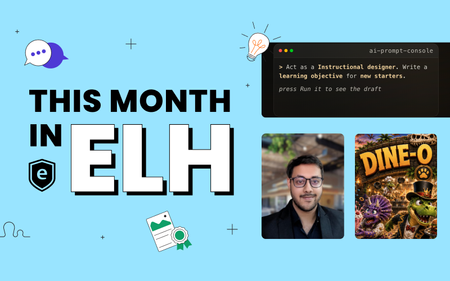
Here’s a brief highlight reel of the conversations, builds, and resources that shaped the community’s discussions in November. 🧳 Join the E-Learning Heroes Passport Challenge! From now through January 5, you can earn passport “stamps” (aka badges!) just for participating in the community—posting discussions, sharing examples, cheering on peers, and more. Every badge marks progress in your own learning journey and gets you closer to fun rewards like swag, shout-outs, and even a chance to win a Fujifilm Instax camera. 💬 What Everyone’s Talking About Looking for a spark of inspiration? Here are some conversations fueling creativity across the community. Instant Publishing with Quick Share Members are excited about Quick Share’s one-click publishing for everyday Rise content. See how others are using it for job aids, previews, and vendor training, and share your own quick-use ideas. Share Your AI Assistant Makeover Creators are posting fun before-and-after examples of how they used AI Assistant to level up drafts, build scenarios, or refine lessons. Check out their transformations and add your own. A Handy Storyline Notepad JoeDey's persistent notepad for Storyline is getting lots of love. If you’ve been looking for a simple way for learners to save notes, explore the demo and join the discussion. 🌟 Standout Challenge Entries November’s challenges surfaced lots of gems! A few standouts: Using Interactive Video for Scenarios & Quizzes in E-Learning Push vs Pull E-Learning By Jayashree_Ravi A side-by-side look at how the same topic can feel totally different: passive slide vs. active video journey. The branching version turns a basic onboarding moment into an experience you are excited to explore. Train Smart: Technique Quiz By ElenaZhuravleva This first-time challenge entry uses short workout clips as quiz questions to test whether you can spot proper form. Simple, practical, and a great example of how video can make quick checks feel interactive. Designing Office Exploration Interactions for E-Learning Welcome to the Office By Kate_Golomshtok This creative virtual tour guides you through an office space, offering a way to explore rooms, teammates, and key info. A fun, game-like approach with lots of potential for expansion. You're Hired! By ded2 This demo brings an interactive approach to onboarding with AI-powered characters who respond in real time. Airport Security for Travelers The Zero-Drama Security Shuffle By GabrielleBradle See how AI Assistant took an outline and shaped the result into a clean Air Travel Security module. A great example of AI speeding up real course development. TSA Dishes on Thanksgiving Food By GolfPrincess This demo experiments with AI-generated visuals, narration, and custom interactions to build a playful learner experience. 🎤 Members Took the Mic (Guest Webinars) From beginner tips to polished animations, these guest-led sessions offer hands-on tips you can put to work in your next Storyline build. Top 10 Tips for New Storyline Users with Judy Nollet New to Storyline? Learn ten essential tips to help you skip the rookie mistakes and start building with confidence. Creating Animations and Interactions in Storyline with Simple CSS and JavaScript (No Coding Required) with Natalia Vostretsova Learn how to give your Storyline projects a modern, animated feel using a simple framework and copy-ready code. 🎓 Trending Training Webinar November’s training focused on improving visuals with tools you already have. Edit AI Images Using Free Windows Tools Discover simple, free ways to edit AI images on your Windows PC, from removing backgrounds to polishing photos and refining illustrations. 📚 Member-Powered Articles Looking for inspiration? These member-powered reads offer hands-on techniques, career insights, and behind-the-scenes workflows you can adapt to your own projects. Made By Members: Rise Code Blocks See how community members are transforming Rise 360’s Code Block into full-on games, tools, and simulations. Community Insights: What You Can Learn from Career Pivot Discover practical career lessons from David Tait’s journey—from leveraging your existing strengths to turning setbacks into opportunities you can use in your own development. How I Built This: How I Vibe-Coded a People Manager Simulation by Daniel-Benton. A practical walkthrough showing how a story-driven simulation was created in Rise, and how you can adapt the same codebase to build your own interactive experiences. 💎 Hidden Gems Sometimes the best tips are hidden in plain sight. Here are a couple worth exploring: Articuland 2026 is Coming! Join the Articuland 2026 VIP list for early updates and pricing, then share the topics and ideas you want featured as we design next year’s experience together. Come Say Hello in the Welcome Center New members are introducing themselves every day, and a quick hello goes a long way. Jump in, say hi, and help someone feel at home. (Bonus: replying earns you a Passport Challenge badge through January 5!) ✨ That’s a wrap for November! What’s one thing you discovered—or created—recently that we should feature in the next roundup? Share it below!499Views1like0CommentsHow to Do an E-Learning Audience Analysis
You just finished your training needs analysis and found that training is the solution to your problem. Great! Time to start working on your e-learning course, right? Actually, not quite. Before you begin, you need to understand who your audience is and how to effectively teach them. How do you do that? With a well-planned and thoughtfully researched audience analysis. But what is an audience analysis and what exactly does it tell you about the learners? An e-learning audience analysis is a deep dive into job- and context-related details. It teaches you who you’re training and covers important facts, like what your audience knows and how best to communicate with them. In this article I’ll talk about the why and how of an audience analysis and give you the tools to start doing them yourself! Why It’s Important to Know Your Audience Getting to know your audience before building a course might seem like a no-brainer. But when your timeline is tight, it can be tempting to skip this step. Let’s look at a real-life situation that shows how important the audience analysis is and why you shouldn’t skip it. You’ve been tasked with creating a course on how to use your organization’s design and production software. Half your team is comfortable working with computers—they use them every day in the office. The other half spends their days putting together the finished products—they might be less comfortable using computers. Even though both groups need to learn the software, each has distinct differences. Take a look at the table below. Computer Skills Software Usage Office Workers Advanced Design Products Production Workers Beginner/Intermediate Produce Products With just a bit of digging you’ve uncovered a significant gap in your learners’ skills. Knowing this, it might actually be best to create two courses instead of one. If you hadn’t taken the time to understand your learners, you would’ve built a course that only helped half of them! Understanding the “why” of an audience analysis is important, but let’s talk about the steps you should take when you conduct one. Step 1: Questions, Questions, Questions You have time to sit down with your project team and ask anything and everything you can think of, but what questions are the most useful? Start by getting an idea of who your audience is. Because some courses are developed for a primary audience and used for another, it’s smart to check up front if that’s the case. Ask these questions to get more information: Who is your primary audience? Is there a secondary audience? If there is a secondary audience, do they have the same access to technology and information as the primary? Accessibility Depending on the type of content you’re developing, you might need to ensure your e-learning courses are accessible (learn more about Section 508 here). Even if that’s not the case, you should still take learners’ needs into consideration. Ask these questions to make sure you’re keeping all types of learners in mind: Do your learners have any impairments that impact their ability to access information? If so, what do they need help with? Imagery and Audience Demographics Learners retain information better when it’s presented in a context they identify with. Use imagery that’s relatable so it’s easier for them to understand what’s being taught. Ask these questions if you’re including characters or photos of people: What is the average age of your learners? What’s the gender makeup of your learners? What is the cultural background, race, and ethnicity of your learners? Is there a dress code learners adhere to while at work? Existing Knowledge and Experience Try to tailor course content to your learners’ language ability and existing knowledge on the subject. Ask these questions to help you figure out what they already know: What is their level of work experience? How much do they already know about the training subject? What language(s) do they speak? Is the course language the native language of all learners? Do they have a high school, college, or post-graduate education? Vocabulary and Writing Style The way you write content has a big impact on how your learners understand and process it. Ask these questions to guide your choice of writing style: What terms and technical language are learners familiar with? Should the writing style be formal or informal? Tech Skills The more you know about your learners’ access to technology the better! Ask these questions to figure out if they’re technology natives or not: What kind of device(s) will your learners use to take the course (computer, tablet, smartphone)? How tech-savvy are your learners? Do your learners have access to support or documentation when they experience technical difficulties? Why Training? Having insight into why learners need training helps inform your course design. If your course is compliance-based, you might decide learners need extra incentive to pay attention. On the other hand, if the course is in high demand, a more straightforward approach will work well. Ask these questions to find out how your learners feel about training: Why are learners taking this training? What does your audience expect to learn? How much time can your learners devote to training? What is the motivation level of the learners? What level of participation do you expect? Keep in mind, these are just some of the questions you might ask and they can differ on a project-by-project basis! Step 2: Additional Research Talking to the project team and asking the questions above will give you a lot of information, but it won’t give you everything you need for your audience analysis. If possible, observe your learners at work and speak with their managers. Check company documentation on previous training efforts and talk to HR for more details on what has worked in the past. Also, the IT department can help with hardware and software questions. If you can’t meet with learners in person, consider sending a survey with questions about their day-to-day tasks. This might not be as effective as observing them, but will still give you valuable insight. Step 3: Analyze and Define Learner Personas Once you’ve gathered this information, review it and identify learner trends. You might discover that your learners have different levels of knowledge, experience, needs, expectations, and goals. If that’s the case, define different learner personas—or types of learners. This can be as simple as writing a sentence that describes each persona. Or if you need more context, this can be as in-depth as discussing different learners’ motivations and goals. Learner personas will inform how you develop your course—or set of courses—to best fit varying needs. For details on designing a course for multiple learner personas, check out this article: How to Design a Better Learner Experience. The Bottom Line Taking time up front to better understand your learners and what they require helps ensure your training is effective and well received. But an audience analysis is just one of the many steps in the e-learning process. For more tips on developing your e-learning project, check out these resources: 5 Ways to Look Like an E-Learning Design Pro (Even If You’re Not) Make Working with SMEs a Breeze with These 3 Downloads How to Write Good E-Learning Objectives for Your Online Course How to Do a Task Analysis Follow us on Twitter and come back to E-Learning Heroes regularly for more helpful advice on everything related to e-learning. If you have any questions, please share them in the comments.3.6KViews1like20Comments