interaction
13 TopicsHow I Designed This Immersive Scenario on Prioritizing Tasks
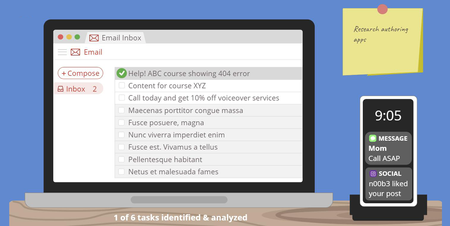
Recently my fellow instructional designers Sarah Hodge and Madison McCartney and I teamed up to prove that there’s always more than one way to present course content. Each of us created a mini-course on prioritizing tasks, using the Eisenhower Decision Matrix as our starting point. In this article, I’m going to walk you through how I got from this: … to this: View interactive version | Download template Without further ado, let’s get into it! Setting the Scene Since I created this project as an example, there’s no real target audience, much less learning objectives. But to make it feel realistic I set some basic parameters to guide my design thinking. Here’s what I came up with: Audience: Novice e-learning project managers Learning objective: Be able to identify tasks, classify them as important and/or urgent, and prioritize them accordingly Coming Up with the Concept Over the years, I’ve seen a lot of great e-learning examples in the E-Learning Heroes community, but a few really stand out to me. One in particular is this time management game by Phil Eagles. I love the way he took a series of simple multiple choice questions and made them into a scenario that feels real and meaningful. And since time management is so closely related to task prioritization, it’s the first thing I thought of when I started brainstorming ideas for my project. I wanted to create something similar—but put my own spin on it. Because I wanted to create a totally custom and immersive scenario, Storyline 360 was the perfect choice for this project. I decided to simulate a desk and let learners identify tasks and prioritize items for themselves. The idea behind this was to emulate real life—where learners have to identify tasks and decide which ones to do first—while also following one of the key principles of adult learning by giving them control over their learning experience. Refining the Scenario Once I had a general idea of what I wanted to do, it was time to iron out the scenario details. I wanted to give learners enough opportunities to practice prioritizing tasks without it feeling repetitive. I included a few different types of tasks—since that’s what it’s like in real life. In the end, I settled on a total of six tasks, including a few emails, a couple of text messages, and a Post-it. As I started to build out my scenario, I ran into some challenges. One of the main issues was that my slide was getting overcrowded. To overcome this challenge and help learners focus on one thing at a time, I divided the process of task prioritization into two parts: Step 1: identify and analyze the tasks to determine how urgent/important they are Step 2: prioritize the tasks based on their level of urgency/importance For step one, I used a series of toggles so the learner can decide if each task is urgent and/or important. Based on their answer, I provide custom feedback. This is how that turned out: For step two, I made a simple drag-and-drop interaction so the learner can decide where each task belongs on their to-do list based on its level of urgency and importance. Here’s what that ended up looking like: Because this project was intended for adults who may have previous experience with the Eisenhower Decision Matrix, I made the explanation walk-through optional, as shown in the screenshot below: Is this how I initially envisioned my project? Absolutely not. To be honest, I don’t think I really had a clear mental picture of what it would look like. Some people can map out their entire project before they even open up the authoring app, while others do better jumping straight into building and get inspired along the way. Both methods are totally fine as long as you always keep your learners’ needs at the center of your design. Designing the Graphics As someone with no formal graphic design training, I can be challenged to come up with ideas for the look and feel of my courses. To find inspiration, I usually start by checking out the examples and templates on E-Learning Heroes as well as the Content Library 360 templates. Even if I don’t find exactly what I need, I usually come across something I can use as a starting point. Personally, I find that starting with a template is less intimidating than starting from a blank slide. And even if the final result ends up looking completely different than the original template, having something to start with helps me channel my ideas and inch closer to a place I feel good about. So, once I knew that I wanted to create an immersive scenario, I headed straight to E-Learning Heroes to look for templates I could use as a springboard for my design. A quick search for “desk” led me to this template, which I thought was perfect: Download Template After opening the template, I made some adjustments and played around with different color options. Here’s what my first version looked like: There’s nothing wrong with the way this looks, but—as I mentioned earlier in this article—it was at this point I realized there wasn’t enough room on the slide to allow learners to both identify and prioritize tasks in one spot. Splitting the activity up into two parts gave me more screen real estate to work with. Around this time, I also decided I wasn’t sure about the mint green wall and wanted to give white a try . . . . . . but I wasn’t totally sold on that either. I also felt lukewarm about the way the desk looked and decided to incorporate some texture. This is what the next version looked like: Wondering how I created the wood texture? I did a Google search for “flat design wood,” inserted one of the images I found onto my slide master, and then used the curve tool and shapes in Storyline 360 to achieve a similar effect. This is what it looks like behind the scenes: I was pretty happy with the way this looked, but when I started adding other objects to the screen, I realized they didn’t stand out enough against the dark blue background. That’s when I settled on the design you see in the final version: I went through a similar process for the other slides in my project, so I thought I’d share the different versions with you as well. . . . and here’s the final version. You’ll notice that in the final version I pulled in the computer screen from the previous slide to tie it together a bit more. I also changed the size of the boxes to make it all fit on the screen. As I was working on my core content slides, I also started to pull together my title slide. Since my other two slides used a flat design style, I wanted to stick with something similar. I found this simple slide template in Content Library 360 and used it as a starting point: I didn’t want to include characters, so I deleted those and changed the color of the background to match the dark blue I was using at the time. After taking out the characters and changing the color, I felt like the slide was too minimal. It was missing something, so I sat and thought about how I could incorporate more visual interest. That’s when I had an idea: what if the title slide was a view of the desk from above? And since we’re talking about prioritizing tasks—and many people write their to-do lists in a notebook—I thought that might make sense and look nice. So I went back to E-Learning Heroes for some inspiration and ended up finding this spiral notebook template: Download I imported it into Storyline 360 and made a few adjustments to make it all come together. Here’s what it ended up looking like: As you can see, graphic design isn’t always a straightforward process. It doesn’t necessarily go from zero to perfect in one fell swoop. In many cases it’s an iterative process involving incremental changes until you’re happy with what you’ve got. So the next time you’re feeling stuck and unsure about your design, try doing what I did and search E-Learning Heroes or Content Library 360 for a template you can use as a starting point. Then, make small changes here and there. Eventually you’ll get to a place where you feel good about your design. More Resources Hopefully you’ve found this inside look at my design process interesting and insightful! Remember, it’s okay if your first draft isn’t perfect. Design (whether it’s instructional or graphic) is a process, and it often takes trial and error to get it to where it needs to be. And there’s absolutely nothing wrong with that! If you enjoyed this article and are looking for more insight into what goes on in the minds of instructional designers as they’re creating courses, be sure to check out these articles: How I Designed This Personalized Decision Matrix How I Designed This Interactive Dial Matrix A Behind-the-Scenes Look at How I Designed This Gamified Quiz Want to try building your own immersive scenario in Storyline 360, but don’t have Articulate 360? Start a free 30-day trial, and come back to E-Learning Heroes regularly for more helpful advice on everything related to e-learning. If you have any questions, please share them in the comments.1.1KViews1like6CommentsHow to Customize This Storyline 360 Countdown Quiz Game Template
A few weeks ago I decided to create this Storyline 360 gamified quiz template: Click here to view the interactive version and download the template. If you’re curious about my thought process in creating this example, jump over to this article: A Behind-the-Scenes Look at How I Designed This Gamified Quiz. If you’ve downloaded this template and want to adapt it, keep reading! In this article, I’m going to walk you through the top-four FAQs about adapting this template: How do I change the passing score? How do I change the number of questions in each level? How do I change the amount of time in each level? How do I change the number of levels? This template uses Storyline 360 features like question banks, states, variables, trigger conditions, and slide masters. If you’re not comfortable with how those work, you might want to check out the linked tutorials before continuing. Alright, here we go! How do I change the passing score? By default, I’ve set the passing score to 50 percent. However, depending on the project, you may need learners to get a higher percentage of correct answers to pass. Good news: making this update is super easy! Simply open each result slide, click on Edit Result Slide, and change the percent required to pass, as shown in the GIF below: Note that if you update the passing score, you might decide you also want to update the scores required to earn one, two, or three stars. See the next section of this article to learn how to do that. How do I change the number of questions in each level? By default, each question bank in this template includes 20 questions. If you want to increase or decrease the number of questions, in addition to adding or deleting those questions in the question banks, there are a few other things to update. Let’s walk through each of them. Update the Instructions Slide If you update the number of questions, it’s important to update the on-screen instructions so learners understand how the course works. To update the instruction text, go to your timeline and click on the eye icon to hide the objects that you don’t need to edit. After you’re done making edits, remember to show all the objects again. Update the Question Slide Master Another place you’ll want to update the on-screen text is on the question slide master. Next to the variable that keeps track of the question number you’re currently on, you’ll see it shows the total number of questions—which in this case is 20. Once again, this is a pretty quick fix. Simply replace the number after the slash with the total number of questions in your project. Update the Result Slide for Each Level On the Success layer of the result slide for each level, learners see how many stars they earned as well as a message that explains what those stars mean. Both the number of stars and the message displayed are personalized depending on their score. By default, it’s set up so that: If learners get 10-14 questions right, they’ll see one star and a message saying they got at least 10 questions right. If learners get 15-19 questions right, they’ll see two stars and a message saying they got at least 15 questions right. If learners get a perfect score, they’ll see three stars and a message saying they answered all 20 questions correctly. To make this happen, I’ve added states to both the stars and the feedback textbox. I also added triggers to show the state that corresponds to the learner’s score. Here’s what those triggers look like: If you change the number of questions in each level, you’ll need to update these triggers. But before you do that, you’ll need to calculate the scores that learners need to get to earn one, two, or three stars. For example, let’s say you want to reduce the number of questions per level from 20 to 10. You decide that to earn one star learners need to get five questions right, to earn two stars they need to get seven, and to earn three stars they need to get a perfect score. Assuming that each question is still worth 10 points, here’s what that calculation would look like: 1 star: 5 questions x 10 points each = 50 points 2 stars: 7 questions x 10 points each = 70 points 3 stars: 10 questions x 10 points each = 100 points Since technically learners will earn one star if they get five or six right answers, and two stars if they get seven, eight, or nine right answers, the triggers associated with those stars and the associated feedback messages will need to cover a range of points, unlike the ones associated with three stars. Here’s what those values look like if we use the example above: 1 star: between 50 and 69 points 2 stars: between 70 and 99 points 3 stars: equal to 100 points Thanks to the new trigger panel, it’s quick and easy to make those edits, as you can see in the GIF below: Finally, remember to update the text in the feedback message states to reflect the number of questions learners need to get right to earn one, two, or three stars, as shown in the GIF below: Update the Gameboard Slide The number of points earned—which, as we saw in the previous section, changes when you adjust the number of questions in each level—also impacts two things on the gameboard slide: The number of stars that learners earn The layer that appears when a learner unlocks a new level Updating these triggers looks very similar to what you just did on the result slides. Here’s a GIF that shows me updating those triggers for Level Two: You’ll need to repeat the above process for Levels Three to Five. The good news is that even though there are a bunch of triggers to update here, it’s super-fast since you can do it directly in the trigger panel. And those are all the updates you’ll need to make if you want to change the number of questions in each level. You did it! How do I change the amount of time in each level? By default, learners get one minute to complete each level. For every correct answer, they get an extra five seconds added to their time. If you want to change the amount of time learners start off with, you’ll need to do a few things. Let’s walk through the steps together. Update the Default Value of the Time Variable Start by adjusting the X variable, which counts the total amount of time remaining in seconds. In my template, I set the default value to 60—to give learners one minute to complete each level: If you want to give your learners more or less time, you’ll need to adjust the default value of this variable. Extend the Timer Past Two Minutes (Skip If Decreasing Time) If you’re decreasing the amount of time learners have to complete a level, you can skip this step. However, if you’re increasing it, you’ll want to pay close attention. In my template, a variable called M displays the number of minutes remaining. Even if learners get all the questions right, it’s not set up to work for anything above two minutes. If you decide to give learners extra time, you’ll need to make a couple of adjustments. The minuter-counter functionality is set up on the top-level slide master, on the Slide Loop layer: To figure out how many triggers you’ll need to add, start by calculating the maximum number of minutes that learners could end up with if they got all the questions right. For example, let’s say you decide to give learners two minutes (or 120 seconds) to start out with. To figure out how much total time they could end up with if they get all 20 questions right—and receive a five-second bonus for each—you’d end up with this calculation: 120 + (5 x 20) = 220 seconds. To find the number of minutes, simply divide that number by 60. In this case, the answer is three minutes. To make the timer work for this scenario, you’ll need to: Update the trigger that sets the number of minutes, in this case two, to include a range rather than anything above 120. In other words, you want to set M to 2 if X is between 120 and 179, instead of if it’s equal to or greater than 120. Add a new trigger to set M to 3 if X is greater than or equal to 180. Note that these triggers appear twice—once when the timeline starts and again when the timeline ends—so you’ll need to update them twice. Here’s a GIF that shows me updating them: Update the Reset Triggers Since the timer needs to start over whenever learners begin a new level, you’ll need to update the triggers that reset the starting value of the X variable—which controls the time remaining—in a few spots: On the gameboard slide: On the retry buttons located on the Success and Failure layers of the result slides for each level: Remember to do this on the Success and Failure layers for every single level, or the timer will automatically reset to 60, since that’s the amount of time I set the template up for initially. And you’re done! You’ve successfully updated the amount of time learners have to complete each level. How do I change the number of levels? If you want to split your quizzes up by topic, but you have more or fewer levels than are included in the template, no problem! In this section, I’ll walk you through how to customize the number of levels. If you want to decrease the number of levels, all you need to do is delete the associated scenes as well as the buttons and layers on the gameboard slide. Easy-peasy! However, if you want to add an extra level, there are a few additional steps. Let’s take a closer look. Create a New Level To create a new level, start by inserting a new scene. From there, duplicate one of the existing question banks and insert a new draw into your scene. If you’ve never used question banks before, check out this tutorial: Understanding Question Banks. Next, copy one of the existing result slides and paste it into the new scene, after the question bank draw. If you want, you can update the color of the buttons learners use to select their answers. In my template, I used a different color for each level—to match the color of the button leading to that level on the gameboard slide. Update the Gameboard Slide On the gameboard slide, decide where to insert the button for the new level. As you can see in the screenshot below, there’s a good amount of space between Levels Four and Five, so that may be a good place to put it. To create the Level Six button, duplicate the Level Five button and the associated stars. Then, update the button’s fill color so that it’s different from all the other levels. Next, move the Level Five button to the left, making sure to delete a few of the circles on the path to make space for the new button. Then, update the level number on the duplicated button to 06: Remember to update the fill color and level number in both the Normal and Disabled states, so that they appear correctly whether the level is locked or unlocked. For more tips on working with states, check out this tutorial: Adding and Editing States. Each level has its own layer on the gameboard slide. On each layer, you’ll notice that the path animates to lead up to the button for that level. An arrow and an instruction also appear so learners know which button to click. Finally, the button state changes, effectively unlocking the level. If you’re adding one new level, here are the updates you’ll need to make. On the Level Five layer, delete the part of the path that leads to Level Six and move the arrow and text so that they point to the Level Five button: Then, on the Level Six layer, get rid of the animations—without deleting the circles themselves—on the part of the path that leads to Level Five, and delete the circles that overlap with the Level Five button. Next, update the instruction text to say “Level Six” and update the button that the trigger points to. When you duplicated the level button earlier, the triggers associated with the level button were also duplicated. However, you still need to update a few things: The value of the variable that’s updated when the user clicks to indicate the level the user is currently working on The result slide the button resets The quiz slide the button jumps to Here’s a GIF that shows how to update those triggers: Update the Question Slide Master On the question slide master, duplicate the Level Five variable trigger. Then, change the value to 6 and update the slide it points to, as shown in the GIF below: Update the New Level’s Result Slide On the Level Six result slide, update the triggers on the Try Again buttons on both the Success and Failure layers: Update the Cumulative Result Slide Finally, on the cumulative result slide, check the box to include the result slide for the new level in the cumulative result calculation: Hopefully, this tutorial will help you customize this template to fit your needs! If you run into any issues or if you’d like to update this template in a way that’s not covered in this tutorial, please leave me a comment below. Looking for more gamified course templates? Here are few of my favorites: Randomized Board Game Dice Quiz Game E-Learning Battleship Game Crossword Puzzle Game Want to try something you learned here, but don’t have Articulate 360? Start a free 30-day trial, and come back to E-Learning Heroes regularly for more helpful advice on everything related to e-learning. If you have any questions, please share them in the comments.2.6KViews1like20Comments