quiz results
3 TopicsHow to Configure a Storyline Results Slide
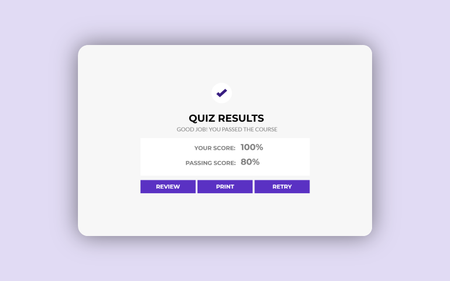
This week's tip comes from John_Moore_YL at our certified training partner, Yukon Learning. You've created the questions, perfected your feedback master, and your quiz is almost ready to go! But how will the learner know if they passed or failed the quiz? The last step in creating a quiz in Storyline is to set up the results slide. In this video, you'll learn how to: Add a results slide Set a passing score Determine which questions contribute to the quiz results Add and adjust buttons for the learner to review the quiz and print their results Resources: Yukon Learning YouTube Channel Sign Up for Facilitated Certified Training351Views0likes0CommentsAbility to edit format of report.html quiz output
Ability to apply basic edits to the output of the report.html file would really enhance the experience of users taking a quiz. Our users need a quick and easy way to save the results of the quiz they have just taken (not just the score but the actual options they have chosen). Allowing them to print their results opens a very basic tabular report as an html document but the only things you can change are whether or not a score is reported (not relevant for us). It also uses the header 'Student response' ... our users are not called 'students'! I would also like the report to be able to include an button on screen to print straight to a PDF (rather than rely on the browser's own print settings why not allow us to place it on screen?)135Views0likes1Comment