rise 360
100 TopicsMade By Members: Rise Code Blocks
This month, we’re spotlighting creative ways community members are experimenting with Rise 360’s new Code Block (Beta) feature. From quick prototypes to full mini-games and simulations, these projects show how custom HTML, CSS, and JavaScript can bring fresh interactivity to Rise, whether you’re vibe coding with AI or hand-crafting from scratch 💡 Try It Yourself: Rise 360: How to Use Code Block, Creating Blocks with Vibe Coding 👽 Alien Lifespan Challenge by GrahamBetts-add Graham created a fast-paced trivia game that challenges learners to keep Brian the Alien alive by answering 10 questions correctly. The project combines timers, progress tracking, and custom feedback, powered by code. 🔗 View the post | 🎮 Try the demo Build It with AI: Kick off your own build with prompts like these, or start from scratch with your own code or customizations: “Write HTML, CSS, and JavaScript for a 10-question timed quiz game that tracks correct answers and shows a 3-star progress meter inside a Rise 360 Code Block.” “Structure the code so all quiz content lives in a QUESTIONS array and settings in a CONFIG object, making it easy to update questions, feedback, and timer length.” “Create an interactive quiz where each correct answer extends the player’s time and updates a character’s emotion from happy to sad based on performance.” 🧭 Explore Cardinal Directions by ilgunapo Apo built a playful, interactive experience to help learners explore the four cardinal directions. After discovering each direction on a compass, players test what they’ve learned in a mini treasure-hunt game. 🔗 View the post | 🎮 Try the demo Build It with AI: Kick off your own build with prompts like these, or start from scratch with your own code or customizations: “Write HTML, CSS, and JavaScript for an interactive compass that lets users explore the four cardinal directions, then unlocks a short treasure hunt game inside a Rise 360 Code Block.” “Structure the code so text content, directions, and object positions are easy to edit through a CONFIG or LEVELS object.” “Create a grid-based navigation game where players move a character using arrow keys or on-screen buttons to reach a treasure.” 🔋 Check Your Battery by Kate_Golomshtok This playful Caffeine Cat Test helps learners check their energy levels through a short, interactive quiz. Despite having no coding background, Kate used AI to create animated elements, like moving paws, a cat-face divider, and clickable cards, that make the experience feel warm and personal. 🔗 View the post | 🎮 Try the demo Build It with AI: Kick off your own build with prompts like these, or start from scratch with your own code or customizations: “Write HTML, CSS, and JavaScript for a 6-question personality quiz with animated feedback cards, designed for use inside a Rise 360 Code Block.” “Include visual elements like progress bars, emoji icons, and a results screen with simple charts showing fatigue, energy, and motivation.” “Structure the quiz content in a QUESTIONS array and use a CONFIG object to store colors, icons, and category names for easy editing.” 🐸 Hoppy Adventures: Coin Capture by destery1kenobi Destery created a retro-inspired game where players collect coins, dodge predators, and answer quiz questions to level up. Each set of 10 coins triggers a multiple-choice question, all managed through a JSON file for easy updates and tracking. 🔗 View the post | 🎮 Try the demo Build It with AI: Kick off your own build with prompts like these, or start from scratch with your own code or customizations: “Write HTML, CSS, and JavaScript for a mini-game where players use arrow keys (or WASD) to move a character around and collect coins.” “After every 10 coins, pause the game and display a multiple-choice quiz question inside a modal.” “Store quiz questions and answers in a QUESTIONS array for easy editing, and use variables for score, time, and level tracking. The game should run entirely inside a Rise 360 Code Block.” ☎️ People Manager Simulation by Daniel-Benton Daniel created a simulation where learners step into the role of a new call-centre manager, making choices that impact morale, performance, and stress. It features avatars, tooltips, and a narrative end summary, all co-coded through an iterative vibe-coding process. 🔗 View the post | 🎮 Try the demo Build It with AI: Kick off your own build with prompts like these, or start from scratch with your own code or customizations: “Build a browser-based management simulation with multiple-choice decisions that adjust player stats like performance, morale, and stress.” “Add tooltips to each choice explaining what the decision affects, and include a narrative end summary with a performance rating.” “Create an HTML layout for avatars and dialogue boxes that display manager and team interactions inside a Rise 360 Code Block.” 💬 Your Turn: Share your examples and tell us what you created, how you built it, or which prompts helped you along the way. 💡 Pro Tip: When posting your own Code Block examples, add the “Code Block” tag so others can find them more easily. And if you haven’t already, join our Code Block Group to keep the conversation going! 🏅 Want to Be Featured Next? We’re always looking to highlight inspiring examples from the community, and your work could be next! Here's what we look for in a standout submission: A downloadable .story file or link to your Rise course so others can explore, adapt, and learn from your build. A clear explanation of what you built, how it works, and what makes it unique. Behind-the-scenes insight into your process, techniques, tools, or challenges you tackled. Purposeful design, whether it’s solving a problem, teaching a concept, or experimenting with a new approach. Bonus: Share your ideas for how your design is widely applicable beyond the specific example. Got something cool to share? Post it in Share Examples and you might see it featured in an upcoming roundup!4.8KViews7likes6CommentsHow I Built This: How I Vibe-Coded a People Manager Simulation
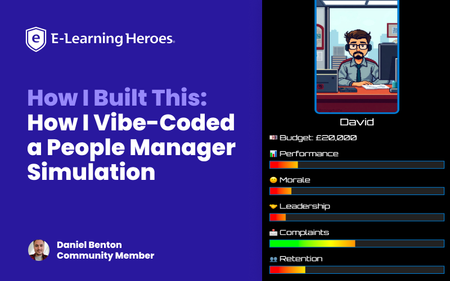
When the new Rise 360 Code Block (Beta) feature launched, I wanted to see just how far it could be pushed. Could you build something more than static content? That’s how the People Manager Simulation came to life – a fully playable, story-driven experience built entirely inside a single Rise code block, using only HTML, CSS, and JavaScript. In this video, I explain how it was created and how you can repurpose this approach in your own projects. Why I Made This In my day job, I design learning experiences for real teams, often around leadership, people management, and workplace decision-making. I wanted to create something that shows how these kinds of soft-skills topics can be transformed into immersive simulations without needing heavy development tools. The result is a game where you step into the shoes of a brand-new team leader, navigating real-world decisions that impact morale, performance, retention, and stress. Each choice has a trade-off, and yes, you can get “sacked” if you mismanage your stats. In the video, I mention that this project was built gradually, late evenings, after work, once my son was asleep. There were plenty of failed tests, odd bugs, and “why won’t this work” moments along the way. I did consider going back and documenting every single prompt and adjustment… but honestly, that would read like an increasingly impatient diary of me negotiating with ChatGPT! So instead, I wanted to share a simpler, more practical way for you to repurpose what already works. How I Built It Rather than starting from scratch, the method I show in the walkthrough involves: Uploading the existing working code of the simulation. Giving ChatGPT a single clear prompt that explains: This is for Rise 360’s custom code block. It should learn the structure and logic of the original simulation. It should rewrite the theme, dialogue, and characters for a new scenario. In the video, I demonstrate how to use the current People Manager Simulation code as context; use the download attached below. 📁 Download: People Manager Simulation HTML; attached below. You then give this to your LLM of choice as an attachment and provide your repurposing prompt; the one I used can also be downloaded below. 📁 Download: GPT Prompt for Repurposing Existing Demo; attached below. Key Takeaways Start from a working simulation instead of a blank page. Use a single, focused prompt to repurpose the entire code and story. Attach your full code as context so the model understands structure and logic. Re-use this workflow to adapt learning scenarios quickly—no coding expertise required. The Result Here’s the outcome of my own repurposing test from the walkthrough: a completely new narrative built using the same base code and single prompt. Is it perfect? No. But it’s a solid foundation—and all this came together in about ten minutes. 📁 Download: The Result — Full New HTML Code; attached below. Final Thought The best part of this approach is accessibility: you don’t need to be a coder to build something that feels custom. By starting with a working framework and iterating through clear, focused prompts, you can turn any learning scenario into a playable, data-driven experience. Whether it’s leadership, compliance, or customer service, this structure gives you the foundation to explore how choices shape outcomes, all inside Rise 360. My final ask is: please repurpose and improve on any of the ideas shared in this article. Let me and the wider community know how you get on. 💬 Ask Me Anything! I’d love to hear your feedback and answer any questions about the build. Drop your thoughts in the comments below—I’ll be checking in and responding! Want to Share Your Build? Do you have a project you’d love to share with the community? We’re always looking for more How I Built This stories. Whether it’s a game, interaction, or unique design, we’d love to feature your process. Drop a note in the comments or reach out to the community team if you’re interested!3.5KViews20likes8CommentsCommunity Insights: Preparing and Planning your visual design for Articulate Rise
The beauty of Articulate Rise is that when it comes to development, you don’t always have to plan everything. You can jump into the blank canvas, easily add and delete blocks, play with interactions and figure out what works as you go. The ease in which you can chop and change things is often what draws people to rapid authoring tools. Being able to bring your ideas to life in the click of a button, without any complex programming or coding. Whilst this method of ‘figuring things out’ as you go can often work well for building out ideas, when it comes to visual design, sometimes a little bit of planning can go a long way! The blank canvas that Rise brings can offer scope to be as creative as you wish with the visual identity of your course, but naturally this can also feel just a tad overwhelming. This sometimes then leads to two outcomes. We have those who love the freedom of a blank canvas but try to shoehorn in too many styles at once. Or those who just don’t know where to start, so play it safe and end up with a boring, blocky, black and white build. The good news is with proper planning you can avoid both those eventualities and craft a beautiful, accessible build without needing to be a graphic designer! Consistency is key So, what is the point in planning your visual design before jumping into development? Well, it’s not about creating something overly complex, or spending hours crafting a character that you’ll only use once in the course. No. It’s about ensuring consistency. Consistency plays a big role in how our learners are going to perceive the eLearning. Good design will go unnoticed, but bad design sticks out like a sore thumb! Even something as simple as having different icon styles or suddenly switching from using photography to illustrations, can be jarring to a learner. This results in the focus being drawn away from the content and can actually have a negative impact on a learner’s perception of the quality of the content too. Think about it, have you ever visited a website and been immediately put off because of the way it looks? Did you buy the product or access that service? Probably not. Quality of design and consistency of design can have a significant impact on perceived quality and cognitive load. We want our design choices to enhance and support the user experience, not detract from it. Making design decisions before jumping into your authoring tool can help support consistency and leave you with a Rise build that feels polished and professional! So how do you start planning and what do you need to include or consider? Let’s take a look! Create a blank moodboard space. This can be in whichever tool you prefer using. I like PowerPoint or Miro as I can quickly copy and paste things into the slide space. The key thing is that you can access this moodboard easily and have enough page or slide space to jot down your ideas. This will become a bit of working document that you can add to during the initial scoping of your project. Add in any existing brand assets. If you’re working within an organization or with a client, it is likely they will already have some brand guidelines for you to work with. This could include font choices, colour schemes and even suggestions for photography styles. Often these come in very large PDF documents, so take half an hour to read through and pull out any information that could be useful for you. Within your mood board add a title for ‘fonts’ and make a note of the chosen font for both your body text and headers. Sometimes I even add a little paragraph of dummy text so I can see how the font will look. At this stage you can also decide on font sizing too and make a note of this. Next, begin to pull together your colour scheme from the brand guidelines. I like to create a few rectangles within my moodboard and fill them with my chosen colours. Next to each swatch I add the HEX or RGB code so that I can easily copy this over when I get to development. It’s also a good idea to label your colour swatches with their intended use, for example header text, body text and accent colours (colours used for icons, graphs etc.). Sometimes brand guidelines will contain multiple different colour palettes for different uses. This is where it may be worth a chat with your Stakeholders to ask them to decide on just four or five colours. Too many can become overly busy and distracting! Check for accessibility Now that you have fonts and a colour scheme decided, it’s important to check for accessibility. I like to have at least two accessible colour pairings within my colour palette. This means that the contrast between the two colours is great enough to pass accessibility standards. There are lots of helpful websites out there that can allow you to check the contrast of two colours and will let you know if it passes accessibility standards. On your moodboard create a separate section that says ‘accessible colour pairings’ and include swatches of the pairings that can be used. This is particularly important for text and background colour pairings. It’s important to consider the accessibility of fonts too. It can be tempting to go for an elaborate or decorative curly font. As a header with font size 44pt, this may be absolutely fine. But as 16pt body text, could be completely unreadable. Standard fonts such as Poppins, Arial and Open Sans tend to work really well for body text and offer bold / black alternatives for headings too. Decide on an illustration, photo and icon style It may seem pedantic, but sudden changes in icon style can be really noticeable. So next up on your moodboard add the title ‘icons’ and provide a couple of icon examples in a consistent style. Sites like Flaticon are fantastic for sourcing icons of a particular look and feel. Consider whether you want icons coloured or just an outline and how detailed you wish them to be. Play around with a few different styles until you find something that you like. I sometimes find it useful to visit my client’s website and get inspiration from the icons used there. Once you have decided on a style and the colours in which your icons should be, add your examples to your moodboard. If you want to go one step further, why not create a folder in your documents called ‘icons’ and quickly gather a bank of icons that you feel you’re likely to use in your course. When you start the development, you can just grab and go! Make sure you don’t forget to jot down where you sourced your icons from too. This will make it much quicker to find others in the same style at a later date. When it comes to photography and illustrations, the likelihood is your client / Stakeholders may already have guidance on what is appropriate to use. Whether you go down the route of characters, or stock imagery, it’s important to keep this consistent throughout. Head over to a royalty free site and search for a range of images based on the content or subject matter of your eLearning. In the case of photography, search for consistencies in backgrounds, shot type (close up versus wide screen), colours and poses. As a rule of thumb, I tend to avoid overly staged imagery where the person is staring directly into the camera. More subtle stagings where people appear to be interacting more naturally with each other can feel a bit more pleasant and less uncanny valley! Look for diversity in your images too, try to ensure a range of ethnicities, races and genders. Once again, add the title ‘imagery’ to your moodboard and provide a handful of examples you can refer back to later. When using characters or illustrations it can be slightly more tricky to ensure consistency in the style. However, royalty free sites such as Storyset allow you to search through a bank of illustrations all created in the same look and feel. You can even recolour them on the website without needing any graphic design software too! Gather inspiration for layouts and interactivity Did you know website designs can offer a great source of inspiration for Rise? Due to the continuous, one-page, nature of Rise it functions in a similar way to a website. Whilst you may not be able to replicate the functionality or interactivity of a website, you can translate some of the design choices! Head over to Google or Pinterest and type in ‘UI website design inspiration’. Here you will be able to find flatlay images of websites. Consider how the text is segmented, how colour and shape is used, and how images are presented. It can help spark ideas for dividers, background styles and more! Gather your reference images and drop them into your moodboard with the title 'layout inspiration'. Check everything fits together Great, you’ve finished gathering the pieces for your visual design puzzle. But now the most important step, looking at everything together and making sure it fits nicely. So, what do I mean by this? Essentially it means looking at everything as a whole and considering if it is conveying the message you want. For example, moodboard containing a colour palette with sunshine yellow and bright orange and photography of people smiling, may be a rogue choice for a fraud eLearning. This can also include looking for any contradictory elements to your moodboard too, for example a bubbly, rounded font but imagery that is serious and corporate. 🌟 All elements need to feel cohesive and intentional. Consider if you can explain the decision making behind your choices, if you’re finding you can’t really express why you’ve chosen a particular font, or colour, or image style, it’s probably not the right fit! And you’re done! You have your completed moodboard now ready to present to your client, share with colleagues, or to use as your reference to begin developing your Rise build. Remember, this doesn’t need to be a polished document, it should support you in maintaining consistency throughout your build and provide a point of inspiration to help you create Rise courses that break free from being boring and blocky. Once finished, why not share an example of a moodboard you’ve created? Share the tool you used and where you sourced any assets. 💡 Keep Learning Explore more member spotlight articles to discover how other learning designers are building their skills—and shaping the future of learning. Community Insights: Peer Guide Spotlight | E-Learning Heroes Community Insights: How Support Takes You Far | E-Learning Heroes691Views10likes5Comments8 Business Use Cases for Microlearning
Are you excited to try out microlearning, but unsure when to use it? Below, we outline eight common workplace situations that benefit from a short-form course. Each situation includes a sample microlearning. At the end, learn how you can customize these templates for your own company and training needs. 1. Create Organizational Alignment To hit a business target, everyone needs to be moving in the same direction. Creating that alignment starts with clear, frequent communication of the shared mission, vision, and values. Microlearning can help. The following editable template shows how you can align employees through regular executive “micro” updates: Executive Update 2. Highlight HR Information, Notices, or Reminders Educating employees about annual events like open enrollment, tax season, and compliance training is a critical function of HR teams. The problem? Important announcements often get missed when they’re embedded in long paragraphs or endless emails. Grab the following templates to see how microlearning makes HR communications more digestible and engaging: A Quick Guide To Open Enrollment Internal Company Newsletter 3. Strengthen Company Culture and DEI Initiatives Fostering an inclusive company culture is a continuous process—not a one-time effort. A series of microlearnings can support your larger culture-building and DEI efforts. Check out the following examples for ideas on how to get started: Are You an Ally? Try Taking on These 5 Roles How To Identify and Stop Using Ableist Language Gossip-Proof Your Workplace 4. Streamline Business Processes You can also use microlearning to document and streamline business processes or workflows—such as employee onboarding or performance management. Notice how the following examples make it easy for employees to work through the steps of a process independently: New Hire Pre-Hire Checklist Performance Review and Feedback 5. Increase Security Awareness Most successful data breaches, phishing attacks, and other cybersecurity incidents are caused by human error. Adding refresher microlearnings throughout the year can fortify your defenses. See an example for safeguarding against phishing attacks below: Spot the Phish 6. Enhance Employee Wellness A successful business needs thriving employees. But employee wellness training often ends up buried under competing priorities. Microlearning makes it easy for employees to fit in short breaks for self-care throughout the workday. Check out these two wellness-related microlearning examples: 3 Desk Stretches to Instantly Improve Your Day 5 Tips for Better Naps 7. Provide Quick-Reference Guides Microlearning is the perfect resource for one-off training questions: Employees can quickly find the answers they need—when they need them. Below, we’ve created templates for product and software training. But you could easily create quick-reference guides for sales, customer service, and other teams. Get To Know [Name of Product] Software Training 8. Reinforce and Assess Key Takeaways Finally, who says you have to choose between a more sizable course and microlearning? Repetition aids retention. Consider following up longer training sessions with a microlearning quiz, scenario, or summary. The examples listed below demonstrate how you might do this: Can You Recover From a Workplace Mistake? Training Refresher Wrap-Up There’s no shortage of creative ways you can use microlearning to achieve your business training objectives. The examples above are just a starter list. You might also check out submissions to one of our weekly community challenges, 40+ Microlearning Examples Created in Rise 360 #407. Interested in customizing one of these examples for your team? If you’re an Articulate 360 subscriber or trialer, you can edit all of the examples linked throughout this post by choosing the course from our Rise 360 microlearning content templates. Here’s a short video showing how to do that: What’s the latest microlearning course you’ve created? Tell us about it in the comments—and feel free to ask any questions you might have! Like this article? Subscribe to our newsletter to get the latest e-learning inspiration and insights directly in your inbox. You can also find us on LinkedIn and Twitter.4.4KViews0likes11CommentsCreate Compliance Training Like a Pro with Rise 360
Many businesses, including financial institutions and publicly regulated companies, are required by law to make sure their employees are properly educated in specific areas pertaining to their industry. This kind of training is often referred to as compliance training. If you’re an e-learning developer, you’ve likely had to create these types of courses. They typically cover topics such as workplace discrimination, ethics training, bribery prevention, and data security—crucial information that employees need to know to do their jobs correctly and avoid breaking laws. I love to use Rise 360, the web-based authoring tool available in Articulate 360, to create compliance training. Why? Because Rise 360 courses are easy to create and update, and they can be built collaboratively. Rise 360 also allows you to require learners to view all the content, which is important with compliance training since you need to be able to demonstrate to regulators that learners have been exposed to all the required information. And, of course, the responsive output from Rise 360 looks beautiful across all devices employees use to access courses. Here’s a sample compliance course built in Rise 360 that covers how to avoid common workplace injuries. Click on the image, or the link below it, to check it out. View Compliance Training Example Now that you’ve seen an example course, let’s walk through some key considerations for compliance training and some Rise 360 features you can use to address them. Use the Continue Block As I mentioned earlier, one important consideration for e-learning developers creating compliance training is making sure learners can’t skip any content. This can be accomplished easily using the continue block. The continue block can be set up to prevent a learner from moving on until they’ve seen all of the previous content. Quickly insert a continue block by clicking Continue on the blocks shortcut bar. You can also find the continue block in the block library by selecting the Divider option. A continue block can work in different ways, depending on which completion type you choose under the completion type drop-down menu. These options include: None (Always Show Button): The Continue button is always visible. Learners can click on it anytime to move to the next block. Complete All Blocks Above: The Continue button is disabled until learners complete all blocks above the continue block. Complete Block Directly Above: The Continue button is disabled until learners complete the block directly above the continue block. The safety course example above uses a continue block at the end of each lesson with the “Complete All Blocks Above” setting. But what if you added custom interactivity created with Storyline 360 to your Rise 360 lesson? Is there a way to make sure learners complete a Storyline 360 block? No problem. Simply follow these steps to configure your custom interaction in Storyline 360. Then, in Rise 360, add a Storyline 360 block followed by a continue block to your lesson. You can also use a Storyline 360 block to track the completion of a Rise 360 course in your LMS. You can choose to track completion based on a trigger, quiz result, or the number of slides viewed in your Storyline 360 block. Enable Restricted Navigation When you’re creating a compliance course with Rise 360, you might consider using restricted navigation in conjunction with your continue block. Restricting navigation means your learner must click through each lesson in lesson order. For example, the learner would have to take lessons sequentially and wouldn’t be able to click ahead to the final lesson without viewing each lesson before it. You can find the settings for controlling course navigation under the settings menu. Under the navigation mode drop-down, choose Restricted. On top of restricting your course navigation, you might want to restrict navigation on any videos you’ve included so that learners can’t skip ahead through video content with the seekbar. To restrict navigation in a video, simply go to the settings tab for the video in question and disable Allow Forward Seeking. Now your learners will no longer be able to use the seekbar to skip over important video content! Require a Passing Score on the Quiz Quizzing is another important aspect of your compliance courses. You want to make sure learners fully understand all the quiz questions and their correct answers. There are a few tips you can follow to make sure that your quizzes are as compliant as possible. First of all, you can control course navigation by requiring learners to pass a quiz before moving on to the next lesson. Just open up your quiz, click the Settings option, and switch “Require Passing Score to Continue” to the on position. When this setting is enabled, learners must achieve the passing score you define to advance to the next lesson in the course. Another way to make sure your compliance courses are as effective as possible is to require that learners score 100 percent on the final quiz, and give them unlimited attempts. This will force learners to repeat the quiz until they answer the questions correctly, which is about as certain as you can be that learners have understood the correct information. To change the passing score, open up the quiz, click Settings in the top right corner, and adjust the passing score. Here’s one last animted .GIF to show you where to find this setting. And there you have it! Creating compliance training is a snap with Rise 360. Have any tips of your own for creating compliance courses with Rise 360? Please add them in the comments below! Want to try something you learned here, but don’t have Articulate 360? Start a free 30-day trial, and come back to E-Learning Heroes regularly for more helpful advice on everything related to e-learning. If you have any questions, please share them in the comments.2.9KViews2likes41CommentsHow to Copy Blocks from One Lesson to Another in Rise 360
Have you ever built a course in Rise 360 and realized, later on, that some of the content in one lesson would work great in a different lesson? Or maybe you want to reuse the same content structure? I’ve been there! Luckily, it’s super easy to copy blocks from one Rise lesson to another, thanks to the blocks template feature. Here’s how it works. 1. Open the Blocks Library The first thing you’ll want to do is navigate to the lesson that contains the block you want to copy and open up the block library. You can do that either by clicking the plus sign (+) between two blocks … … or by clicking All Blocks in the blocks shortcut bar. 2. Create a New Template Next, select the templates tab in the block library and click the New Template button. 3. Select the Blocks to Copy Then, select the block or blocks you want to copy by clicking the checkmark for each one. 4. Save Your Template Next, click Save, name your template, and click Save once again. 5. Insert Your Template Finally, navigate to the lesson where you’d like your copied block to go, open up the blocks library, and select your template. Wrap-Up Et voilà! It’s that easy. With blocks templates, you can copy blocks from one lesson to another within the same course and copy blocks to lessons in other courses; you can even share your blocks with members of your team if you have an Articulate 360 Teams subscription. It’s super handy! Want to try block templates out, but don’t have Rise 360? Start a free 30-day trial of Articulate 360. And subscribe to our newsletter to get the latest e-learning inspiration and insights directly in your inbox. You can also find us on LinkedIn and X (Formerly Twitter).8.7KViews4likes32CommentsLabs: Explore, Experiment, and Help Shape What’s Next
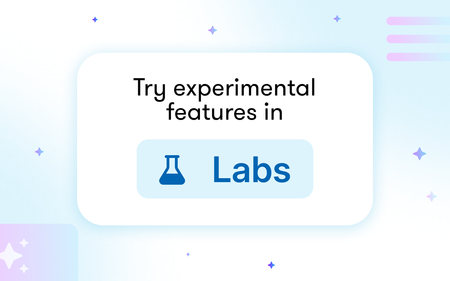
The best features we build don’t come from us alone. They come from you! From the courses you build to the creative ways you push our tools, your ideas shape what we create next. And while we’ve always listened through surveys, interviews, and community conversations, we wanted a way to work with you even more closely. So we started looking for a way to build more collaboratively, bringing you into the process while ideas are still evolving, not just before or after they ship. That’s how Labs came to be. With Labs, you can opt in to try early features and explore new ideas in the context of your real work. Instead of relying on retrospective feedback, Labs gives us a chance to learn alongside you in real time. Most experiments include built-in ways to share feedback, so what you’re experiencing can immediately inform what we improve next. It also helps us connect with creators who want to be more involved in the process. If you’re exploring an experiment, there’s a good chance we’ll reach out to hear more about your experience and keep the conversation going. Some experiments will be a success. Others will help us pivot in a new direction. Either way, they help us move faster and build better tools for you. Not every feature will go through Labs, but when something is available, you’ll find all the details in the Labs community group. That includes what the feature does, any current limitations, and the type of feedback we’re looking for. Following the group is the best way to stay up to date on new experiments. Labs isn’t a replacement for the ways we’ve always worked with you. It’s an extension of that relationship and a new way to shape the future of the authoring experience together. Explore Labs, try out what’s new, and let us know what you think. Go to Labs *All features on Articulate Labs and are subject to change. These features are experimental and may be modified or removed at any time. Beta Services Terms apply.399Views2likes0CommentsRecord and Edit Videos Like a Pro with Peek 360 and Replay 360
We're ending support for Studio 360, Replay 360, and Peek 360 on December 31, 2026. Learn more. Did you know your Articulate 360 subscription has everything you need to create videos? That’s right—from the initial recording to making basic edits and gathering feedback to the final publishing of your video, Articulate 360 has you covered with Peek 360 and Replay 360. These are two extremely handy, easy-to-use tools you can use in conjunction with each other to create simple and professional video tutorials. Here’s an example of a video that was recorded with Peek 360 and then edited with Replay 360 to transform it into a step-by-step tutorial. The best part is, from start to finish, it was all done in just a few minutes, including the narration. Video tutorial created with Peek 360 and Replay 360 Let’s take a look at how you can use Peek 360 and Replay 360 to create quick and simple videos like the one above. Record Your Video with Peek 360 The first step is to create your screen recording. You have a few options for how to do this, since both Peek 360 and Replay 360 have recording abilities. Personally, I like to use Peek 360 for my recordings. Why? I love how the Peek 360 recorder is easily launched directly from my taskbar, and the videos are automatically uploaded to Review 360 when I’m done recording. I also like how completed Peek 360 recordings are converted to an .MP4 file (which are all stored in your MyDocuments/Peek folder). Here’s a tip for quickly accessing the .MP4 version of your Peek 360 videos: right-click on the video in question and choose “View in Folder” from the menu that appears. Right-click on a Peek 360 video and select “View in Folder” to easily access the .MP4 version of the recording I can also click “View on Articulate 360” from the menu to open up my Peek 360 recording in Review 360. From there, I typically grab the Share link and send it off to my reviewers or Subject Matter Experts. This way, I can get approval from stakeholders that the video covers all the appropriate content before I start working on final touches. Edit Your Video with Replay 360 Once you’ve created your Peek 360 video, you can jazz up the .MP4 version with Replay 360 by adding images, subtitles (called “Lower Thirds”), and audio narration. To make edits to the .MP4 video you created with Peek 360, launch a new Replay 360 project and insert the video. Click the Video button to insert the .MP4 version of your Peek 360 video in a Replay 360 project You’ll notice that your video is added to the A track in Replay 360 (there are two tracks: A and B). The inserted Peek 360 video has been added to the A track in Replay 360 and is ready for editing This is when it starts to get fun, when you can start making edits and tweaks. Here are a few things you might want to consider doing: Add an introduction photo and a wrap-up photo using the “Image” option Use “Lower Thirds” text to add an introduction and summary to your video Use “Lower Thirds” to add text captions to your video describing high-level steps or key information about what is happening in the video Use the Cut, Delete, and Split tools to edit your video; for example, to remove any unnecessary parts of the video. Remove original audio. If you included audio in your original Peek 360 recording and you want to remove it to re-record the narration after you’ve made edits to your video, simply use the Silence tool to remove the original audio. Record narration using the Audio tool. You can either insert existing audio files, or you can record from your mic directly in Replay 360. The nice thing is that Replay will play your video while you’re recording, so you can easily pace your timing so that it works with what’s happening on-screen. Your audio file will be added to the B track. These are just some examples of things you can do to improve and refine your Peek 360 and Replay 360 videos. Share Your Video With Learners Once you’ve got this great video, you’re going to want to share it with learners. Ways to share your videos include: Inserting the video in Rise 360 using a video block. Inserting the video in a Storyline 360 course. This is a great option if you want to add interactivity. For example, you could bring up a pop-up with additional information or a quiz question. The sky’s the limit with Storyline 360! Uploading the video directly to your LMS. To get a SCORM output, start by publishing or manually uploading your video to Review 360. Then, navigate to your Review 360 dashboard, hover over the video, and click on the ellipsis on the video card. From there, select Export to LMS and choose the reporting options. See this article for more details. These are just a few tips for how you can use the tools available in your Articulate 360 subscription to create quick and easy videos. Have you created videos of your own with Peek 360 or Replay 360? I’d love to hear about your experiences, tips, or tricks in the comments below. Want to try something you learned here, but don’t have Articulate 360? Start a free 30-day trial, and come back to E-Learning Heroes regularly for more helpful advice on everything related to e-learning. If you have any questions, please share them in the comments.3KViews0likes21Comments