states
6 TopicsHow to Show & Hide an Object by Toggling States
This tip comes from our certified training partner, Yukon Learning. When you use triggers to change states of objects, the trigger wizard adjusts the language to "Set State". But did you know this option can be adjusted to "Toggle"? The Toggle allows you to switch an object from normal to hidden or from normal to disabled with a single button action. In this video, you'll learn: How to change an object state How to adjust the "set" state option to toggle How to toggle an object without using variables Resources: Yukon Learning YouTube Channel Sign Up for Facilitated Certified Training285Views4likes0CommentsTurn That Light Off
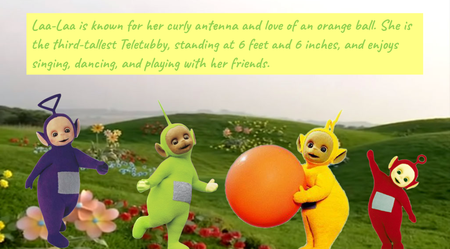
Hello! Non-human characters can be a strong choice for your e-learning courses. They're often more popular with users than AI avatars. My characters always come across as a bit grumpy, for some reason... Believe it or not, this is a regular 'pick one' freeform question slide. The character was created using Nano Banana, and I manipulated it in Pixlr to create the different mouth shapes. The animation is achieved through rapid state changes, synchronised to the waveform of each bit of narration. This is controlled by Javascript that I wrote with the help of Claude.ai. The voice is Dave, one of my favourite Storyline AI voices, with the style exaggerated to 75 😀 Switch my demo on here: https://bit.ly/elhc539
Winter Survival
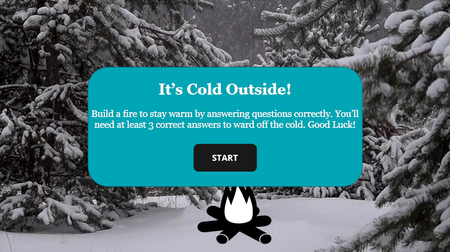
Click here to view the example. This is actually my first E-Learning Challenge! I'm new to using Storyline, so using the challenges for inspiration has helped me learn how to use the platform. For this challenge, I went back to #518 Designing Performance Meters for Learner Feedback. While the design is relatively simple, I learned how to: Create and edit slides and slide layers Create and edit states Create and use variables Create and stack triggers This project in particular helped me gain a better understanding of how triggers stack. After banging my head on the wall for hours, I finally figured out that my “jump to slide X when user clicks Y” trigger was stacked above my “set variable to True when user clicks Y”, meaning that the variable never changed because the trigger above it was fulfilled first and then the slide changed. Such an easy fix for hours of frustration. I’m looking forward to learning more and pushing myself farther in the new year. Any advice the community has for me is greatly appreciated! - Donna WilsonLeadership 101
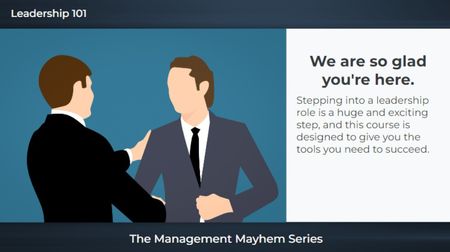
The first slide is an example of what gets approved by corporate: Generic clipart, plain text, and no audio. I mean, it looks fine but (yawns and screams internally). 🥱 The next two slides are what I proposed. I used text variables for both the name and character selection and paired them with states. I also used triggers with conditions so the narration would match the characters (male v female). I would have created individual voices for each character but this was only a "5-minute" challenge. 😉 I used all Articulate for this: Characters, photo, and video. Leadership 101226Views2likes0Comments7 Ways to Banish Female Imposter Syndrome
I started with one of the many tab templates available through Articulate, and I used both Articulate AI and Gemini to create images, Gemini to create videos, Articulate's image and video library, and Articulate AI TTS. https://360.articulate.com/review/content/56de37fa-b33a-49c7-b513-b3e4c3852cda/review