storyline
66 TopicsWhat Layout Does My Slide Use? What Slides Use This Layout?
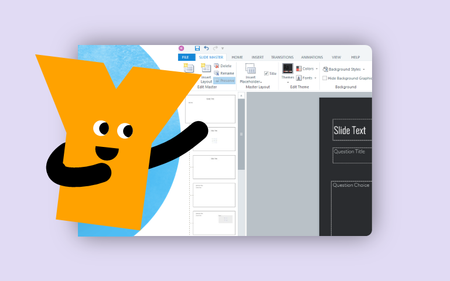
This week's tip comes from John_Moore_YL at our certified training partner, Yukon Learning. Sometimes you need to identify which Slide Master layouts are being used by specific slides. In this video, John will show you how to: Use the apply layout feature to identify a slide's layout template Access the slide master to view all slides using a specific layout Resources: Yukon Learning YouTube Channel Sign Up for Facilitated Certified Training235Views1like0CommentsHow to Create a Timer in Storyline
This week's tip comes from our certified training partner, Yukon Learning. Imagine you're creating a course for a group of new hires in a fast food restaurant whose jobs will require that they manage multiple things -- refilling French fry containers and keeping an eye on the fryer while also fulfilling orders and getting them out to the waiting customers. An e-learning course where workers can practice what they need to do in that situation is an effective way to help them learn how to do the job. They won't have the stress of the live work environment, and the restaurant hopefully won't have as much food waste because learners will know how to manage the time. The key element in this scenario is that in the real world, time can "run out" in a number of ways: the fries burn, the hamburgers get cold, the customers get angry. We can simulate the experience of time running out by creating a timer on a slide. In this video, you'll learn how to: Create a timer using number variables and layers Ensure the timer stops at 0 Determine what happens when time runs out Accessibility Disclaimer: Timers really aren't accessible. They can cause all kinds of problems for all kinds of learners. That said, timers are one of the elements of gamified learning, and can be part of a real learning experience. The Articulate CommunityTeam suggested these tips for working with timers in e-learning: Allow learners to opt out. Timed challenges can be an accessibility issue for some learners. So if the limit isn’t a legal requirement, consider including a way to turn it off. Only include timers when it improves learning. A little time stress goes a long way. It’s best to save this feature for instances where meeting a time limit connects strongly to learning goals. Don’t make it too hard. Ensure the limits you do use are realistic and achievable. If it’s too hard to meet the requirements, your time limit could cause learners to tune out instead of engage. Resources: Yukon Learning YouTube Channel Sign Up for Facilitated Certified Training340Views0likes0CommentsHow to Number Questions in a Question Bank
This week's tip comes from RonPrice at our certified training partner, Yukon Learning. If you have a linear quiz where everyone will see the same questions, putting a text box on the screen indicating which question the learner is currently on is easy. But what about when you're drawing random questions out of a question bank? If learners aren't viewing your questions linearly, or will see a random subset of questions, you'll want to use Storyline's built-in variables. In this video, you will learn how to: Add the number of slides viewed to the Question layout in the slide master Exclude any slides from numbering other than quiz question slides Resources: Yukon Learning YouTube Channel Sign Up for Facilitated Certified Training221Views1like0CommentsHow to Edit the Storyline Interface
This tip comes from RonPrice at our certified training partner, Yukon Learning. Have you ever needed more screen real estate for your slide and the timeline or trigger panel is in the way? Or your timeline seems to have gone missing? In this short tutorial, we'll show you how to undock and redock the windows of the Storyline user interface. Resources: Yukon Learning YouTube Channel Sign Up for Facilitated Certified Training229Views1like0Comments3 Tips for Better Closed Captions in Storyline
This week's tip comes from our certified training partner, Yukon Learning. At Yukon Learning, we're passionate about accessibility. Adding closed captions to course media is just one step when creating accessible e-learning content. In this video, we'll share three quick and easy tips to ensure your captions are as helpful as possible to your learners! You'll learn: How to add and edit captions with AI How to resize the captions How to adjust the font, size, and position of your captions Resources: Yukon Learning YouTube Channel Sign Up for Facilitated Certified Training154Views2likes0CommentsHow to Create Default Buttons and Shapes
This week's tip comes from John_Moore_YL at our certified training partner, Yukon Learning. Did you know that your shapes don't have to be the standard Accent 1 color? And buttons don't have to be the standard neon blue? Setting default shapes and buttons can streamline your workflow and enhance consistency throughout your Storyline courses. In this video, we'll show you how to change your project's default shapes and buttons. We'll show you how to: Add shapes and buttons Change the default fill and outline colors Resources: Yukon Learning YouTube Channel Sign Up for Facilitated Certified Training168Views1like0CommentsHow to Create Consistent Characters Using AI in Storyline
Here's an easy way to create consistent characters in Storyline using AI. It's pretty simple. Copy and paste the characters to the AI chat panel, add a prompt and you'll get the characters how you want. Watch the video to learn more. Also, you can download a bunch of free characters in the downloads section.264Views4likes0CommentsHow to Turn a Slider into a Quiz Question
This tip comes from our certified training partner, Yukon Learning. Sliders a fun way to create interactive elements on a slide in Storyline, and you may have used them to do things like show a timeline of events or even used them in a gamified slide. But did you know that you can you use them to answer quiz questions? In this video, we'll show you how to use slider values to control a freeform multiple choice question. You'll learn how to: Add a slider to your freeform quiz slide Adjust slider design properties Link slider stopping points to quiz answers using triggers Resources: Yukon Learning YouTube Channel Sign Up for Facilitated Certified Training270Views2likes0CommentsAre You Forgetting Something? 5 Things to Do Before You Publish
This tip comes from our certified training partner, Yukon Learning. Finishing a project in Storyline is exciting. They can take months to plan and build. Here are a few tips on things you should double-check in your course before you press the "Publish" button. Don't forget to: Deleted unused objects Run the accessibility checker Check your course menu and menu order Name your course in the player Determine your course restrictions Incorporating these items in your pre-publishing checklist will save you time and effort in the review process, getting your course to your learners faster. Resources: Yukon Learning YouTube Channel Sign Up for Facilitated Certified Training239Views1like0Comments