triggers
13 TopicsKnow Your Super Heroes
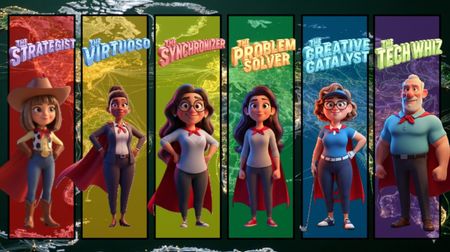
I like this challenge enough to ask my manager if we can use this for New Hires. It will be a refreshing change from the corporate template. 😂 It captures our entire team but I'll need to revise it with each person to make sure their super powers are accurate. Then I'll add videos of their character for each super power to really super charge it! 🏋️♀️ Wish me luck! ☘️ Team Member Introductions Tech specs: I used Gemini AI to help give me ideas for the super hero names and super powers. The audio is River (Articulate TTS), and I created the background music with Articulate Sound Effects (prompt was simple: Create super hero music like the superman movie). I created the background and characters with Articulate AI and erased their backgrounds with Microsoft Designer. The titles were created with Gemini Nano Banana.Winter Survival
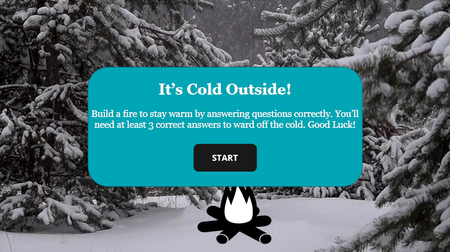
Click here to view the example. This is actually my first E-Learning Challenge! I'm new to using Storyline, so using the challenges for inspiration has helped me learn how to use the platform. For this challenge, I went back to #518 Designing Performance Meters for Learner Feedback. While the design is relatively simple, I learned how to: Create and edit slides and slide layers Create and edit states Create and use variables Create and stack triggers This project in particular helped me gain a better understanding of how triggers stack. After banging my head on the wall for hours, I finally figured out that my “jump to slide X when user clicks Y” trigger was stacked above my “set variable to True when user clicks Y”, meaning that the variable never changed because the trigger above it was fulfilled first and then the slide changed. Such an easy fix for hours of frustration. I’m looking forward to learning more and pushing myself farther in the new year. Any advice the community has for me is greatly appreciated! - Donna WilsonLeadership 101
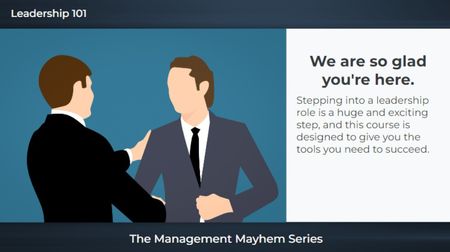
The first slide is an example of what gets approved by corporate: Generic clipart, plain text, and no audio. I mean, it looks fine but (yawns and screams internally). 🥱 The next two slides are what I proposed. I used text variables for both the name and character selection and paired them with states. I also used triggers with conditions so the narration would match the characters (male v female). I would have created individual voices for each character but this was only a "5-minute" challenge. 😉 I used all Articulate for this: Characters, photo, and video. Leadership 101232Views2likes0CommentsGo to "Last seen slide" and "[chronologically] previous slide"
Greetings, I would like to suggest a split trigger for the Back button, as right now, "Go to previous slide" brings you back to the "last slide you were on". By comparison, "Go to Next slide" follows the project's chronology. "Go to Last seen slide" could be useful for pop-up slides. "Go to previous slide" would follow the project's chronology. Thanks in advance :)142Views2likes1CommentDesigning for Everyone
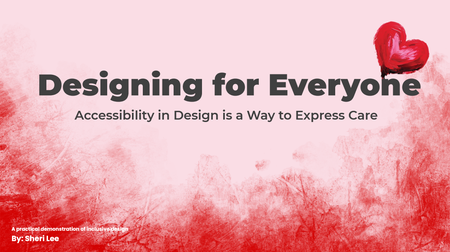
Link to course: Designing for Everyone: Accessibility in Design is a Way to Express Care This was more challenging (learning opportunities) than expected for a number of reasons. Test revealed just how much more I have to learn. I look forward to feedback on ways to make it better and more accessible. I designed this experience to be useable with a keyboard and with a screen reader to align with the perceivable and operable principles of POUR (Perceivable, Operable, Understandable, Robust), established by the Web Content Accessibility Guidelines (WCAG). It is a work in progress, not finished, because I learned a lot that needs to be considered and done for better accessibility. What was accomplished No content relies on color alone, animation alone, or a mouse alone. The slide content includes: Interactive elements with real controls Messages are available as text Focus Order follows visual layout (use the info icon on each slide to view the Focus Order) Accessibility is more than checking the boxes. It is about considering whether your design still works when the assumptions about users are removed. It is about Designing for Everyone. The Goal This project was designed to show how accessibility performs in the real world. The project aims to demonstrate outcomes, the same message, experienced through different access needs. It focuses on peoples’ experience with digital content. The Problem Many “accessible” examples stop at checklists. Here the focus is on how design decisions affect real users. This experience intentionally attempts to show both failure states and equivalent, accessible solutions. Key Design Decisions Screen reader friendly structure: Reading order is manually controlled. The message is real text. Alt text is used only when it adds meaning, decorative visuals are marked as decorative. Keyboard only interaction: Every interactive element is reachable using Tab, Enter, and Space. Visible focus states are always present. If content can’t be experienced without a mouse, we revisit before releasing.177Views1like0CommentsLOVE
One of the great things about these challenges is how much I learn when I research a topic. 🥰 I created a very simple project this time. I used all Articulate tools: AI image and TTS generation. And, I learned how to create a gif! Thanks Jayashree_Ravi for the inspiration and motivation. I used the Snip & Sketch snipping tool to record a few seconds of the first slide and exported as a gif using the GIF button in the toolbar (that I never noticed until Google explained where it was lol). LOVE link365Views1like4CommentsUse triggers and variables to cycle through multiple layers in sequence
Hello, I have 73 images that I want to show in sequence to animate the wrapping function for the unit circle. I know that there are several ways to do this, but I'm not sure which is most efficient and easy to replicate. I have created a .story file to test the different methods using only 6 images. As far as I can tell, here are my options: Option A Create a slide with a layer for each image and create a trigger that displays the layers in sequence (see slide 1.3 Layer_TriggerShowLayer) Option B Create a slide with one image and create states for each of the other images. Option B.1 Use a slider to show the states in sequence, which is easy to setup. However, I cannot figure out how to make the slider move automatically through every state using triggers based on the timeline. I would love to have the states appear in 1 second intervals. I’m not sure this is even possible (see my attempt on slide 1.1 States_Slider) Option B.2 Use triggers and timeline markers to move the states in sequence (see my attempt on slide 1.2 States_Trigger_Timeline) The best effect so far is Option B.2, but it will require a lot of timeline markers to make all 73 images appear. Is there a way to do this using a variable that is linked to the timeline?Or maybe one of the other methods will work better with some tweaking? All advice is appreciated. I am also happy to watch any training videos that may help me make this smoother. Thanks in advance!830Views1like5Comments