visual design
53 TopicsEverything You Need to Know About Image Usage Rights
It’s tricky to find appropriate, usable images for e-learning projects. And sometimes after you’ve found the right photo, it’s unclear whether you can legally use it. Images are protected by copyright. So you can’t add any photo you find online to your e-learning project. But trying to do the right thing can raise more questions than answers: What if I just link to their website? Should I reach out to this person? Wait, I don’t see who owns this image! Usually images you’ll find on photo sites fall into one of a few categories. Here are some of the different usage terms you’ll find. Copyright Copyright law protects original works, including images. In most cases, you can’t copy or distribute a copyrighted image without permission from the person who created it. You should assume that any image you find online is protected by copyright. If possible, contact the copyright holder for permission to use their work. When you buy a stock photo, you’re buying the right to use that copyrighted image. Depending on which site you use, the image may be royalty-free or rights-managed. Royalty-free means that you’re not responsible for royalty payments. You’re usually able to use the image as you’d like. Rights-managed means there are restrictions on how you can use the image—so be sure to read your license agreement closely! Fair Use The fair use doctrine provides opportunities for using copyrighted images without permission. For instance, you can legally use a copyrighted image for personal and educational use, or for the public good. Most e-learning is commercial. As a course creator, you should assume that using copyrighted images in your work doesn’t qualify as fair use. But fair use also allows you to transform copyrighted images into something new. If you turn a copyrighted image into a completely new work, you can use that image freely. Creative Commons The Creative Commons non-profit provides free copyright licenses for creators. The copyright holder can determine several things with these licenses: Whether you need to credit them for their image Whether you can use their image for commercial purposes Whether you can modify their image What license you must use if you modify their image When using Creative Commons images, be sure to read the license carefully and use the image appropriately. Pro tip: Some photo sharing sites, such as Flickr, allow you to filter search results by specific Creative Commons licenses. Public Domain Typically an image becomes part of the public domain in one of two ways. The creator either gives up copyright willingly, or the copyright expires. These images aren’t protected by copyright, so you’re free to use them any way you’d like. Pro tip: WikiMedia Commons has a large database of images in the public domain. A Helpful Alternative Of course, the easiest way to source freely available images is by finding e-learning solutions that provide stock assets. Articulate 360 includes Content Library 360, an ever-growing library of visual assets that you can access right from within Rise and Storyline 360. These assets are made available through third parties, including Unsplash, Noun Project, Pexels, and Pixabay, and you can use them in your content without additional charge. However, as noted in our Terms of Service, the use of these images, including any attribution requirements, is subject to these third parties’ terms. See what’s available in Content Library 360 when you start a free, 30-day trial of Articulate 360. You’ll also get access to award-winning authoring apps Storyline 360 and Rise, a project review app, and access to live online training led by industry experts. New to e-learning? Sign up for our E-Learning 101 email course, a series of expertly-curated articles that'll get you up to speed with course development.3.3KViews1like32CommentsHow I Designed This Immersive Scenario on Prioritizing Tasks
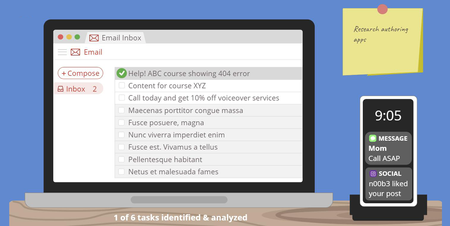
Recently my fellow instructional designers Sarah Hodge and Madison McCartney and I teamed up to prove that there’s always more than one way to present course content. Each of us created a mini-course on prioritizing tasks, using the Eisenhower Decision Matrix as our starting point. In this article, I’m going to walk you through how I got from this: … to this: View interactive version | Download template Without further ado, let’s get into it! Setting the Scene Since I created this project as an example, there’s no real target audience, much less learning objectives. But to make it feel realistic I set some basic parameters to guide my design thinking. Here’s what I came up with: Audience: Novice e-learning project managers Learning objective: Be able to identify tasks, classify them as important and/or urgent, and prioritize them accordingly Coming Up with the Concept Over the years, I’ve seen a lot of great e-learning examples in the E-Learning Heroes community, but a few really stand out to me. One in particular is this time management game by Phil Eagles. I love the way he took a series of simple multiple choice questions and made them into a scenario that feels real and meaningful. And since time management is so closely related to task prioritization, it’s the first thing I thought of when I started brainstorming ideas for my project. I wanted to create something similar—but put my own spin on it. Because I wanted to create a totally custom and immersive scenario, Storyline 360 was the perfect choice for this project. I decided to simulate a desk and let learners identify tasks and prioritize items for themselves. The idea behind this was to emulate real life—where learners have to identify tasks and decide which ones to do first—while also following one of the key principles of adult learning by giving them control over their learning experience. Refining the Scenario Once I had a general idea of what I wanted to do, it was time to iron out the scenario details. I wanted to give learners enough opportunities to practice prioritizing tasks without it feeling repetitive. I included a few different types of tasks—since that’s what it’s like in real life. In the end, I settled on a total of six tasks, including a few emails, a couple of text messages, and a Post-it. As I started to build out my scenario, I ran into some challenges. One of the main issues was that my slide was getting overcrowded. To overcome this challenge and help learners focus on one thing at a time, I divided the process of task prioritization into two parts: Step 1: identify and analyze the tasks to determine how urgent/important they are Step 2: prioritize the tasks based on their level of urgency/importance For step one, I used a series of toggles so the learner can decide if each task is urgent and/or important. Based on their answer, I provide custom feedback. This is how that turned out: For step two, I made a simple drag-and-drop interaction so the learner can decide where each task belongs on their to-do list based on its level of urgency and importance. Here’s what that ended up looking like: Because this project was intended for adults who may have previous experience with the Eisenhower Decision Matrix, I made the explanation walk-through optional, as shown in the screenshot below: Is this how I initially envisioned my project? Absolutely not. To be honest, I don’t think I really had a clear mental picture of what it would look like. Some people can map out their entire project before they even open up the authoring app, while others do better jumping straight into building and get inspired along the way. Both methods are totally fine as long as you always keep your learners’ needs at the center of your design. Designing the Graphics As someone with no formal graphic design training, I can be challenged to come up with ideas for the look and feel of my courses. To find inspiration, I usually start by checking out the examples and templates on E-Learning Heroes as well as the Content Library 360 templates. Even if I don’t find exactly what I need, I usually come across something I can use as a starting point. Personally, I find that starting with a template is less intimidating than starting from a blank slide. And even if the final result ends up looking completely different than the original template, having something to start with helps me channel my ideas and inch closer to a place I feel good about. So, once I knew that I wanted to create an immersive scenario, I headed straight to E-Learning Heroes to look for templates I could use as a springboard for my design. A quick search for “desk” led me to this template, which I thought was perfect: Download Template After opening the template, I made some adjustments and played around with different color options. Here’s what my first version looked like: There’s nothing wrong with the way this looks, but—as I mentioned earlier in this article—it was at this point I realized there wasn’t enough room on the slide to allow learners to both identify and prioritize tasks in one spot. Splitting the activity up into two parts gave me more screen real estate to work with. Around this time, I also decided I wasn’t sure about the mint green wall and wanted to give white a try . . . . . . but I wasn’t totally sold on that either. I also felt lukewarm about the way the desk looked and decided to incorporate some texture. This is what the next version looked like: Wondering how I created the wood texture? I did a Google search for “flat design wood,” inserted one of the images I found onto my slide master, and then used the curve tool and shapes in Storyline 360 to achieve a similar effect. This is what it looks like behind the scenes: I was pretty happy with the way this looked, but when I started adding other objects to the screen, I realized they didn’t stand out enough against the dark blue background. That’s when I settled on the design you see in the final version: I went through a similar process for the other slides in my project, so I thought I’d share the different versions with you as well. . . . and here’s the final version. You’ll notice that in the final version I pulled in the computer screen from the previous slide to tie it together a bit more. I also changed the size of the boxes to make it all fit on the screen. As I was working on my core content slides, I also started to pull together my title slide. Since my other two slides used a flat design style, I wanted to stick with something similar. I found this simple slide template in Content Library 360 and used it as a starting point: I didn’t want to include characters, so I deleted those and changed the color of the background to match the dark blue I was using at the time. After taking out the characters and changing the color, I felt like the slide was too minimal. It was missing something, so I sat and thought about how I could incorporate more visual interest. That’s when I had an idea: what if the title slide was a view of the desk from above? And since we’re talking about prioritizing tasks—and many people write their to-do lists in a notebook—I thought that might make sense and look nice. So I went back to E-Learning Heroes for some inspiration and ended up finding this spiral notebook template: Download I imported it into Storyline 360 and made a few adjustments to make it all come together. Here’s what it ended up looking like: As you can see, graphic design isn’t always a straightforward process. It doesn’t necessarily go from zero to perfect in one fell swoop. In many cases it’s an iterative process involving incremental changes until you’re happy with what you’ve got. So the next time you’re feeling stuck and unsure about your design, try doing what I did and search E-Learning Heroes or Content Library 360 for a template you can use as a starting point. Then, make small changes here and there. Eventually you’ll get to a place where you feel good about your design. More Resources Hopefully you’ve found this inside look at my design process interesting and insightful! Remember, it’s okay if your first draft isn’t perfect. Design (whether it’s instructional or graphic) is a process, and it often takes trial and error to get it to where it needs to be. And there’s absolutely nothing wrong with that! If you enjoyed this article and are looking for more insight into what goes on in the minds of instructional designers as they’re creating courses, be sure to check out these articles: How I Designed This Personalized Decision Matrix How I Designed This Interactive Dial Matrix A Behind-the-Scenes Look at How I Designed This Gamified Quiz Want to try building your own immersive scenario in Storyline 360, but don’t have Articulate 360? Start a free 30-day trial, and come back to E-Learning Heroes regularly for more helpful advice on everything related to e-learning. If you have any questions, please share them in the comments.1.1KViews1like6Comments5 Important Elements of Typography
How many courses can you think of that contain zero text? Probably none. Text is one of the primary ways we convey information in e-learning. With that in mind, let’s review some basic elements of typography for when you’re formatting the text in your next course. Font Style It’s important to remember that specific fonts work better than others for certain topics or subjects. A gamified e-learning module for teens on a lighthearted subject could make use of a whimsical handwritten font, but that same font would not work as well for serious finance-themed content. Your font style should match your subject matter. If you’re unsure which fonts work with your subject matter, do a keyword search and look at images related to your topic to see what types of fonts commonly crop up. If you’re going to mix multiple font styles, it’s important that they enhance each other. Follow these simple guidelines for mixing and matching. Do Don’t Pick fonts that balance each other out Select fonts that are easy to read Choose fonts that allow for proper capitalization Use decorative fonts for headings; simple fonts for body text Pick fonts that compete for attention Use fonts that are difficult to read Use fonts that are too similar Mix and match more than two fonts Line Spacing Line spacing is important, which is why Storyline 360 offers you the option to set specific line spacing. There’s no need to leave the default spacing as is; you have the flexibility to customize down to the pixel. Fine-tune your line spacing to ensure everything is spaced evenly and consistently, with a nice amount of white space all around. Font Size This is a straightforward point, but one that’s especially important. Make sure that all your course text is large enough for learners to read easily. Remember that when something is written in bigger letters, it stands out and helps learners take notice, so be sure to put important information in larger letters (in moderation, of course!). Alignment Those with a keen eye for design can spot alignment issues from a mile away. An easy way to help solve your alignment issues is to use grids and guides in your designs to ensure your text is lined up. Another important tip is to remember that left-aligned text is much easier to read than centered text. Now, it’s usually no biggie for learners to scan a center-aligned photo caption or button text and get what it means, but anything more than a single sentence, such as paragraphs or bodies of text, should be left-aligned in your courses. You should also try to stick with one type of alignment and be consistent with it throughout your design. Keep these important tips in mind the next time you choose fonts and add type to your e-learning designs. Typography has a big impact on how polished and professional the final output will look. Follow us on Twitter and come back to E-Learning Heroes regularly for more helpful advice on everything related to e-learning. If you have any questions, please share them in the comments.775Views1like6Comments4 Ways to Choose an E-Learning Color Palette
Visual elements play a significant role in e-learning, and colors are a key factor. That’s because the right color choices can help your course look polished, reinforce branding, set the tone for your topic, and sometimes even help learners process and remember information. But with so many options, how do you decide which colors to use in your e-learning projects? In this article, we share easy tips for creating a color palette that’s pleasing to the eye and positively impacts your audience. 1. Consider Branding Guidelines Some organizations may require your online courses to use a specific set of brand colors. If that’s the case for you, then the hard work of building a color palette has been done for you. But to use those colors effectively, there are a few things to consider. First, you don’t have to use every color in a company’s brand guide. Using too many colors can be visually overwhelming. Many color palettes include five colors, like this one. Don’t be afraid to simplify the color scheme. The 60-30-10 rule—which is generally used in interior design—also works for e-learning. The rule uses a color palette containing a: Primary color - used 60% of the time Secondary color - used 30% of the time Accent color - used 10% of the time This rule visually balances your project and keeps designs looking sleek and minimal. Second, if some of the brand colors are hard to work with, try creating a monochrome palette by selecting a primary color and then using different tints of the color for variety. This method is perfect for keeping a consistent and cohesive look. 2. Draw Inspiration from the Subject Matter If you have a little more design freedom, try using your subject matter to help you decide on your color theme. Colors can evoke different emotions and associations, so using your content to help you decide which colors to use can ensure you set the right tone for your audience. For example, if you were creating a course about construction safety, it might make more sense to use yellow, orange, and black as your main color palette. View | Download That’s because people usually associate construction equipment with those colors. Thoughtfully choosing a color palette related to your content can help learners connect with it. 3. Get Ideas from Online Sources Not every topic has a recognizable color theme to go with it. If your course content doesn’t lend itself well to a familiar color palette, then let technology be your guide! There are plenty of color palette generators and samples available online—many of which are free! Here are a few places you can go to get inspiration: Coolors - make a palette or explore trending ones Canva - search by color or theme word Adobe Color - generate themes or search for color palettes Design Seeds - use pre-created palettes made by designers With the help of these websites, you can rest assured knowing all the colors work well together. 4. Pull Colors from Existing Assets Sometimes, you may already have a few high-quality course assets—like images—before you have to choose a color theme. If that’s the case, try using one of those images as your starting point. When you use the colors from your imagery to determine your color palette, it easily brings the course together because they complement one another. And if you’re using Storyline 360, you can use the new persistent color selector to pick up colors from the photo to create a custom color palette for your project without breaking your workflow. Such a time saver! If you’re unsure which colors to pick from the photo, you can always upload the image to websites like Colormind or iColorpalette. They’ll automatically pull out some of the dominant colors in the image and generate a color palette for you. Accessibility and Contrast These are just a few ideas to help you choose an e-learning color palette. Keep in mind, just because a color palette looks good doesn’t mean it will work well in e-learning. So before you start designing your course, it’s a good idea to check if the colors you plan to use have enough contrast—the difference in brightness between two colors. You can use this contrast checker to ensure the colors you want to use will work in your online training. The higher the contrast, the easier it is for learners to view and interact with navigation buttons, backgrounds, text, and other critical course elements. In Summary And there you have it! So the next time you’re not quite sure which colors to use in your online training, just come back to this article to help you decide. Want more tips for designing visually stunning e-learning? Check out these articles: The Essential Guide To Minimalist Design for E-Learning 5 Formatting Tips for Creating Dyslexia-Friendly E-Learning Create a Cohesive Look With These 5 Storyline 360 Visual Design Pointers 5 Ways To Look Like an E-Learning Design Pro (Even if You’re Not!) Do you have your own tips for creating the perfect e-learning color palette? Share your ideas in a comment below. Follow us on Twitter and come back to E-Learning Heroes regularly for more helpful advice on everything related to e-learning. If you have any questions, please share them in the comments.2.3KViews1like7Comments5 Graphic Design Mistakes Newbies Make and How to Avoid Them
If you’re new to the e-learning field, you might soon realize that people often assume you have some kind of magical power on the ready: they not only expect you to design the content, they also expect you to make that content look great. And if you don’t have any graphic design knowledge, you might feel pretty intimidated right about now. The good news is that this article will help you avoid making a few rookie design mistakes and get you on the road to success. Mistake #1: Designing a Unique Layout for Every Slide One of the most common graphic design mistakes that newbies make is creating a new slide layout for every slide. But using too many different slide layouts can make your course feel disjointed. For example, take this set of slides: Each of them is completely different, so it doesn’t feel like they’re part of the same course. Reusing a few basic layouts—with similar shapes, colors, and compositions—throughout your course gives it a more cohesive feel, like in the Content Library slides below. Another benefit of reusing the same slide layouts is that it helps learners instantly identify the type of slide they’re looking at—for example, a title slide or a quiz slide—making it easier for them to know what to do next. When you’re designing your course, start by creating a layout for each of the basic slide types you find in most e-learning courses and go from there. Mistake #2: Using Too Many Different or Flashy Colors If you’re required to use your company’s graphic guidelines, then you might not have much choice in the colors you use for your courses. But if you have a little more freedom to choose your own colors, you might find yourself wanting to include lots of different colors to add a little flair and personality to your course. However, it’s important to resist the urge to use all the colors of the rainbow in the same e-learning course. Why? Overusing colors can overwhelm learners and make it hard for them to know what to pay attention to. Take this slide, for example: There are so many bright colors mixed together here that it’s hard to know what to focus on. But that doesn’t mean you can’t use bright colors at all, just that you should use them in moderation and in a purposeful way. Take the slide below, for example: I used the same yellow as in the previous example, but this time I used it on a white background along with some muted gray tones that are less visually aggressive. And the use of yellow here immediately attracts your eyes to the numbers, making them the clear focal point of the slide. When you’re starting out, try to keep your color palette to a minimum. Start out with three colors, for example, one dominant and two neutral. When you start to get a little more comfortable with graphic design, you can start using more colors, while still keeping in mind that the colors should complement each other and not overwhelm the learner. If you’re looking for color palette ideas, be sure to check out Adobe Color and Design Seeds. And if you’re keen for more tips on choosing color palettes, try reading these helpful articles: 5 Ways to Choose Color Palettes for E-Learning Popular Color Schemes for E-Learning Design The Color Effect: How Your Palette Affects Learners Mistake #3: Going Font Crazy When people are just starting out in e-learning, they usually do one of two things. They either leave the default font settings as is, or they go crazy and use tons of different fonts. While projects with default fonts may be missing that little something extra, they usually look better than those with too many used haphazardly. Here’s an example of a slide with too many different fonts: In the above example, there are four different fonts. Not only are some of them hard to read, they just don’t go together and so they detract from the message. Much like colors, when it comes to fonts, less is more. Let’s look at this same slide with only two different fonts: I typically choose two fonts for my courses: one for the headings and one for the body. If you’d like, you can also mix in a third font for things like quotes or key words that you want to really stand out. However, I would avoid using more than three fonts in the same course. If you want to emphasize a key message, try putting the text in bold or changing the color instead of using a different font. Here are some other resources about typography I recommend checking out: 5 Important Rules of Typography for E-Learning Designers E-Learning Typography & Finding the Perfect Font My 4 Favorite Free Fonts for E-Learning Mistake #4: Not Leaving Enough White Space If you’re not familiar with the term “white space,” it refers to any empty areas between objects on your slides—whether it’s actually white or another color. When there’s a lot of course content, it can be tempting to pack as much as you can into each slide. I see this a lot, especially with new e-learning designers. Have you ever seen a slide like the one below? That’s a lot of information to take in at once! When slides are too dense, it can be hard for learners to pick out the key messages. A good rule of thumb is to present one idea per slide. Don’t be afraid to leave white space. Au contraire, embrace it. Let’s take a gander at what it would look like if I broke the above slide down into several “airier” slides. Ahhh … much better! When you leave enough white space it’s easy to pick out the important information. Remember: it’s better to create more slides with less information than vice versa. Check out this article for more tips on keeping the content on each slide to a minimum: 5 Ways to Avoid Overloading Your Slides. Mistake #5: Mixing and Matching Images That Don’t Go Together A lot of newbies choose images that accurately represent the content, but don’t necessarily match the other images in the project. I get it! After all, the content itself is the most important part of the course, isn’t it? Well, yes and no. It’s important to choose images that add value, but it’s also critical that those images work well together. If they don’t, you could end up with a course that doesn’t look very professional. Take this slide, for example: The mix of photos, icons, and illustrations makes the slide look disjointed. And while people say not to judge a book by its cover, the reality is that we all do. If you want your learners to take your course seriously, the graphics need to be on point. Look how much better that same slide looks when I use all photos. To make sure your images look like they go together, don’t mix and match image styles. While it’s possible to get a good result when mixing photographs and illustrations, doing so is a complex feat that’s best left to the experts. If some of your photos are black and white, add a black-and-white filter to all your photos. Don’t mix flat design illustrations with more realistic illustrations. The key here is to make it look like all the images were created especially for your course, even if that’s not the case. More Resources Now that you know the top five newbie mistakes and how to avoid them, you’re ready to get started! But if you feel like you could do with some more graphic design guidance, check out these great resources: E-books: Essential Guide to Visual Design How to Use Typography to Improve Your E-Learning Articles: Visual Design How-Tos for E-Learning Developers Who Else Wants Great Graphic Design Resources? Like this article? Subscribe to our newsletter to get the latest e-learning inspiration and insights directly in your inbox. You can also find us on LinkedIn and X (Formerly Twitter). New to e-learning? Sign up for our E-Learning 101 email course, a series of expertly-curated articles that'll get you up to speed with course development.2.5KViews1like39Comments