wcag
9 Topics[REDUNDANT] Storyline custom focus control
========================================================================= Update 18 March 2025 This functionality is now redundant. Please use the native focus trigger in Storyline 360 64 bit March 18, 2025 (Build 3.98.34222.0) ========================================================================= There have many been times, when using Storyline to develop content, it has not been possible to get the kind of screen reader focus control that I have needed. Using layers for this can only get you so far. I developed a JavaScript function that allows you to send the screen reader focus to the text field that you want, via any trigger. Adding the following JavaScript to your projects Slide Master will make it available throughout your module: // Check if function has been defined already if (typeof window.setFocus === "undefined") { // Get reference to the Storyline Player var $player = GetPlayer(); // Set the amount of time to delay before attempting to send focus to the target element (milliseconds) 1000 = 1 second. var $interval = 200; // window.setFocus = function ($target, $announce = false) { // Get the target element, based on the passed argument setTimeout(function () { var $div = document.querySelector('[data-acc-text^="' + $target + '"]'); var $id = "acc-" + $div.dataset.modelId $div = document.getElementById($id); if($announce) { $div.setAttribute("aria-atomic", "true"); $div.setAttribute("aria-live", "assertive"); } // Send focus to target, after defined $interval $div.focus(); }, $interval); } } Once the function is defined in your Slide Master, you can then call the function on the page using a JavaScript function, which can be triggered by any Storyline trigger such as timeline start, timeline end, button click etc. // The second argument will determine if the content should // be announced to assistive technology using aria-live=assertive // This will announce the text contents to the screen reader window.setFocus("Customer in the queue", true); // This will just send focus to the element. window.setFocus("Customer in the queue", false); The first argument, which is passed in the "" quotes, is the text contents of the text field you are targeting. You do not have to include all the text, just enough to ensure it is unique. For example, if you have two text fields: "Customer in the queue talking on their phone." "Customer in the shop staring into space." Passing the words "Customer in the" would not be specific enough, as there would be two text fields found. However, passing "Customer in the queue" would send the focus to the text field that contains the text "Customer in the queue talking on their phone." The second argument (true or false) determines if the target elements contents should be announced to the screen reader when it receives focus.1.1KViews1like11CommentsAccessibility - Screen Readers and TTS
Hi, I'm currently completing an apprenticeship in Digital Learning Design, and I'm working through some content on accessibility. Previously, all our storyline courses had text-to-speech added on, but the accessibility features such as alt text and focus orders weren't used. Since I've learnt more about screen readers through my apprenticeship, I've been following correct processes and designs for best practice with screen readers. However, as these read out the text on screen, I'm wondering if the text-to-speech I manually add onto all slides is still required? Part of me thinks it might be too much if both the audio on the course and the screen reader are reading the content out loud, but then we might have learners with dyslexia, for example, who might not require a screen reader but still prefer to have the text read aloud. How does everyone else navigate this? Do you use both or one or the other? Thank you!170Views0likes3CommentsNVDA Storyline 360 Software Simulation Issue
Hello all, I have been working on a software training course for a while, but I cannot share the product file, so I have tried my best to replicate the issue with a brief PowerPoint activity. My current project file has 6 scenes and 452 slides. I am looking for the easiest fix to the issue at this point, while avoiding backtracking on work. Any assistance would be GREATLY appreciated as I am close to my wits' end. Below is a synopsis of the issue, the fixes I have tried, and the attached PowerPoint Activity project file. Build Background: I used the screen recording features in Storyline 360 to create both Try Mode Steps and Test Mode Steps for scenes in the course. I turned off Show Animation in the Capture Action Fine Turning. I have ensured that hotspot and text entry interactions are at the top of the timeline, above all other elements. I have deleted triggers where possible, but some of the Play Video Screen Recording Action When the User Clicks Hotspot 1 remain, as the program won't allow them to be deleted even after turning off the animations, so I have disabled them. I had to make additional cover-ups to hide employee IDs and information, as I did not have a fake user account. The cover-ups have been hidden from accessibility tools. Issue: When navigating the course with NVDA and Microsoft Narrator, the Try Again layer keeps deploying as the user selects the hotspot button for a second and announces "Incorrect," which will lead to annoyance and confusion for the learner. The Try Again layer does not deploy in the Test Mode Steps scenes, but it does in the Try Mode Steps scenes. The Try Again layer does not deploy when using keyboard navigation without a screen reader enabled. I do not want to remove the Try Again feedback, as it is important for sighted users. Triggers on Base Layer: When the user clicks outside Hotspot 1 - Show layer Try Again When the user clicks Hotspot 1 - Jump to slide next slide (Disabled) When the user clicks Hotspot 1 - Play video Screen Recording Action Triggers on Try Again Layer: When user clicks Try Again - Hide layer this layer Solutions Tried But No Success: Running the file as a published SCORM in test environment, Review 360, and in preview mode- Try Again layer still deploys in all environments. Expanding the hotspot area beyond the identified bounds. Changing the order of the user clicks outside Hotspot 1 and the user clicks Hotspot 1 triggers on the base layer but Storyline 360 does not allow me to change the position of these triggers under Hotspot 1 in the trigger menu. Adding back in the correct layers of the screen recording as shown in scene two of my attached example.Solved695Views0likes6CommentsPlayer Setup Recommendations for 508/WCAG 2.1 AA: Menu, Transcript, Navigation Buttons
Lately, I’ve been seeing an increased focus among organizations and government entities on ensuring Storyline courses meet WCAG 2.1 Level AA and Section 508 standards. While Storyline 360 offers several ways to create accessible content, I’m looking for general best practices for configuring the Storyline player so that it is straightforward for developers to implement while also providing a seamless experience for screen reader and keyboard users and meeting these requirements. I would love to hear your recommendations on the most effective way to set up the player, whether that means using the built-in player features or developing a custom navigation interface. Specifically: Transcripts & Glossaries: Do you recommend using the built-in player tabs, such as the Notes panel and Glossary tab, or is it better to build custom on-screen versions? If using the built-in player, does the Notes panel function sufficiently to meet accessibility requirements, or would you recommend a different approach for transcripts? If you do use the Notes panel, do you recommend placing it within the menu sidebar or at the top? The Menu: For menus that outline the course structure, do you recommend excluding it to reduce “tab fatigue” for screen reader users, or including it so learners can better track their progress? If a menu is included, do you prefer using the built-in Storyline menu or creating a custom one? If you use the built-in menu, is it best practice for the sidebar to start collapsed to keep the focus on the main content, or expanded for easier access? Also, when using the built-in player menu, do you recommend including subheadings? Navigation Buttons (Next/Prev): Do you recommend using the built-in Next/Previous buttons or adding custom on-screen buttons? While I know the built-in buttons now support accessibility shortcuts, many developers still seem to create their own Next/Previous buttons. I assume this is to provide a more intuitive end-of-slide experience. In any case, I would value your suggestions and would especially appreciate understanding the reasoning behind the recommended setup.345Views0likes2CommentsStoryline: Freeform radio group labels affected by timeline order and focus order
I think the behavior I describe below is a bug, but please let me know if this is intentional. Background Information Storyline now automatically publishes a group label for radio button sets. JAWS will read "group start ___" and "group end ___" around each radio button set. NVDA reads it once at the beginning of the radio button set, I believe. I think this behavior was updated in v3.111 (Feb 21 2026) since I can take a slide between v3.110 and v3.111 without doing anything to it and it won't add the group labels on publish to my slide in v3.110. I believe the reason this feature was added was to address WCAG 1.3.1 guidelines surrounding group labels for form field sets. (Rise already has group labels automatically added.) However, I don't see any mention of it in the Storyline 360 version history. Situation - potential bug For freeform questions, the "___" portion of the announcement (the group label name) depends on two things: Which textboxes are below the answer options in the timeline (this includes textboxes on the master slides - they are treated as "below" the answer options) Of those textboxes, which one comes first in the focus order (a textbox has to be in the focus order to be used for the group label) Storyline will use whichever textbox is below the answer options and first in the focus order as the group label. The layer position of the textbox in the timeline shouldn't have any effect on the group label, correct? Is there someplace we can actually set the group label without having to use the above mentioned rules as workarounds to get it to say specific things for the group label? Here's a Review 360 slide, and storyline file attached. group-labels | Review 360Solved538Views1like3CommentsNew Audio Descriptions Resource
We recently published a new article on improving video accessibility with audio descriptions in Storyline 360. If your videos include important visual details, such as on-screen text or charts, audio descriptions help ensure that learners who are blind or have low vision can access key information. In this resource, you’ll learn: When to use audio descriptions Differences between standard and extended descriptions How to add them in Storyline 360 Tips for writing effective descriptions How WCAG guidelines apply Are you using audio descriptions in your courses? Are there other accessibility topics we should cover? We want to hear from you!202Views2likes0CommentsAccessibility Checker Results Export?
Is there a way to export the full results of the accessibility checker? Our Accessibility office is trying to work with us on changes necessary and they don't have a license to access the software. We want to be able to easily share the results with them. I am also registered for the Yukon Learning Accessibility course in Feb. 2026.596Views1like1CommentExternal Accessibility Testing Tools for Non-Traditional Websites
Our team is using Storyline's built-in accessibility checker to enhance the accessibility of our courses. To further ensure our content is accessible, we're looking for recommendations on external programs that have proven effective for testing accessibility on non-traditional websites.411Views1like1CommentScreen reader only text
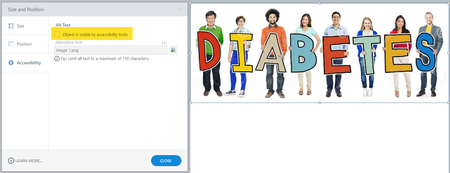
A technique that is commonly used in web development, for accessibility, is to provide text that is available only to screen readers. The text is visually hidden, but can be accessed by text-to-speech and text-to-braille readers. An example usage may be, an image has been used as the heading of the page (maybe a specific font was required). Whilst an ALT text value on the image can describe it and relay the text contents, it cannot provide the same semantics an <H1> element can. Heading elements provide essential structure to the document for assistive tech users, and also provide really handy shortcuts for navigating through a document. <style> .screen-reader-only { position: absolute; width: 1px; height: 1px; padding: 0; margin: -1px; overflow: hidden; clip: rect(0, 0, 0, 0); border: 0; } </style> <img src="https://thumbs.dreamstime.com/z/multi-ethnic-group-people-holding-text-diabetes-45539467.jpg?ct=jpeg" alt="" /> <h1 class="screen-reader-only">Diabetes</h1> Whilst we can't leverage CSS in Storyline, we can achieve the same outcome for accessibility. Using the same example illustrated above, we have a visual heading. The first step would be to ensure the image itself, is not visible to screen readers, by right clicking the image, selecting Accessibility and ensuring that the checkbox labelled Object is visible to accessibility tools is not selected (check mark is cleared). The next step is to relay this same information to screen readers. Start by inserting a text box on the slide and enter the same text that appears within the image. Then select the text you have just entered using CTRL+A. Then from the Text Styles drop-down menu, select the appropriate mark-up, in this instance, Heading 1. The next step is to check your Focus Order and make sure the new text H1 is in the correct reading order for screen readers. The final step is to emulate the "visually hidden" component of the solution. The most common methods I use is to either: Position the text behind the image that it represents, or Position off the slide (the content will still be accessible, even when position off screen). My first preference is to try and keep on the slide, and in a similar location to the image, but sometimes this is not possible, due to animation that is occurring on the slide, as I like to have screen reader text available right away. Following are the results. The video (attached) demonstrates the difference between ALT text and hidden text and the benefits of semantic mark-up.436Views0likes0Comments