yukon
15 TopicsTechLearn 2025
Our friends and colleagues from Yukon Learning are gearing up for an immersive Articulate 360 learning experience at this year's TechLearn 2025 Conference in New Orleans! They'll start the weekend with their 2-day Articulate Storyline 360 preconference certificate workshop on October 5 & 6. You'll learn everything you need to know to start building engaging e-learning in Storyline 360 before the main event kicks off. From there, Yukon will be in the Training Test Kitchen, showing you how to cook up engaging content with Articulate Rise 360. Tuesday will start off with a bang when Yukon shares "Our 5 Favorite Animation and Motion Effects in Storyline 360" in a morning concurrent session. And for a final hands-on experience, they're hosting a "What's the Big Idea?" clinic that afternoon where they will guide you through a collaborative session to help you get to the heart of your content before you start development.742Views0likes1Comment5 Unique Storyline Animation Ideas
This tip comes from our certified training partner, Yukon Learning. If you're tired of the same old animations, this video has five tips and tricks on different ways you can animate your content in Articulate Storyline. In this video, we'll explore using the morph transition, creating a "pop" effect when content animates onto the screen, covering slide content with fly-in entrance animations, animating using Storyline's AI Assistant, and combining entrance animations and motion paths. Resources The Articulate Trainer Blog Youtube channel Sign up for facilitated certified training699Views4likes0CommentsCanadian eLearning Conference 2025
Visit with our friends and colleagues from Yukon Learning at this year's Canadian eLearning Conference in Toronto, June 12-13. Yukon will offer a workshop on Articulate Storyline 360 on Day 1, followed by a concurrent session on Day 2. Check the event website for more details.543Views0likes0CommentsHow to Add a Custom Interaction Using the Code Block in Rise
This tip comes from RonPrice, Chief Learning Officer at our certified training partner, Yukon Learning. Do you need some custom content in your Rise course but you're not sure how to start? Use the code block! All you need is an idea. It's that simple. Creating a custom block has never been easier using the Rise Code Block. In this video, we will show you: How to use AI to quickly generate some code for an interaction How to insert the AI-generated code into your Rise course Resources: Yukon Learning YouTube Channel Code Block Group. Join the code block group in ELH to ask questions, post examples, and learn from other e-learning designers.399Views1like0CommentsHow to Create a Timer in Storyline
This week's tip comes from our certified training partner, Yukon Learning. Imagine you're creating a course for a group of new hires in a fast food restaurant whose jobs will require that they manage multiple things -- refilling French fry containers and keeping an eye on the fryer while also fulfilling orders and getting them out to the waiting customers. An e-learning course where workers can practice what they need to do in that situation is an effective way to help them learn how to do the job. They won't have the stress of the live work environment, and the restaurant hopefully won't have as much food waste because learners will know how to manage the time. The key element in this scenario is that in the real world, time can "run out" in a number of ways: the fries burn, the hamburgers get cold, the customers get angry. We can simulate the experience of time running out by creating a timer on a slide. In this video, you'll learn how to: Create a timer using number variables and layers Ensure the timer stops at 0 Determine what happens when time runs out Accessibility Disclaimer: Timers really aren't accessible. They can cause all kinds of problems for all kinds of learners. That said, timers are one of the elements of gamified learning, and can be part of a real learning experience. The Articulate CommunityTeam suggested these tips for working with timers in e-learning: Allow learners to opt out. Timed challenges can be an accessibility issue for some learners. So if the limit isn’t a legal requirement, consider including a way to turn it off. Only include timers when it improves learning. A little time stress goes a long way. It’s best to save this feature for instances where meeting a time limit connects strongly to learning goals. Don’t make it too hard. Ensure the limits you do use are realistic and achievable. If it’s too hard to meet the requirements, your time limit could cause learners to tune out instead of engage. Resources: Yukon Learning YouTube Channel Sign Up for Facilitated Certified Training332Views0likes0CommentsHow to Configure a Storyline Results Slide
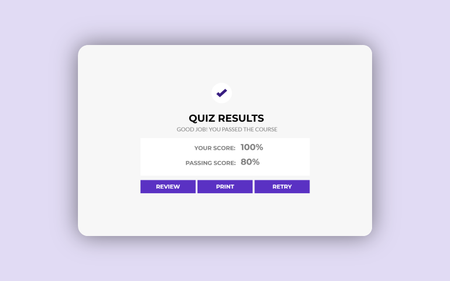
This week's tip comes from John_Moore_YL at our certified training partner, Yukon Learning. You've created the questions, perfected your feedback master, and your quiz is almost ready to go! But how will the learner know if they passed or failed the quiz? The last step in creating a quiz in Storyline is to set up the results slide. In this video, you'll learn how to: Add a results slide Set a passing score Determine which questions contribute to the quiz results Add and adjust buttons for the learner to review the quiz and print their results Resources: Yukon Learning YouTube Channel Sign Up for Facilitated Certified Training308Views0likes0CommentsWhat Layout Does My Slide Use? What Slides Use This Layout?
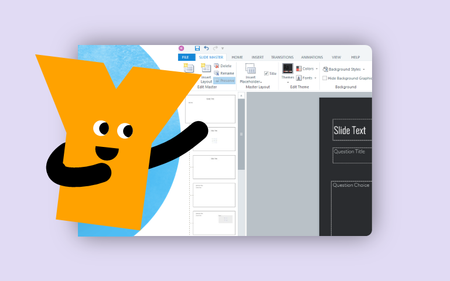
This week's tip comes from John_Moore_YL at our certified training partner, Yukon Learning. Sometimes you need to identify which Slide Master layouts are being used by specific slides. In this video, John will show you how to: Use the apply layout feature to identify a slide's layout template Access the slide master to view all slides using a specific layout Resources: Yukon Learning YouTube Channel Sign Up for Facilitated Certified Training239Views1like0CommentsHow to Number Questions in a Question Bank
This week's tip comes from RonPrice at our certified training partner, Yukon Learning. If you have a linear quiz where everyone will see the same questions, putting a text box on the screen indicating which question the learner is currently on is easy. But what about when you're drawing random questions out of a question bank? If learners aren't viewing your questions linearly, or will see a random subset of questions, you'll want to use Storyline's built-in variables. In this video, you will learn how to: Add the number of slides viewed to the Question layout in the slide master Exclude any slides from numbering other than quiz question slides Resources: Yukon Learning YouTube Channel Sign Up for Facilitated Certified Training200Views1like0CommentsHow to Edit the Storyline Interface
This tip comes from RonPrice at our certified training partner, Yukon Learning. Have you ever needed more screen real estate for your slide and the timeline or trigger panel is in the way? Or your timeline seems to have gone missing? In this short tutorial, we'll show you how to undock and redock the windows of the Storyline user interface. Resources: Yukon Learning YouTube Channel Sign Up for Facilitated Certified Training199Views1like0CommentsHow to Turn a Slider into a Quiz Question
This tip comes from our certified training partner, Yukon Learning. Sliders a fun way to create interactive elements on a slide in Storyline, and you may have used them to do things like show a timeline of events or even used them in a gamified slide. But did you know that you can you use them to answer quiz questions? In this video, we'll show you how to use slider values to control a freeform multiple choice question. You'll learn how to: Add a slider to your freeform quiz slide Adjust slider design properties Link slider stopping points to quiz answers using triggers Resources: Yukon Learning YouTube Channel Sign Up for Facilitated Certified Training199Views2likes0Comments