Forum Discussion

360 Issues: Issue #2 Blurry Screen Recordings
Hello!
I am having issues with my recordings being blurry. Here is the scoop:
They are records as slides, not a video
They look fine, until I make a change to something, example: editing the slide and removing the buttons
When viewed, they will either, look normal, then go blurry, or be blurry and then look normal.
It doesn't seem to make a difference if it is done in view mode or try mode. I use both.
I do not believe this has to do with screen resolution, as I have tried many and it has made no difference. I make my resolution the same size as my recording screen, not full size. and like I mentioned, it will start out okay, then the slide will turn blurry, then the next slide will look fine, then when you click something, it will go blurry... for example.
This is very hard on the eyes and... horrible ... any help is appreciated!
98 Replies
- DanielleSchi670Community Member
I'm seeing this blurry video issue as well, but only when I insert as a video on a single slide. The clips that are added in the view/try/test slides look fine.
I noticed that if I export the video from the Action Fine Tuning window, then insert that exported video to a new slide and turn off the automatic compression, that video looks great. If I leave the auto compression on, it looks like garbage.
Unfortunately, it looks like I'm unable to turn off the auto compression feature when the screen record feature adds the video on a single slide. The compression drop down is grayed out.
Is there a reason this drop down is grayed out on the video that the screen capture inserts? I would love to not have to add the extra step of exporting that video, then bringing it back in just so I can turn off the auto compression.
I'm using the latest Storyline 360 update and latest version of Chrome. We can't ask our customers to use another browser.
Hey Danielle,
Thanks for reaching out to our support team as well and I see that Cleo is assisting you.
You're in great hands :)
- SarahWalton-b16Community Member
Can anyone provide an update to this fix? I'm having the same issues.
Hi there, Sarah. Tell me a little more about what's happening on your end:
- What dimensions are you using for your screen recording? Also, what is your .story size?
- Are you inserting your recording as view mode on a single slide, or step-by-step slides?
- If you've inserted as step-by-step slides, does the initial shot look blurry, and then the recording becomes clear once it plays?
Thanks for the extra detail. I'll be ready to give you a better update with those answers!
- SarahWalton-b16Community Member
Hi Sarah. Thanks for the context. When you shrink or scale video, you run the risk of losing the crispness of the picture.
Check out this article for tips on keeping the quality of your video in slides.
If your videos are too big to fit in your slides without scaling, consider re-encoding them at a lower resolution before adding them to your course.
If possible, try to find the exact resolution you need for the video to fit in the computer image, and re-encode the video to that size.
Does anyone in the community have any favorite video editing tools that can help with resolution reworking?
- SarahWalton-b16Community Member
Thanks Crystal,
I'll await some recommendations for video editing !
Sarah
- BryanFrame-86b0Community Member
Hi Sarah... for video editing I like Camtasia.
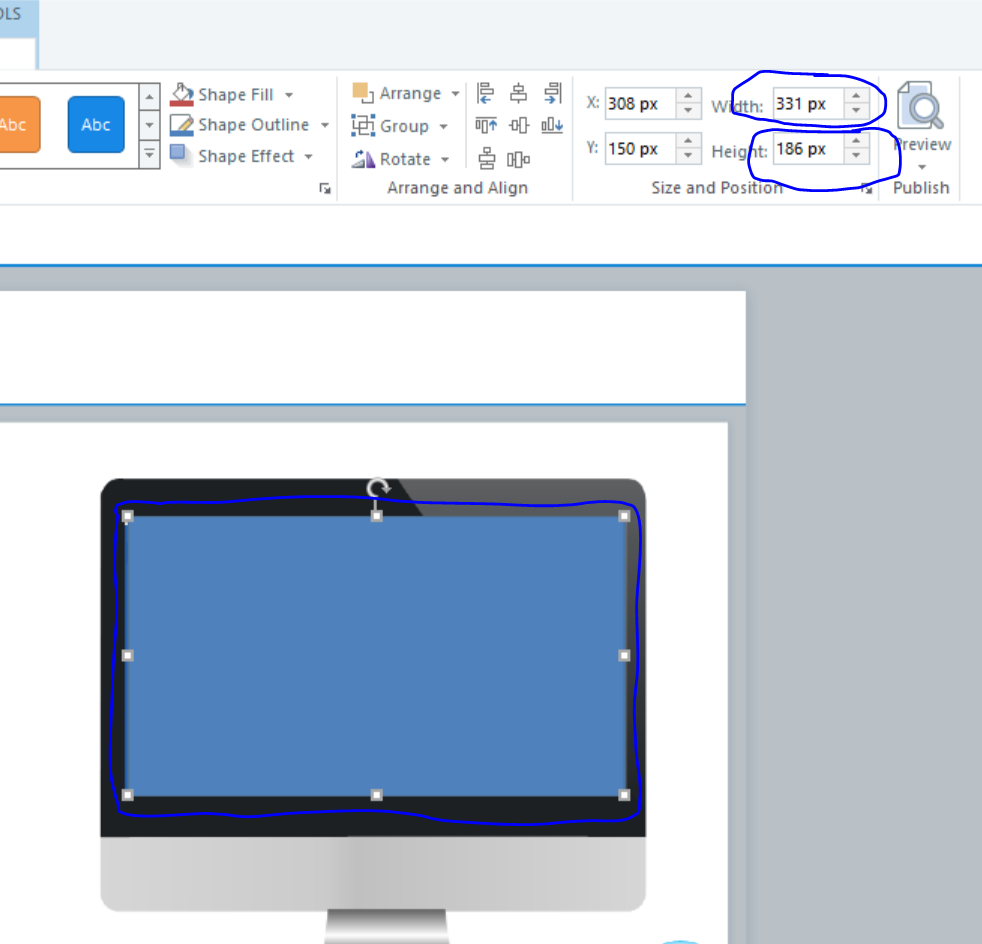
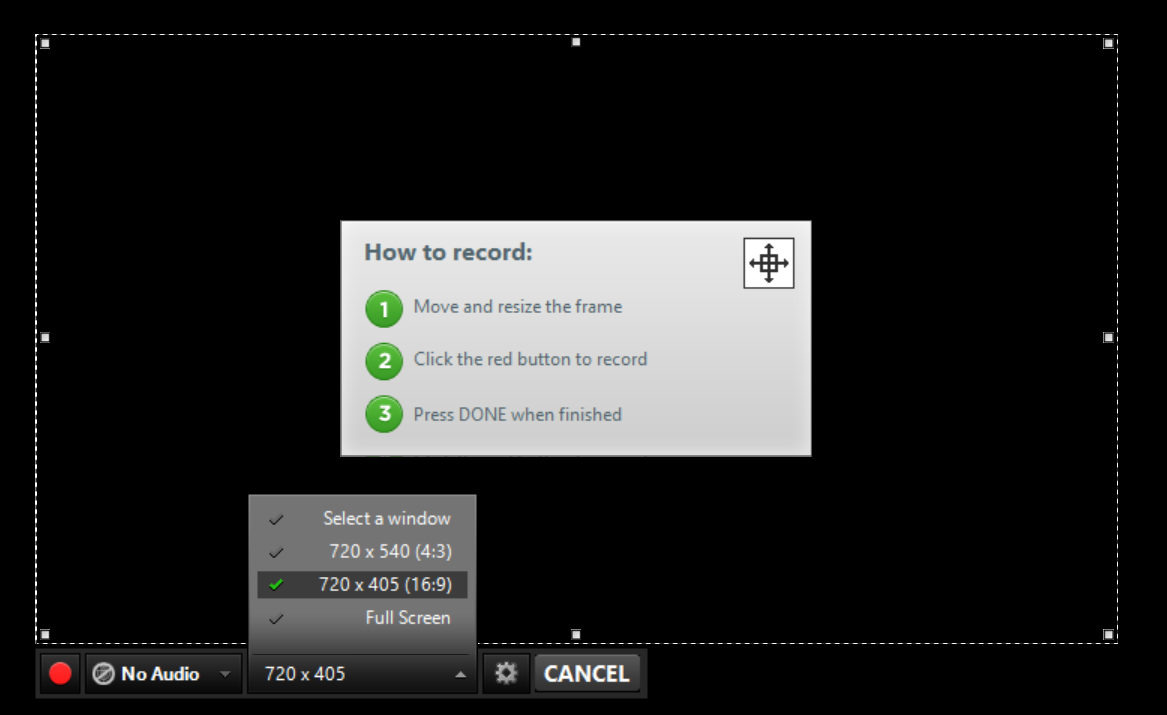
For your project: I would resize the monitor picture to have the inside (where you are pasting your screenshot) to be 16:9. Then do your screen recordings at that aspect ratio. Starting with the end (size/ratio) in mind helps me get crisp, clean screen recordings. As Crystal stated, its best not to resize at all, however, you can get away with more if you are scaling and not skewing... hope this helps!
- pietrozappat454Community Member
Hello!
still same issue here:
- record screen function
- video on a single slide
in preview mode the video is crisp but as soon as published it gets blurry. see attachment
Following the suggestions above, I tried to capture the video with the same resolution as the slide it will end up but the capture are would be too small (I need to capture the full size screen and later work on some areas with the zoom)
any hints if not a resolution of this common issue?
Thanks
Hello Pietro and welcome to E-Learning Heroes :)
Thanks for reaching out and letting us know what you are experiencing in your course.
When you were able to use the same size/resolution, did the issue of blurriness go away?
Have you taken a look at adjusting your slide size to accommodate a larger screen recording?
With your permission, I'd like to have you share your project file with our support team here to investigate what's happening. They will delete it when they're done troubleshooting.
- DanielleSchi670Community Member
Although adjusting the slide size might help with screen recordings, I would caution people that if they're using the classic player, they might need to adjust the size of the text in their players if their slide size ends up a lot larger. And unfortunately, adjusting the size of the text in the player has caused different issues for me.
I currently have a support ticket out that was determined to be a bug where the increased text size in the player was cutting off the text in the tabs on the menu. I'm not sure where they're at with this bug - I submitted it early last year and still can't get an update.
SO, if you have a menu in the sidebar with tabs, be aware that the text might end up cut off if you increase the player text size too much to match up with your increased story size.
- WilliamGrove216Community Member
6 months ago Alyssa said:
"we do have another glitch we're looking into where the screen recording appears blurry and seems to move slightly when the action plays. It sounds like that's what you're seeing, too."
I'm still seeing the screen recording move slightly as the actions goes from slide to slide. What is the status on this issue? Thanks!









Related Content
- 2 months ago
- 2 months ago