Forum Discussion

Code Block Creator Tool
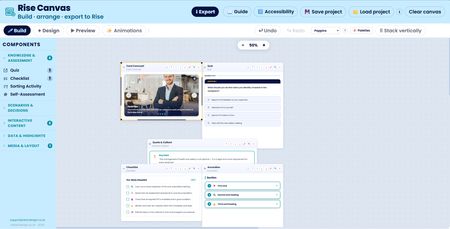

Rise Canvas just got animations and screen transitions.
This is the biggest update Rise Canvas has had since launch. The headline feature, entrance animations with screen transitions. Plus a handful of things that have been on the most-requested list for a while. Let me walk through what's new.
Animations and screen transitions
Rise Canvas now has an Animations mode, a fourth mode sitting beside Design and Preview in the toolbar. Switch it on and the canvas changes, each block gets an animation badge showing its current entrance, and a floating controls bar appears at the top with a Play button, timing sliders, and a guide.
Entrance animations
Every block can be given an entrance animation, fade up, fade in, slide left, slide right, zoom, iris, flip, bounce, rotate, and more. When the component scrolls into view in Rise, it plays the entrance. Select any block, open the dropdown in its badge, pick an entrance. Hit Play to preview them all on the canvas without leaving the builder.
Entrances respect prefers-reduced-motion, if the learner has that set on their device, components simply appear without animating. The timing sliders let you set the speed from 0.3 to 2 seconds, and those settings travel with the export.
Screens and page transitions
This is where it gets more interesting. Any block can be marked as In deck, blocks that are deck-marked group together into a screen, and screens are revealed one at a time with a page transition rather than being stacked vertically. Eight transitions are available: push, slide, wipe, cube, turn, iris, zoom, and deal.
So you can have a carousel and a quiz side by side on screen one, hit Continue, and the page turns to reveal a checklist on screen two. Each screen can have its own transition, you set it on the last block in the group.
You can also gate Continue behind a component. Mark a block as Required for completion, and the Continue button stays disabled until the learner has interacted with it, answered a quiz question, completed a checklist, and so on. A visible hint tells them what they need to do.
Entrances inside screens
Entrances and screen transitions work together. When a screen appears, its blocks play their entrance animations, a carousel slides in from the right, a quiz slides in from the left, staggered slightly so they don't all land at the same moment. Hit Continue, the page transitions, and the next screen's components animate in as the transition lands. Back replays the entrances on whichever screen you return to.
Navigation
Decked screens get centred Back / Continue buttons and progress dots beneath the content. The dot count matches the number of screens, so learners always know where they are in the sequence. The Continue button label is editable, so it can read "Next section" or "I've read this" or whatever fits your content.
See it in action in my course in the weekly challenge The man in the middle
Related Content
- 4 months ago
- 11 months ago
- 11 months ago
- 9 months ago