Forum Discussion

feedback master button states not being inherited by feedback layers
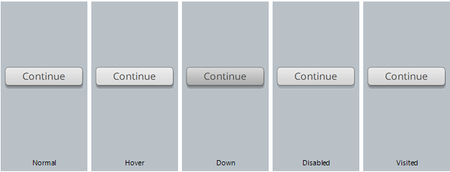

Thanks for this Ashley - but my dilemma is that you can't create your own custom buttons on the feedback master - well, you can, but the trigger functionality does not carry through to the question slides and their layers, so you have to create the custom buttons on each layer of each question slide. This is OK (barely!) for individual courses, but less than ideal for templates. Here's why - if you go to create a new slide and choose one of the question slide layouts, you have to manually add the custom buttons to each feedback layer, so in the case of a template I need to provide instructions to tell the user to duplicate an existing question slide, not create one using the insert new slide option. In my mind, this is going a bit too far away from the idea of rapid authoring when you have to do so much customisation because this doesn't work.
I've attached a file here with this all set up - although this isn't hard to replicate. This is an out-of-the-box, new project file created in Storyline 360. You will see that I can't use any of the custom buttons, even though they appear on the feedback layers, because triggers don't work like they do with the built-in buttons. I've added a second feedback master and used this for one slide and the same issues apply.
Also, you'll see that the same issue that Peter and Carl have reported is still there - ie the built-in states for the button on the master slide don't carry through to the feedback slide layers.
Additionally, (I may as well detail all of the issues I've been working around!), if you use the button tools format menu in the feedback master and apply a button style, the default text on the button remains grey, no matter which style you choose and this carries through to the slide feedback layers, which then have to be individually customised - and this can't be done by applying a button style either. Added to this, if you want to apply formatting at the feedback master level to the button text (ie. uppercase), this doesn't flow through to the feedback slide layouts either and again, needs to be manually adjusted at the slide level on each feedback layer.
My latest workaround (and I've tried a multitude of these) is to try and use the built-in buttons, but then customise them one by one on the feedback slide layers - also a time-consuming process, and one that I also need to communicate to users of my templates.
Related Content
- 2 years ago
- 6 months ago
- 6 months ago
- 8 months ago