Forum Discussion

Publishing Storyline Content in Canvas LMS
Hello! I just wanted to share a recent success I had with getting my Storyline files in to the Canvas LMS. Although I haven't quite found a way to use SCORM reporting features, this is an option to upload your presentations into Canvas that will allow for all of the great interactions we so love in Storyline!
The trick is, when you publish, you have to make sure to choose Launch Player in a New Window. Here are all of the steps I followed (including making it work for iPad).
In order for Storyline presentations to work in Canvas, you have to publish with these player options:
BEFORE you publish, you have to go in to the Player - Other - Launch Player in a New Window
If you choose Prompt to Resume, make sure to leave the "Ignore Flash Cookies in LMS" option UNCHECKED.
It should look like this:
When you publish, make sure to have LMS selected, and checkmark all the boxes in the Publishing for HTML5 and mobile devices.
In Canvas, you need to navigate to the course and page (assignment, module, etc.) where you will be adding the content. THIS IS VITAL. You have to be in the course you want to add the content in before you choose the FILE option on the left-hand side.
Choose "Files" option in the left-hand navigation.
Create a new sub-folder for the course and then choose the upload zip file. Upload the Storyline zip file into the subfolder.
Now create the assignment, announcement, module, etc. that you wanted to create. Choose Add File from the right-hand menu. Navigate to the subfolder you created. Once there, you need to find the "launch.html" file and click on it to add it to your assignment. If you want to allow iPad users to see your content, you also need to click on the IOSLaunch.html file and add it to the assignment.
Save your assignment.
Make sure you have popup blockers off, and then test it out. It should launch in a new window on all browsers. On iPad, you need to have the Articulate Mobile App to interact with the content.
Hope this helps!
55 Replies
Hi Cynthia,
No need to feel stupid, I'm also unsure about these directions for uploading into Canvas.
I don't have enough expertise to weigh in on the Canvas set up (I've never used it) but typically there is an option to upload a SCORM zip into an LMS, and the LMS will unpack the zipped folder once it's uploaded. That way if you've had to identify a file to launch (i.e. launch.html) the LMS should handle the rest.
I'd suggest reaching out to your Canvas admin if you're stuck. Also, if someone in the ELH community has the Contact me enabled on their profile that'll allow you to message them directly and perhaps they can provide more help one on one!
Best of luck - and please feel free to keep us posted! It seems you're not the only one unsure when uploading to Canvas, so any additional information will be helpful!
- CynthiaGovreauCommunity Member
Ah, SCORM - now that makes sense :) Thanks for your response!
Thanks,
Cyndi Govreau
Miami University eLearning Department
Instructional Design and Technology Specialist
Laws Hall #307G
513-529-1583 (Direct)
513-529-6068 (eLearning Miami Office - ELM)
Interested in Canvas training? Check out our Canvas Training Schedulewebpage or the Miami Train Calendar
.
Such a generous offer Rebecca, thank you!
Also, Cynthia just a note: Replying via email will include your signature. You can edit out your contact information from your post if you'd like!
Hey Shauna,
Hopefully Rebecca is still subscribed here, but if you do not hear back soon feel free to reach out to her directly here.
- ShaunaKayCommunity Member
Do you know how to import Storyline into Canvas?
- TimDannerCommunity Member
If the SCORM tool is enabled in your instance of Canvas, you can use it to import your Storyline SCORM packages into the LMS.
- KevinThompsonCommunity Member
Hi Shauna,
Here is how we import Storyline content into Canvas. Most of the time we have an interest in tracking completion of the learning objects, so my directions are focused on that goal.
1. Publish from Storyline for the LMS
-- we tend to use SCORM 2004 v.3 with the Passed/Incomplete setting
-- we usually base completion on a certain score on a final quiz or a course completion trigger at the end of the module2. ZIP the published output.
3. In Canvas, enable the "SCORM" LTI tool in you navigation settings.
4. In the SCORM tool, click "Upload" and select your ZIP package.
5. Import the ZIP package as a graded assignment.
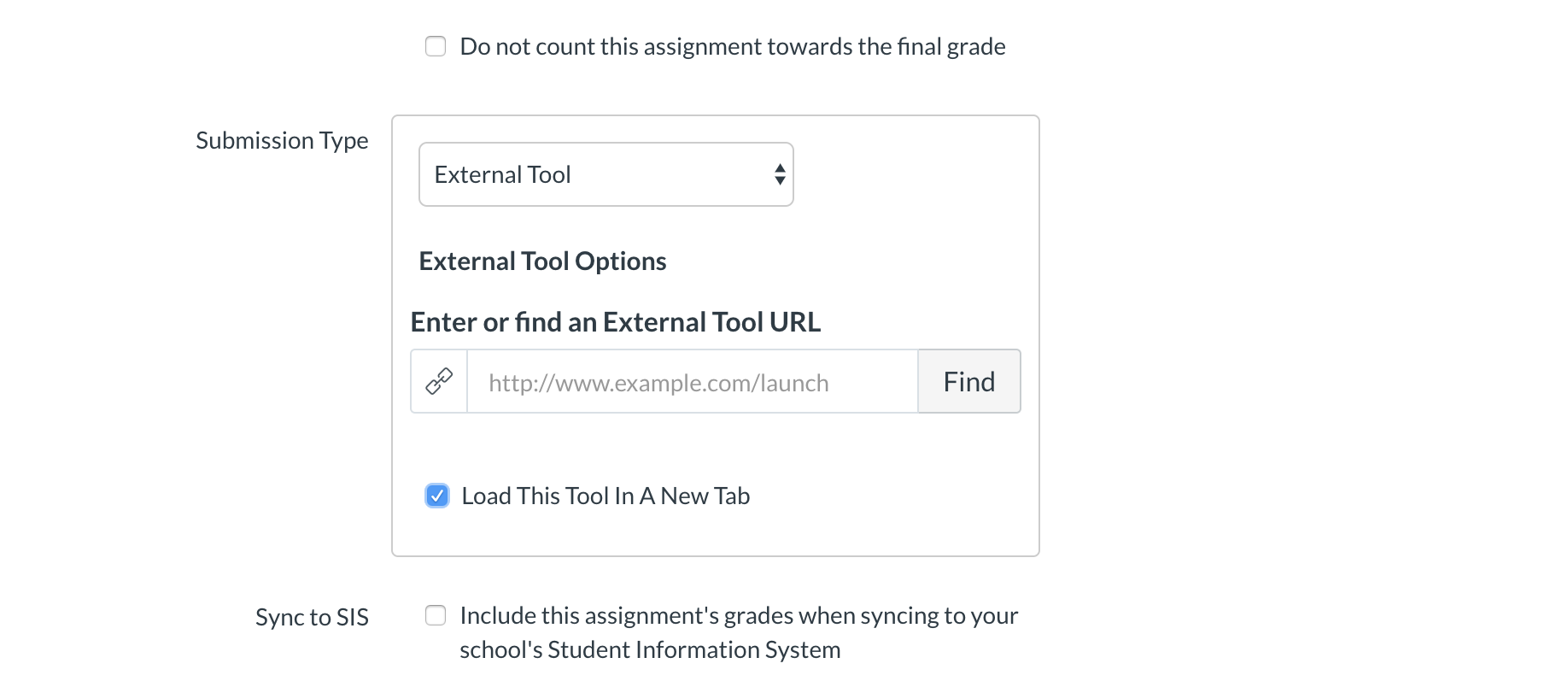
This will host your files in a cloud-based storage location since Canvas itself cannot host the files and have them function as a trackable object.6. You'll now have an assignment in Canvas and there will be a column in the Grades tool for the assignment. The Storyline object needs to be launched in a new window.
We've also uploaded non-SCORM (therefore non-trackable) Storyline content into the Canvas Files tool, but since there are so many files involved it creates quite a mess if your Canvas course has a lot of other learning objects.
We've had some trouble with the completion scores of Storyline objects resetting (from 100% to 0) if the learner re-launches the content after completion -- so would be interested to hear from anyone who has overcome that challenge.
Regards
-Kevin - ShaunaKayCommunity Member
I have been using Storyline in Canvas for a year now, but for some students the score is always 0% even though they got 100% on the storyline. I was worried it was something with scorm, but some of my students have no problems at all and others get zeros on the same assignment. Any suggestions?
Hi Shauna! I'm happy to help. See if you can dig up the following info:
- Do you know if the students who are having issues are using the same browser to access the course?
- Have they left the course before the results slide and resumed at some point?
- Have any of the students successfully retaken the course and had their score reported? If so, was there anything they did differently?
Thanks for the clues!
- ShaunaKayCommunity Member
I will ask them. Thanks
- ShaunaKayCommunity Member
- MarkRash865Community Member
This is an older post, but I'm replying because I may have some info that might help future users who stumble upon this post. In my experience with Storyline and Canvas, here are some keys:
- Publish using SCORM 1.2, with the appropriate tracking option set, and with Passed/Incomplete for reporting. According to the SCORM standard, this option is the only way a score gets passed back to the LMS.
- Use the Canvas SCORM LTI for importing, rather than the Files area. This automatically links up the Storyline project with an assignment (graded or ungraded).
- Once you import as either a graded or ungraded assignment, this cannot be changed. You must reimport using the SCORM LTI.
- Remember to publish the assignment to test it in Student View and/or make it available for students.
- If you've done all of the above and have problems capturing completion data in Canvas, there is some JavaScript you can place on the last slide of your Storyline project to force submission of a 100% score and completion status. If your project has a quiz, you'd want to pass the quiz score rather than 100%, but that's outside the scope of my reply.
This is the "when all else fails" JavaScript for the last slide of your project. Keep in mind that Articulate doesn't provide user support for JavaScript and it's always possible that future changes in the product could cause the code to stop working:
var player = GetPlayer();
function findLMSAPI(win) {
 if (win.hasOwnProperty("GetStudentID")) return win;
 else if (win.parent == win) return null;
 else return findLMSAPI(win.parent);
}
var lmsAPI = findLMSAPI(this);
lmsAPI.SetScore(100, 100, 0);
lmsAPI.SCORM_CallLMSSetValue("cmi.core.lesson_status", "passed");- JeanMarrapodiCommunity Member
Bless you @Mark Rash for posting this! I'm the stumble upon person who needed this. :)