Forum Discussion

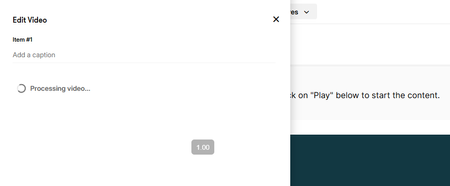
Rise 360: When uploading a video, when marking "Preserve", it still does the "Processing Video" step

Hi e-LearningDe165!
Rise 360 will still show a “Processing video” step even when Preserve source video is selected. That part’s expected. It just shouldn’t get stuck there.
Since you’ve already cleared your cache and restarted, I'd recommend these as next steps:
- Open Rise in a different supported browser.
- Disable any browser extensions.
- Upload a small MP4 test file.
If the video still won’t finish processing, would you mind opening a support case? It will be helpful if you include:
- The video file
- A quick screen recording of what you’re seeing
That’ll help our team dig in and figure out what’s going on!
My main browser is Edge. I also tested it on Chrome, with no enabled extensions, as you suggested, and it still gets stuck at the "Processing Video" step.
The video files that I'm uploading aren't even big; they are all like ~40/50 mb approximately, because I've already compressed them (they were originally ~200 mb each).
There are some videos that are stuck for hours at this "Processing" step. The vast majority got stuck.
Some got uploaded, but I'm seeing another problem: these 40/50 mb videos that I uploaded are being exported inside the SCORM 1.2 file as 100/120 mb. This makes it so the SCORM that I exported isn't supported on my LMS (it has a 1GB cap). How to prevent this from happening? I've already tested marking the "Preserve File Quality" option and the "_NOPROCESS_" trick in the file names.
- LucianaPiazza6 months agoStaff
Hello e-LearningDe165,
Thanks for following up with us! That's helpful to know that it is still stuck processing on your end. I have opened a support case on your behalf so we can continue troubleshooting with our talented Support Engineers via email. You're in excellent hands!
- e-LearningDe1655 months agoCommunity Member
Hi, how can I check this support case? I'm again having this same problem. I let all my videos uploading during the night and now they are still Processing. Same parameters, videos already compressed, ~50mb size, etc. My internet upload speed isn't slow. May I send the .mp4 files for yours to check?
- KellyAuner5 months agoStaff
Hi e-LearningDe165,
I'm sorry to hear you're having this problem again!
I checked your support case and it looks like Luciana sent over an initial email on March 4th. I just forwarded that email to you, so it should be easy to find! If you're not seeing it in your inbox, please check your spam/junk folder. You can use the upload link included to share your files, and we'll test them on our end.

