Forum Discussion

SCORM Compliant PDF - Track read, review acknowledgement
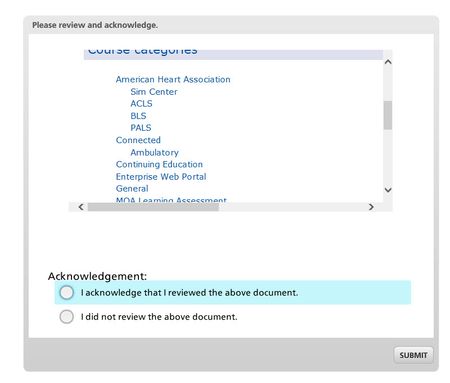
Normal 0 false false false false  oNotPromoteQF /> EN-US X-NONE X-NONE
  ontGrowAutofit />
1. Createtrue/false question slide. True value 100 pt. False value0. Label True Acknowledge and Label False Don’t acknowledge (or couldjust drag off slide and it would not be option)
2. Publishas SCORM, but don’t zip. Give filename1
3. Createa new html folder in the publish folders in step 2.
4. Createan index.html webpage that has a link or links to the PDFs that needAcknowledge and reported to SCORM. Be sure to place your PDFs in thisfolder as well. Create links in the index.html document to point to thePDFs
5. Goback to the original story file and insert web object on True/False slide,browse to the newly created folder with index.html (webpage with pdf(s))
6. Savethe story file.
7. Publishas SCORM (IMPORTANT, be sure to publish as same filename as in step 2 exceptadd a “2” to the filename. i.e. filename2
8. Goto filename1 and copy the html folder that you created (and which contains thePDFs that the index.html links to)
9. Pastethe html folder from step 3 (and it’s contents index.html and PDF(s) into thepublished folders of filename2.
10. Zipthe filename2 files
11. Uploadto your LMS
Result: Trainees will access the LMS, open theSCORM project, see the webpage that links locally to the index.html file thatis contained with the zipped files, open the PDF or PDFs, view, print, etc.with browser, then click the True/Acknowledge button, then Submit. TheTrue will indicate 100%, thus the user Acknowledgement of PDF is tracked inSCORM.
Another option is to post the PDF within your LMS andlink to it via a web object as well. Or have the PDF on an website andlink to it via web object. However, with this method users can get to thedocuments also without running the module. That is why I came up with theabove. It is a bit cumbersome, but does work well.
Related Content
- 1 year ago