Article
762 Topics2 Reasons to Use Storyline 360 for Software Simulations
Software simulations are a great way to teach learners how to use a new app or system. They allow you to record a process on your screen and give learners the opportunity to interact with the content by doing things like clicking on specific areas of the application or entering text or data, just like they would in real life. A lot of thought and preparation goes into creating software simulations—you have to identify which steps to show learners, hide any clutter on your screen, set the recording area size, and work with fake data or a testing environment. Because getting your screen ready for recording can be so time-consuming, it can be a real pain if you end up making a mistake and needing to re-record. Luckily, Storyline 360 gives you everything you need to avoid rework. Let’s take a peek at two of the benefits of using Storyline 360 that make it quick and easy to repurpose and adjust interactive software simulations. 1. Record Once and Reuse as Needed Some screen recording apps make you decide on the output format—a video tutorial or a simulation—before you record. This means once you’ve recorded your screen, if you were to change your mind about how you want to use it, you would have to re-record the entire thing in a new format. With Storyline 360, you can avoid those snags. You can record your entire process and then choose the format afterward. You have the option to insert it as a video or convert it into a series of slides (which include both demo and simulation modes). This means you can reuse your recording in different formats without having to start over—saving you tons of time. 2. Make Quick Edits Picture this: You’re almost done recording your screen when an unwanted pop-up notification appears. You don’t want learners to see that in your screen recording, so what do you do? Depending on the app you’re using, you might have to either start your recording all over again or edit it after the fact in a separate video editing app. Thankfully, that isn’t the case if you’re creating screen recordings with Storyline 360. If you want to make quick edits to a step-by-step slide, simply right-click on it and select the Action Fine-Tuning option from the menu. This will open up a window that lets you edit things like the start and end frames of a step. With this handy feature, you can avoid redoing your recording or opening another app to make edits. Check out this user guide to learn more: Storyline 360: Editing Screen Recordings. Wrap-Up As you can see, thanks to these two powerful features, screen recording in Storyline 360 is super fast and easy. It helps you avoid rework by allowing you to make decisions and adjustments after you record. Such a timesaver! Want to learn more about using this powerful feature? Check out these helpful articles: Follow These 5 Steps to Record Your Screen in Storyline 360 5 Tips for Creating Effective Software Simulations with Storyline 360 Follow This Process to Create Software Simulations and Systems Training Like a Pro Do you have any tips of your own about using Storyline 360 to develop software simulations? Leave them in a comment below! Want to try something you learned here, but don’t have Articulate 360? Start a free 30-day trial, and come back to E-Learning Heroes regularly for more helpful advice on everything related to e-learning.902Views0likes19CommentsArticulate Receives Security Certification From US Federal Government—FedRAMP®
Security is a priority for us, which is why we’re excited to share that Articulate is officially FedRAMP® authorized! If you’re not familiar with FedRAMP, basically this means that the US federal government has done a thorough security and risk assessment of Articulate apps and determined they meet their strict cloud security requirements and are safe to use. If you work for an agency of the US government, this also means you can use Articulate 360 without worry, knowing that they’re FedRAMP authorized. Head over to the FedRAMP marketplace for more details on our authorization. And for those of you in the private sector, it means you can rest easy knowing you’re in good hands with Articulate. Of course, if you want more information on our approach to security and data protection, check out our Trust Center. Want to try out our apps but don’t have an Articulate 360 subscription? Start a free 30-day trial today. And if you have any questions, please share them in the comments.1.2KViews0likes11CommentsWhy AI Could Turbocharge L&D Professionals
Amid all the excitement surrounding artificial intelligence (AI), there’s one glaring fear: “Is AI going to replace me?” It’s a reasonable concern. After all, generative AI can work a whole lot faster than we mere mortals. But here’s the deal: AI is a tool. And a tool is only as good as the person who wields it. At Articulate, we think of AI as an accelerator of human capability, not a replacer of human ingenuity. Let’s unpack why AI can’t do everything alone and how—when used effectively—it doesn’t take away potential but unlocks it. AI Has Limitations On the surface, AI-generated content truly feels like it could’ve been written by a human. But mimicking a human isn’t the same as being a human, and that makes all the difference. Courses built solely with AI are prone to the following hurdles: Inaccuracies. AI is a people-pleaser. If it can’t give you a correct answer, it will still produce a reasonable “something”—but that something might be riddled with half-truths or outright “hallucinations.” Without a human validating output, AI might deliver wholly fabricated content. Biases. Generative AI was trained on the internet, making it highly susceptible to biases. Take away ethical human input and guidance, and AI may reinforce stereotypes, spread misinformation, and deliver inequitable training with unapologetic conviction. Ineffectiveness. AI can’t independently create complex, engaging learning experiences like the L&D pros. It can work quickly, but only a human course creator knows the nuance that goes into helping learners wrap their heads around tough topics, develop complex skills, and work through real-world practice scenarios. AI Requires Guidance AI’s limitations remind us that it can’t work alone. The sidekick is only as good as the hero. And AI is only as good as the e-learning heroes who use it. High-quality training requires humans in the driver’s seat. If you don’t have professionals consulting with stakeholders, discerning learning needs, setting directions, iterating with AI, and validating outputs, you end up with training that misses the mark. What Can AI Do? So, if AI isn’t replacing L&D professionals, what is it doing? If you’re a course creator, think of AI as another tool in your kit—and a mighty valuable one at that. Use AI mindfully, and you can: Collate information quickly. Have several dense documents to sift through? Consider using AI to pull and synthesize the information—kick-starting your course-creation process. Get a first draft. Debating how to start a lesson or course? AI solves the notorious “blank page” problem by giving you a first draft. Then all you have to do is fine-tune it. Brainstorm. Need to toss some ideas around? Your AI helper is an excellent creative thought partner. For example, you might use AI to think through course outlines, come up with industry-relevant examples, and surface themes within your work. Modify and personalize your work. Want to change direction or adapt your training for a different audience? No problem! AI can switch up your tone or writing style in a flash. Accelerate monotonous tasks. Have a lot on your plate? You might free up your day by using AI to speed through time-consuming, repetitive work. For example, you could ask AI to generate a summary, knowledge check, or full-course quiz based on your content. Well-Guided AI Unlocks L&D Superpowers Ultimately, with course creators at the wheel, an AI sidekick helps course creators do more, work smarter, and achieve their goals faster. The result? Instead of replacing L&D pros, AI gives them superpowers. Learning teams who leverage AI have more time, freedom, and mental space to use their specialized expertise, dig deeper, innovate, and home in on the creative side of course creation and design. Wrap Up The scary robot takeover isn’t happening anytime soon. AI is an invaluable asset. But it only works if we keep humans at the center. As Articulate’s own Chief Technology Officer Kerry Munz puts it, “AI gives you time; it lets you go deeper. But it’s your magic that helps people grow.” For more information about AI, check out these helpful resources: Build Compelling Courses Up to 9x Faster with Articulate’s AI Assistant 4 AI Basics Every E-Learning Creator Needs to Know in 2024 3 Ways AI Transforms Workforce Skill-Building Is Your Organization Ready for AI? How Articulate AI Safeguards Your Data You can stay in the loop by subscribing to our newsletter and finding us on LinkedIn and X (formerly Twitter). Want to try out our apps but don’t have an Articulate 360 subscription? Start a free 30-day trial today. And if you have any questions, please share them in the comments.726Views1like4CommentsHow to Randomize Quiz Questions in Storyline 360
A big part of being an e-learning developer is creating quizzes. Choosing question types, writing plausible choices, crafting meaningful feedback—these all go into building a great quiz. When putting together your quizzes, you might have encountered a situation where you’ve wanted or needed to randomize the questions in your quizzes. Why randomize questions? Perhaps your subject matter expert (SME) has provided you with more questions than you actually need to test learners on, or you might want to ensure that the order of the questions is different every time learners take the quiz, to minimize cheating and keep it interesting. Whatever your reason for randomizing quiz questions, one simple and straightforward way to do so in Storyline 360 is to use question banks. Here are the steps you can follow to randomize questions in a bank: Create a Question Bank Your first step is to create the question bank. To do so, you’ll head to the slides tab on the Storyline 360 ribbon. There you’ll notice the Question Banks button with a small arrow pointing down, indicating there is a dropdown menu. The Question Banks button is located under the slides tab on the ribbon. Click the Question Banks dropdown and select Create Question Bank. Once you’re in the Question Bank view, you can either import existing questions you already have in your .STORY project, or you can create new questions from inside the question bank. Once you’ve got all your questions inside the bank,you can also easily set all of your attempts and points in one fell swoop. A question bank that has been populated with question slides. Keep in mind you can have multiple question banks within one Storyline 360 project. You might create one bank of easy questions and one bank with more advanced questions. Or you might have one bank of questions for customer service reps and a different set of questions banked for sales reps. You can have as many question banks in your project as you need. Insert a Slide Draw Once you’ve set up your question bank, the next step is to insert a slide draw into your project. The slide draw is the slide in your project that displays the question bank to the learner. To insert a slide draw, head to the Question Bank dropdown button once more and click New Draw from Question Bank. The slide draw is inserted into your project and has a question mark on it, as indicated in the image below: Slide draw appears as a slide. Adjust Slide Draw Properties You can now double-click on the slide draw slide you’ve just inserted to open up the Draw Questions from Bank window. From here, you can control all the settings for how the question bank will appear for learners. Question Bank dropdown. If you have multiple question banks, use the Question Bank dropdown field to select the question bank you want to pull from on this slide draw. Edit Question Bank. Click this to open the selected question bank and make changes to the questions and slides contained within it. Draw Questions Randomly. Ding! Ding! Ding! This is the option you will select if you want to randomize the order of your questions. Include X Questions dropdown. From this dropdown you can select “All” or specify the number of questions you want included in the draw. Include in Shuffle dropdown. This can be set to “Randomly,” “Never,” or “Always,” depending on how often you want a question to appear. Here’s an example of how I can customize my question bank settings: I want to create a question bank that randomly draws five of the seven questions included in my bank, but I always want Question A to be included. I would simply set the Include X Questions dropdown at “5” instead of “All,” and I would change the Include in Shuffle option for Question A to “Always.” These settings will randomly draw five questions from the bank. Question A will always be included in the shuffle. Test Your Slide Draw Once you’ve set up your slide draw with all the right options, you’ll want to preview the scene that your question bank is in to test it out and see how it all comes together. Run through your question bank a few times to ensure that the correct number of questions are drawn, and in a random, different order each time. Hopefully these simple steps will help you create your own randomized quizzes. If you want to learn more about using question banks, here are a few additional helpful articles: 5 Things You Should Know About Storyline 360 Question Banks 3 More Tips for Using Question Banks Like a Pro Want to try something you learned here, but don’t have Articulate 360? Start a free 30-day trial, and come back to E-Learning Heroes regularly for more helpful advice on everything related to e-learning. If you have any questions, please share them in the comments.2KViews1like18CommentsHow to Copy Blocks from One Lesson to Another in Rise 360
Have you ever built a course in Rise 360 and realized, later on, that some of the content in one lesson would work great in a different lesson? Or maybe you want to reuse the same content structure? I’ve been there! Luckily, it’s super easy to copy blocks from one Rise lesson to another, thanks to the blocks template feature. Here’s how it works. 1. Open the Blocks Library The first thing you’ll want to do is navigate to the lesson that contains the block you want to copy and open up the block library. You can do that either by clicking the plus sign (+) between two blocks … … or by clicking All Blocks in the blocks shortcut bar. 2. Create a New Template Next, select the templates tab in the block library and click the New Template button. 3. Select the Blocks to Copy Then, select the block or blocks you want to copy by clicking the checkmark for each one. 4. Save Your Template Next, click Save, name your template, and click Save once again. 5. Insert Your Template Finally, navigate to the lesson where you’d like your copied block to go, open up the blocks library, and select your template. Wrap-Up Et voilà! It’s that easy. With blocks templates, you can copy blocks from one lesson to another within the same course and copy blocks to lessons in other courses; you can even share your blocks with members of your team if you have an Articulate 360 Teams subscription. It’s super handy! Want to try block templates out, but don’t have Rise 360? Start a free 30-day trial of Articulate 360. And subscribe to our newsletter to get the latest e-learning inspiration and insights directly in your inbox. You can also find us on LinkedIn and X (Formerly Twitter).5.7KViews3likes31Comments8 Business Use Cases for Microlearning
Are you excited to try out microlearning, but unsure when to use it? Below, we outline eight common workplace situations that benefit from a short-form course. Each situation includes a sample microlearning. At the end, learn how you can customize these templates for your own company and training needs. 1. Create Organizational Alignment To hit a business target, everyone needs to be moving in the same direction. Creating that alignment starts with clear, frequent communication of the shared mission, vision, and values. Microlearning can help. The following editable template shows how you can align employees through regular executive “micro” updates: Executive Update 2. Highlight HR Information, Notices, or Reminders Educating employees about annual events like open enrollment, tax season, and compliance training is a critical function of HR teams. The problem? Important announcements often get missed when they’re embedded in long paragraphs or endless emails. Grab the following templates to see how microlearning makes HR communications more digestible and engaging: A Quick Guide To Open Enrollment Internal Company Newsletter 3. Strengthen Company Culture and DEI Initiatives Fostering an inclusive company culture is a continuous process—not a one-time effort. A series of microlearnings can support your larger culture-building and DEI efforts. Check out the following examples for ideas on how to get started: Are You an Ally? Try Taking on These 5 Roles How To Identify and Stop Using Ableist Language Gossip-Proof Your Workplace 4. Streamline Business Processes You can also use microlearning to document and streamline business processes or workflows—such as employee onboarding or performance management. Notice how the following examples make it easy for employees to work through the steps of a process independently: New Hire Pre-Hire Checklist Performance Review and Feedback 5. Increase Security Awareness Most successful data breaches, phishing attacks, and other cybersecurity incidents are caused by human error. Adding refresher microlearnings throughout the year can fortify your defenses. See an example for safeguarding against phishing attacks below: Spot the Phish 6. Enhance Employee Wellness A successful business needs thriving employees. But employee wellness training often ends up buried under competing priorities. Microlearning makes it easy for employees to fit in short breaks for self-care throughout the workday. Check out these two wellness-related microlearning examples: 3 Desk Stretches to Instantly Improve Your Day 5 Tips for Better Naps 7. Provide Quick-Reference Guides Microlearning is the perfect resource for one-off training questions: Employees can quickly find the answers they need—when they need them. Below, we’ve created templates for product and software training. But you could easily create quick-reference guides for sales, customer service, and other teams. Get To Know [Name of Product] Software Training 8. Reinforce and Assess Key Takeaways Finally, who says you have to choose between a more sizable course and microlearning? Repetition aids retention. Consider following up longer training sessions with a microlearning quiz, scenario, or summary. The examples listed below demonstrate how you might do this: Can You Recover From a Workplace Mistake? Training Refresher Wrap-Up There’s no shortage of creative ways you can use microlearning to achieve your business training objectives. The examples above are just a starter list. You might also check out submissions to one of our weekly community challenges, 40+ Microlearning Examples Created in Rise 360 #407. Interested in customizing one of these examples for your team? If you’re an Articulate 360 subscriber or trialer, you can edit all of the examples linked throughout this post by choosing the course from our Rise 360 microlearning content templates. Here’s a short video showing how to do that: What’s the latest microlearning course you’ve created? Tell us about it in the comments—and feel free to ask any questions you might have! Like this article? Subscribe to our newsletter to get the latest e-learning inspiration and insights directly in your inbox. You can also find us on LinkedIn and Twitter.2.5KViews0likes9CommentsYour Guide to the Teams Admin Console in Articulate 360
With Articulate 360 Teams, your entire team gets access to Articulate 360 with exclusive features that’ll help them collaborate. Plus, you’ll get simple account management and priority support. Watch this video to see how you can easily manage your Articulate 360 Teams account. You’ll see how to invite users, manage permissions, and more. Take a look: To get started, log in to your Articulate 360 Teams console.886Views0likes10Comments15 Ways to Collaborate on Projects and Manage Your Team with Articulate 360 Teams
If you have a team of e-learning developers, you probably have two basic goals: to create beautiful, effective courses and to manage your team as efficiently as possible. And we want to help you do just that! That’s why we’re always adding new features to Articulate 360 Teams. Check out the following 15 features that’ll have you collaborating on projects and managing your team with ease, no matter how big your team grows. Collaboration Features Collaborative Authoring in Rise 360 Work together on Rise 360 courses with members of any Articulate 360 team. Create and edit different lessons simultaneously or take turns fine-tuning the same one. Changes happen in real time, so everyone always works on the most recent version. You can even give collaborators different levels of access by making them authors or admins. Learn more about collaborative authoring. Question Banks in Rise 360 Create repositories of questions that can be used in any course you create. Share them with your team so everyone can quickly create quizzes with consistent questions, answers, feedback, and media. Knowledge checks and quizzes draw from these banks rather than displaying the same static questions whenever a learner takes the course. When you share a question bank, team members can use your questions and, with the proper permissions, modify them or add their own. Learn more about question banks. Shared Block Templates in Rise 360 Build Rise 360 courses faster by saving existing blocks and their content as templates. Share those templates with your team, then everyone can reuse them in other Rise 360 courses. Learn more about block templates. Shared Team Slides in Storyline 360 Easily collaborate on Storyline 360 projects with a library of shared team slides. Team members upload and download slides, scenes, and entire projects right within Storyline 360. It’s perfect for sharing project templates, slides that need to be in every course, and reusable slide content, such as interactions and quiz questions. Learn more about team slides. Shared Team Folders in Rise 360 and Review 360 Create shared team folders in Rise 360 and Review 360 to organize your content, assign permissions, and invite collaborators. You can even allow multiple authors to publish new versions of a course to the same Review 360 project. Project Reviews in Review 360 Speed up project reviews. Publish e-learning projects from Storyline 360 , Rise 360, and your other Articulate 360 apps to Review 360 to gather feedback from stakeholders. Collect in-context feedback, follow threaded discussions, and resolve comments in one easy-to-use web app. Learn more about Review 360. Request Reviews in Review 360 Keep your team on track without the hassle of spreadsheets or phone calls. Send and track requests for specific stakeholders to review a content item right from Review 360. With email notifications, due dates, visible statuses, and completion buttons, you’ll never miss another deadline. Learn more about requesting reviews. Integrated Comments in Rise 360 and Storyline 360 Streamline review processes even further. Get Review 360 comments in context as you work in Rise 360 and Storyline 360, eliminating back-and-forth toggling between apps. Browse through feedback from various stakeholders, see comments for multiple Review 360 items, reply to and resolve comments, and add suggested images in real time—all in one place. Cloud Backup in Storyline 360 and Review 360 Work with confidence, knowing your files are safe and easy to access anywhere, anytime. Access your Storyline 360 project files from anywhere and share them with team members by uploading your source files to Review 360. Learn more about cloud backup. Admin Features Consolidated Billing Management Articulate 360 Teams makes billing management simple. You get one annual bill that covers all your team creator licenses. You have the flexibility to pay via credit card or purchase order. And as your team grows, you can add more licenses using your account management console. Learn more about account management. Easy User Management Easily add and remove users as your team evolves. For example, when users leave the company or their roles change, remove them from your team and assign the creator licenses to new users. You can even upload all your users at once using a simple CSV file. And you can add as many 360 admins as you’d like to manage your team. Learn more about managing your team. Group Managers Manage your team with ease. Organize users in groups, such as departments or locations, and assign group managers to manage each group. Watch this video for a brief overview and check out this article for details on managing users, groups, and managers. Manage Team Slides and Block Templates Admins who have creator licenses can rename and delete all Storyline 360 team slides and Rise 360 shared block templates. This is helpful when the original content owners aren’t available to make changes. Transfer Content Maintain control of your content and intellectual property. When someone leaves your team, keep shared content within the subscription and choose what happens to their personal content. Content includes Rise 360 courses, microlearning, label sets, and block templates; Review 360 items and request reviews; and Storyline 360 team slides. Single Sign-On Don’t worry about remembering (or forgetting!) another password. Control authentication for your Articulate 360 team using your own identity provider and our single sign-on (SSO) solution. Start a Free Trial Experience these Articulate 360 Teams features for yourself! Sign up for a 30-day free trial of Articulate 360. You can invite up to 10 users to join your team during the trial period. You’ll get the exclusive collaboration and admin features described above, as well as award-winning authoring apps, 22+ million course assets, as well as live and on-demand online training. See these FAQs to learn more about free trials and let us know if you need help!1.7KViews0likes0CommentsIntroducing the Articulate Beta Program
We’re committed to delivering you more value, more often—which is why we’re excited to introduce Articulate’s new beta program! Here’s what you need to know. What Is It? The beta program gives you—our customers—the chance to explore and offer feedback on experimental features across Articulate 360 apps. That way, you can help shape and enhance these features to truly fit your needs. How Do I Participate? If you have an Articulate 360 account, you’re automatically included in this new program! We’ll add beta features to our apps during updates and mark them with a Beta badge. From there, simply try them out and give us feedback via in-app surveys or in our E-Learning Heroes community. If you’ve been paying close attention, you might have noticed that we already have a few beta features: Team Folders in Review 360—lets multiple authors publish a course to the same Review 360 link, so you never lose track of your comments. Request Review—allows users to request and track reviews all within Review 360. Integrated comments—lets reviewers browse, reply, and resolve feedback directly in Storyline 360 and Rise 360. Note that since features in beta are still evolving, they’re subject to changes in scope, pricing, and packaging, or discontinuation. Wrap-Up With incremental value, delivered more frequently—and with your helpful feedback—we hope to build products that meet your needs. Want to see how your voice can make a difference? Check out this update we’re releasing based on customer feedback: 11 New Articulate 360 Features To Celebrate. And if you’re not an Articulate 360 subscriber, you can start a free 30-day trial for access to the beta program.1.8KViews0likes48CommentsHonor AAPI Heritage Month With These Free Resources
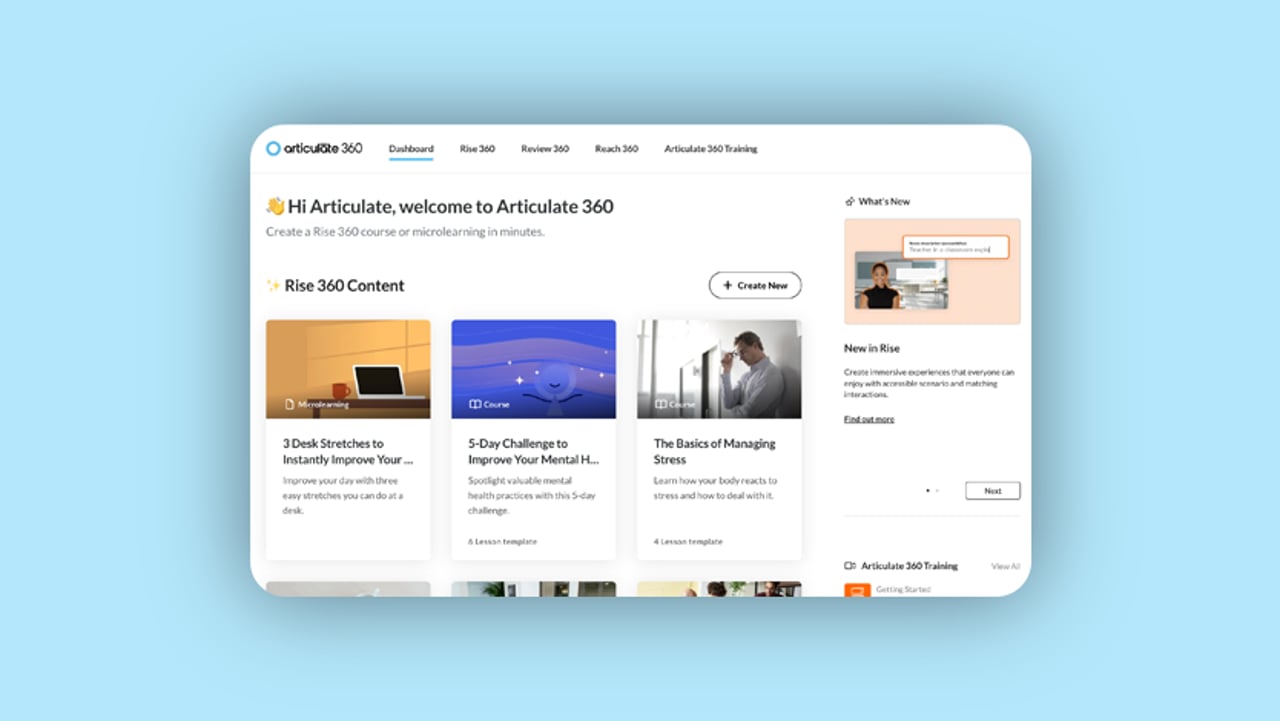
Research shows that a commitment to diversity, equity, and inclusion helps organizations adapt better to challenges–and makes them more likely to innovate. With more change than ever happening in and around the workplace, diversity-focused training can help boost outcomes, improve agility, and make your organization a better place to work. May is Asian American and Pacific Islander Heritage Month, making it a great opportunity to affirm your commitment to diversity. This spring, we’re bringing you content that you can use to grow your team’s cultural awareness, collaborative skills, and ability to innovate. We hope this content will spark curiosity and encourage larger conversations that lead to more emotional and creative intelligence among your employees. 1. Asian American and Pacific Islander Heritage Month (full-length course) Use this course to educate your team and expand their cultural knowledge, opening up more avenues for collaboration and creativity. Teams will get a simple introduction to AAPI history, meet leaders in art, food, science, and other major industries, and explore accessible ways they can honor AAPI Heritage Month. 2. 9 Ways To Celebrate AAPI Heritage Month (microlearning course) Celebrating AAPI Heritage Month is a great way to demonstrate your commitment to diversity and bring your team together for a good cause. This microlearning summarizes nine easy ways you can celebrate as a team–and encourages employees to grow their own knowledge individually, too. 3. From Draves to Kim: A Celebration of AAPI Athletes (microlearning course) Want a quick, engaging way to inspire and motivate your team? Set them up for success with this simple, accessible microlearning. Employees will meet snowboarder Chloe Kim, two-time Olympic gold medalist, and Vicki Draves, the first Asian American to win an Olympic medal and the first woman to ever sweep the diving events. Wrap-Up Packed with timely, engaging content, these resources can help improve your team culture, leading to even better collaboration and innovation. Add them to your e-learning strategy and watch as your team grows stronger and more agile. Remember, with an Articulate 360 subscription you can also tailor this content to best fit your audience and your organization–consider, for example, adding quotes and stories from AAPI figures in your field. To share and customize these resources, go to your Rise 360 dashboard, click +Create New, and select the course you want to use. Need other courses for your diversity, equity, and inclusion efforts? There are plenty of other options to choose from in the Content Library, including: Power and Pride: The Origins of Pride Month What Is Black History Month? Diversity Basics: Taking Action Honoring Herstory During Women’s History Month Want to try something you learned here, but don’t have Articulate 360? Start a free 30-day trial. And subscribe to our newsletter to get the latest product updates, e-learning examples, and expert advice sent directly to your inbox. If you have questions, please share them in the comments.115Views0likes1Comment