accessibility
66 TopicsIn Case You Missed It (ICYMI): Accessibility Updates in Q3 2026
Welcome to our Q3 2026 update! This quarter, we made it easier to add captions and structure content in Rise while improving caption workflows, alt text guidance, and screen reader experiences in Storyline. We also had the chance to talk about accessibility together at Articuland Orlando. Our Accessibility Group has reached 1,042 members! That’s 72 more people since our last update, and it means we’ve crossed the 1,000-member mark. Thanks for being here, sharing what works, and helping one another create more accessible training. Let’s take a look at what’s new this quarter! Highlights This Quarter This quarter’s accessibility updates centered around three themes: Making content easier to navigate and understand In Rise, authors can adjust heading levels within labeled graphic markers. A clear heading structure helps screen reader users understand and navigate content. The custom block audio player also received accessibility improvements. Making captions easier to create and manage Rise can now generate captions for uploaded videos and AI Avatars in custom blocks. In Storyline, authors can export all closed captions for a project at once or from the Video Tools Options tab. We also fixed issues that could cause captions to disappear or fail to update after media was edited. Connecting at Articuland Orlando I loved being at Articuland Orlando, hosting a session, and having accessibility conversations with customers and colleagues. Meeting people in person gave us another opportunity to hear about the work you’re doing and the questions you’re navigating. Thanks to everyone who stopped to talk! Product Updates Rise Enhanced: Adjust heading levels within labeled graphic markers to give content a clearer structure. Enhanced: The custom block audio player received accessibility improvements and a compact layout. Enhanced: Automatically generate captions for uploaded videos and AI Avatars in custom blocks. Enhanced: Rearranging blocks in the editor now uses less motion. Storyline Enhanced: Export all closed captions in a project at once, or export captions from the Video Tools Options tab. Enhanced: Alt text with exactly 150 characters no longer triggers the accessibility checker’s action to shorten it. That recommendation now appears at 151 characters or more. Fixed: Closed captions could be removed after editing a video. Fixed: Authors couldn’t separate closed captions to separate instances of the same video. Fixed: JAWS announced an object’s noobject’s te alt text instead of its selected-state alt text when learners navigated with the arrow keys. Fixed: Closed captions for AI text-to-speech did not update when narration was edited. Fixed: Closed-caption text could be missing after an AI voice was updated or regenerated. Fixed: The focus indicator highlighted an inactive area when tabbing through an Invalid Answer message. Other Updates Customer Story Artisan Learning Builds Accessible Training for Every Learner With Articulate 360 Artisan Learning shares how it considers accessibility while creating training for a wide range of people and projects. Its story is a reminder that choices such as adding captions, writing alt text, and supporting keyboard navigation can help more learners take part. Updated Articles Rise 360: Our Accessibility Journey Storyline 360: Our Accessibility Journey Accessibility Index37Views0likes0CommentsYou spoke, we listened: Alt text at exactly 150 characters no longer gets flagged
Hi everyone, At Articuland Orlando 2026, I had the chance to chat with many of you about accessibility in Storyline 360, and one piece of feedback I wanted to follow up on came up. The "Accessibility Checker" recommends keeping alt text to 150 characters or fewer, but it was flagging alt text that was exactly 150 characters, creating noise for authors who were already doing the right thing. When I got back from Orlando, I brought this to the team, and we fixed it. As of Storyline 360 Update 127: The 150th character now counts within the limit Only alt text that is 151 characters or longer will trigger the recommendation to shorten it To get the fix, update Storyline 360 through the Articulate 360 desktop app. A huge thank you to everyone who shared feedback at Articuland. Conversations like these directly shape what we build, so please keep them coming. If you run into anything else with the "Accessibility Checker" or have ideas for making a11y easier in Storyline 360, drop a comment below. Thanks, Ronnie28Views1like0CommentsStoryline 360: Keyboard focus missing for right-click trigger
Hey all, I have a short simulation built that functions well with a mouse, but keyboard navigation gets stuck when the trigger is "user right clicks" on a hotspot. In these cases, the focus indicator is missing, and the user cannot even focus on the hotspot. Any ideas?111Views0likes4CommentsEndless Loop in Labeled Graphic Block
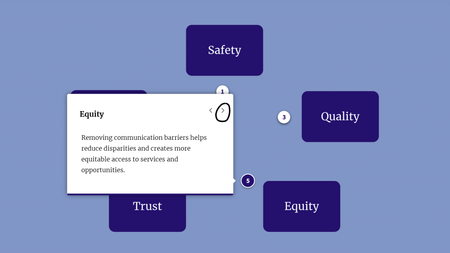
Hi everyone, I'm currently evaluating keyboard navigation for a course using NVDA. I'm having trouble getting stuck in an endless loop around a labeled graphic block, and unsure if: There's something I'm not adjusting in Rise 360 This is a "me problem" with NVDA navigation I didn't have this issue with another labeled graphic block, but I'm not sure what the difference is. When testing with NVDA, I'm using Tab to navigate to the Next button of each Marker's description. But then after Marker 5, instead of exiting to the next Continue button outside of the block, it just keeps me going around and around in an endless loop. (I originally had each marker styled as a plus sign, but had hoped numbering them would fix the issue.) Unfortunately, I didn't find the Accessibility Info section of the Rise 360: Using Labeled Graphic Blocks particularly helpful.96Views2likes1CommentAccessible PDFs in Rise360
Hi everyone, Any insight very much appreciated! Context: I used Adobe Acrobat Pro to make two PDFs accessible by adding tags and adjusting the reading order, etc. Everything works smoothly with NVDA when opening each PDF. The Issue: The trouble starts when I link to the PDFs within my course under a "Further study and resources" type section. The PDFs open in the browsers I've tested, but NVDA simply says things like "Document loading complete. You are on page 1. frame. document content region." I've tried navigating via headings, links, interactive elements, and even just Ctrl + directional arrows, but none of the content appears tagged or readable. The Ask: I'm not sure where to go from here... Add the PDFs as Attachment blocks instead (but then every learner has to download to view)? Add a note at the top of the resources section ("For the best screen-reader experience, please download PDFs and open in Adobe Acrobat Reader.") and then put something like "Accessible, tagged PDF" after those files? A third and much better option that someone can recommend? Thank you!!Solved107Views0likes2CommentsIn Case You Missed It (ICYMI): Accessibility Updates in Q2 2026
Welcome to our Q2 2026 update! This quarter continued our focus on supporting the creation of accessible training and improving the learner experience. From new capabilities for identifying accessibility improvements to refinements for screen reader users, keyboard navigation, and color contrast, these updates reflect our ongoing commitment to accessibility across Rise and Storyline. Our community continues to grow. We now have 970 members, an increase of 54 this quarter. We’re glad you’re here. Let’s take a look at what’s new this quarter! Highlights This Quarter This quarter's accessibility updates centered around three themes: Identifying accessibility improvements earlier Storyline Labs introduces an experimental Color Contrast Check that helps identify color contrast issues across an entire project, while updates to Rise theme colors ensure contrast is calculated correctly across supported theme elements. Giving authors more control Storyline now lets you choose which objects are visible to screen readers, giving you greater control over how your training is presented to assistive technologies. Improving the learner experience Across Rise and Storyline, we refined screen reader support, keyboard navigation, focus management, and question interactions to provide a more predictable experience for learners using assistive technologies. Together, these updates continue our focus on supporting accessible training and improving the experience for everyone who creates and completes it. Product Updates Rise Enhanced: To improve accessibility, we've globally applied WCAG 2.1-compatible contrast to theme color elements that previously had contrast calculated incorrectly. Enhanced: Improved screen reader focus behavior so that, after answering a knowledge check, focus moves directly to the next relevant content. Enhanced: Improved tooltip behavior so that only meaningful tooltips are displayed for interactive elements like the block selector and sorting activity. Enhanced: Preview now opens the entire course, with full navigation. Enhanced: The video player is now consistent across the app and provides a refined experience with better responsiveness on mobile devices. Storyline New: Easily control which objects should be visible to screen readers with a new accessibility toggle in the timeline. New: Storyline Labs is here! Access experimental features early from the Labs button in the File or View tab. Available in Labs: Color Contrast Check helps identify color contrast issues across an entire project using the accessibility checker. Fixed: Screen readers announced extra text when certain question types were used. Fixed: A trigger designed to fire with a user click incorrectly executed when using a screen reader. Fixed: Text-entry fields didn't follow the defined custom focus order during preview. Fixed: Windows Narrator read bulleted and numbered list items twice. Fixed: Screen readers didn't correctly announce nested list items in the Notes panel. Fixed: The accessibility checker incorrectly reported issues on screen recording slides where all objects were hidden from accessibility tools. Fixed: The focus order was incorrect for screen readers when the Transcripts tab was opened. Fixed: Drop-down question choices didn't display a scrollbar when the list couldn't fit all choices. Other Updates Updated Articles Storyline 360: Working with Buttons Rise 360: How to Use Process Blocks Rise 360: Our Accessibility Journey Storyline 360: Our Accessibility Journey Storyline 360: Working with Variables Storyline 360: Working with Triggers Storyline 360: Pick-One Questions Accessibility Index93Views1like0CommentsNew in Labs: Color Contrast Check in Storyline 360
Hello, my fellow a11y friends! We just launched the new Color Contrast Check inside Storyline Labs, and it’s ready for you to try out! This feature integrates directly into your built-in Accessibility Checker, making it easier than ever to catch text and object fill contrast issues before you publish. No extra tools required. We want to build the best possible version of this tool, which means we want to hear from you. Turn it on in your Labs settings today, test it out on your current projects, and let us know what you think. Check out the New in Labs: Color Contrast Check in the Accessibility Checker post for more details!239Views0likes4CommentsAccessibility - Screen Readers and TTS
Hi, I'm currently completing an apprenticeship in Digital Learning Design, and I'm working through some content on accessibility. Previously, all our storyline courses had text-to-speech added on, but the accessibility features such as alt text and focus orders weren't used. Since I've learnt more about screen readers through my apprenticeship, I've been following correct processes and designs for best practice with screen readers. However, as these read out the text on screen, I'm wondering if the text-to-speech I manually add onto all slides is still required? Part of me thinks it might be too much if both the audio on the course and the screen reader are reading the content out loud, but then we might have learners with dyslexia, for example, who might not require a screen reader but still prefer to have the text read aloud. How does everyone else navigate this? Do you use both or one or the other? Thank you!169Views0likes3Comments