advice
6 TopicsiFrame video becoming a keyboard trap
We have several Rise tutorials that use YouTube content embedded using iFrames. Doing accessibility testing, we recently discovered that these become keyboard traps. Users can tab into the content and play it, but the standard guidance of using esc to navigate out of the video isn't working and tabbing through also doesn't seem to work. Does anyone have insight into what we need to do to make this content fully keyboard accessible? Has anyone else had this issue? Thanks!826Views3likes9CommentsAccessible systems training
Hi all, I was wondering what people's thoughts are on best practice of making systems training in Articulate Storyline360 accessible, targeting WCAG 2.2 AA. Presumably the system being recorded itself needs to be accessible to this standard for users. How does the built in screen recording show me/try me type content behave with screen readers and key board navigation? Any experiences from end users that use assistive technologies, that have been through systems training? Thanks in advance399Views0likes1CommentPlayer Setup Recommendations for 508/WCAG 2.1 AA: Menu, Transcript, Navigation Buttons
Lately, I’ve been seeing an increased focus among organizations and government entities on ensuring Storyline courses meet WCAG 2.1 Level AA and Section 508 standards. While Storyline 360 offers several ways to create accessible content, I’m looking for general best practices for configuring the Storyline player so that it is straightforward for developers to implement while also providing a seamless experience for screen reader and keyboard users and meeting these requirements. I would love to hear your recommendations on the most effective way to set up the player, whether that means using the built-in player features or developing a custom navigation interface. Specifically: Transcripts & Glossaries: Do you recommend using the built-in player tabs, such as the Notes panel and Glossary tab, or is it better to build custom on-screen versions? If using the built-in player, does the Notes panel function sufficiently to meet accessibility requirements, or would you recommend a different approach for transcripts? If you do use the Notes panel, do you recommend placing it within the menu sidebar or at the top? The Menu: For menus that outline the course structure, do you recommend excluding it to reduce “tab fatigue” for screen reader users, or including it so learners can better track their progress? If a menu is included, do you prefer using the built-in Storyline menu or creating a custom one? If you use the built-in menu, is it best practice for the sidebar to start collapsed to keep the focus on the main content, or expanded for easier access? Also, when using the built-in player menu, do you recommend including subheadings? Navigation Buttons (Next/Prev): Do you recommend using the built-in Next/Previous buttons or adding custom on-screen buttons? While I know the built-in buttons now support accessibility shortcuts, many developers still seem to create their own Next/Previous buttons. I assume this is to provide a more intuitive end-of-slide experience. In any case, I would value your suggestions and would especially appreciate understanding the reasoning behind the recommended setup.299Views0likes2CommentsAccessible PDFs in Rise360
Hi everyone, Any insight very much appreciated! Context: I used Adobe Acrobat Pro to make two PDFs accessible by adding tags and adjusting the reading order, etc. Everything works smoothly with NVDA when opening each PDF. The Issue: The trouble starts when I link to the PDFs within my course under a "Further study and resources" type section. The PDFs open in the browsers I've tested, but NVDA simply says things like "Document loading complete. You are on page 1. frame. document content region." I've tried navigating via headings, links, interactive elements, and even just Ctrl + directional arrows, but none of the content appears tagged or readable. The Ask: I'm not sure where to go from here... Add the PDFs as Attachment blocks instead (but then every learner has to download to view)? Add a note at the top of the resources section ("For the best screen-reader experience, please download PDFs and open in Adobe Acrobat Reader.") and then put something like "Accessible, tagged PDF" after those files? A third and much better option that someone can recommend? Thank you!!Solved99Views0likes2CommentsAccessibility - Screen Readers and TTS
Hi, I'm currently completing an apprenticeship in Digital Learning Design, and I'm working through some content on accessibility. Previously, all our storyline courses had text-to-speech added on, but the accessibility features such as alt text and focus orders weren't used. Since I've learnt more about screen readers through my apprenticeship, I've been following correct processes and designs for best practice with screen readers. However, as these read out the text on screen, I'm wondering if the text-to-speech I manually add onto all slides is still required? Part of me thinks it might be too much if both the audio on the course and the screen reader are reading the content out loud, but then we might have learners with dyslexia, for example, who might not require a screen reader but still prefer to have the text read aloud. How does everyone else navigate this? Do you use both or one or the other? Thank you!99Views0likes3CommentsEndless Loop in Labeled Graphic Block
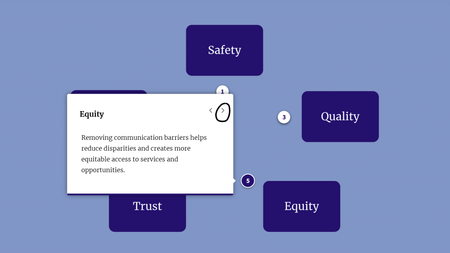
Hi everyone, I'm currently evaluating keyboard navigation for a course using NVDA. I'm having trouble getting stuck in an endless loop around a labeled graphic block, and unsure if: There's something I'm not adjusting in Rise 360 This is a "me problem" with NVDA navigation I didn't have this issue with another labeled graphic block, but I'm not sure what the difference is. When testing with NVDA, I'm using Tab to navigate to the Next button of each Marker's description. But then after Marker 5, instead of exiting to the next Continue button outside of the block, it just keeps me going around and around in an endless loop. (I originally had each marker styled as a plus sign, but had hoped numbering them would fix the issue.) Unfortunately, I didn't find the Accessibility Info section of the Rise 360: Using Labeled Graphic Blocks particularly helpful.95Views2likes1Comment