ai assistant
23 Topics4 Simple Ways to Edit Images with AI in Storyline
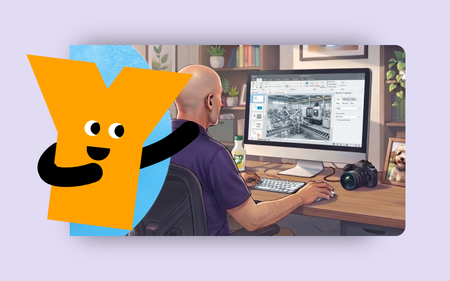
This week's tip comes from RonPrice at our certified training partner, Yukon Learning. Many instructional designers don't have a background in editing graphics and images, or they simply don't have the right software. The AI tools in Storyline can help bridge those gaps. In this video, we will explore 4 simple ways AI helps you edit graphics in your courses. You'll learn how to: Remove an item from an image Adjust the people or industry of an image Edit the background to match the image style Redact or mask potentially sensitive information Resources: Yukon Learning YouTube Channel Need Articulate 360 Training? Sign up.114Views2likes0CommentsHow to Create Consistent Characters Using AI in Storyline
Here's an easy way to create consistent characters in Storyline using AI. It's pretty simple. Copy and paste the characters to the AI chat panel, add a prompt and you'll get the characters how you want. Watch the video to learn more. Also, you can download a bunch of free characters in the downloads section.306Views5likes0CommentsHow to Create Transparent Backgrounds for Characters
I've been giving away some of the AI characters I create. Creating them is easy enough with AI tools and we have lots of instructions on prompting. What I find to be te challenge is getting the image resolution upgraded and then removing the background. This video above walks through how I do it for the characters I've created. The key steps after getting the image: Prompt to get a solid chromakey green background. Upscale the image. I use Gigapixel, but there are some free options. Remove background following steps I outline in the video.1.2KViews0likes0Comments