character
14 TopicsLevel Up a Scenario: Add Characters and Emotions
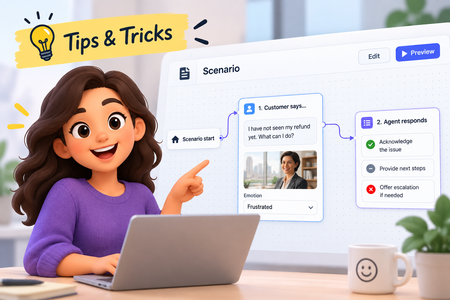
Our recent platform updates brought some exciting new content types. Scenarios specifically have been a lot of fun to explore. In this tip, you'll learn how to add your own characters and see the magic of automatic emotion generation! Watch the video to see how!219Views2likes0CommentsHow to Create Consistent Characters Using AI in Storyline
Here's an easy way to create consistent characters in Storyline using AI. It's pretty simple. Copy and paste the characters to the AI chat panel, add a prompt and you'll get the characters how you want. Watch the video to learn more. Also, you can download a bunch of free characters in the downloads section.290Views5likes0Comments3 Ways to Let Users Choose their Own Character or Avatar in Storyline
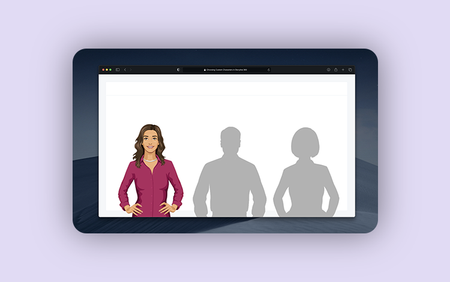
In this tutorial, you’ll learn how to let learners select their own character and explore three different ways to show that character across multiple slides. You’ll use variables to store learner choices and apply slide triggers, timeline triggers, and slide masters to display the customized character.609Views0likes0CommentsTurn That Light Off
Hello! Non-human characters can be a strong choice for your e-learning courses. They're often more popular with users than AI avatars. My characters always come across as a bit grumpy, for some reason... Believe it or not, this is a regular 'pick one' freeform question slide. The character was created using Nano Banana, and I manipulated it in Pixlr to create the different mouth shapes. The animation is achieved through rapid state changes, synchronised to the waveform of each bit of narration. This is controlled by Javascript that I wrote with the help of Claude.ai. The voice is Dave, one of my favourite Storyline AI voices, with the style exaggerated to 75 😀 Switch my demo on here: https://bit.ly/elhc539
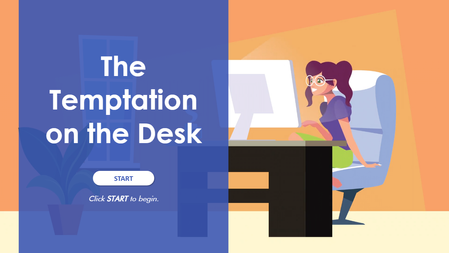
Teaching bribery and gifting in a different way.
We built a short workplace ethics scenario where objects and concepts step in as characters, showing how small, everyday gifts can quickly turn into bribery risks. Click the link below to experience how powerful custom eLearning design helps learners pause, think and choose the right response. https://www.brilliantteams.com.au/bribery-gifting-ethics-custom-elearning-scenario/Alt Text Speaks
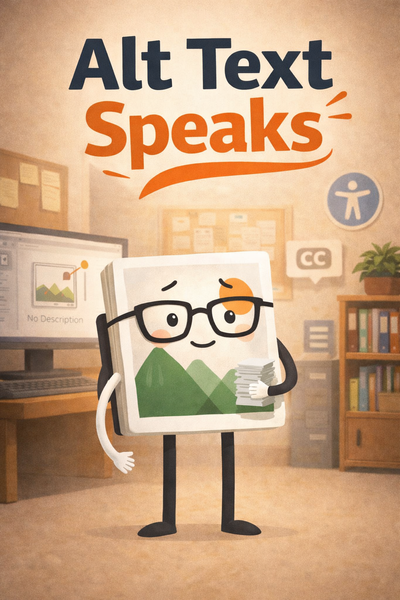
In this short video, Alt Text becomes the main character and speaks up about what happens when it’s skipped. Instead of listing accessibility rules, the character explains the impact in its own words, keeping the message simple, human, and memorable. Watch Alt Text speak! About Me Jayashree Ravi Curious about more e-learning innovations? Connect with me on LinkedIn to share ideas, discuss implementation techniques, or simply chat about instructional design challenges.Meet the Extinguisher Fire Safety Squad
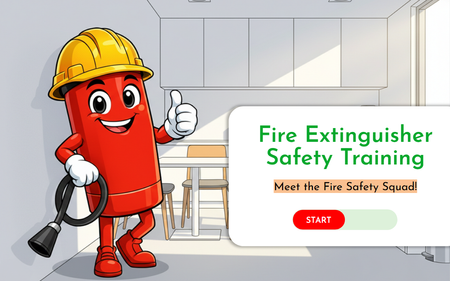
We bring fire extinguishers to life through custom eLearning, guiding learners step by step through correct extinguisher use during fire emergencies, all inside a gamified eLearning experience. View the eLearning sample in action: https://www.swiftelearningservices.com/fire-extinguisher-safety-training-custom-elearning/The Tool Shed Support Group
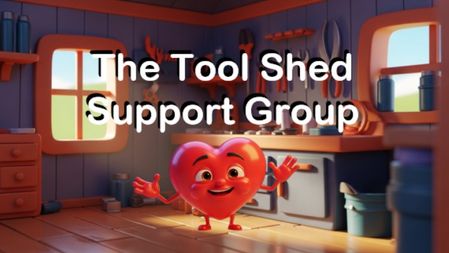
I know I always say these challenges are fun but this one was a blast! 😁 The background and heart were created by Articulate (along with the TTS). I tried using Articulate to generate the characters but it couldn't get it right so I used Nano Banana. I uploaded an image and gave it the same style prompt as Articulate's 3D Animation style. To get the different expressions, I just kept prompting Nano Banana to "keep everything the same and make it look (insert emotion here)." Once I downloaded each expression, I opened the image and used MS Designer to remove the background. I stacked the images and overlapped the fade in/out animation so the transition from one expression to another was smoother than changing states.SolvedUsing Anthropomorphic Characters in E-Learning #539
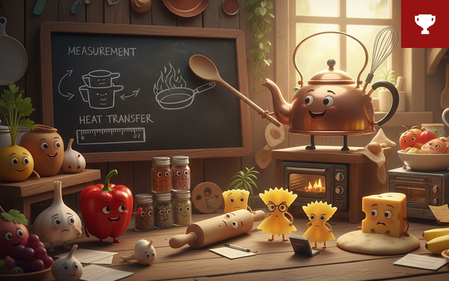
This week, your challenge is to create a short learning experience where the main characters are objects, tools, or even concepts that act like people. Let the characters show (and maybe complain about) what happens when they’re used the right or wrong way.1.9KViews0likes0CommentsChars control
Hi! I´m working on a SL activity about Chars max a min control when user typing in Entrytextfield var, but I don´t know why it does not working!! Please, could you, checking o adding an example about characters control max and min? I need to solve a javaScript issue. I´m traying to follow a programming code but it does not work! Any help it is gonna be appreciate!323Views0likes3Comments