content library 360
165 TopicsAI Image, Media, Prompt Library/History
Hi, I am relatively new to the e-learning/Articulate world and I haven't used Articulate as much as many others in this community. However, one of the things that I think could be a valuable asset to the AI assistant would be a library of any previously generated images or prompts. This would be valuable in a few settings that I thought of. Maintaining a certain image style throughout the course. Revising of other AI generated images/audio that has been added and then deleted from the course to be able to pick up where I left off with the prompt. Referencing previously well developed prompts that I would like to use again. Having the library or a history of my prompts would be valuable to help the forward momentum of the project instead of constantly starting over in the AI prompt. I understand I can simply save the images or prompts to a local drive or cloud storage. However, often times I forget or don't think to save them in the moment. I believe having this built into Articulate would make the usage more intuitive and user friendly. Thank you! Amanda Buzzell12Views0likes1CommentCourse Audio Translation Not Completing Successfully
We are facing an issue with course audio translation. The audio files are not getting translated completely, and the process stops with the error message: "Translation not complete." Has anyone encountered this issue? Any suggestions or guidance would be greatly appreciated. Thank you!AI Animation
I am normally a Storyline user, but I do use Rise to make AI animation. But recently when my animation in Rise is generated random words or shapes appear on the screen. I am not sure why or how to make it not happen. I am also wondering if I can create custom AI videos in Storyline yet? If so how? Thank you for all of your help. You can email me at mailto:[email protected] if you'd like.123Views0likes9CommentsAI text-to-speech voice inconsistencies?
Hi everyone, I'm working on a Storyline project that includes a customer service interaction. For one of the characters, I'm using the Zoe voice from the voice library (described as charismatic, gritty, and engaging). However, when using the v3 voice model, the voice intermittently shifts between the expected delivery and what sounds like a completely different voice with a strong Southern U.S. accent and noticeably different cadence. Occasionally, switching to v2.5 and then back to v3 temporarily resolves the issue, but the results are inconsistent. As a result, generating audio has become quite time-consuming and frustrating. I'm curious whether this is a known issue with the v3 model and, if so, whether there is a workaround or planned fix. Additionally, are there other African American female voices available within Storyline that are considered stable, long-term options and less likely to be retired from the platform? The options seem to be quite limited from what I've seen. Any insights or recommendations would be greatly appreciated. Thanks in advance!64Views0likes2CommentsNewbie needs Help
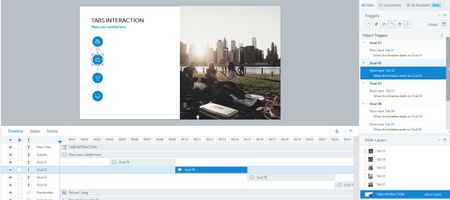
I am using a Content Libary slide called Tabs Interaction. The slide is designed to advance through the 4 icons and switch pix when user clicks. I am trying to automate that so the slide delivers the 4 points on it's own, and then at end, I added a 5th tab designed to show all 4 bullets show together. I was successful, except the last stop, where it shows all 4 bullets for 1 second and then goes to 1st bullet only. What have I done wrong? Attached are snips of my tabs/base layer layout, my timeline and my object triggers. Any suggestions? Thanks - First time here.Solved103Views0likes10CommentsLost my Review 360 links from my account
Hi all, I have lost my Review 360 links from my account. The modules were published under my login, and this is a paid account. I have faced this issue multiple times. Is there any update in Storyline 360, or what kind of issue could this be? I am unable to understand why this keeps happening.80Views0likes6CommentsAnimated Avatars
I'd love to be able to use Articulate (I mainly use Storyline) to create animated avatar training modules. I'm looking for more natural movements than what the static avatars allow using states and intro/exit animations. For example, I want to create an animated video of a cartoon avatar putting on PPE. Another example is an avatar whose mouth moves while talking.39Views1like1CommentAbility to Copy/Move Microlearnings to Courses
In Articulate 360, it’s possible to copy or move a lesson from one course to another, but there’s no equivalent capability for microlearning content. 🙄 Instead, users are forced to rebuild microlearning content as block templates every time they need to reuse it in a course, which is both inefficient and unnecessarily time-consuming. 🤬 This gap creates avoidable friction in what should be a straightforward workflow. Enabling the ability to copy or move microlearning content into courses would be a simple but high-impact improvement that would remove a lot of frustration and redundancy. Rather than focusing heavily on AI features, it would be great to see attention given to strengthening these core content management capabilities that directly affect day-to-day productivity. I am sure I am not the first person to share this feedback. Thanks for your time and consideration! 🙂229Views3likes3Comments8 Business Use Cases for Microlearning
Are you excited to try out microlearning, but unsure when to use it? Below, we outline eight common workplace situations that benefit from a short-form course. Each situation includes a sample microlearning. At the end, learn how you can customize these templates for your own company and training needs. 1. Create Organizational Alignment To hit a business target, everyone needs to be moving in the same direction. Creating that alignment starts with clear, frequent communication of the shared mission, vision, and values. Microlearning can help. The following editable template shows how you can align employees through regular executive “micro” updates: Executive Update 2. Highlight HR Information, Notices, or Reminders Educating employees about annual events like open enrollment, tax season, and compliance training is a critical function of HR teams. The problem? Important announcements often get missed when they’re embedded in long paragraphs or endless emails. Grab the following templates to see how microlearning makes HR communications more digestible and engaging: A Quick Guide To Open Enrollment Internal Company Newsletter 3. Strengthen Company Culture and DEI Initiatives Fostering an inclusive company culture is a continuous process—not a one-time effort. A series of microlearnings can support your larger culture-building and DEI efforts. Check out the following examples for ideas on how to get started: Are You an Ally? Try Taking on These 5 Roles How To Identify and Stop Using Ableist Language Gossip-Proof Your Workplace 4. Streamline Business Processes You can also use microlearning to document and streamline business processes or workflows—such as employee onboarding or performance management. Notice how the following examples make it easy for employees to work through the steps of a process independently: New Hire Pre-Hire Checklist Performance Review and Feedback 5. Increase Security Awareness Most successful data breaches, phishing attacks, and other cybersecurity incidents are caused by human error. Adding refresher microlearnings throughout the year can fortify your defenses. See an example for safeguarding against phishing attacks below: Spot the Phish 6. Enhance Employee Wellness A successful business needs thriving employees. But employee wellness training often ends up buried under competing priorities. Microlearning makes it easy for employees to fit in short breaks for self-care throughout the workday. Check out these two wellness-related microlearning examples: 3 Desk Stretches to Instantly Improve Your Day 5 Tips for Better Naps 7. Provide Quick-Reference Guides Microlearning is the perfect resource for one-off training questions: Employees can quickly find the answers they need—when they need them. Below, we’ve created templates for product and software training. But you could easily create quick-reference guides for sales, customer service, and other teams. Get To Know [Name of Product] Software Training 8. Reinforce and Assess Key Takeaways Finally, who says you have to choose between a more sizable course and microlearning? Repetition aids retention. Consider following up longer training sessions with a microlearning quiz, scenario, or summary. The examples listed below demonstrate how you might do this: Can You Recover From a Workplace Mistake? Training Refresher Wrap-Up There’s no shortage of creative ways you can use microlearning to achieve your business training objectives. The examples above are just a starter list. You might also check out submissions to one of our weekly community challenges, 40+ Microlearning Examples Created in Rise 360 #407. Interested in customizing one of these examples for your team? If you’re an Articulate 360 subscriber or trialer, you can edit all of the examples linked throughout this post by choosing the course from our Rise 360 microlearning content templates. Here’s a short video showing how to do that: What’s the latest microlearning course you’ve created? Tell us about it in the comments—and feel free to ask any questions you might have! Like this article? Subscribe to our newsletter to get the latest e-learning inspiration and insights directly in your inbox. You can also find us on LinkedIn and Twitter.4.3KViews0likes11Comments