download
115 Topics7 Most Popular Storyline 360 Examples & Downloads of 2023
E-Learning Heroes Community is the perfect place to get inspired by examples from both our amazing community members and our Articulate staff members. Below are the top seven Storyline 360 examples from 2023. 1. Storyline Comics Style Communication: Branched Scenario See how you can use interactive storytelling elements and branching techniques to teach learners the skills they need in this cool example. 2. Power of Self-Motivation Scrolling Experience Check out this completely unique interactive example that engages learners right from the start. 3. Office Safety Training Template Want to teach workplace safety in a memorable and interactive way? Check out this downloadable template to help kickstart your project. 4. Interactive Storytelling Template Learn how to leverage storytelling in Storyline 360 to help your learners apply their skills in a real-life scenario with this inspiring example. 5. Room Exploration Interaction Template Make searching an office, home, warehouse, store, or any other 2D environment feel more cinematic with this downloadable interaction. With the help of hotspots, triggers, and layers, learners can use the on-screen flashlight to help them discover clues. 6. Reset Drag-and-Drop Incorrect Choices Template Ever wanted to reset only the incorrect drag choices in Storyline 360? Use this starter template and supporting video tutorial to learn how to reset your own drag-and-drop interactions. 7. Employee Health and Wellness Check out this stunning example to see some of the immersive and custom learning experiences you can create with Storyline 360. Wrap-Up We hope these examples inspire you as you work on your next e-learning projects! Did we miss any of your favorites? Be sure to let us know in the comments below. You can view more article recaps from 2023 by checking out our latest compilation of articles here: All the Best E-Learning Heroes Content from 2023 in One Place. Subscribe to our newsletter to get the latest e-learning inspiration and insights directly in your inbox. You can also find us on LinkedIn and X (formerly Twitter). And if you have questions, please share them in the comments.37KViews1like5CommentsAllow Learners to Choose an Avatar Using One Variable With Storyline 360
In this article about Gamification techniques, we talk about using an avatar or character that follows you through an entire e-learning course. Why do this? Two reasons: It’s a good idea to choose characters that are relevant and that people “connect” with. Learners like to have control! In this example, notice how you get to choose between a female or male character at the start of the scenario and then that character appears throughout the course. View the demo | Download file In this article, we’ll take a look at how to get this effect in Storyline 360 using a single variable, along with the appropriate triggers and states. Add Characters and Button Sets The first step is to create the slide where the learners will choose their character. Go ahead and pop a few illustrated characters onto that slide, along with a Continue button. Now, because you’ll want the character you selected to show up later in the course, copy one of the characters you just inserted onto a few of your content slides. For each character, create a new, custom state that displays the other avatar. The idea is to toggle between the male or female state depending on which avatar the learner selects on the first slide. Next, back on the slide where learners choose their character, select both of your characters to create a button set. Putting items in a button set means only one of them can be selected at any given time. Learn more about button sets in this tutorial: Working with Button Sets. Add Variables and Triggers Now you need to add a variable that will control which avatar is visible throughout the course. To do that, create a new number variable with a default value of 0. If you’ve never worked with variables before, don’t be intimated! It’s super easy once you get the hang of it. Here's a tutorial that’ll walk you through the basics: Working with Variables. The next step is to add triggers to the Select button. The first trigger adjusts the number variable and makes it equal to 1 if the male avatar is selected when the Select button is clicked. To save yourself time, copy and paste the first trigger. Then you can simply update the value to 2 and the selected character to the female avatar. Now when the Select button is clicked, the variable will adjust to 1 or 2 depending on which avatar is selected. The last thing you need to do is add triggers on the content slides that display the appropriate avatar. Add a slide trigger that will show the male state on the character if the variable is equal to 1. Then add a second trigger that will show the female state on the character if the variable is equal to 2. And there you have it—a quick and easy way to easily use a single variable, states, and triggers to control a learner’s avatar in a Storyline course. Want to try something you learned here, but don’t have Storyline 360? Start a free 30-day trial of Articulate 360, and come back to E-Learning Heroes regularly for more helpful advice on everything related to e-learning. If you have any questions, please share them in the comments.5.2KViews0likes68Comments40+ Examples of Accordion Interactions for E-Learning Designers #147
Accordion Interactions in E-Learning RECAP #147: Challenge | Recap This week’s challenge asked course designers to share creative ideas for using accordion interactions in e-learning. Examples include accordions with sliders, embedded quizzes, image zooms, and much more! Thanks to everyone who shared an example, download, or feedback this week! Montse Anderson View & download | Montse Anderson | Website | @mLearning Matthew Guyan View project | Download | Matthew Guyan | Website | @MattGuyan Allison Goldthorpe View project | Learn more | Allison Goldthorpe | Website Jeff Kortenbosch View project | Download | Jeff Kortenbosch | Website | @elearningjeff Ashi Tandon View & download | Ashi Tandon | Website | @ashi_tandon View & download | Ashi Tandon | Website | @ashi_tandon Tracy Carroll View project | Learn more | Tracy Carroll | Website | @1tracycarroll Jackie Van Nice View project | Jackie Van Nice | @jackietrains Alexander Salas View project | Learn more & download | Alexander Salas | Website | @stylelearn Niels Rop View project | Niels Rop | Website Richard Watson View project | Learn more | Richard Watson | Website | @rwatsonID Dan Graham View project | Download | Dan Graham | Website | @EzLearnin Linda Lorenzetti View project | Linda Lorenzetti | Website | @lindalor Brandon Lynn View project | Download | Brandon Lynn Ridvan Saglam View project | Ridvan Saglam | Website | @rbsaglam Anne Seller View project | Anne Seller | Website | @LifeScienceLSI Joshua Stoner View project | Download | Josh Stoner | Website | @joshuastoner Nancy Woinoski View project | Nancy Woinoski | Website | @pinchedhead Savneet Singh View project | Savneet Singh | Website | @exelinisd Aman Vohra View project | Aman Vohra | Website Dianne Hope View project | Learn more & more | Dianne Hope | Website | @DianneHope Emily Bramley View project | Emily Bramley Alex Vostretsov View project | Alex Vostretsov | Website David Tait View project | Learn more & download | David Tait | Website | @4ptLtd Oleg Miroshensky View project | Oleg Miroshensky | Website Lili Seram View project | Lili Seram Alicia Pennington View project | Alicia Pennington Veronica Budnikas View project | Download | Veronica Budnikas | Website | @verobudnikas Nejc Žorga Dulmin View project | Learn more | Nejc Žorga Dulmin | Website | @nejcd La Shaunda Webb View project | La Shaunda Webb Sam Zimmer View project | Sam Zimmer Phil Eagles View project | Phil Eagles | Website New to the E-Learning Challenges? The weekly challenges are ongoing opportunities to learn, share, and build your e-learning portfolios. You can jump into any or all of the previous challenges anytime you want. I’ll update the recap posts to include your demos. If you have a blog, please consider writing about your challenges. We’ll link back to your posts so the great work you’re sharing gets even more exposure. If you share your demos on Twitter, try using #ELHChallenge so your tweeps can track your e-learning coolness. Share Your Accordion Interaction Examples! The accordion challenge is still open! If you have one or more ideas you'd like to share, please jump over to the original challenge and post your links in the comments section. I'll update this recap page to include your examples.2.5KViews0likes0CommentsCooking Game (Jeopardy style + Gamifiation)
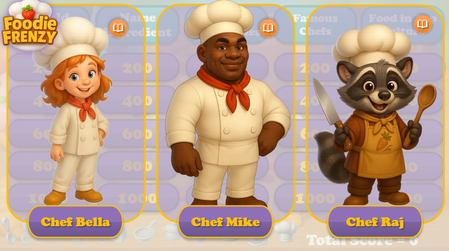
Hello Articulate Heroes! I'm excited to share my second personal project with you — a cooking-themed, Jeopardy-style game! Cooking Frienzy This project was inspired by two fantastic webinar series shared here: How to Create A Jeopardy! Style Game Gamification series I started with the "Jeopardy!" template and added the following custom features: Cooking-themed questions and answers — 5 questions across 5 categories Custom visuals — including characters, backgrounds, UI, and tokens The ability to choose one of three characters at the start of the game (and replay with a different chef assistant!) Personalized feedback and questions — with character-specific images and voiceovers A 20-second Pomodoro-style timer with a “wiped” animation Tokens awarded when the user completes a certain number of questions The characters were created using AI. Thank you for taking the time to check out the game! I’d love to hear your thoughts — feel free to share any comments or suggestions! You can check-out the game by this link: Cooking FrienzySolved2.5KViews9likes21CommentsHow to Use GIFs as Cover Photos in Rise 360 (with Free GIFs!)
Adding a cover photo to a Rise 360 course is an easy way to make your course look beautiful, inviting, and customized. And you’re not limited to still photos! You can add GIF files to your Rise projects to make them really come to life. That’s why we’re giving away a bundle of six GIFs for you to use in your Rise 360 courses. Grab the download, then check out this simple tutorial to see how easy it is to update your cover photo with one of these gorgeous GIFs: And remember to subscribe to our newsletter to get the latest e-learning inspiration and insights directly in your inbox. You can also find us on LinkedIn and X (Formerly Twitter).2.2KViews0likes32CommentsUp-Updated "Reveal" codes
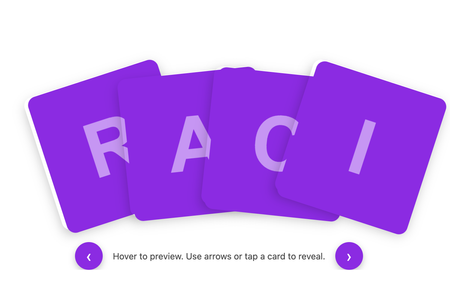
I’ve been experimenting with the original HTML code blocks included in Articulate 360’s built-in examples and wanted to share how far you can extend that base structure using GenAI to iterate and refine interactions. Starting with the default image-reveal index provided by Articulate, I used GenAI to progressively develop three new versions. I supplied my own images, created meaningful alternative text for screen readers, and introduced additional UX and accessibility improvements. Every version is fully tailorable if you want to adapt the formatting, colours, spacing or behaviour. The three examples are: Enhanced Image Reveal Grid Uses the original Articulate structure. Adds a hover zoom, a click-to-zoom state, and high-contrast purple letter tiles for accessibility. Fanned “Deck of Cards” Flip Interaction A dynamic fanned layout, more like a real card hand. Cards lift and reveal their letter on hover, flip on click, and reset if clicked again. Includes chevron navigation for easier cycling. Plain Flip Grid with Navigation A clean, accessible flip-card grid with navigation chevrons. Mirrors the deck behaviour but with a simplified layout. NOW WITH MORE EXAMPLES of what reveal styles can imagine! If you have suggestions, improvements or alternative approaches, I’d really love the feedback. And if you’d like to use or remix any part of this, feel free — I’d love to see what you create with it. Review3602.1KViews14likes13CommentsImmersive Phone Conversation in Storyline
Download this cool (FREE) Phone Conversation template for Storyline; perfect for any scenario with two characters talking. It’s layered with voiceovers, triggers, animations, and clean layouts. It also uses animated APNGs, which look way smoother than jagged GIFs that struggle with transparency. Preview it here: https://www.craftuxd.com/product-page/sellsmart-freebie Check out tutorial here: https://youtu.be/kMpUcYJRNnE?si=jON1XKQtA-4AsIRP2KViews11likes6CommentsFlip animation using GSAP in Articulate Storyline to have smooth flip animation.
We recently faced a challenge with the built-in swirl animation in Storyline (SL). Our client found it cluttered and pointed out that the animation flipped twice, which logically should result in showing the same side again. We agreed with this feedback and decided to explore alternative solutions. After some research and experimentation, we discovered that using GSAP (GreenSock Animation Platform) provided a much cleaner and more logical flip animation. GSAP allowed us to create a smooth and visually appealing flip effect that only flips once, addressing the client's concerns effectively. By integrating GSAP with Storyline, we were able to enhance the overall user experience and meet the client's expectations. This solution not only resolved the issue but also opened up new possibilities for creating more sophisticated animations in our e-learning projects. Hope it will be helpful..2KViews2likes3CommentsCollection of Carousel Templates
Some experiments! Hope this gives you some inspo. Vertical Sliding Interaction (Light): Preview Notes: Uses hover layers which don't work on mobile. Features: Two options for vertical progress bars, swipe forward and back animations Horizontal Swipe Interaction (Dark): Preview Notes: Uses hover layers which don't work on mobile. Features: "Dot" progress animations2KViews4likes3CommentsUsing multiple sliders as an alternative to drag-and-drop, with dynamic Z-index control
Hello! For this week's ELH Challenge (#489), DavidAnderson asked us "to share an interactive example that shows people how to set a table. Go formal, go casual, or mix it up. It is totally your call." So, of course, I built a pirate-themed demo inspired by The Goonies.... This is my latest experiment using customised sliders as an accessible alternative to drag-and-drop. As shown below, by replacing the slider thumb with an image, it's possible to build an 'on rails' drag-and-drop that is also accessible from the keyboard: Being a bit of a perfectionist, I also used Javascript to change the Z-index position of the 'goblet' slider, so it passes in front of the knife and fork when it is moved, despite initially appearing beneath them. (We're setting a table - everything needs to be in the right place!) Z-index is a CSS property that defines the order of overlapping HTML elements. Elements with a higher index will be placed on top of elements with a lower index. Changing the z-index number with Javascript means I can move the goblet from its starting position behind the knife and fork, placing it in front of the knife and fork when appropriate. This also helped to make all of the sliders 'grabbable' within such a small area, where otherwise the larger slider could block out the other two. This code moves the goblet to the very top: let controls = document.querySelector("[data-model-id='5xjQeS51pKT']"); controls.style.zIndex = "999" This code returns it to its starting position: let controls = document.querySelector("[data-model-id='5xjQeS51pKT']"); controls.style.zIndex = "4" And this IF/ELSE trigger moves the goblet to the back when the slider is at position 0 and 2.5, or to the very front when it is in any other position: For good measure, I also added a trigger that moves the slider to the very front whenever it is clicked. For more information on manipulating the z-index number of objects in Storyline, check out JeffBatt-bf4917's brilliant tutorial here. But hang on a minute Testing my demo, I found that the sliders for the knife and fork were accessible from the keyboard, but the slider I used for the goblet was not. It appears that changing the z-index of the slider also knocks out the accessibility controls. While I could still highlight the slider using the tab key in the usual fashion, I could no longer change its position using the arrow keys. It took a bit of lateral thinking, but I found a workaround... document.querySelector("#acc-5xjQeS51pKT").addEventListener("keydown", function(e) { if (e.key === "ArrowLeft") { let currentVal = GetPlayer().GetVar("GOBLET"); if (currentVal > 0) { GetPlayer().SetVar("GOBLET", Math.max(0, currentVal - 0.5)); } } else if (e.key === "ArrowRight") { let currentVal = GetPlayer().GetVar("GOBLET"); if (currentVal < 10) { GetPlayer().SetVar("GOBLET", Math.min(10, currentVal + 0.5)); } } }) When the user highlights the goblet with the Tab key, the above code listens for whether they then press the left or right arrow keys. If they press the left arrow, the code checks the current position of the goblet and moves it half a step to the left - but won't let it go below zero. If they press the right arrow, it does the same thing but moves it half a step to the right - but won't let it go above ten. I've basically replaced the accessibility controls that were affected by the z-index changes, all to ensure the goblet appears in front of the cutlery... 😃 Every day's a school day! I've attached my master file for anyone who'd like to take a closer look at this. My original idea was to dynamically change the z-index position of all three sliders in relation to each other, to ensure they are all consistently 'grabbable', but I just couldn't get this to work smoothly. But for my money, this technique presents a viable alternative to drag-and-drop that has potential if explored further. Let me know what you think! EDIT: I've also now attached v2 of the master file which incorporates Nedim's debugging. The z-index of all three sliders are now dynamically controlled to maintain the perspective throughout the interaction, and the accessibility controls are working without additional code. Solved1.8KViews4likes14Comments